
How to View and Export Employee WhatsApp Chat Records in WADesk
Viewing and Exporting Employee Chat Records
Navigation Path: Home → Chat Records
The Chat Records feature is for enterprise managers. It supports viewing cross-employee, cross-WhatsApp-account customer communication details in real time, and is suitable for daily quality assurance, employee offboarding handovers, and customer asset protection.
Prerequisites
Before you start, confirm:
- The employee account to be viewed has Message Sync enabled in the Desktop Client (→ see "Inviting Members" for the member's Message Sync switch)
- Your current login account has the Chat Record Viewing permission (→ see "Setting Up Organization Structure")
Steps
Step 1: Enter the Chat Records Page
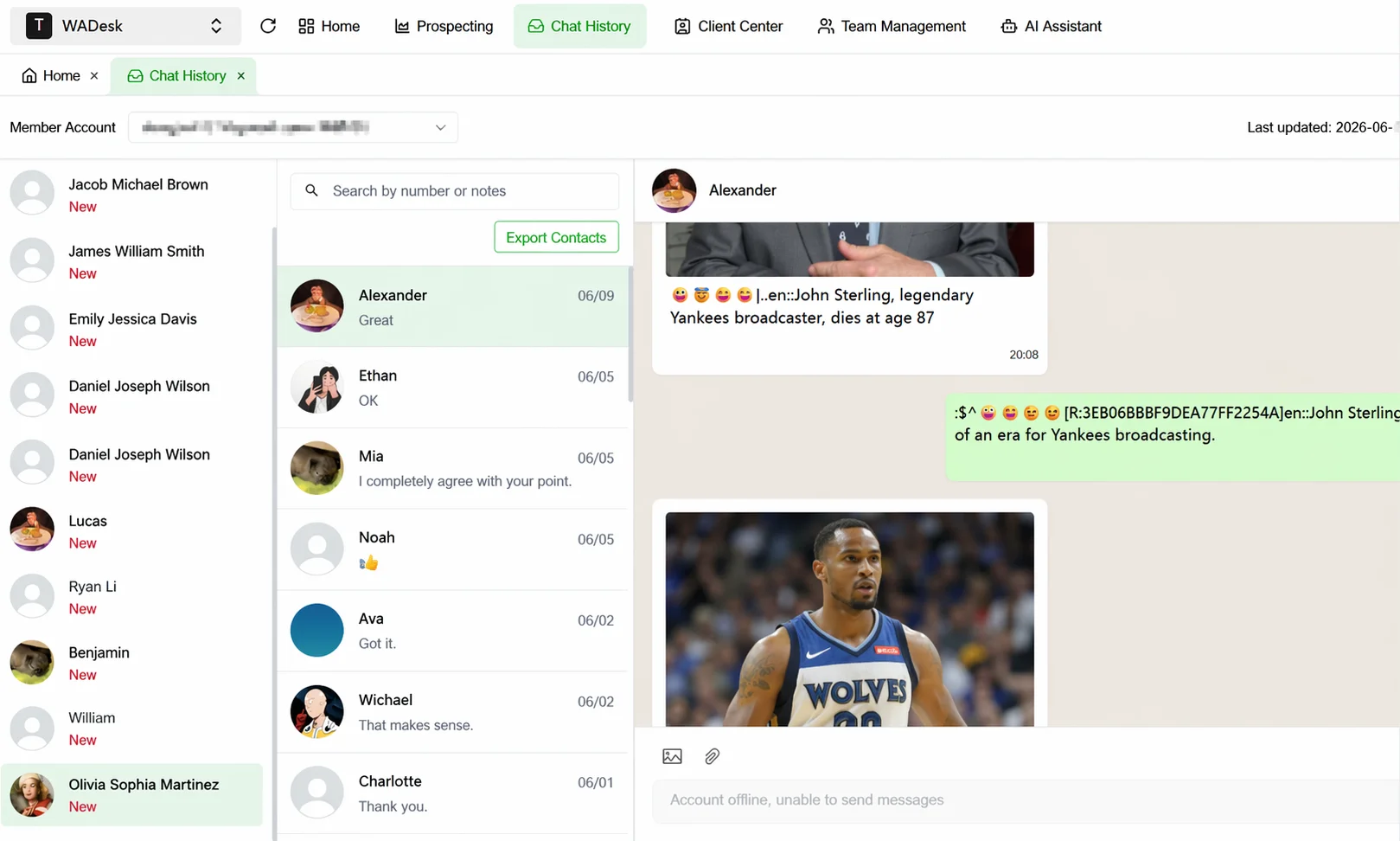
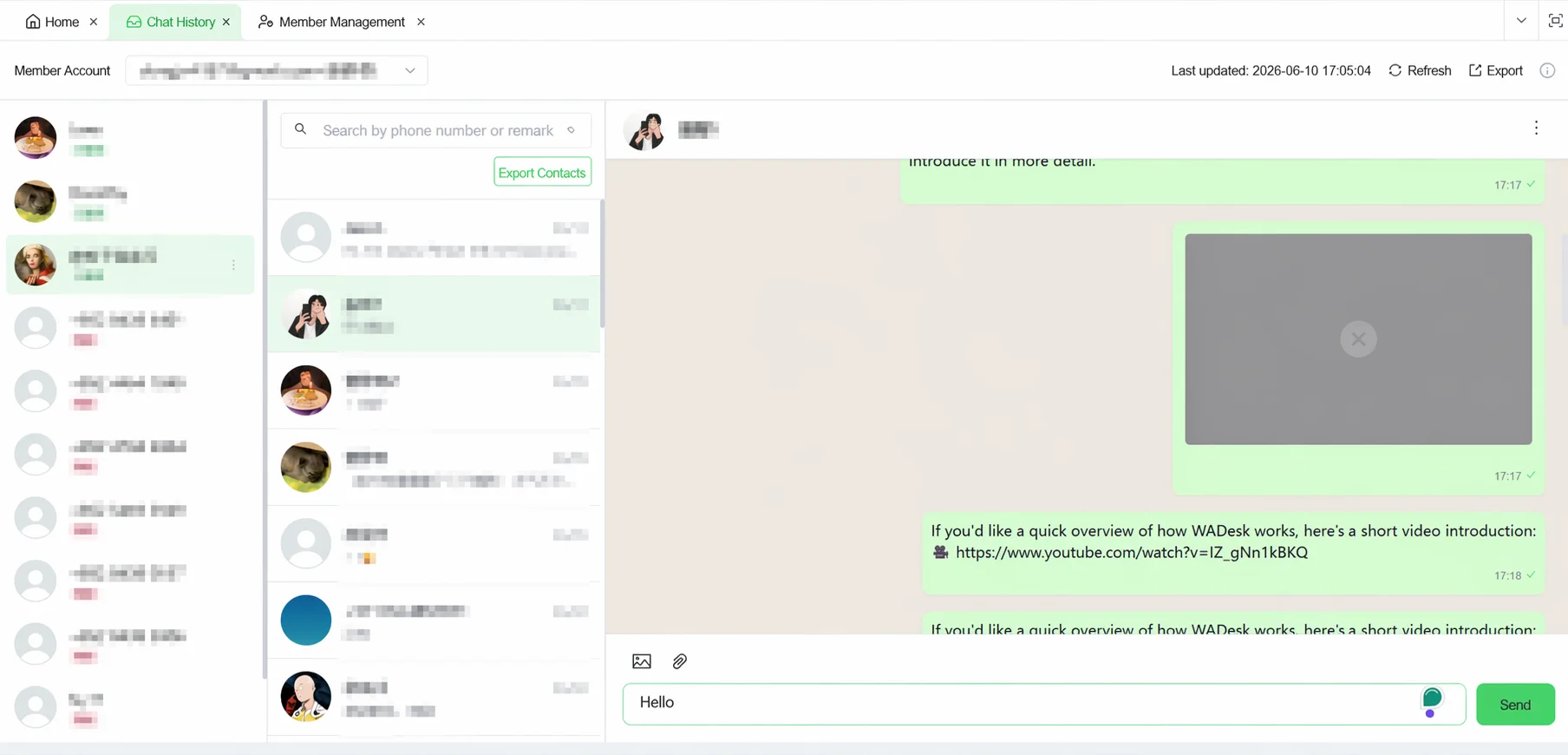
In the top navigation bar of Home, click Chat Records to enter the chat records management workspace. The page is divided into three columns: the left column is the WhatsApp account list, the middle column is the customer conversation list, and the right column is the chat details.
Step 2: Select the Team Member to View
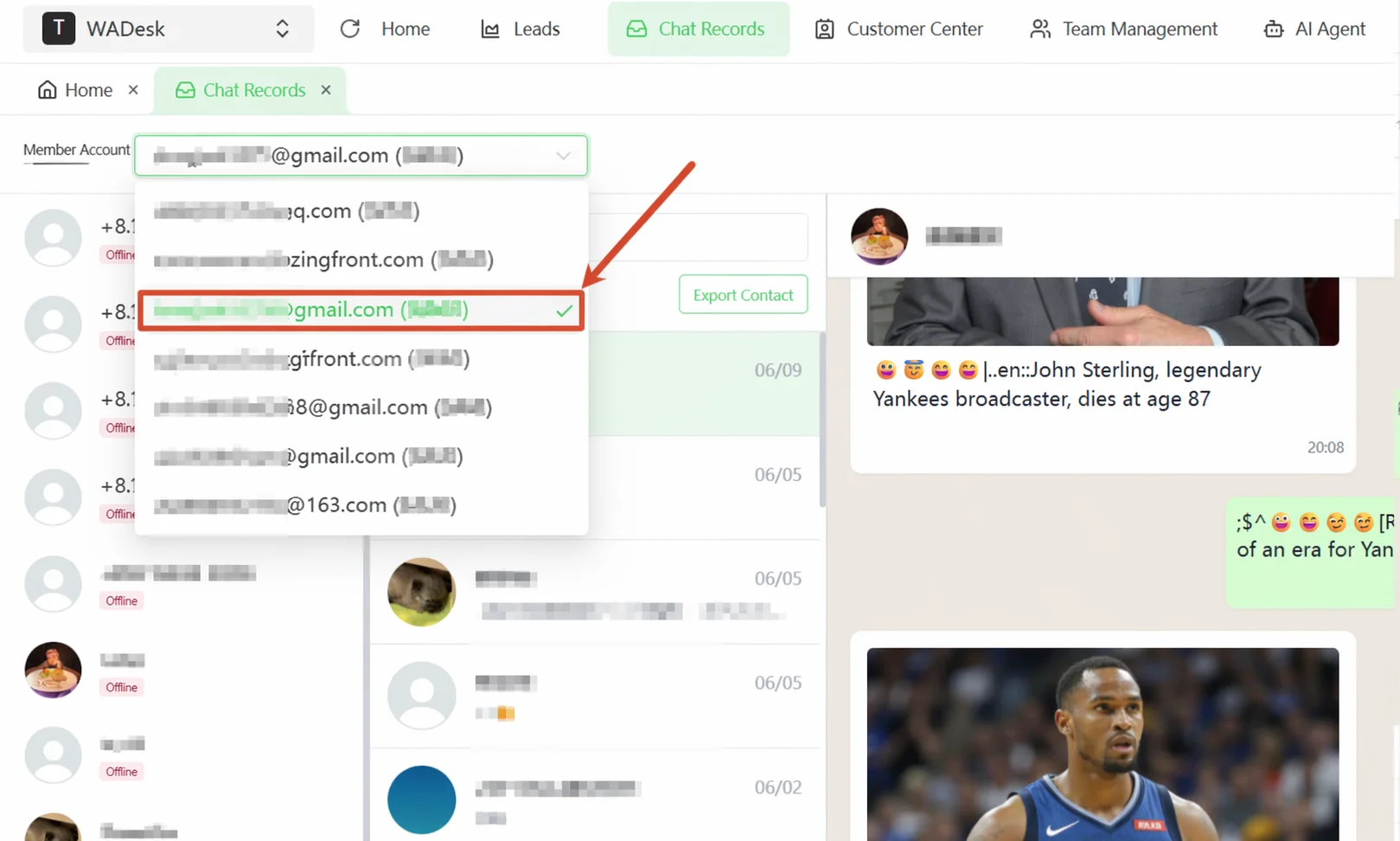
Click the member switcher dropdown at the top of the page and select the team member you want to view (displayed as email account and remark name). After switching, the left column refreshes to show all WhatsApp accounts bound under that member.
Step 3: Select a WhatsApp Account
In the left account list, click the WhatsApp account card you want to view (the card shows the account remark name and online status). After selecting, the middle column loads the customer conversation list under that account.
Step 4: Select a Customer Conversation
In the middle conversation list, use the search box to quickly locate by number or remark name, or scroll through directly. Click any conversation card, and the right column loads the complete chat records between that customer and the employee.
Step 5: Export Data (Optional)
The Chat Records page provides three export entries. Choose the corresponding method as needed:
| Export Method | Entry Point | Export Scope | Max Time Range |
|---|---|---|---|
| Export Contacts | Export Contacts button to the right of the middle-panel search box | The contact address book of all customers under this WA account | Unlimited |
| Export Single Customer Chat | Right-panel chat details, upper-right ... → Export Chat Records | All chat content between this WA account and one customer | Up to 90 days |
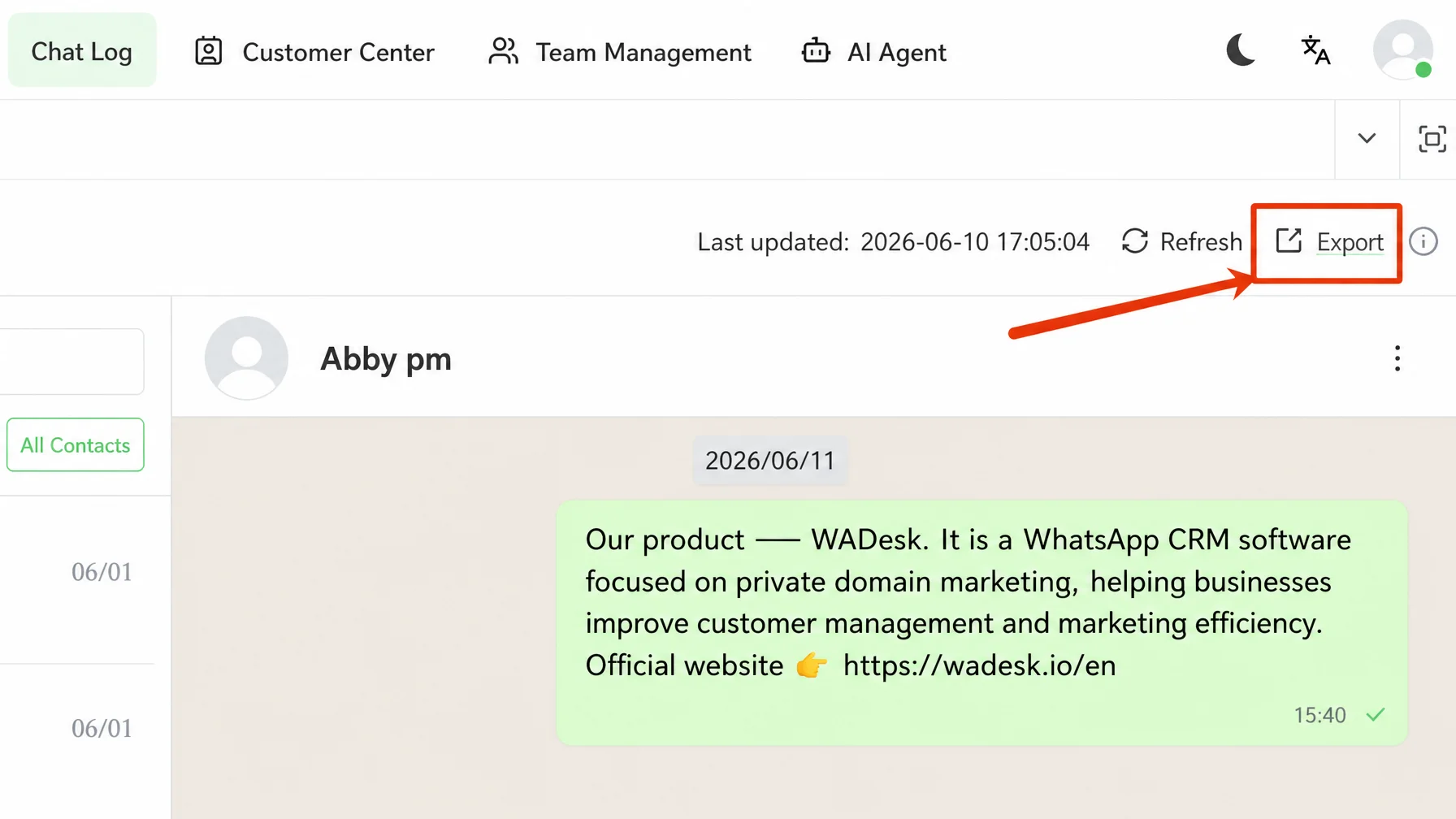
| Export Entire Account Chat | Export button in the upper-right of the page | Chat records of all customers under this WA account | Up to 90 days |
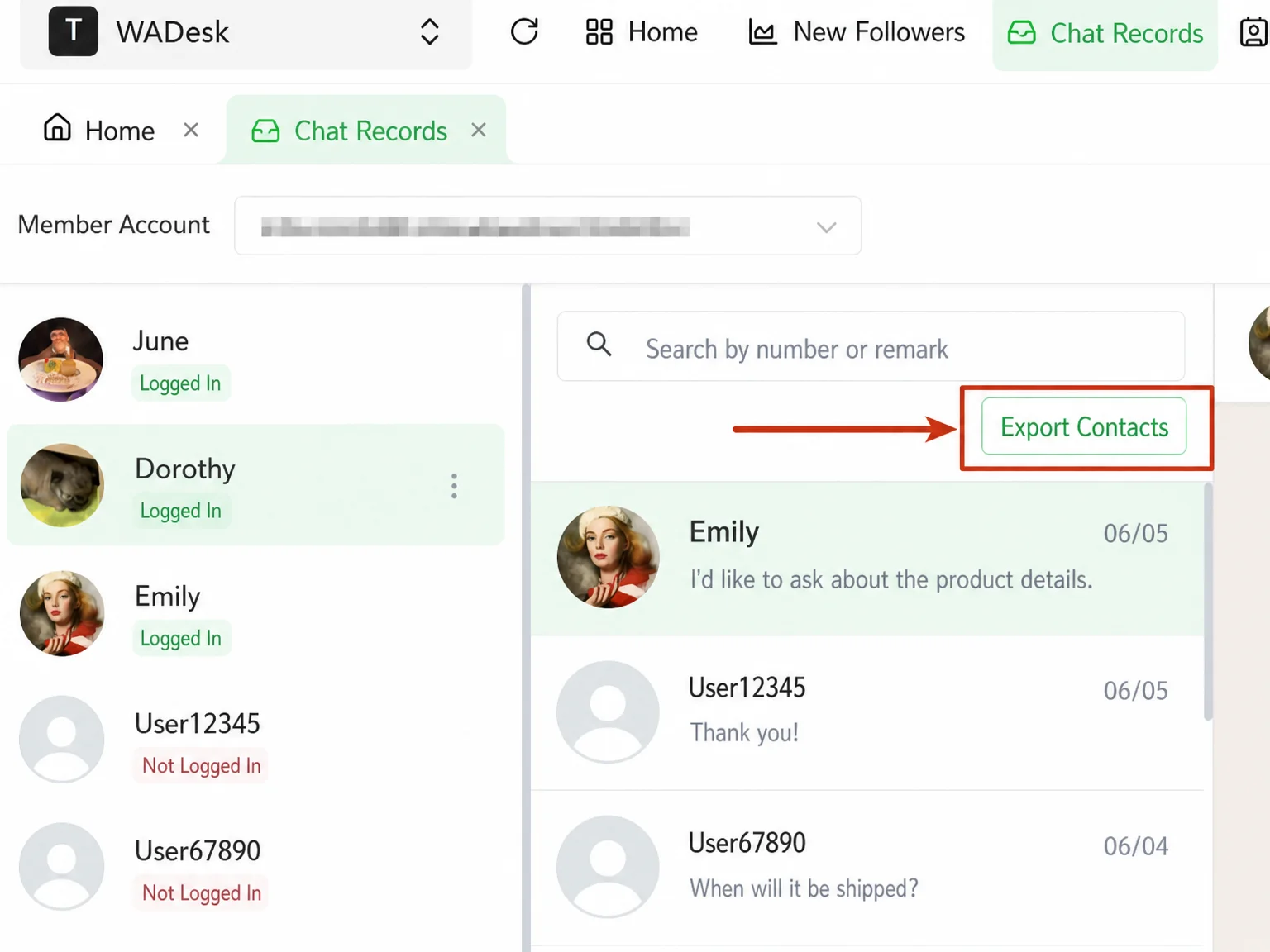
Export Contacts: Click the Export Contacts button to the right of the middle-panel search box to directly download the customer address book file for this WhatsApp account, with no parameters to configure.
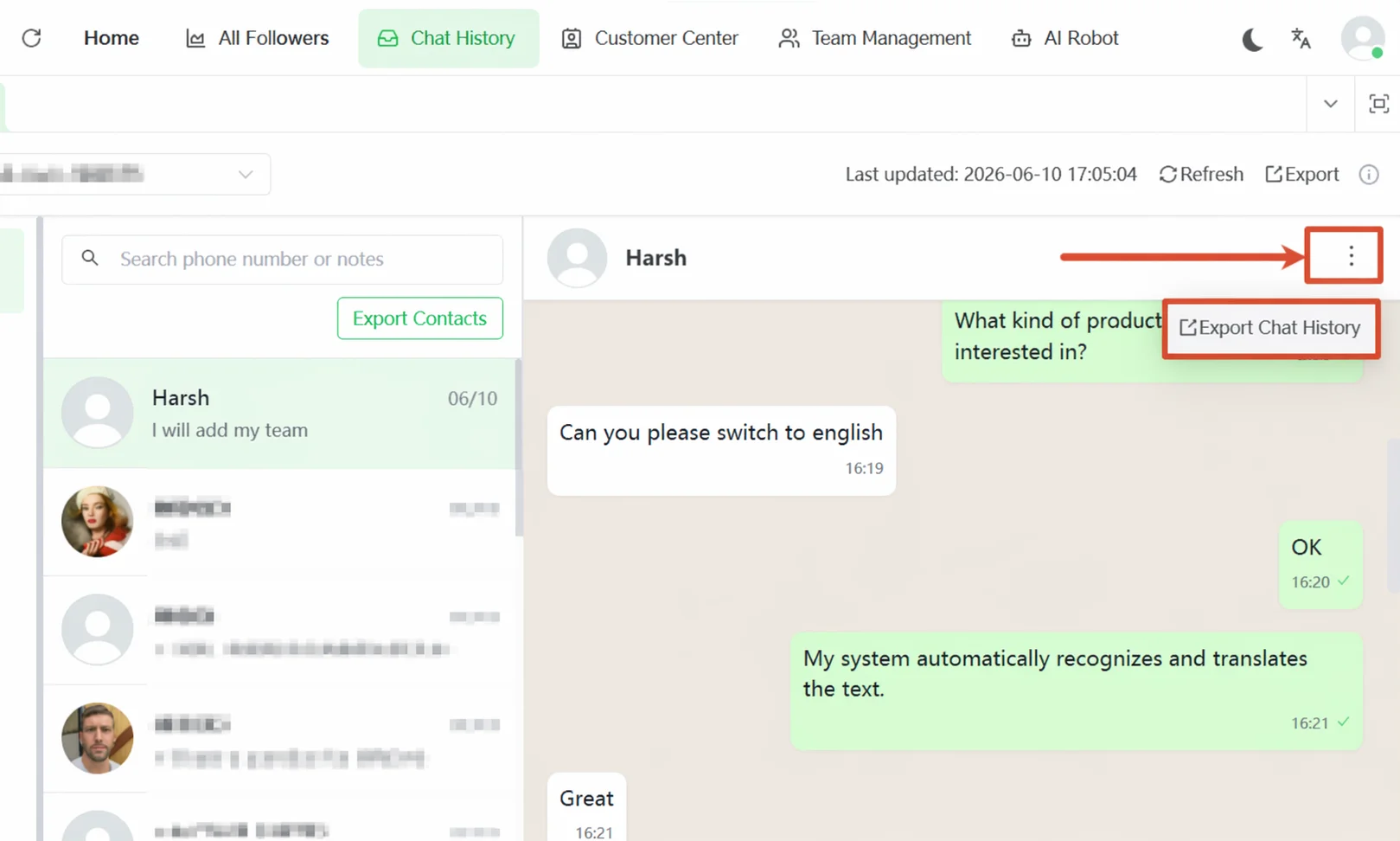
Export Single Customer Chat: Hover over the upper-right corner of the target conversation card in the middle column, click the ... icon, select Export Chat Records to bring up the export configuration dialog.
Export Entire Account Chat: Click the Export button in the upper-right of the page to bring up the export configuration dialog.
Export configuration dialog notes (applies to the latter two export methods):
In the dialog, configure the following options as needed, then click Confirm Export to download the file:
- File Type: Select Excel or TXT format.
- Export Content: Check the content types to include—"Text" (chat message body), "Image Links" (images in messages exported as links), "Contact Cards" (contact cards shared in messages).
- Sender: Select which side's messages to export—"Both" (employee and customer, all messages), "Counterpart" (only customer-sent messages), "Self" (only employee-sent messages).
- Time Range: Click a quick button (Last 1 / 3 / 7 / 30 / 90 days) or use the date picker below to customize the start and end dates.
Important Notes
⚠ The employee account must have Message Sync enabled for the manager to see chat records in Home. If you cannot see a certain employee's records, first check whether that member's Message Sync switch is on (Team Members → Edit Member → Message Sync).
⚠ Chat records are synced in real time, but the Desktop Client must remain running. If the client is closed for a long time, chat records during that period will not sync to Home, and there may be a data gap.
⚠ The time range for exporting chat records (single customer or entire account) is capped at 90 days.
⚠ Managers can send messages on behalf of an employee directly from the right-panel message input area, but two prerequisites must be met: the selected WhatsApp account on the left is in a logged-in state, and the current account has the corresponding data permission. The input box is disabled when the account is offline.
FAQ
Q: Why can't I see a certain employee's chat records? A: The most common reason is that the employee account has not enabled Message Sync. Go to Team Manage → Team Members, find the member, click Edit, and confirm whether the Message Sync switch is on. Also, if your data permission is limited to "Own Account Data Only", you cannot view other members' records—contact the super admin to adjust permissions.
Q: After an employee leaves, can their chat records still be viewed? A: Yes. WADesk's chat data is backed up to the cloud in real time. After an employee leaves or their account is disabled, the manager can still view all their historical records by employee dimension in the Chat Records page—customer assets do not disappear with the person.
Q: Can managers send messages directly to customers? What are the use cases? A: Yes. A typical scenario is when a sales rep is temporarily on leave and the manager needs to urgently take over their customer conversations—they can switch to that sales rep's account in Home and send messages on their behalf from the right-panel input box, without having the sales rep log in remotely. Note that this is a high-privilege feature; assign it cautiously when configuring roles to avoid abuse.
Q: After an account is banned, are the chat records still there? A: A banned account does not cause data loss. Chat records already uploaded to the cloud can still be accessed by the manager in the Chat Records module, completely unaffected by the account ban.