
How to Back Up WhatsApp Chat Records in WADesk — Local and Cloud Backup Guide
Backing Up Chat Records
📹 Video Tutorial. Follow along with the video, or read the illustrated steps below directly.
Navigation Path: Desktop Client -> Bottom-Right System Settings -> Data Backup Center
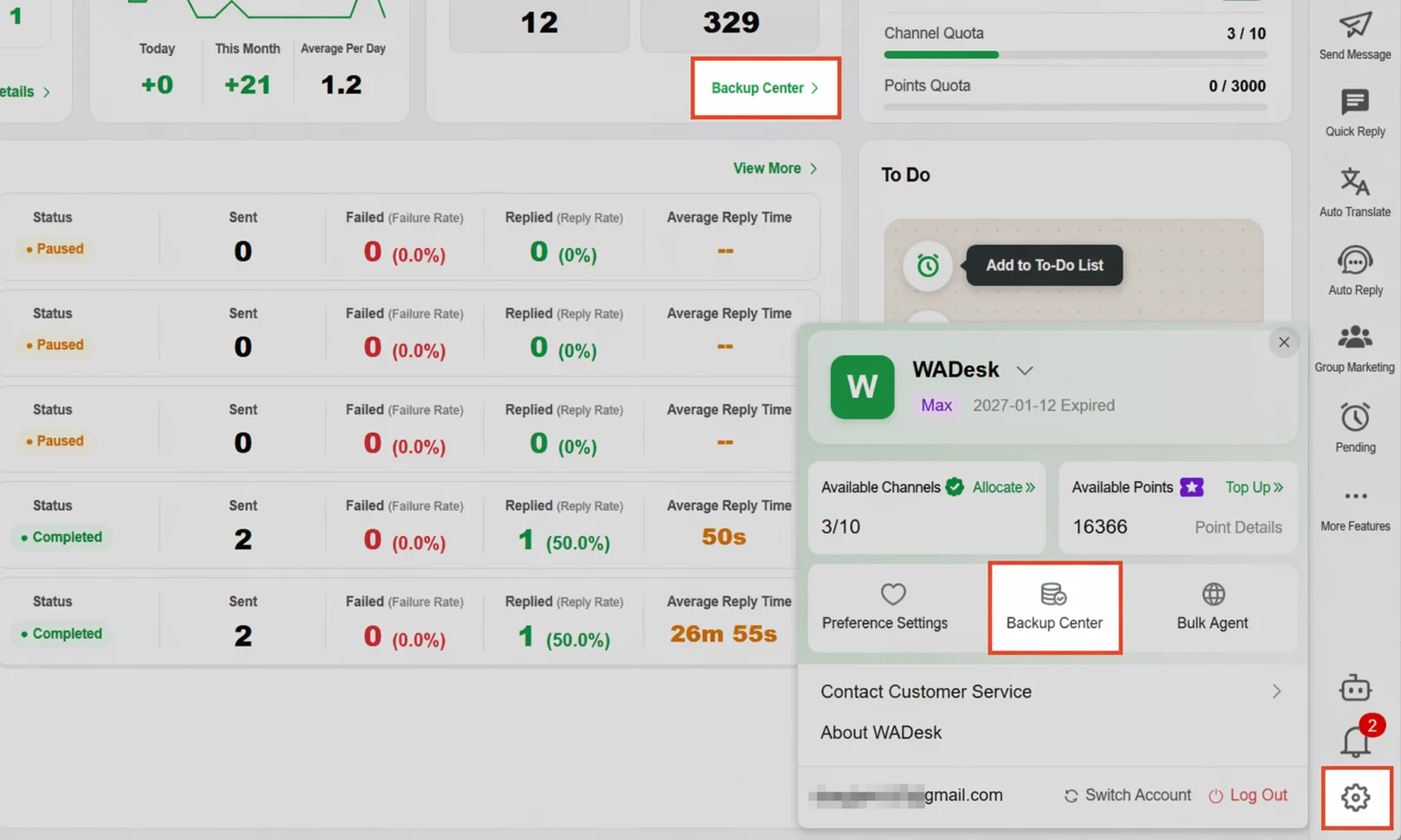 The Data Backup Center lets you view and manage the local and cloud backup status of WhatsApp chat messages, contacts, and group members. It also supports exporting backup data as files for archival.
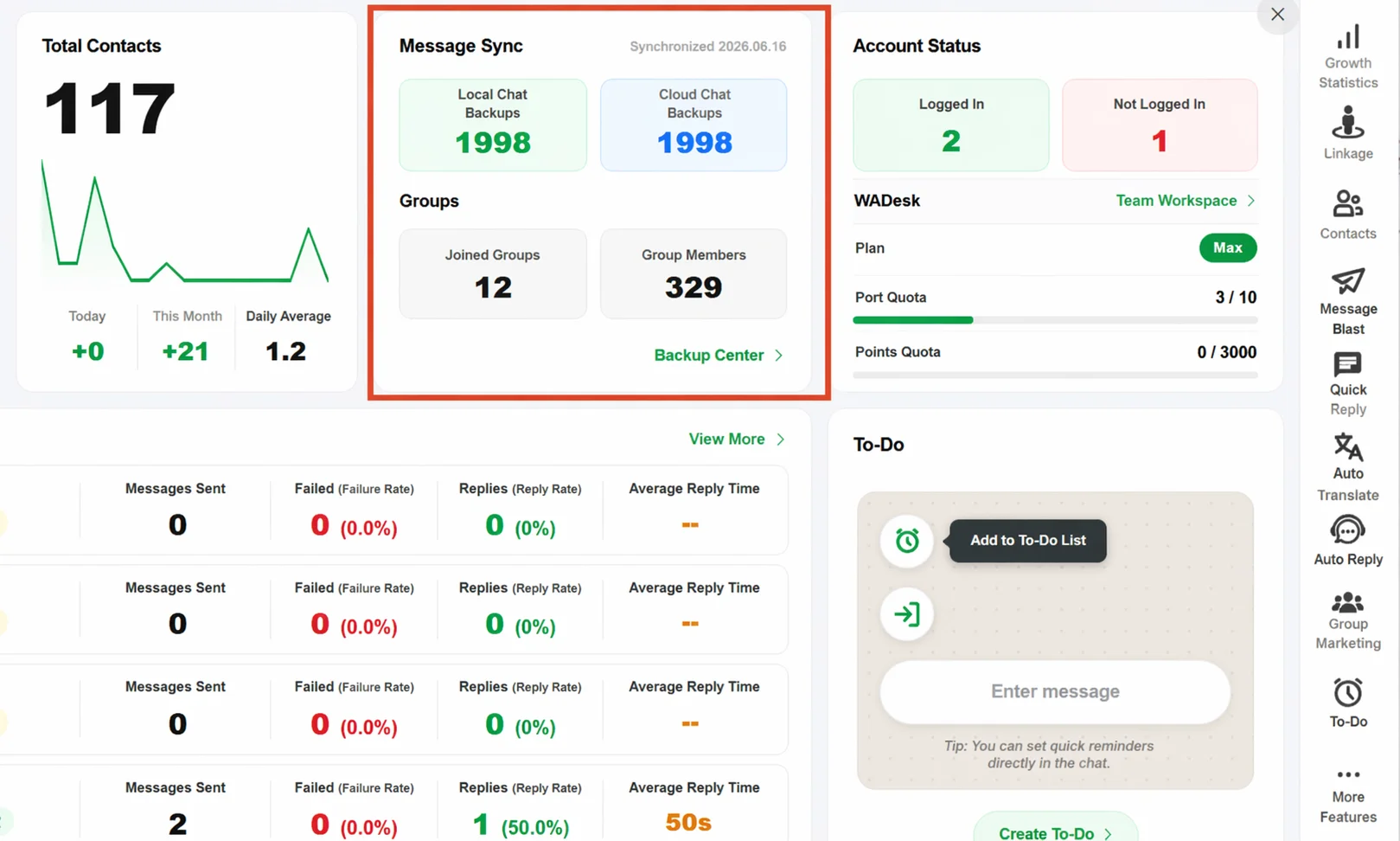
Steps
Step 1 -- Access the Data Backup Center: In the WADesk Desktop Client, click the System Settings gear icon at the bottom-right corner, then locate and click Data Backup Center. The Sync Status Dashboard at the top of the page displays two key metrics: local chat backup and cloud message backup.
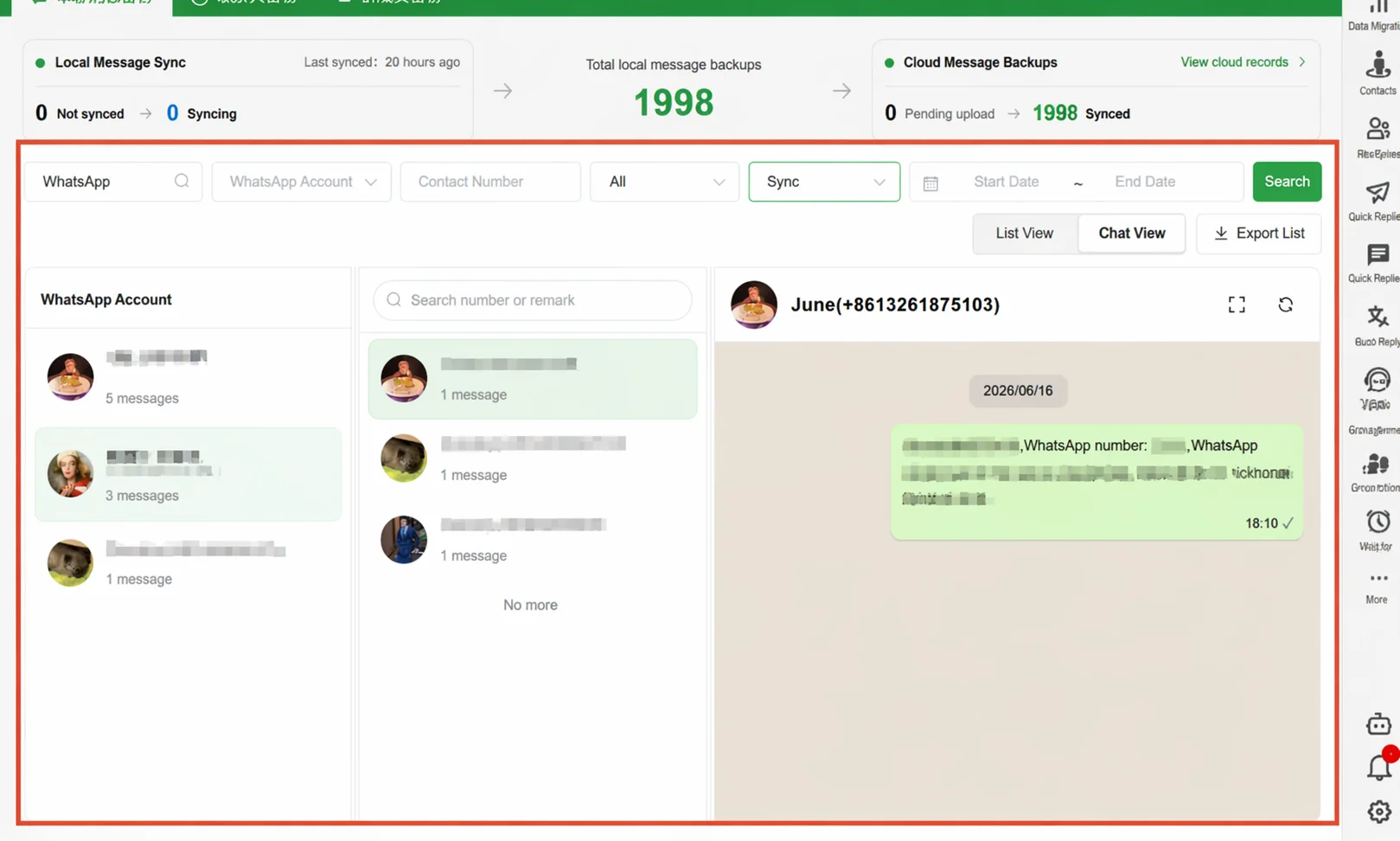
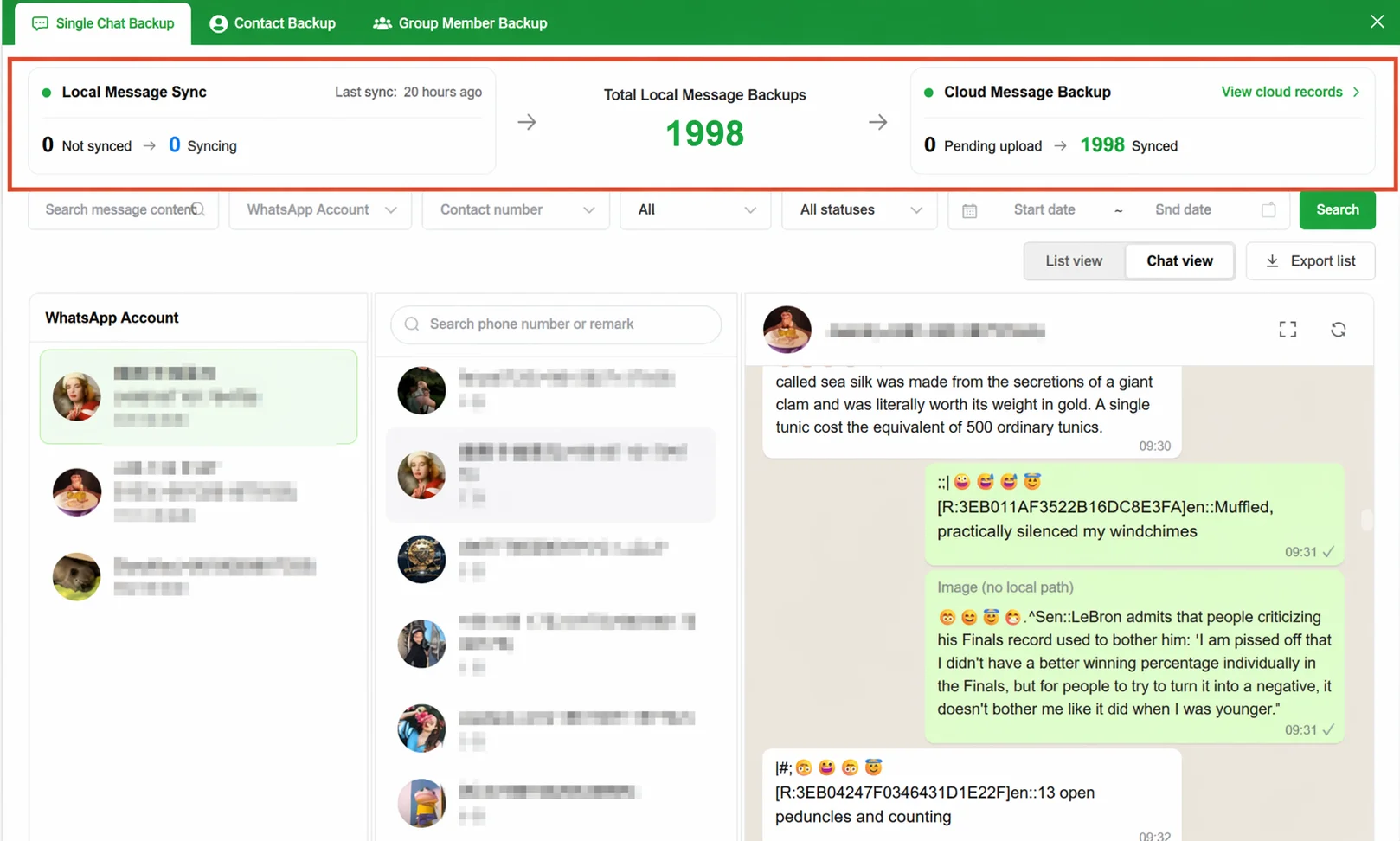 Step 2 -- Check sync status: The Backup Center panel has three tabs at the top: Individual Chat Message Backup, Contact Backup, and Group Member Backup. The Individual Chat Message Backup tab displays three horizontally arranged sections at the top: Local Message Sync (shows last sync time and status), Total Local Message Backup (displays the total number of synced messages in large green text), and Cloud Message Backup (reflects the progress of uploading local data to the cloud).
Step 3 -- Search and filter backup records: Combine filters by message content, WhatsApp account, contact number, all statuses, and start/end date. Click the Conversation View button to switch to a three-panel layout.
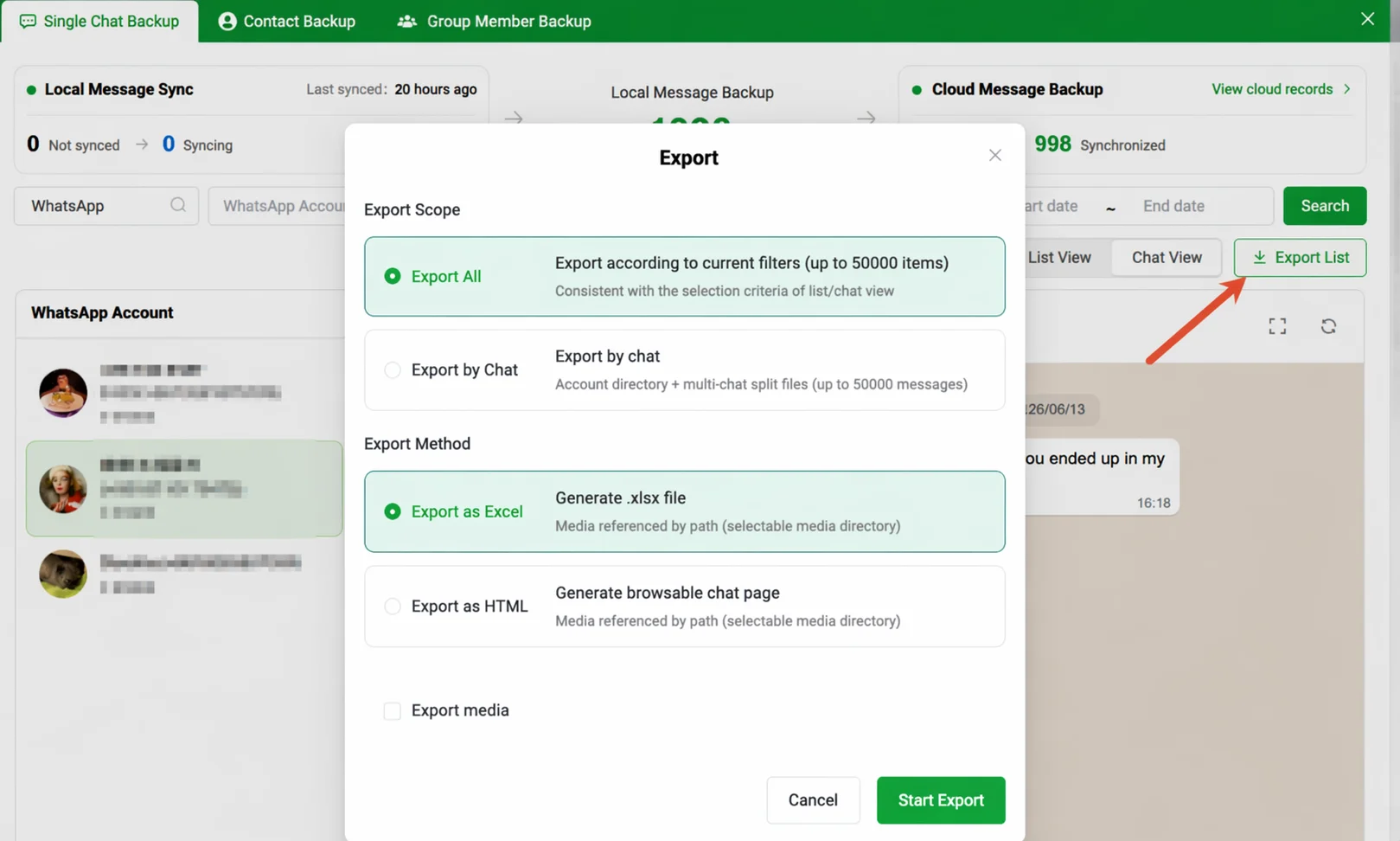
Step 4 -- Export backup data: Click the Export List button. Configure the export scope (Export All / Export by Conversation, up to 50,000 entries), export format (Excel / HTML), and whether to export media. Click Start Export to proceed.
Important Notes
- The backup requires the WADesk Desktop Client to remain running for syncing to occur.
- Local backup and cloud backup are two independent datasets.
- The Backup Center cannot recover messages deleted within WhatsApp. Only records that were synced before deletion can be found in the Backup Center.
- Clicking View Cloud Records > navigates to the Chat Records page in Home.
FAQ
Q: There is a large gap between local and cloud backup counts. Is data lost? A: No data has been lost. It means a significant amount of data has been synced locally but not yet uploaded to the cloud. Keep the Desktop Client running and the network stable, and the gap will shrink automatically. Q: If an account is banned, is the data in the Backup Center still available? A: Yes. Chat records that have already been synced to the local Backup Center are not dependent on account status and are retained for 90 days. For records already uploaded to the cloud, admins can continue accessing them in Home. Q: What is the difference between Excel and HTML export formats? A: Excel is suitable for data analysis, filtering, and statistics. HTML is ideal for direct reading and archival. Q: What is the difference between Export by Conversation and Export All? A: Export All merges all messages under the current filter criteria into a single file. Export by Conversation packages them into separate directories by WhatsApp account.