
How to Send Bulk WhatsApp Messages with WADesk Message Broadcasting
Message Broadcasting
Navigation Path: Desktop Client → Right Sidebar → Message Broadcast
Message Broadcast sends WhatsApp messages to multiple customers in bulk. It is suitable for new product promotions, holiday greetings, follow-up reminders, promotional outreach, and similar scenarios.
The process has three stages: select contacts → compose message content → configure sending strategy.
📹 Video Tutorial. Follow along with the video, or read the illustrated steps below directly.
Steps
Step 1: Create a New Broadcast Task
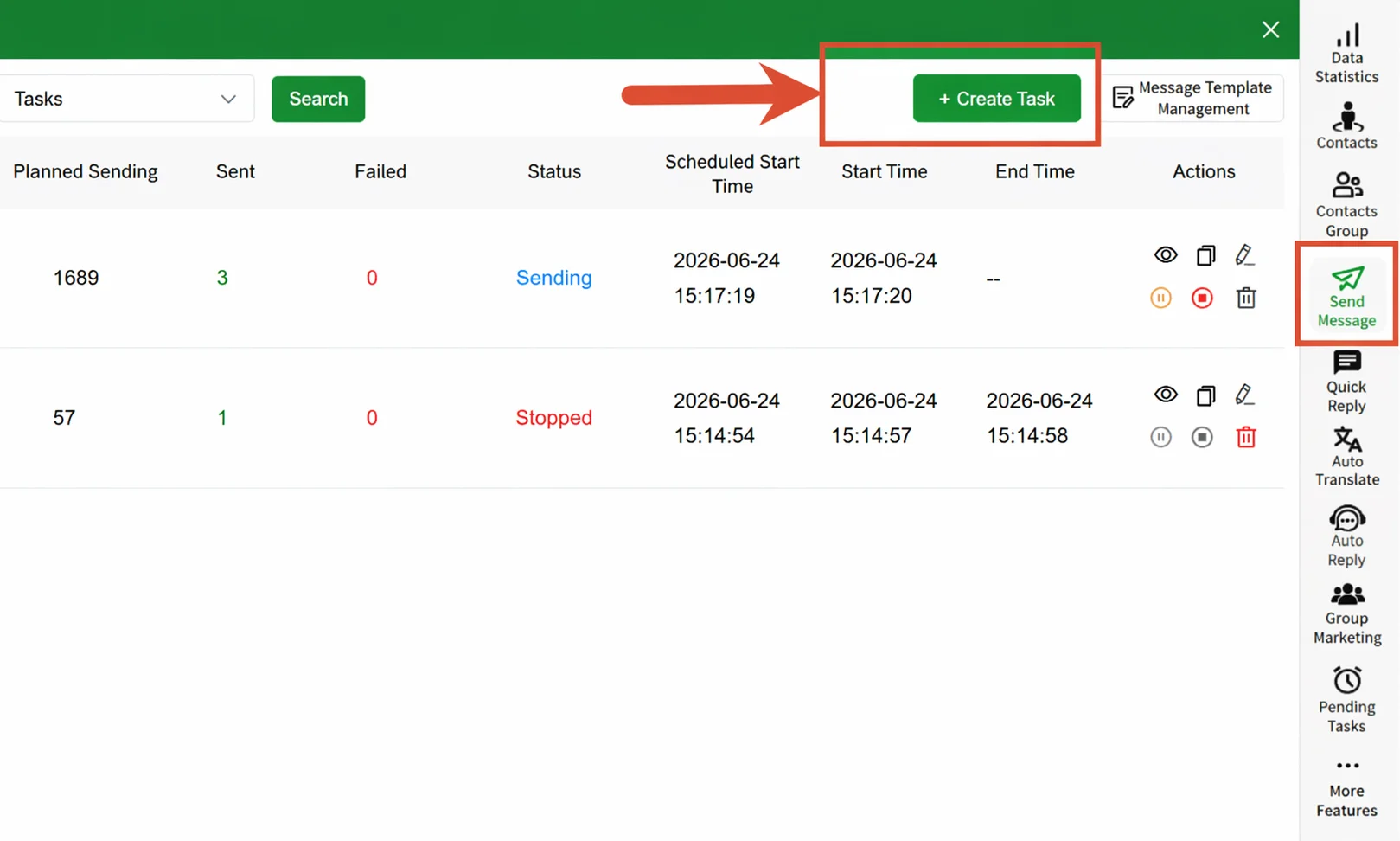
In the right sidebar, click the Message Broadcast icon to enter the broadcast task list page. Click the Create Task button in the top-right corner to open the creation dialog.
Step 2: Select Contacts and Upload a Recipient List
First, enter a task name in the Task Name input box at the top of the dialog.
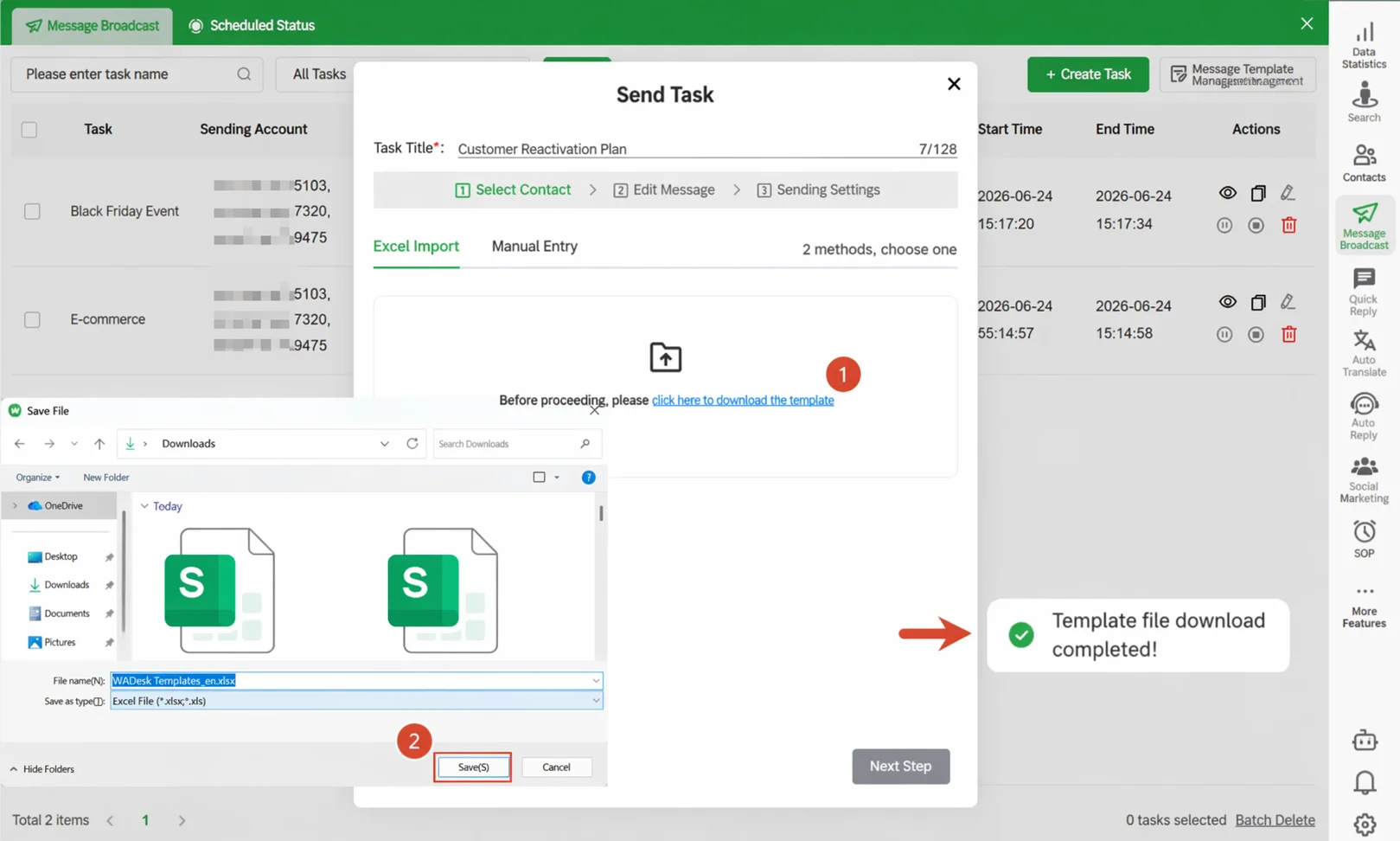
Choose a contact import method:
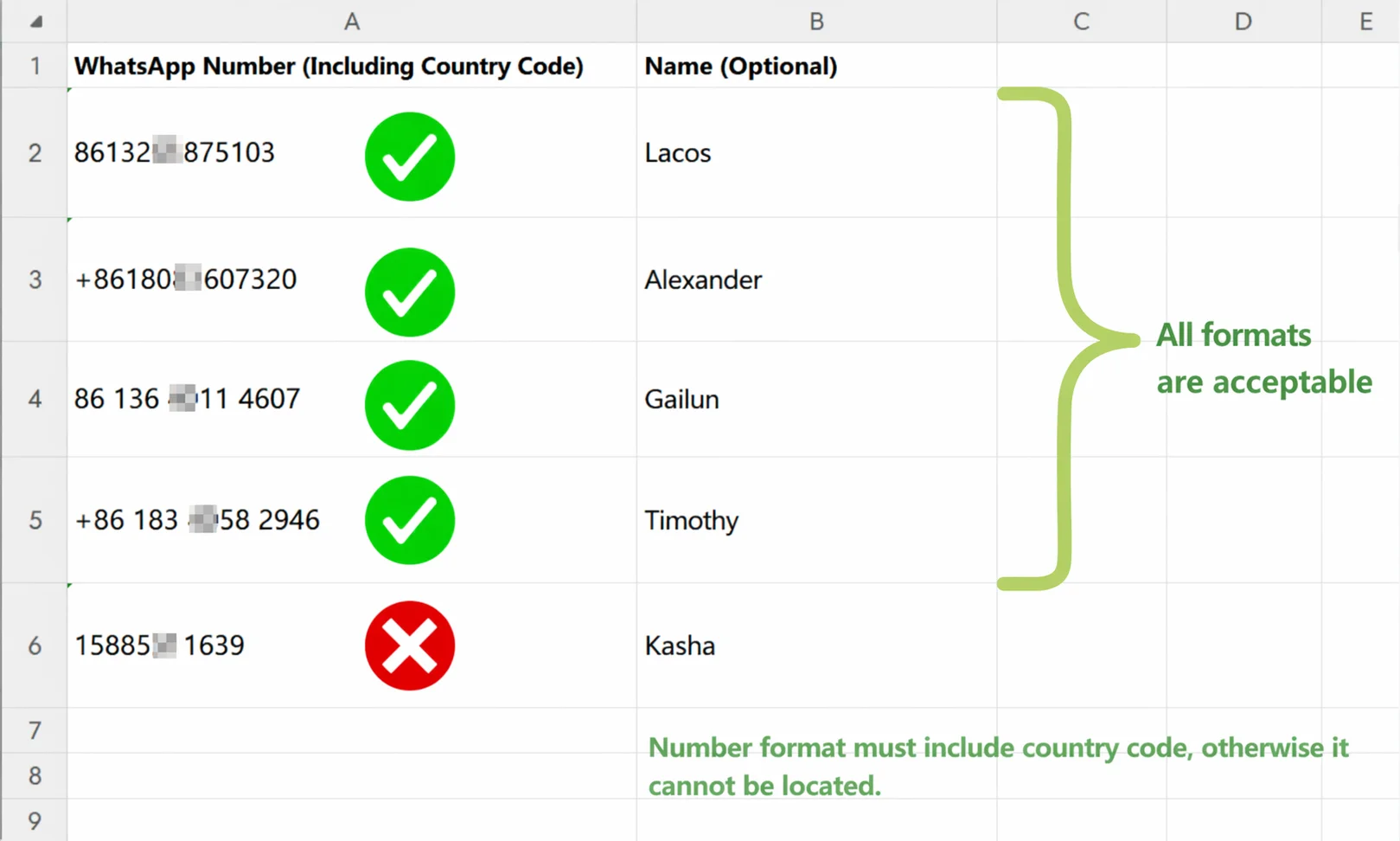
Excel Import (recommended for bulk use): Click Download Template Here to download the standard Excel template. Fill in the customer numbers in the correct format, then upload. After a successful upload, the system parses and displays the number of valid contacts.
The broadcast template number format is shown below; ensure numbers include the country code:
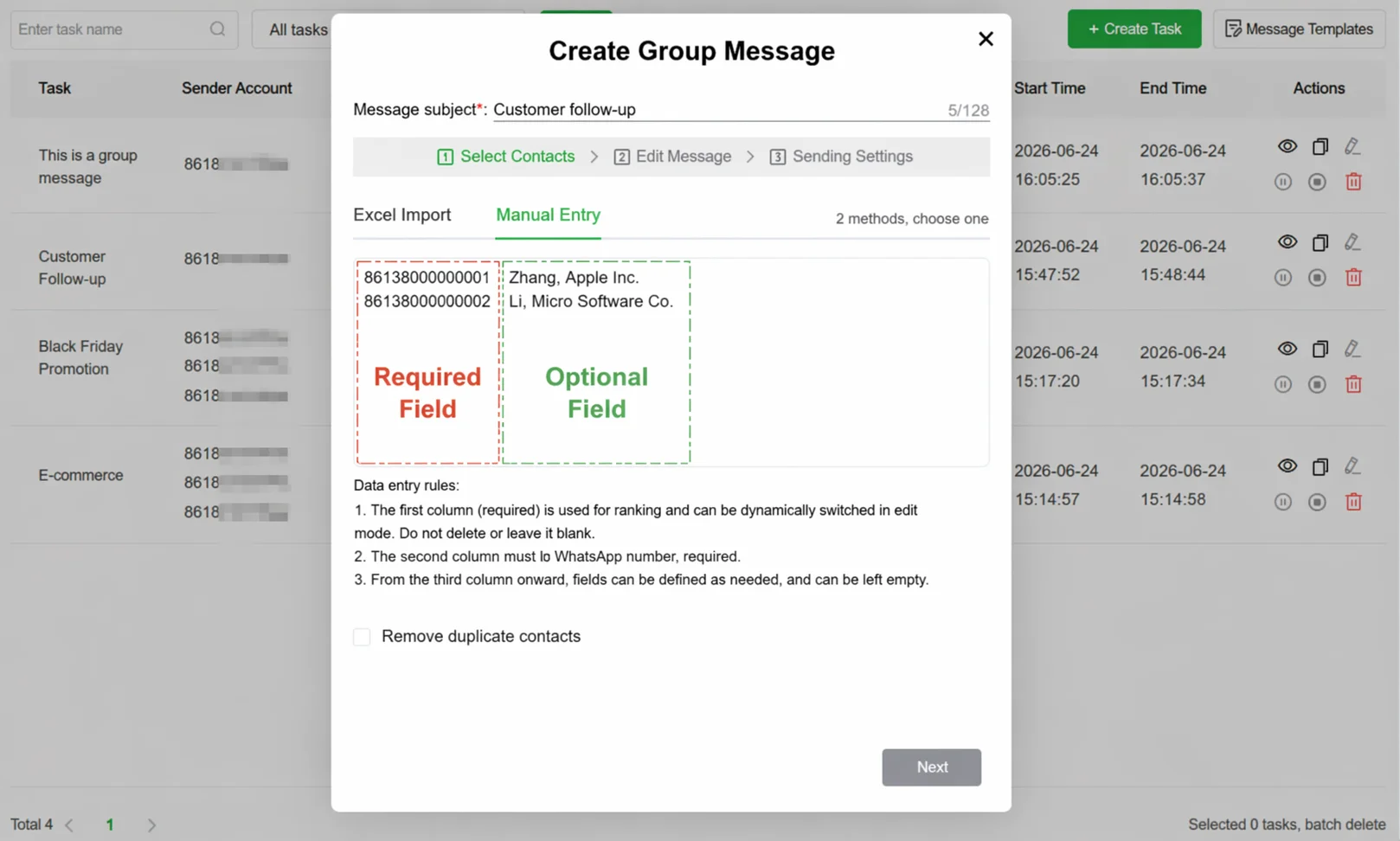
Manual Entry: Switch to the Manual Entry tab and enter numbers one by one. Suitable for small, ad-hoc sends.
Example input:
8613800000001 8613800000002 8613800000003
Check Remove Duplicate Contacts to have the system automatically filter duplicate numbers from the list and prevent the same customer from receiving multiple messages.
Click Next when ready.
Step 3: Compose Message Content
In the Edit Message step, click + Create Message to compose a new message, or click Select Template to pick from your existing message template library.
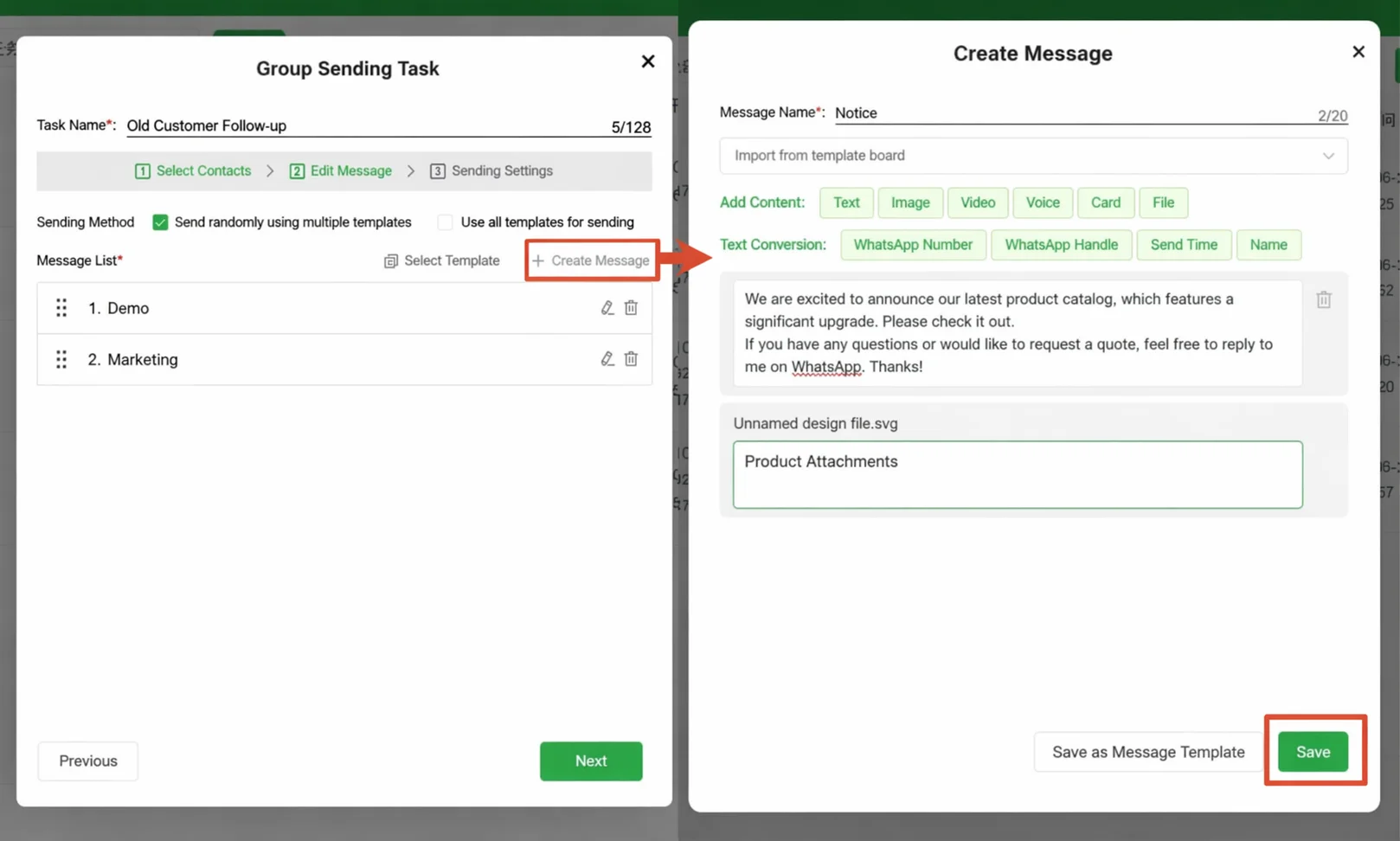
In the message editing dialog:
Add Content: Six content formats are supported: text, image, video, audio, business card, and document. Click the corresponding button to add a content block.
Insert Variables: Click variable tags above the text box to insert dynamic fields such as "Name", "WhatsApp Nickname", and "Send Time" into the message (e.g., Hello {{Name}}). The system automatically replaces these with the contact's actual noted name at send time, making bulk messages feel like one-on-one communication.
Multiple Alternate Messages: To have each customer receive a different message variant at random—also a way to reduce send risk—click + Create Message to add multiple alternatives, then select Multi-Template: Send One Randomly at the top. Each customer receives one randomly selected message. To send all messages in sequence, select Multi-Template: Send All Sequentially.
Click Save when editing is complete. If this message can be reused in future campaigns, click Save as Message Template to store it; next time, simply call it from Select Template.
Return to the wizard and click Next.
Step 4: Configure the Sending Strategy
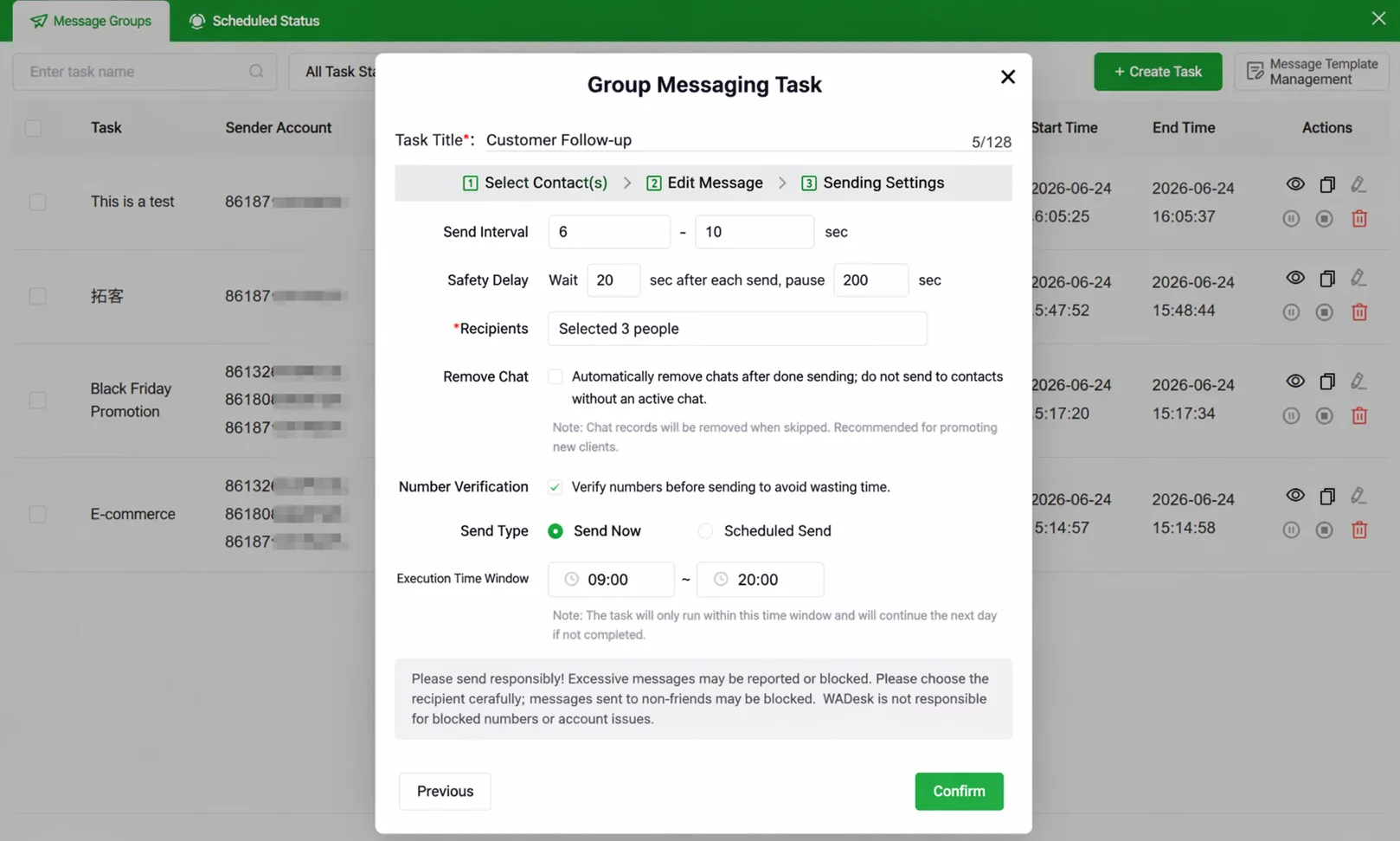
In the Send Settings, complete the following configuration:
Send Interval: Set a random wait time range between each message. Messages are sent at intervals within this range, reducing the risk of account suspension—fixed intervals are easily flagged as bot behavior by WhatsApp.
Safety Pause: Set an automatic pause after every N messages for M seconds (e.g., pause for 300 seconds after every 50 messages). This is a core anti-suspension mechanism; it is strongly recommended to enable it.
Sender Account: Click Select Account and check the WhatsApp accounts to use for this broadcast (multi-select; the system automatically distributes the send volume among them).
Number Verification: The system automatically verifies whether each number is a valid WhatsApp account before sending, filtering out invalid numbers to reduce failed sends.
Send Type: Select Send Immediately or Scheduled Send. When scheduling, set the allowed sending time window per day (e.g., 09:00–18:00). The system only sends within this window.
Delete Chat: When checked, completed chat windows disappear from the Desktop Client list after sending. If the customer replies later, the chat window reappears. Use this option to filter out inactive conversations.
Click Confirm after configuration. The task enters the queue.
Step 5: Review Sending Results
After submitting the task, monitor its status in real time from the broadcast task list (Queued / Sending / Completed / Paused).
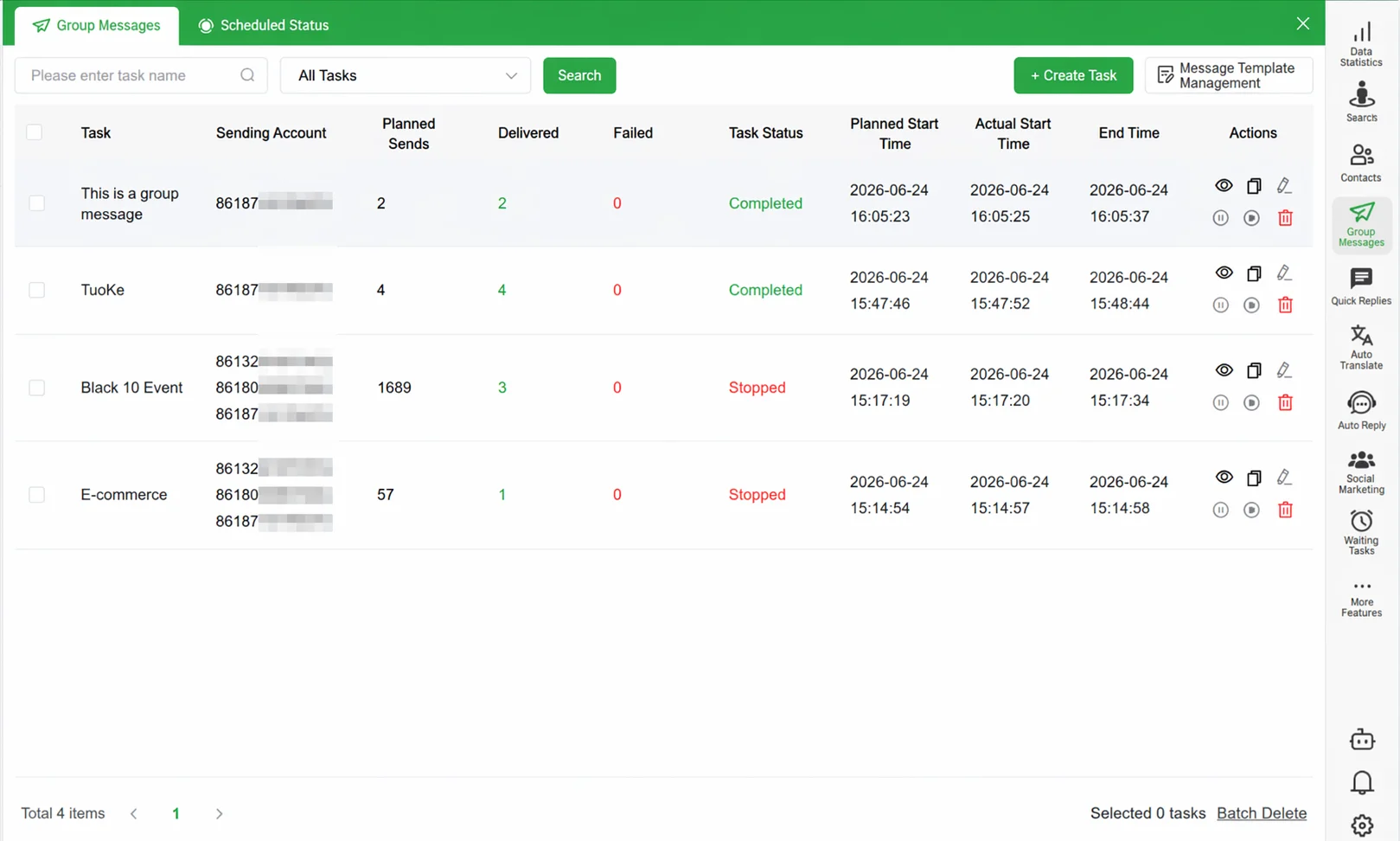
Click the View icon (eye icon) on the right side of the task row to enter the task details page.
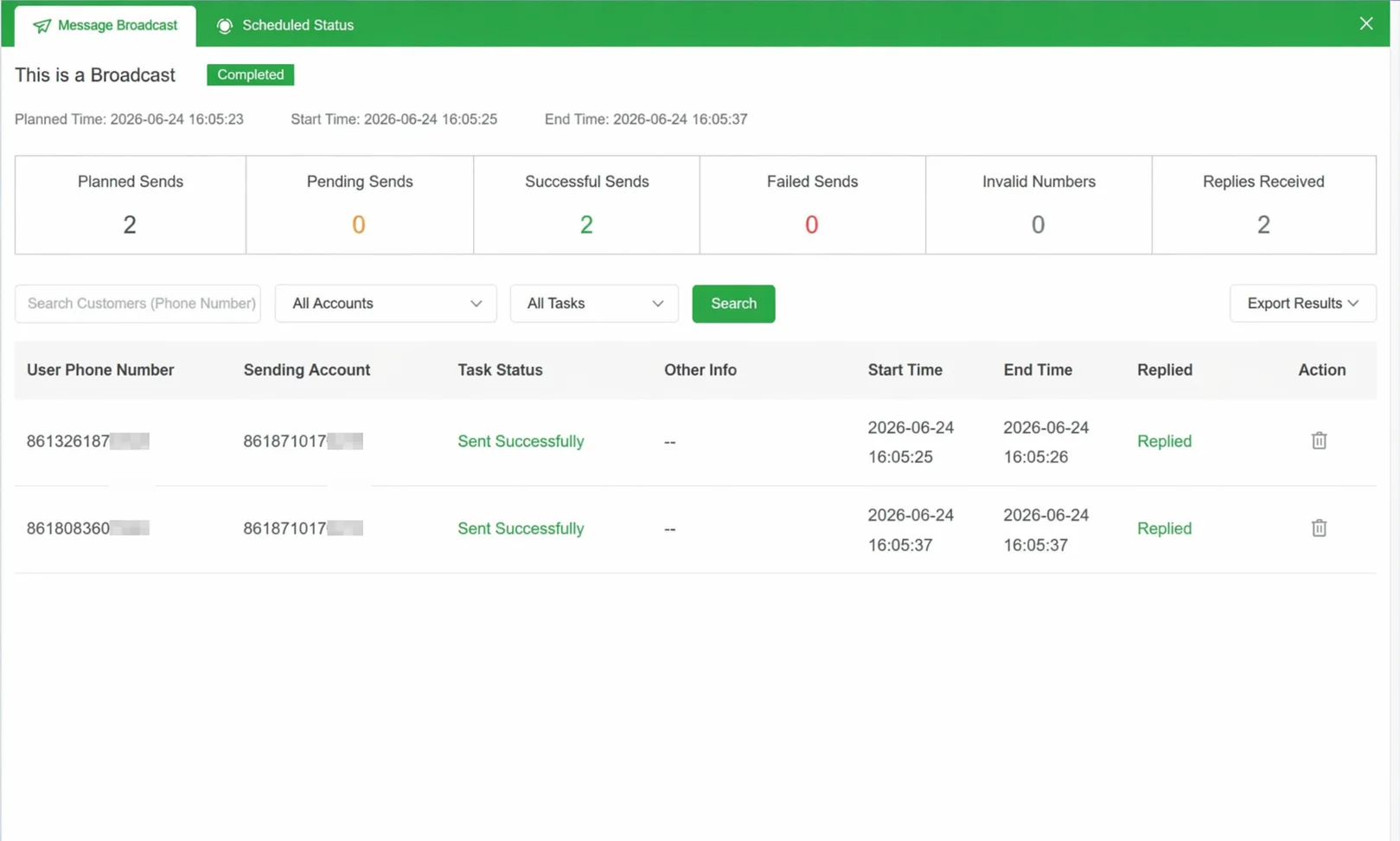
You can see:
- Key Metrics Dashboard: Planned sends, successful sends, failed sends, invalid numbers, replies received
- Detail List: The send status for each customer (Pending / Sent / Failed / Verification Failed), with status-based filtering
- Export Results: Click the Export button to export all or filtered results as an Excel file
Message Template Management
If you frequently reuse the same messaging scripts, save messages as templates to call them directly next time without re-editing.
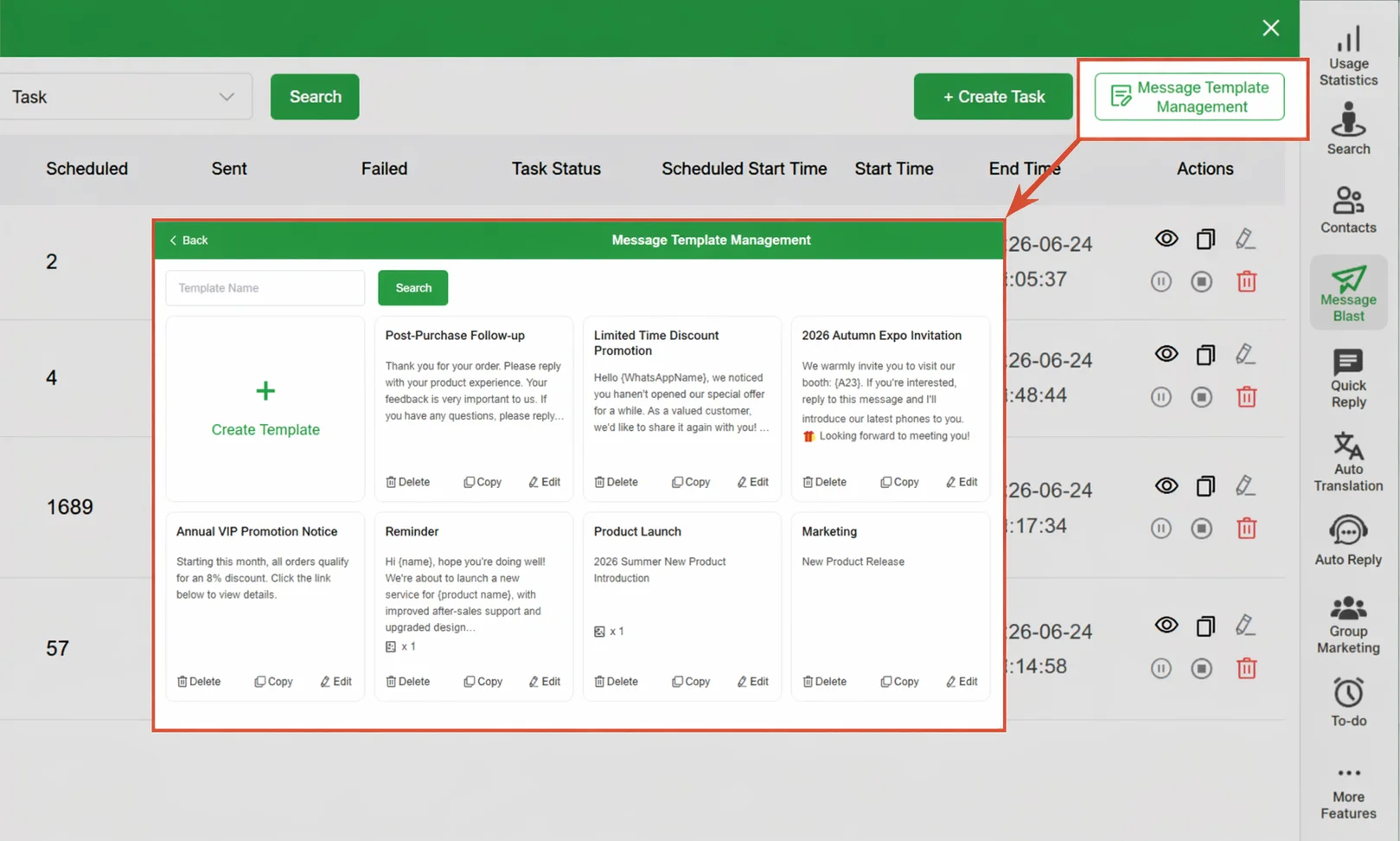
On the broadcast task list page, click the Message Template Management button to enter the template library. Click + Create Template to create a new template, or edit, copy, or delete existing templates.
In the message editing dialog, after composing content, click Save as Message Template at the bottom to store the current message directly in the public template library.
Important Notes
⚠ New accounts should not send hundreds of messages right away—this easily triggers WhatsApp Risk Control and leads to suspension.
⚠ Do not make every message identical. Use variables such as {{Name}} to introduce slight differences in each message and reduce the risk of being flagged as spam.
⚠ Delete Chat is unchecked by default. When checked, completed chat windows disappear from the Desktop Client list. Do not check this if you need to follow up on customer replies.
⚠ A task pausing mid-way is normal. The Safety Pause is a system-triggered protection mechanism. The task resumes automatically after the set pause duration.
FAQ
Q: What does "Delete Chat" mean? When should I not check it? A: When checked, completed broadcast chat windows disappear from the Desktop Client list (backend data is preserved). Do not check this if you need to follow up on these customers' replies. For one-time outreach (e.g., holiday greetings), check it to keep the list clean.
Q: How do I know which customers received the message and which didn't? A: In the task list, click the View icon (eye icon) to enter the task details page. The Detail Data List shows each customer's send status, with filtering and export by status.
Q: Can I use multiple accounts to send to the same list simultaneously? A: Yes. When selecting accounts in Select Account, check multiple accounts. The system automatically distributes the list across them for parallel sending, improving overall reach speed.
Q: After uploading an Excel file, valid contacts show 0 or far fewer than expected. Why? A: Usually a formatting issue. Download the standard template provided by the system, fill in the numbers including the country code (e.g., 8613800138000), and ensure the number column contains no special characters.
Q: The number of successful sends is much lower than planned, and the failure rate is high. What causes this? A: Two common reasons: (1) The list contains many invalid numbers (not registered on WhatsApp)—enable Number Verification before sending. (2) The sending account has triggered Risk Control—check the account status bar for any alerts.
Q: Can I reuse the same recipient list next time without re-uploading? A: Yes. Find the previous task in the task list, click the Copy icon, and the system clones the task's complete configuration (list, message content, and send settings). Modify the task name and submit.