
How to Export Business Data from WADesk — Chat Records, Contacts & Backup Messages
Exporting Data
WADesk supports exporting different types of business data across multiple modules, including chat records, contact lists, and backup messages.
Export Entry Points Overview by Module
| Data Type | Export Entry | File Format |
|---|---|---|
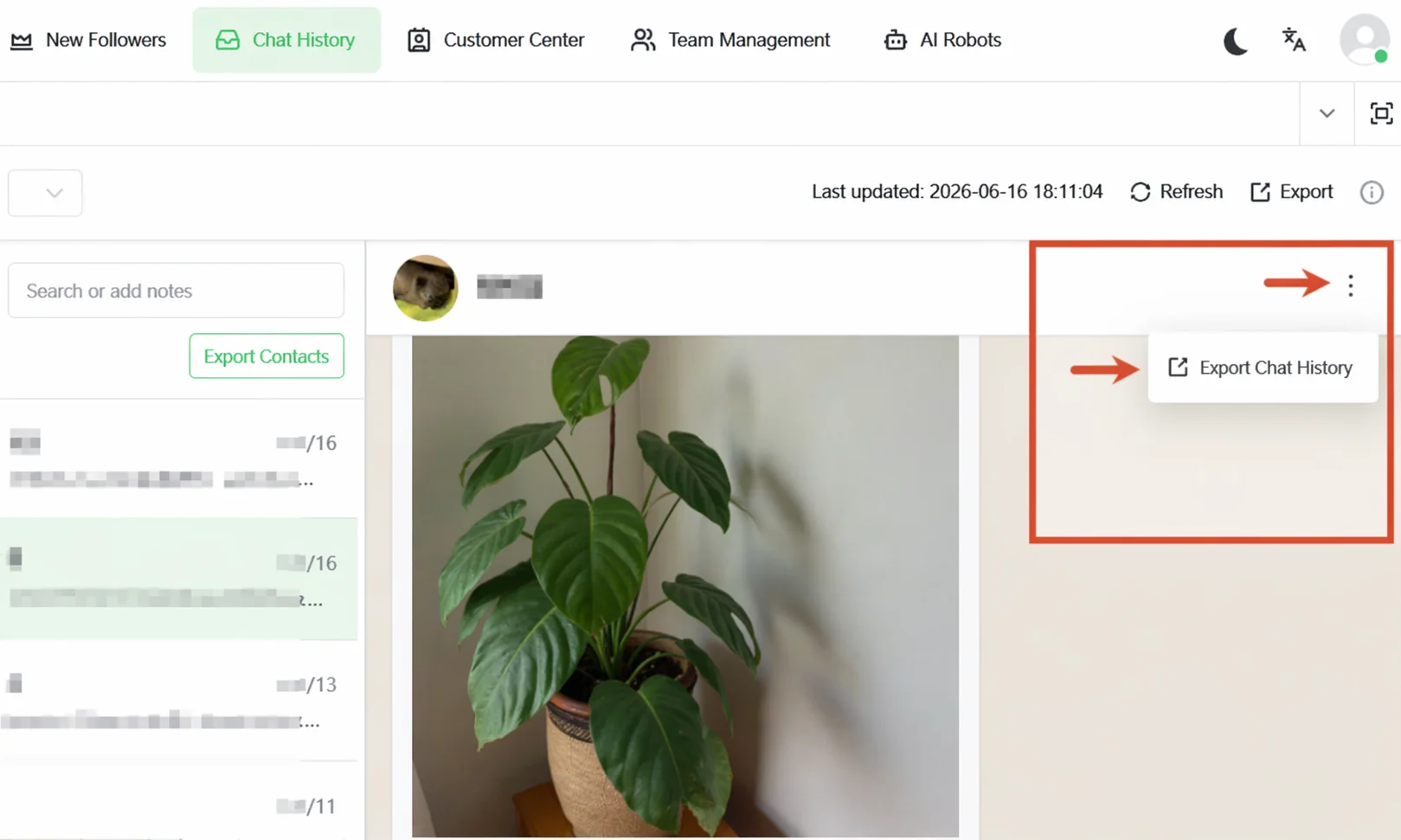
| Chat records (single customer) | Home -> Chat Records -> three-dot menu at top right -> Export Chat Records | Excel / TXT |
| Chat records (sub-account) | Home -> Chat Records -> Export button at top | Excel / TXT |
| Sub-account contacts | Home -> Chat Records -> Export Contacts button in the middle panel | Excel |
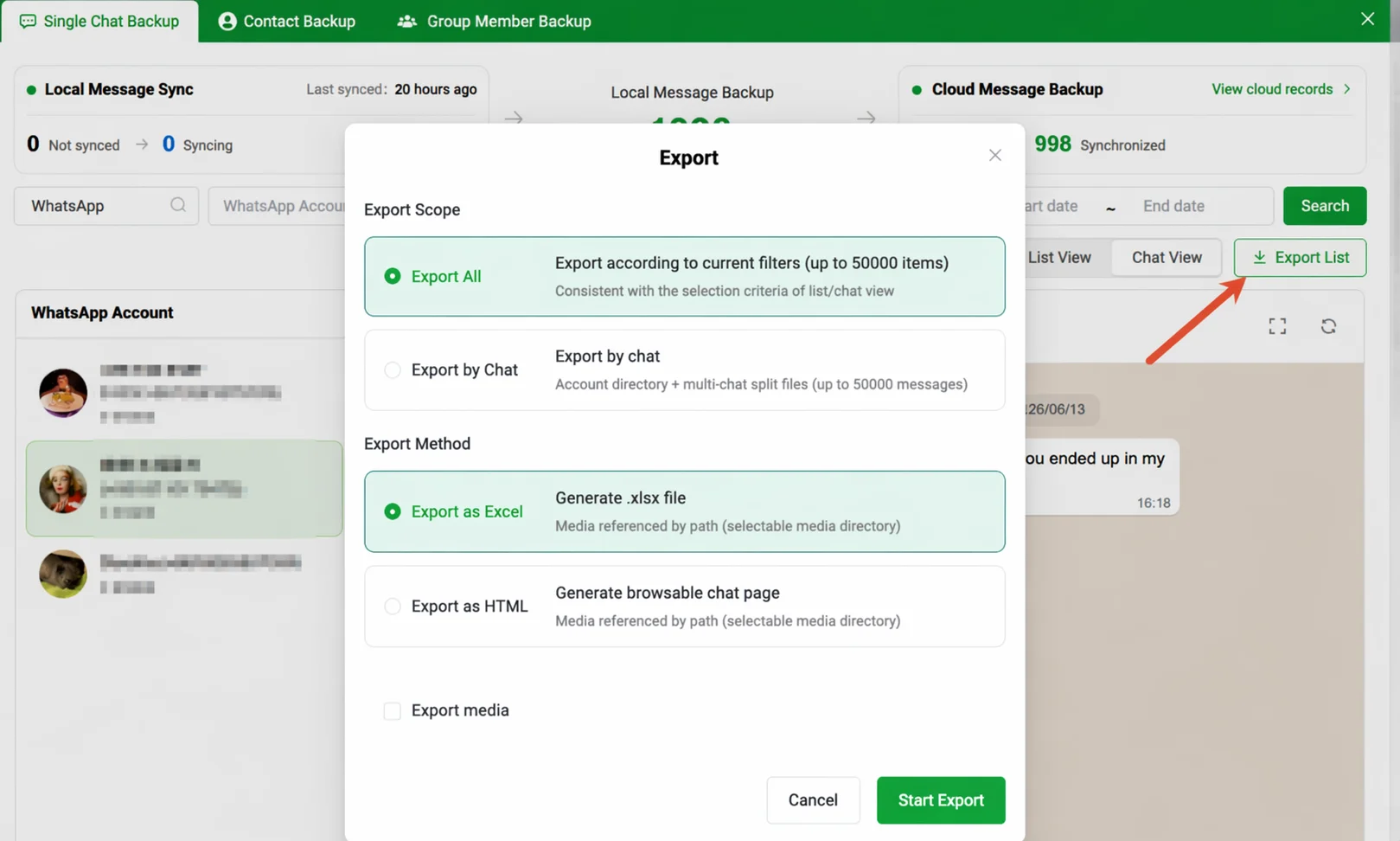
| Backup messages (local) | Desktop Client -> Data Backup Center -> Individual Chat Message Backup -> Export List | Excel / HTML |
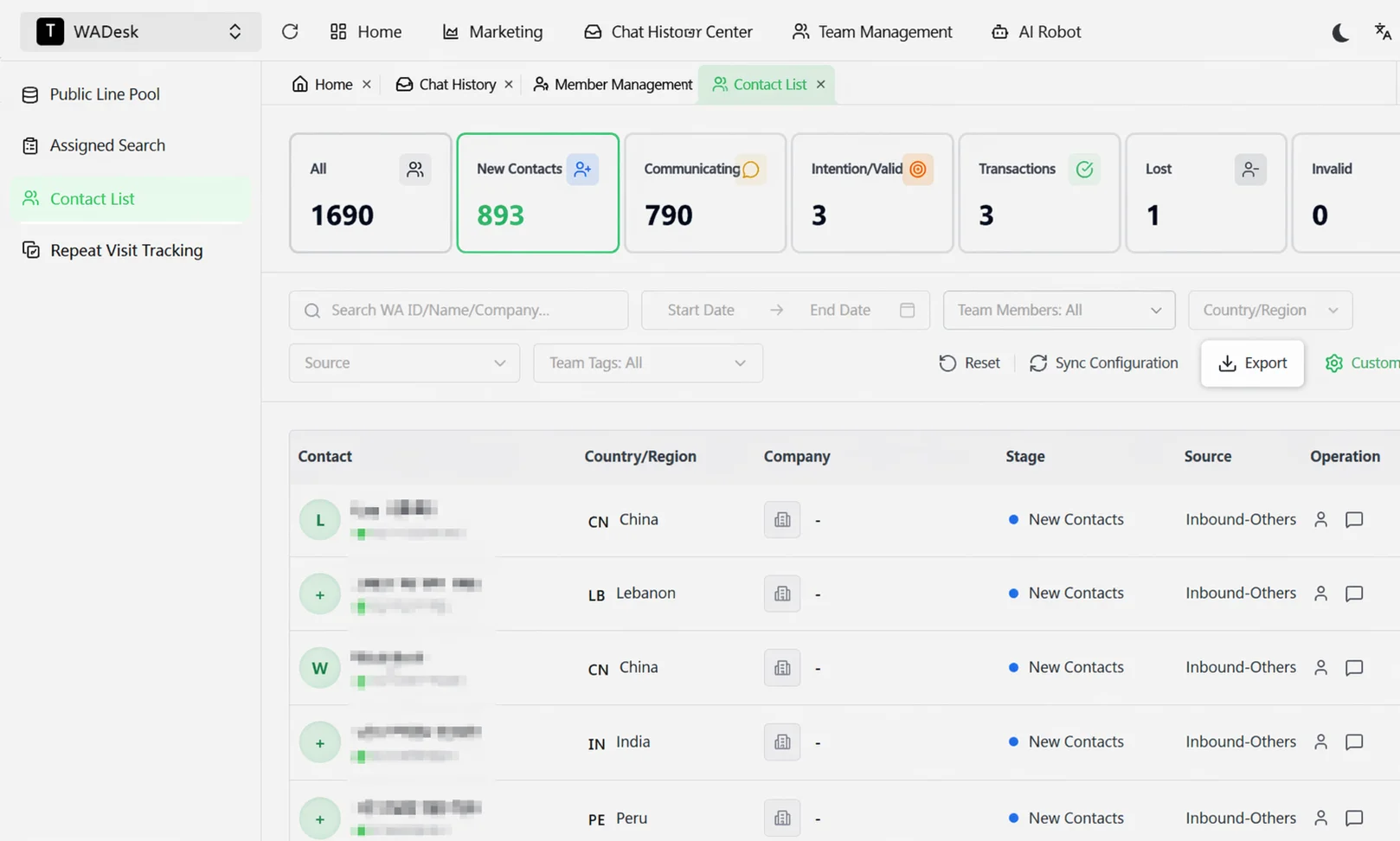
| Team contacts | Home -> Customer Center -> Contact List -> Export | Excel |
Steps
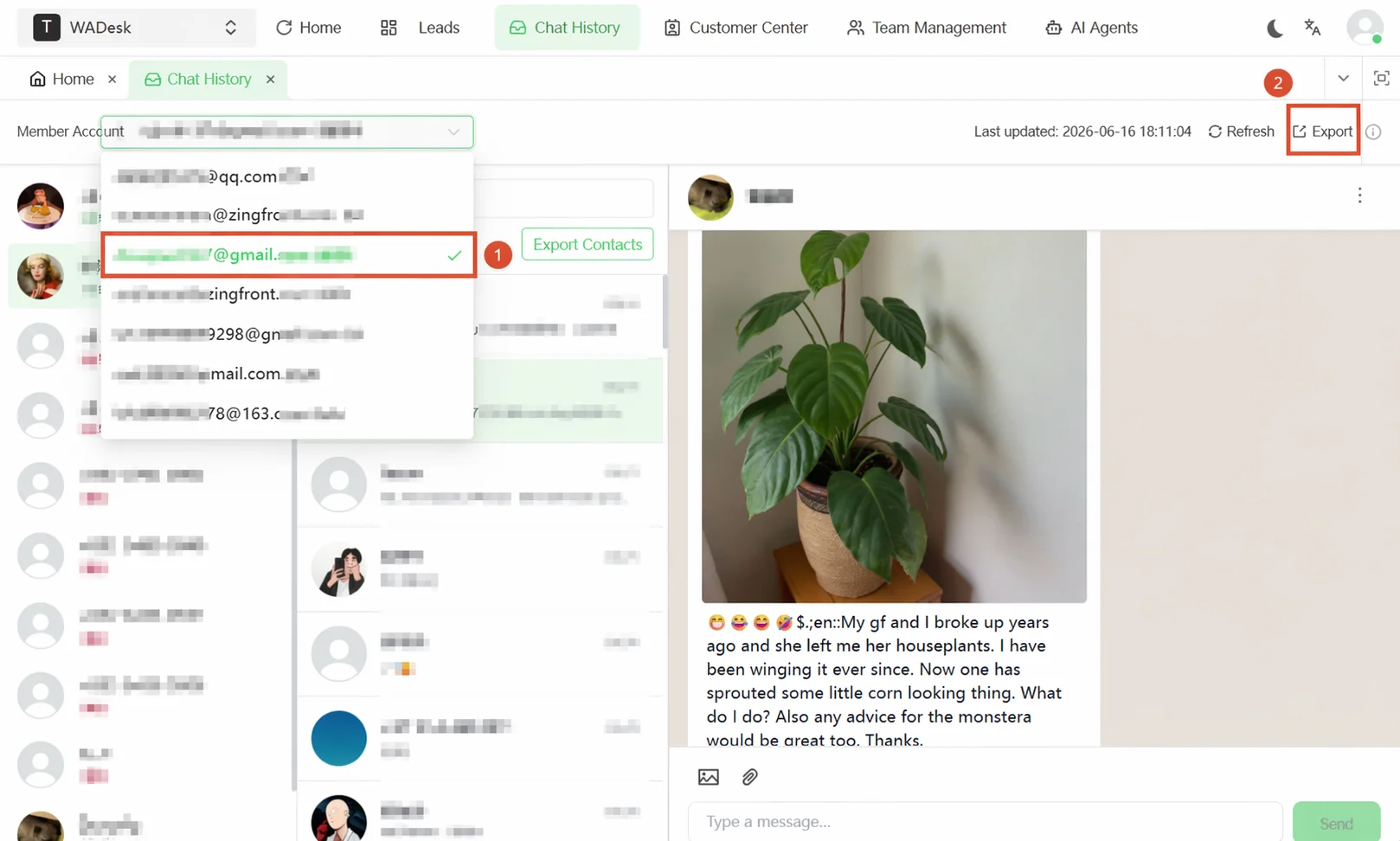
Export chat records: The export entry for chat records is on the Chat Records page in Home, offering two export dimensions: exporting a single customer's chat records and exporting an entire sub-account's chat records. In the pop-up window, configure the file type (Excel/TXT), export content (text/image links/contact cards), sender (both/other party/me), and time range.
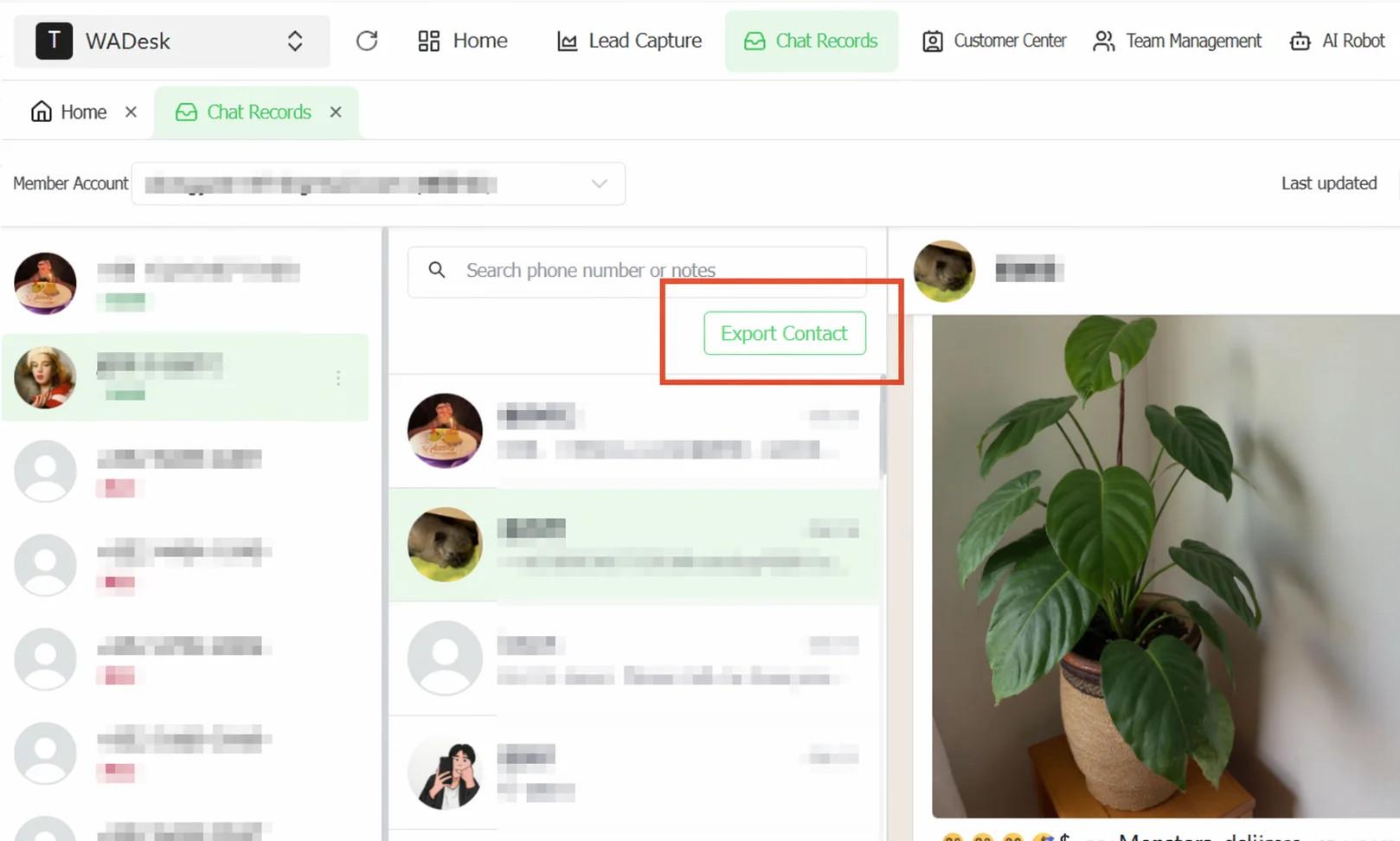 Export sub-account contacts: On the Chat Records page in Home, select the target WhatsApp account, then click the Export Contacts button to the right of the search box in the middle panel. The system downloads the contact list file directly.
Export local backup messages: Under the Desktop Client's Data Backup Center -> Individual Chat Message Backup tab, narrow the export scope using search and filters, then click Export List.
Export team contacts: In Home, navigate to Customer Center -> Contact List, filter the target customers, then click the Export button at the top right of the list.
Important Notes
- When exporting chat records, there is a time range limit.
- When exporting local backup messages, checking Export Media will significantly increase file size.
- All export operations require the corresponding data permissions.
FAQ
Q: What scenarios are Excel and HTML export formats suitable for? A: Excel is suitable for data analysis and secondary processing. HTML is ideal for direct reading, presenting conversations in a style similar to the WhatsApp interface. Q: Why does the exported chat record contain only links instead of actual images? A: The Image Links option exports image URL addresses, not the image files themselves. To export actual image files, use the export function in the Data Backup Center and check the Export Media option. Q: Can I export all employees' chat records at once? A: Currently, export is performed on a per-agent account basis. Each account must be exported individually.