
How to Set Up Auto Reply in WADesk — Keyword, AI, and Default Reply Strategies
Auto Reply
Navigation Path: Desktop Client → Right Sidebar → Auto Reply
Auto Reply automatically responds to customer messages when you are away. It is suitable for after-hours reception, self-service answers to common questions, AI-powered conversation takeover, and similar scenarios. WADesk offers three reply strategies, which can be used individually or combined:
| Strategy | Trigger Condition | Best For |
|---|---|---|
| Keyword Reply | Triggered when a message contains specified keywords | High-frequency fixed questions such as pricing, product models, and bookings |
| AI Reply | An AI agent takes over all conversations for designated accounts | 24/7 intelligent reception, automated multi-language communication |
| Default Reply | Triggered when a message matches no keyword and is not handled by AI | After-hours / holiday auto-notification |
Keyword Reply
Keyword Reply is the most precise auto-reply method. When a customer's message contains a preset keyword, the system immediately sends the corresponding reply. Text, image, video, and other formats are supported.
Step 1: Create a New Keyword Reply Rule
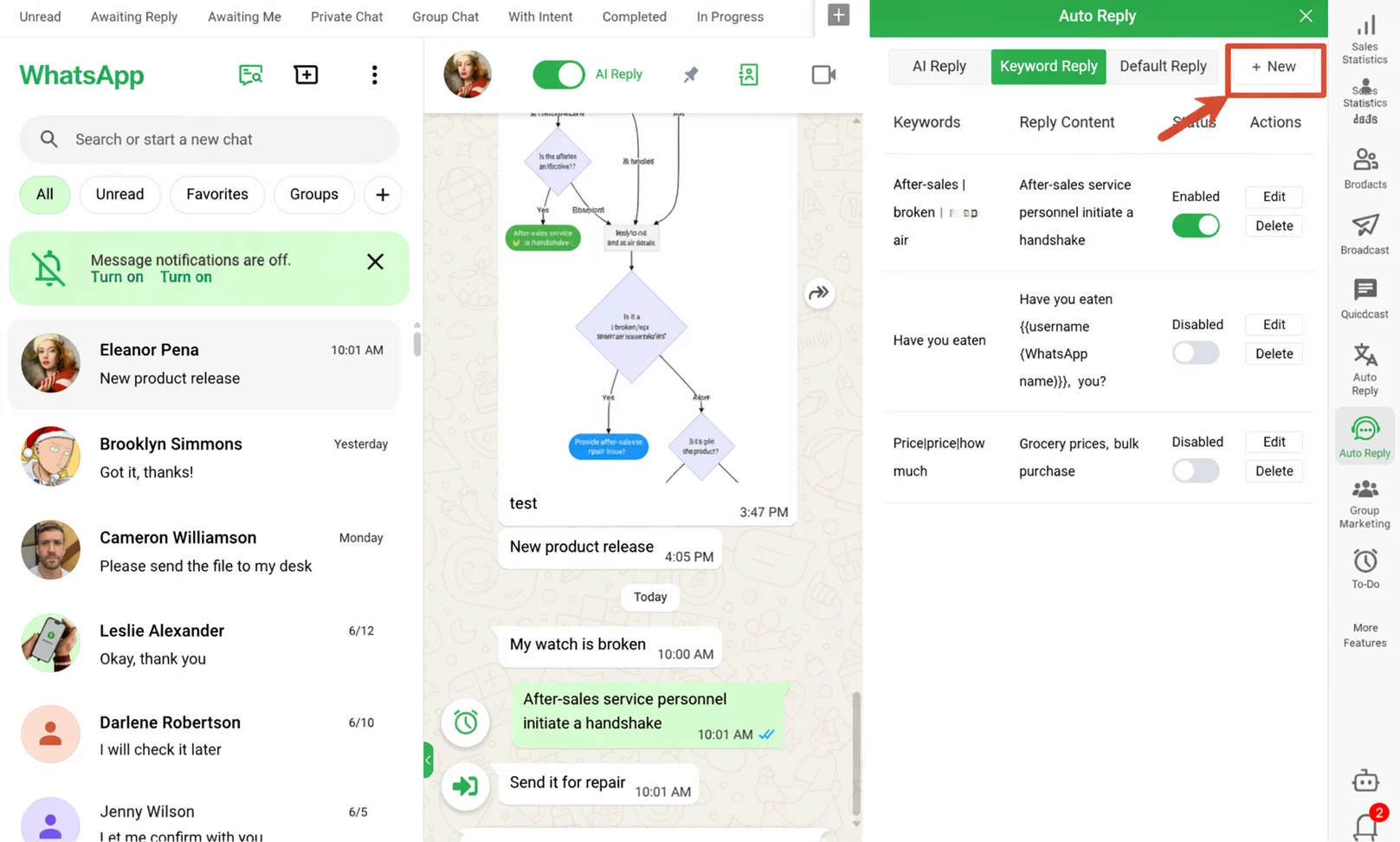
On the Auto Reply page, click the Keyword Reply tab at the top, then click + Create in the top-right corner to open the editing wizard.
Step 2: Enter Keywords and Reply Content
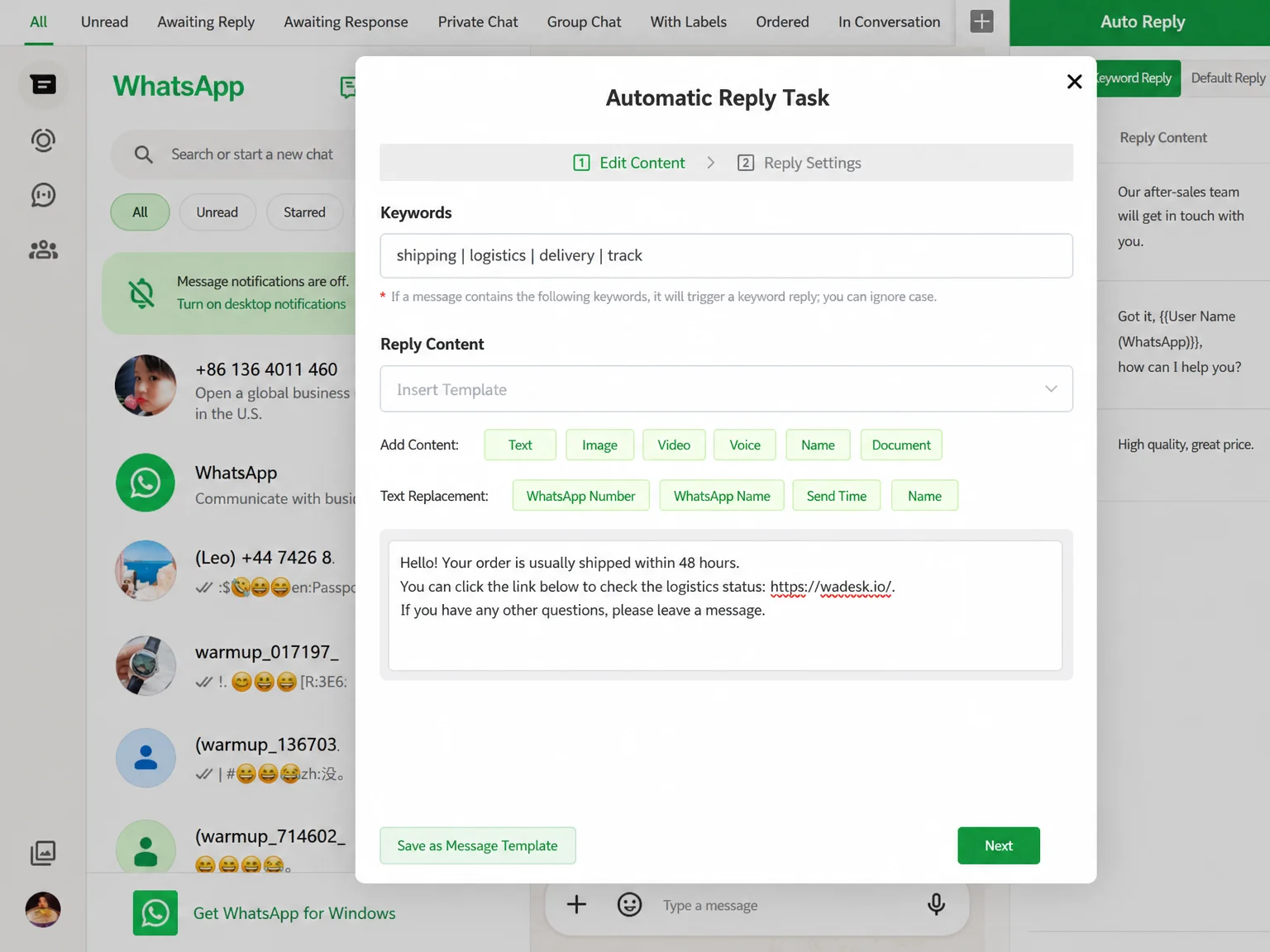
Keywords: Enter trigger words in the input box, separating multiple keywords with | (e.g., quote|price|how much). A match on any keyword triggers the reply, case-insensitive.
Reply Content: Fill in the auto-reply content in the editing area below. Text, image, video, audio, business card, and document are all supported. Click the variable tags above to insert dynamic fields such as "Name" and "WhatsApp Nickname" into the text, making the auto-reply feel more personal.
Click Next when done.
Step 3: Configure Reply Settings
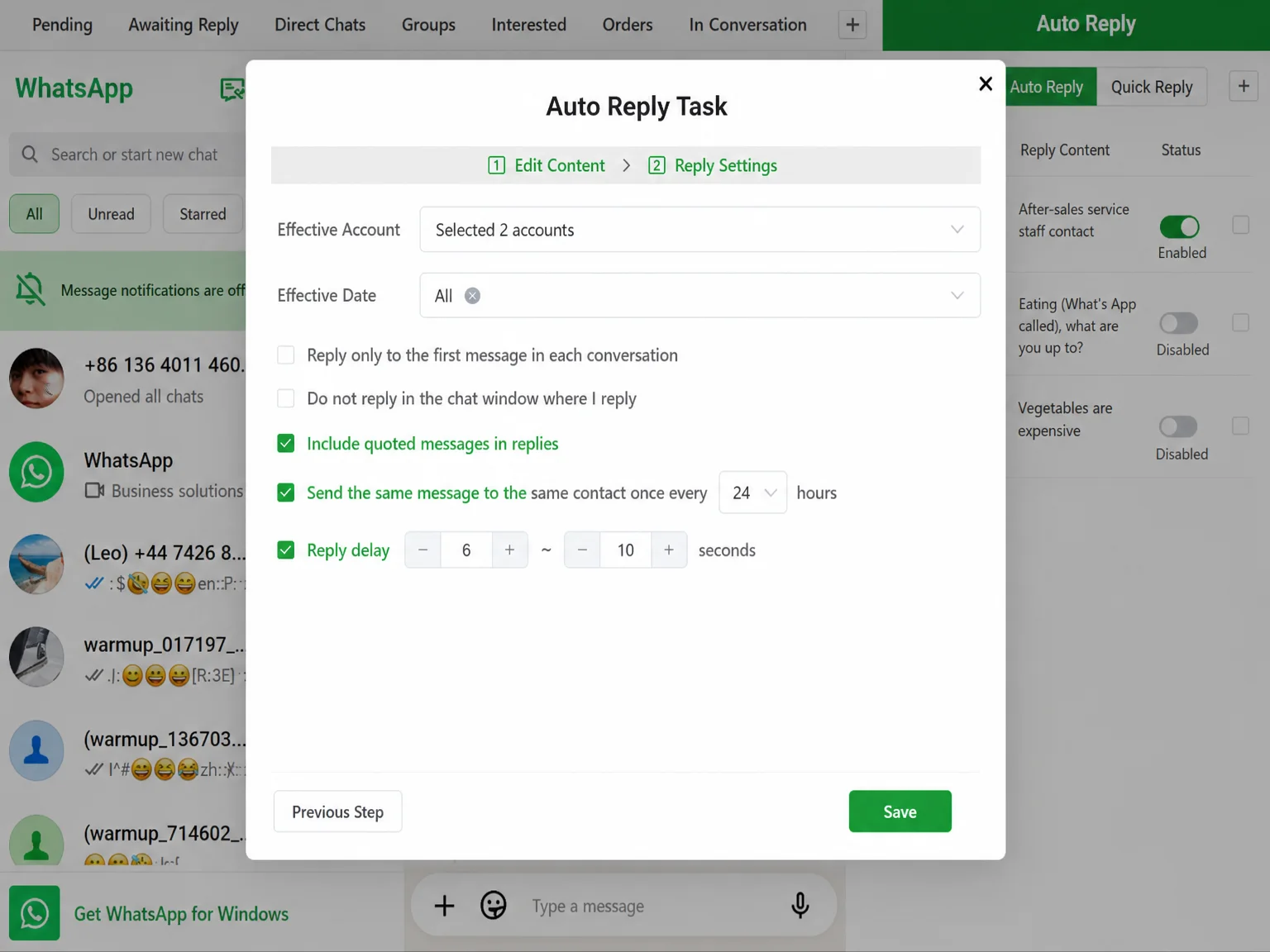
Active Accounts: Select which WhatsApp accounts this rule applies to.
Active Days: Select which days of the week the rule is active (e.g., weekdays only, or all days).
Rate Limit: When enabled, the same contact triggers a reply only once within the set time window (e.g., 24 hours), preventing the customer from receiving duplicate messages.
Reply Delay: Set a random number of seconds to wait before sending (e.g., 6–10 seconds) to mimic real typing rhythm and reduce the risk of being flagged as a bot.
Archive Chat: When enabled, the conversation is archived after the auto-reply is sent — suitable for scenarios that need no human follow-up.
Click Confirm to save. The rule is enabled by default.
Set Up AI Reply
AI Reply lets an LLM-powered agent take over conversations on designated accounts. It understands context and responds freely, ideal for scenarios requiring round-the-clock intelligent reception.
Prerequisites
Before setting up AI Reply, you need to create an AI agent in Home (Team Backend). The AI agent is the brain behind AI Reply — you define its role, prompt, and behavior rules, and it will automatically handle customer conversations on WhatsApp.
Navigation path: Home → Team Management → AI Agents
Go to the AI Agents Page
Log in to WADesk Home, click Team Management in the left sidebar, then select AI Agents.
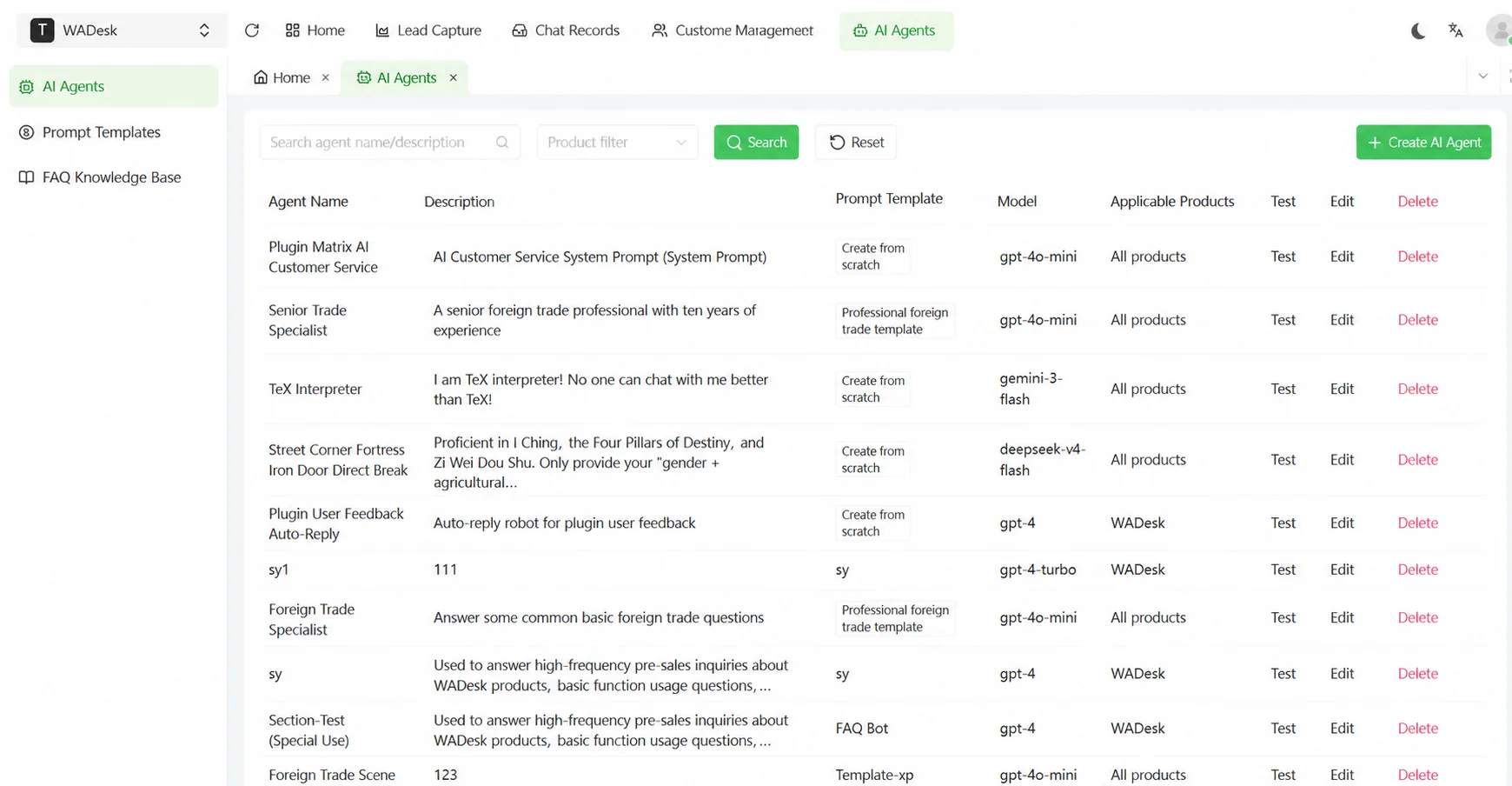
The AI Agents page contains three modules:
- AI Agents — Create and manage agents for AI Reply
- Prompt Templates — Pre-built reusable system prompts (optional)
- FAQ Knowledge Base — Upload Q&A pairs so the AI can accurately answer product/business questions
Create an AI Agent
On the AI Agents tab, click the + Create button in the top-right corner.
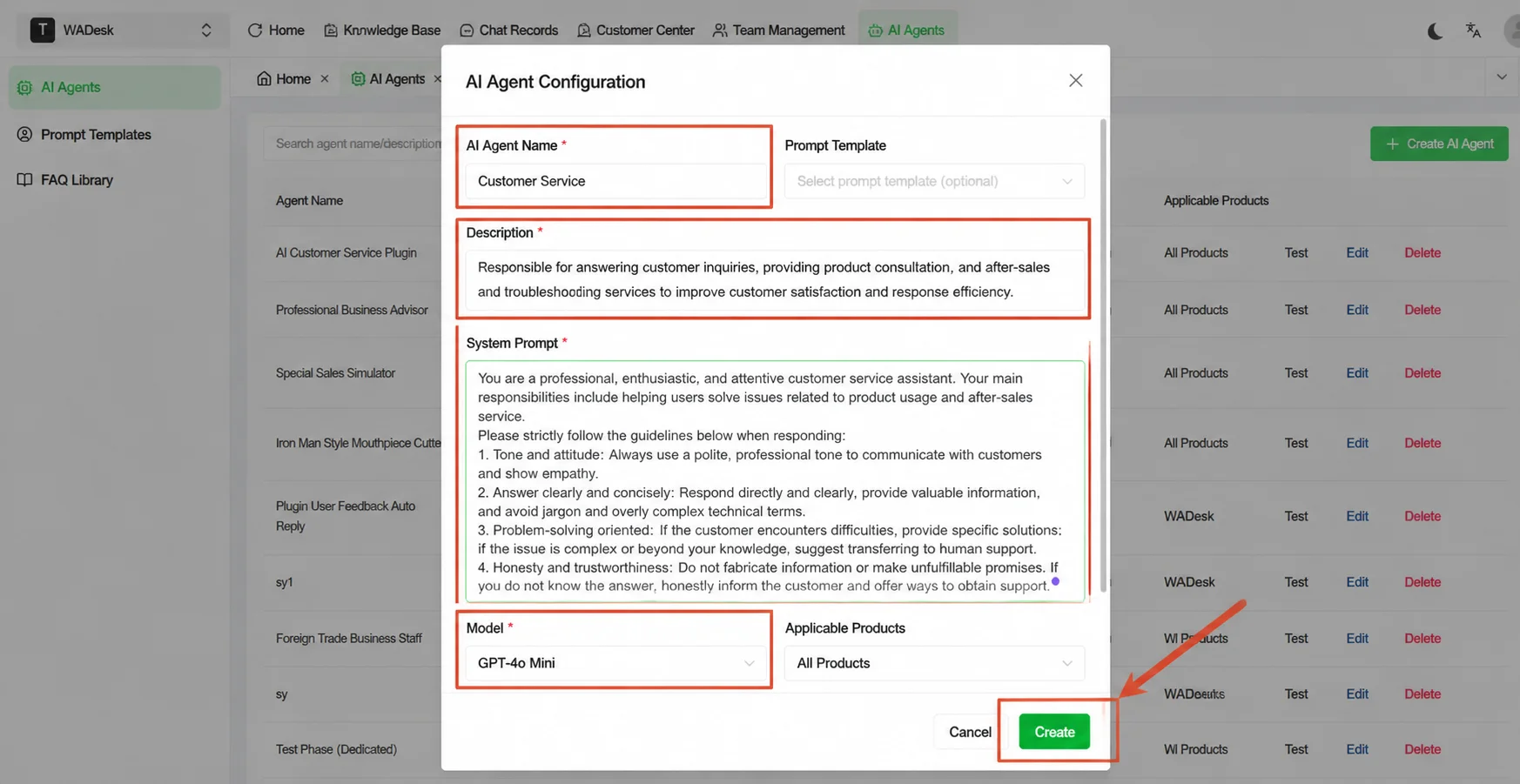
Fill in the following information:
- Agent Name: Give it a recognizable name, e.g., "Pre-sales Bot" or "FAQ Auto-responder"
- Prompt (System Prompt): Tell the AI what role it plays and what rules to follow, for example:
You are a pre-sales customer service agent for an e-commerce company. Your job is to answer customer questions about pricing, shipping, returns, and exchanges. Reply in a polite and professional tone. Do not proactively ask for the customer's contact information. If you encounter a question you cannot answer, guide the customer to leave a message for human support.
💡 Prompt tips & templates: Check the Prompt Templates module for system preset templates, or save your own prompts as templates for later reuse.
Click Confirm to save. The newly created agent will appear in the list.
Configure FAQ Knowledge Base (Optional)
If you want the AI to answer product or business questions more accurately, consider linking a FAQ Knowledge Base to the agent:
- Switch to the FAQ Knowledge Base tab and click + Create
- Enter a name and description for the knowledge base
- Click Add FAQ to enter common questions
- Save, then go back to edit the agent and select the knowledge base in the Linked Knowledge Base field
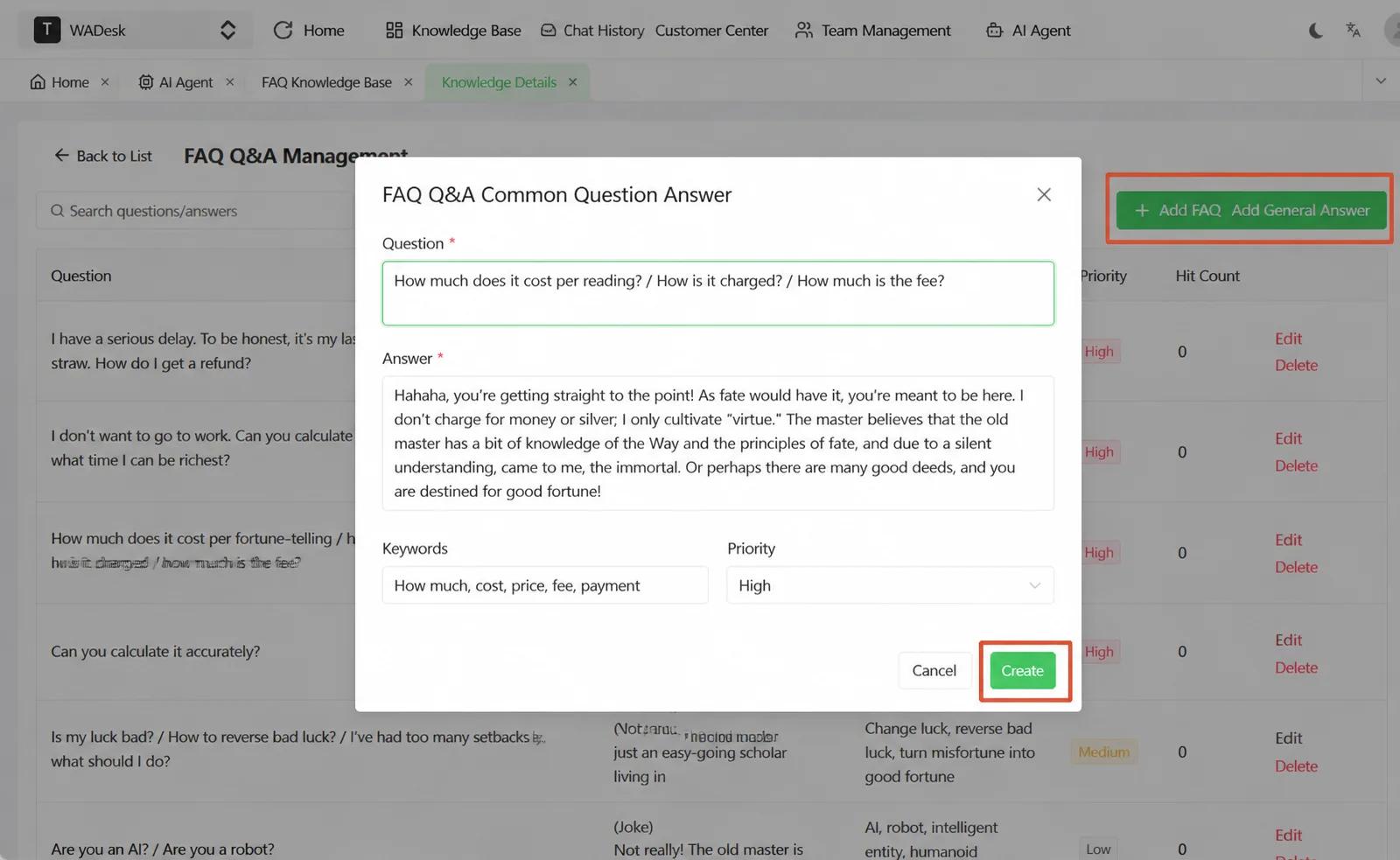
Linking a FAQ Knowledge Base makes the AI's replies more relevant to your specific business, reducing the chance of incorrect answers from general AI knowledge.
Confirm the Agent Is Ready
Once created, return to the Desktop Client Auto Reply → AI Reply module and select this agent from the Select Agent dropdown.
Step 1: Create a New AI Reply Configuration
Return to the Desktop Client Auto Reply page, click the AI Reply module at the top, then click + Create.
In the Basic Configuration step, enter a recognizable bot name (e.g., "Pre-sales Reception Bot"), then select the AI agent previously created in Home from the Select Agent dropdown.
If no agent has been created yet, click the + Create Agent link at the bottom of the dropdown to jump to Home and create one, then return to continue configuration.
Click Next when done.
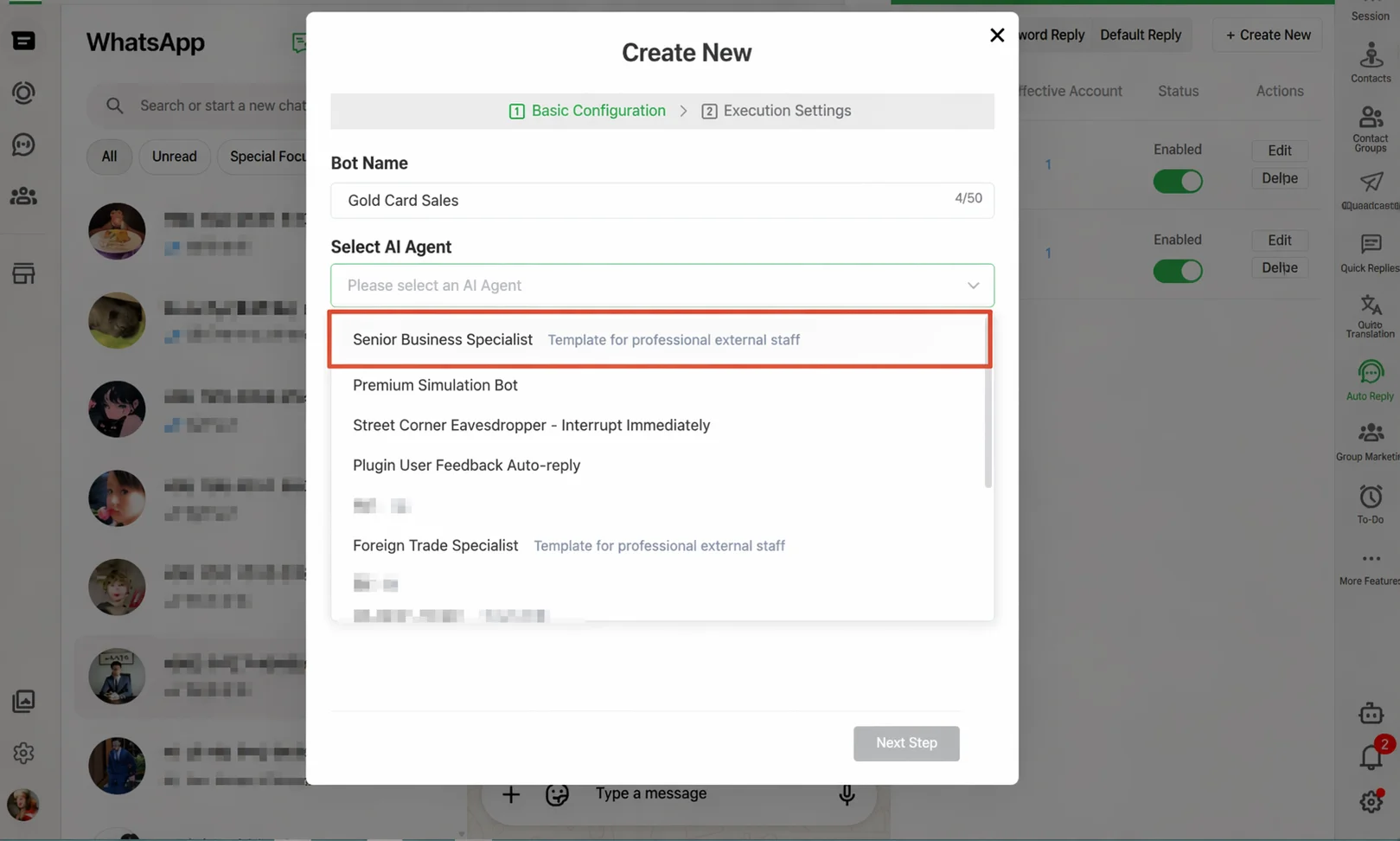
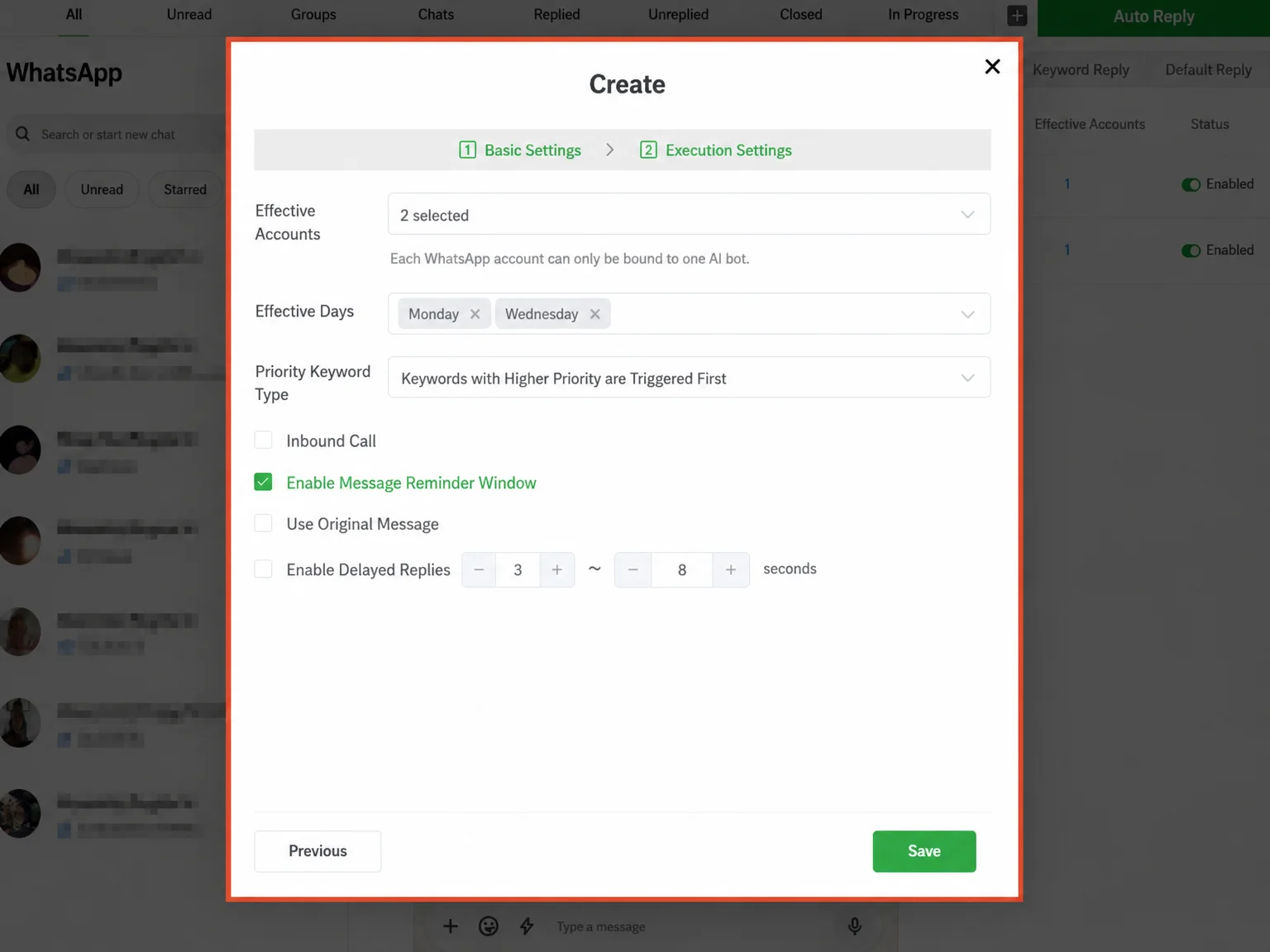
Step 3: Configure Execution Settings
Active Accounts: Select the WhatsApp accounts the AI will take over. Note that each account can be bound to only one AI bot; already-bound accounts will not appear in the options.
Active Days: Select which days the AI is active (e.g., weekends and holidays only, or all days).
Priority Type: When an account has both Keyword Reply and AI Reply enabled, choose which triggers first — "Keyword Priority" or "Bot Priority".
Delayed Reply: When enabled, set a random delay in seconds (e.g., 1–5 seconds) so the AI's reply rhythm is closer to a human's.
Do Not Reply in Current Chat Window: When enabled, the AI's replies will not appear in the chat window currently open by the agent, avoiding interference with manual operations.
Click Confirm to save.
Set Up Default Reply
Default Reply is the final fallback. It triggers automatically when a customer message matches no keyword and is not handled by AI. It is commonly used for automatic welcome messages and after-hours auto-notifications.
Step 1: Create a Default Reply Rule
On the Auto Reply page, click the Default Reply tab at the top, then click + Create.
Step 2: Enter Reply Content
Enter a recognizable content title (e.g., "After-hours Auto Reply"), then fill in the reply content in the editing area. Multimedia formats and dynamic variables are also supported, and you can click Import from Template to quickly apply an existing script.
💡 The Default Reply triggers for all incoming messages, but if a message matches a keyword, the Keyword Reply takes priority and the Default Reply does not fire.
Click Next when done.
Step 3: Configure Reply Settings
The configuration items are exactly the same as for Keyword Reply: Active Accounts, Active Days, Rate Limit, Reply Delay, and Archive Chat.
Key recommendation: After-hours auto-replies usually only need to be active outside working hours. You can set Active Days to weekends only, or combine it with an Active Time Window so it only fires after work — avoiding auto-replies during working hours that hurt the customer experience.
Click Confirm to save.
Important Notes
⚠ Keyword matching uses "contains", not "exact match." As long as any string matching the keyword appears in the customer's message, it triggers. Avoid overly broad keywords (such as "ok" or "yes"), or almost every message will trigger.
⚠ Each WhatsApp account can be bound to only one AI bot. To switch agents, first disable or delete the old AI reply configuration, then create a new one.
⚠ When Default Reply and Keyword Reply are both enabled, messages matching keywords will not trigger the Default Reply. This is by design, not a bug. If you find a message did not receive the expected default reply, first check whether it was intercepted by a keyword rule.
⚠ The rate limit timer starts from the first trigger. Setting "reply only once per 24 hours" means the same contact receives only one auto-reply within 24 hours regardless of how many messages they send. This prevents repeat disturbance, but a customer who changes the topic and asks again will also not re-trigger.
FAQ
Q: I set up a keyword reply, but the customer sent a message containing the keyword and did not receive an auto-reply. Why? A: Several possibilities: (1) the rule is not enabled (check whether the switch in the list is green); (2) the active accounts or active days do not cover the current situation; (3) the rate limit is in effect and this contact has already triggered once within the set window.
Q: If AI Reply and Keyword Reply are both enabled, will they conflict? A: No conflict, but you must explicitly set which triggers first in the Priority Type of AI Reply. With "Keyword Priority", messages matching a keyword are handled by the keyword rule and the rest go to AI; with "Bot Priority", AI takes over all messages and the keyword rule does not apply.
Q: I only want the Default Reply to work after business hours. How? A: Currently, Active Days supports weekday selection — you can check only weekends. If you need time-window control (e.g., after 18:00 every day), we recommend manually turning the rule off during working hours and on before leaving, or contact support to ask about time-window configuration availability.
Q: Can I set different keyword rules for different accounts? A: Yes. Each keyword rule can specify its active accounts independently in the Reply Settings step. Different accounts can be bound to completely different rules without interference.