
How to Use Customer Tags in WADesk for Contact Classification and Targeted Outreach
Customer Tags
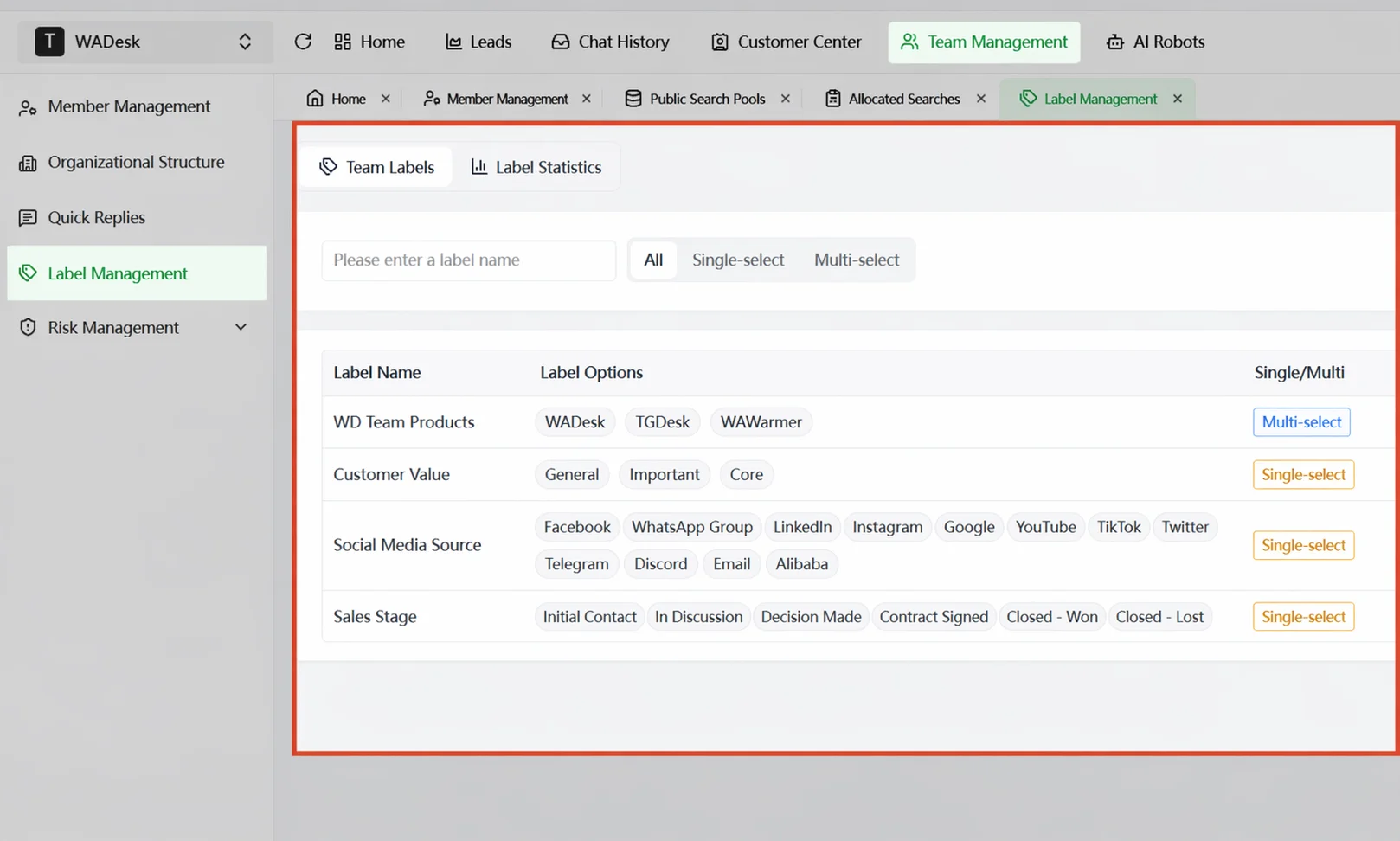
Navigation Path (Home Configuration): Home → Team Manage → Tag Management
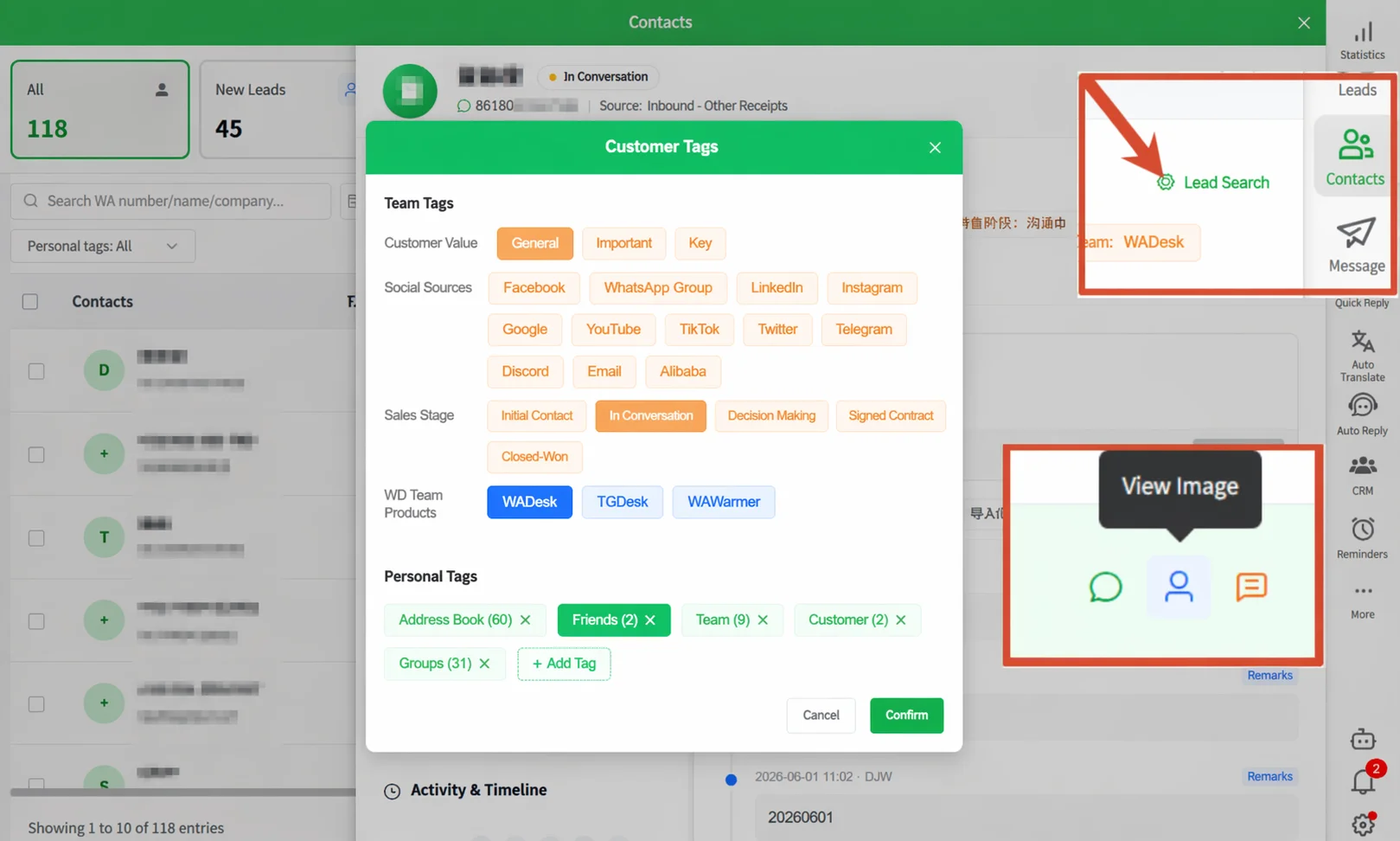
Navigation Path (Desktop Client Usage): Desktop Client → Contacts → Contact Details → Manage Tags
Customer Tags classify contacts and leads for easier filtering and targeted broadcasts.
Two Types of Tags
| Team Tag | Personal Tag | |
|---|---|---|
| Who Creates | Admin configures centrally in Home | Sales reps create anytime in the Desktop Client |
| Who Can See | Shared across all team members | Visible only to the creator |
| Typical Use | Customer value tiers, source channel labels, sales stage tracking | Personal memos, private classification |
| Selection Mode | Supports single-select or multi-select | Multi-select |
Admin: Create Team Tags (Home)
In Home, navigate to Team Manage → Tag Management. Click Add Tag, enter the tag category name and individual tag items. Set the category as single-select or multi-select when creating. System presets include: Customer Value (General / Important / Core, single-select), Social Source (Facebook / Instagram / Google / TikTok / LinkedIn, etc., multi-select), Sales Stage (Initial Contact / In Communication / Decision Making / Contract Signing / Closed-Won, single-select), and more.
View Tag Statistics (Home)
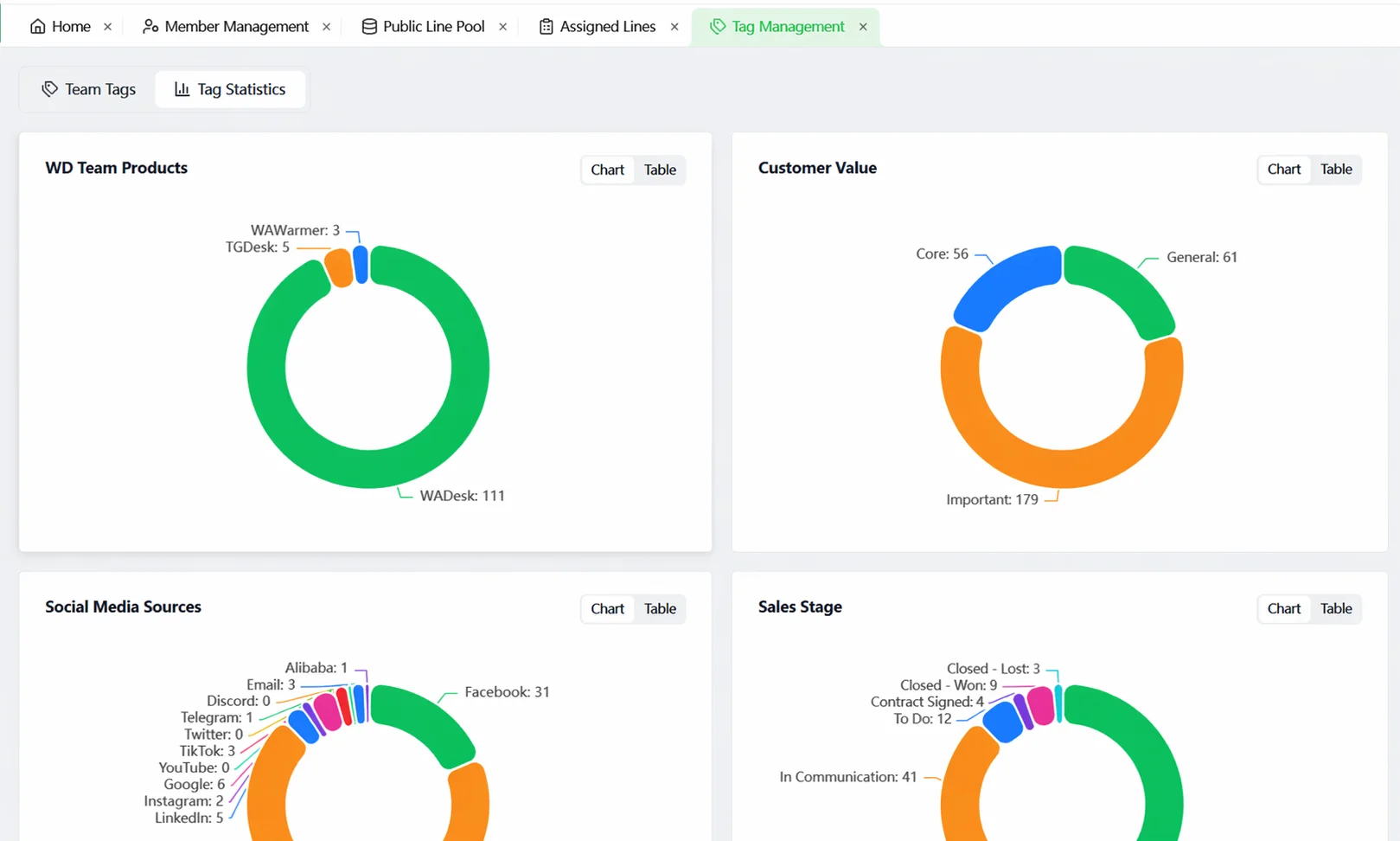
In Home, go to Tag Management → Tag Statistics to view the customer count distribution for each tag item under each category. Switch between chart view (doughnut chart) and table view.
Tag a Single Customer (Desktop Client)
In the Desktop Client contact list, click the View Profile icon next to a customer. In the right panel, click Manage Tags in the Customer Tag area. Team tags are displayed by category — single-select categories allow only one choice; multi-select categories support overlapping selections. Personal tags can be created inline by typing; click the x next to a tag to remove it.
Bulk Tagging on Lead Import (Desktop Client)
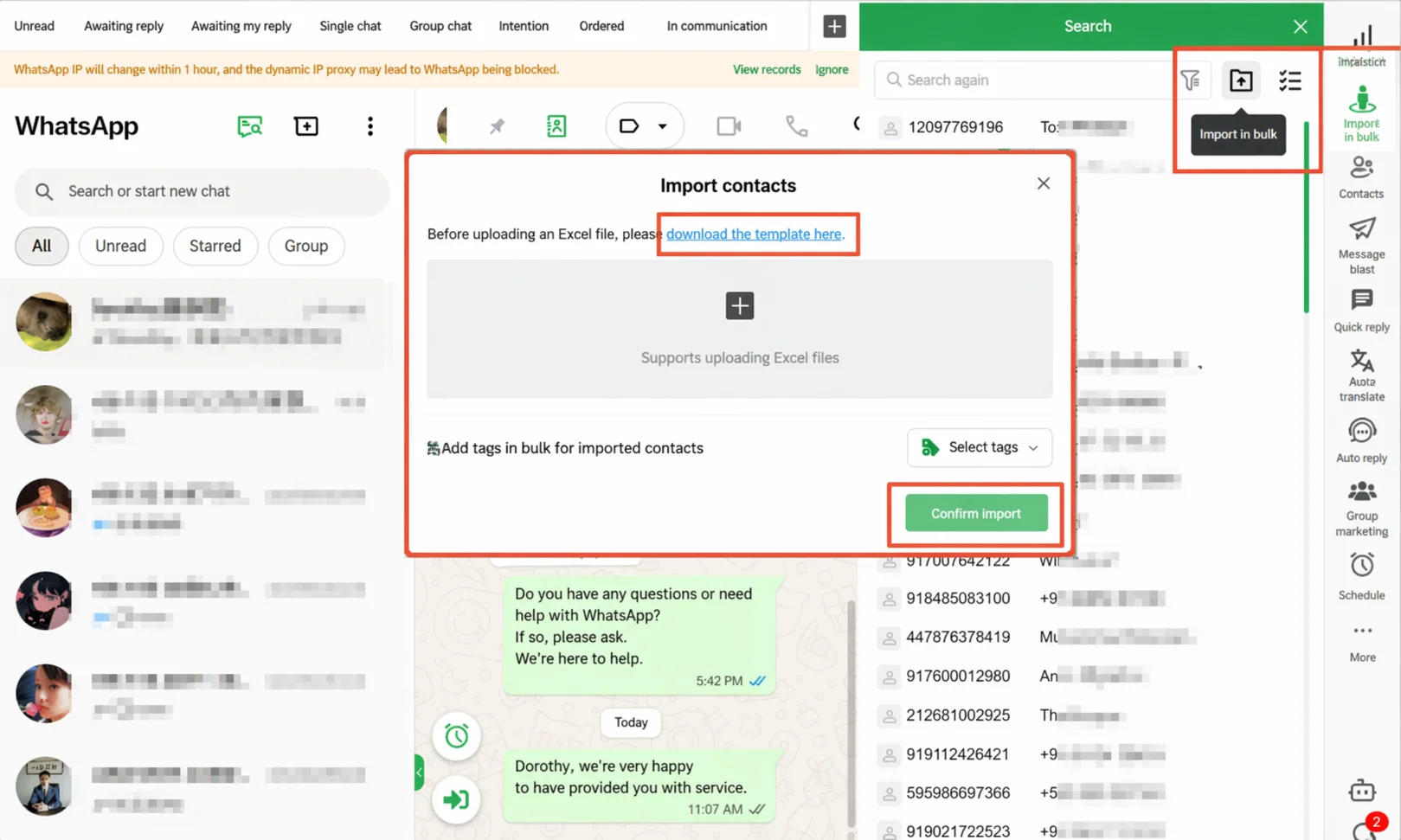
In the lead batch import pop-up, after uploading the Excel file, click the Select Tag option below to choose team tags and personal tags for bulk application. Adopt the habit of tagging on import.
Filter Customers by Tags (Desktop Client)
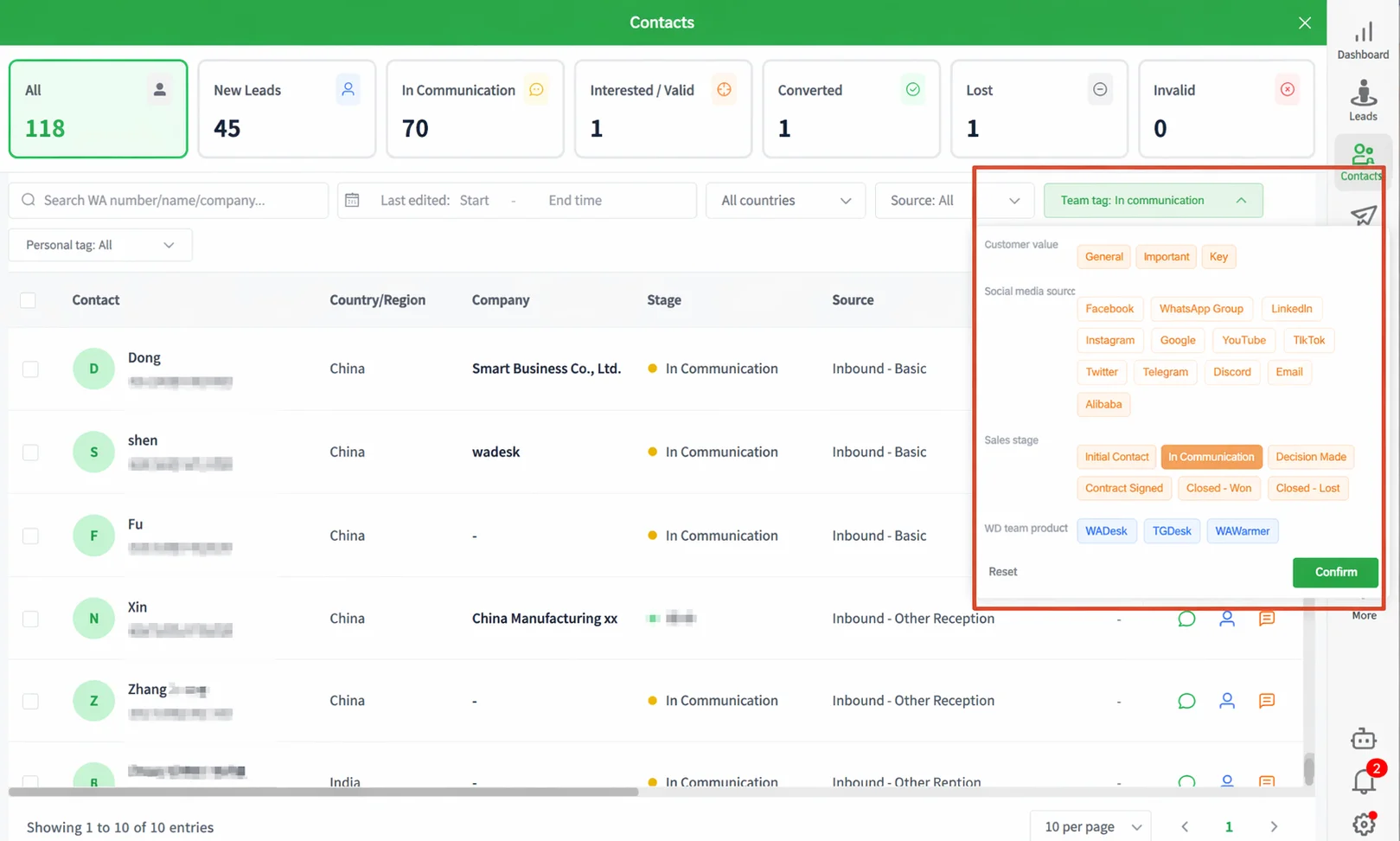
- Filter in Contact List: Click the Team Tag dropdown in the filter bar to expand the tag matrix panel.
- Filter in Lead Panel: Click the funnel icon at the top of the lead panel to expand the filter panel.
Broadcast by Tags (Desktop Client)
After filtering target customers, check the desired contacts (or select all) and click Broadcast in the upper-right corner. The system brings the currently selected contacts into the broadcast task's contact steps.
Important Notes
- Team tags are managed centrally by the admin. The Desktop Client only allows selection — not creation or editing.
- Personal tags are visible only to the creator and do not appear in Home's tag statistics.
- Tags are auxiliary classification tools. They are not the same as follow-up stages.
FAQ
Q: What is the difference between team tags and the "Stage" field in contacts? A: Stage is a system built-in sales funnel status — a structured follow-up progress marker. Team tags are custom classification dimensions defined by the admin, offering more flexibility. Both can be used simultaneously without conflict.
Q: Can sales reps create team tags from the Desktop Client? A: No. Only admins can create and edit team tags in Home.
Q: Is the data in tag statistics real-time? A: Yes. Tag statistics reflect the current tag status of all contacts in real time. No manual refresh is needed.