
How to Protect Client Assets When Employees Leave — WADesk Data Security Guide
Protecting Client Assets of Departing Employees
Navigation Path: Home -> Team Manage -> Team Members
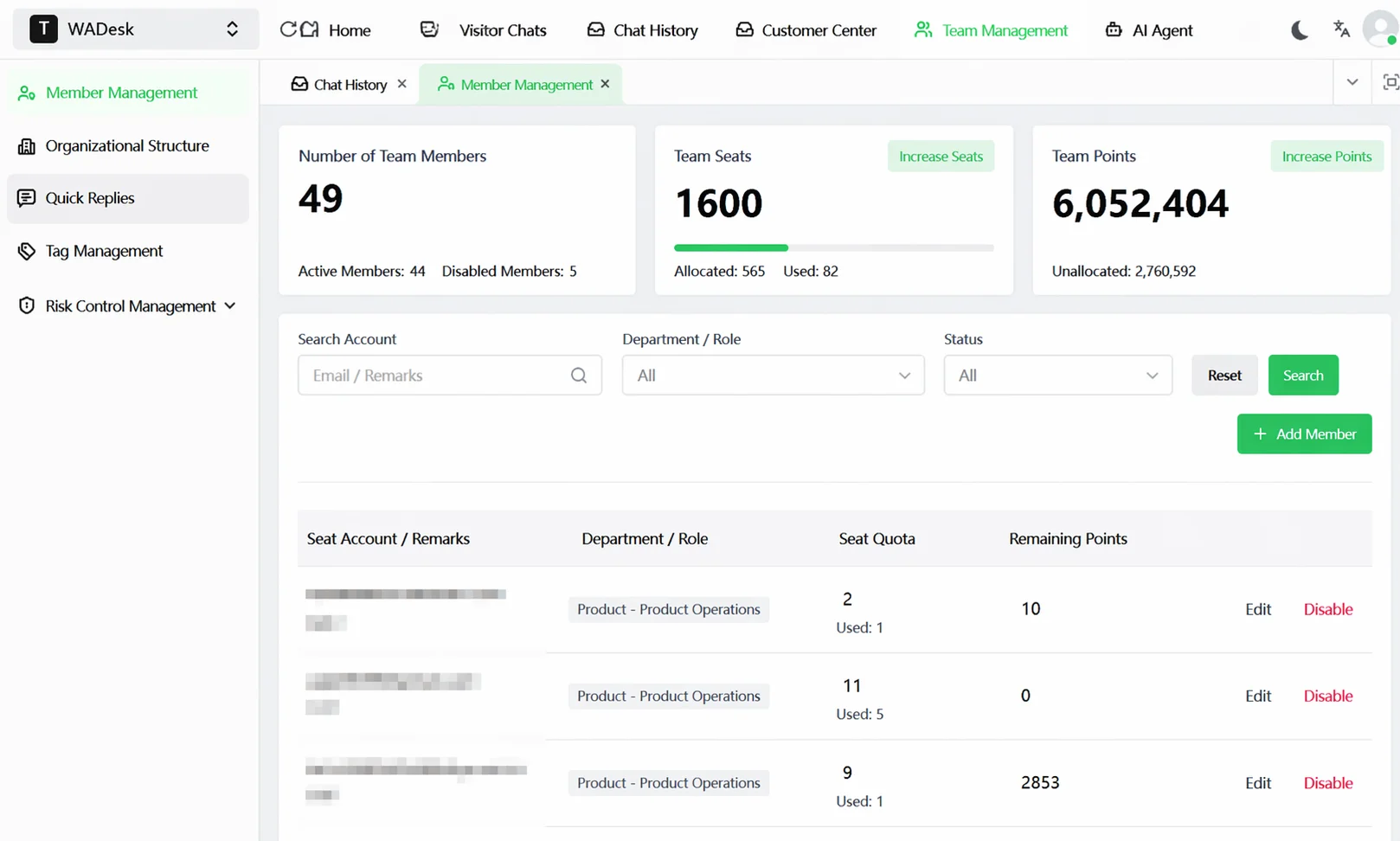 The biggest risk when an employee leaves is client resources walking out the door. WADesk safeguards client assets through a three-layer mechanism: disabling accounts to lock down data, cloud backup to preserve records, and number masking to prevent data exfiltration at the source.
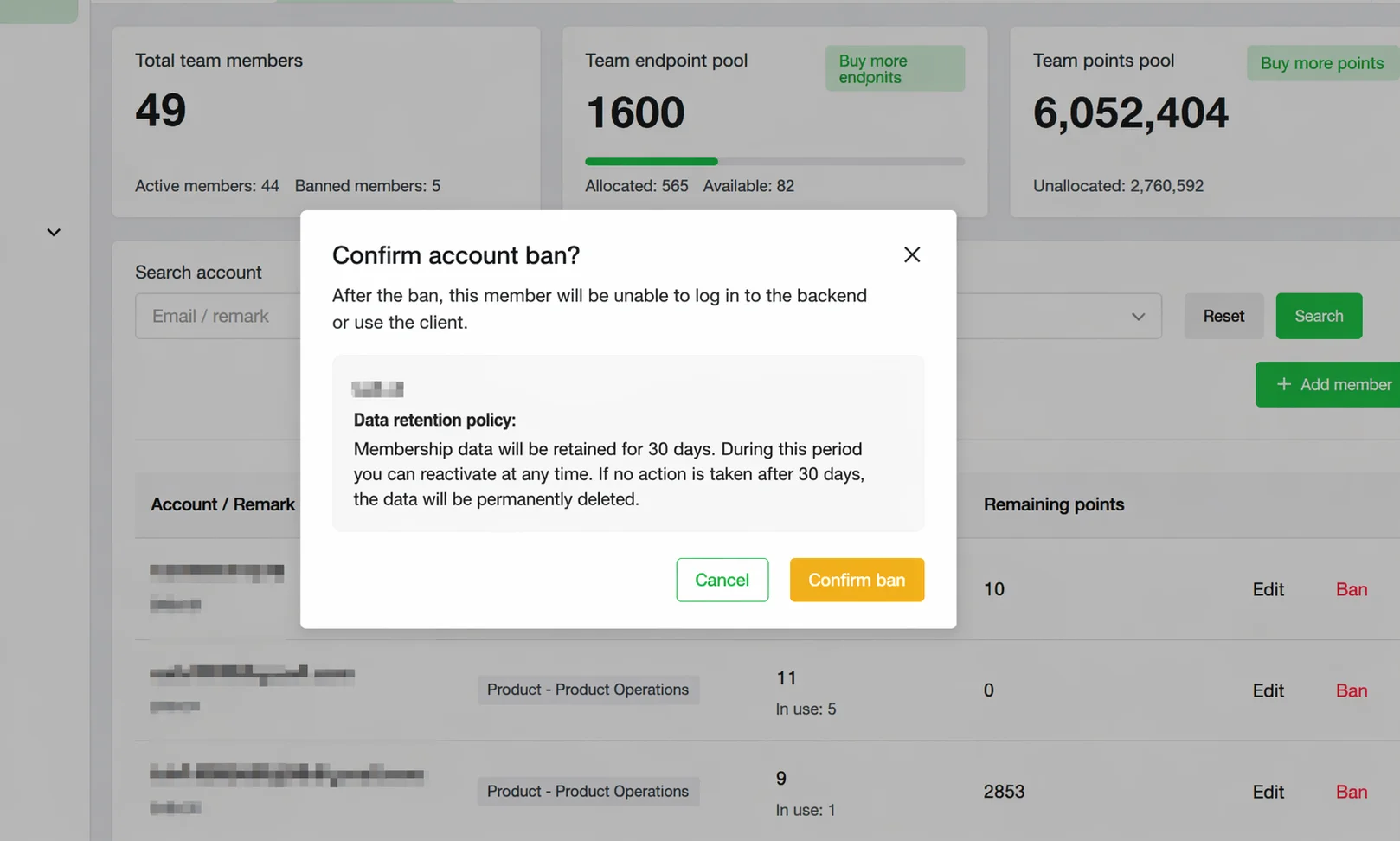
Steps
Step 1 -- Immediately disable the departing employee's account: In Home, navigate to Team Manage -> Team Members, locate the employee, and click Disable. Once disabled, the employee can no longer log in to Home or the WADesk Desktop Client. All chat records and contact data under their WhatsApp accounts are fully retained. After disabling, data is preserved for 30 days, during which the account can be reactivated at any time.
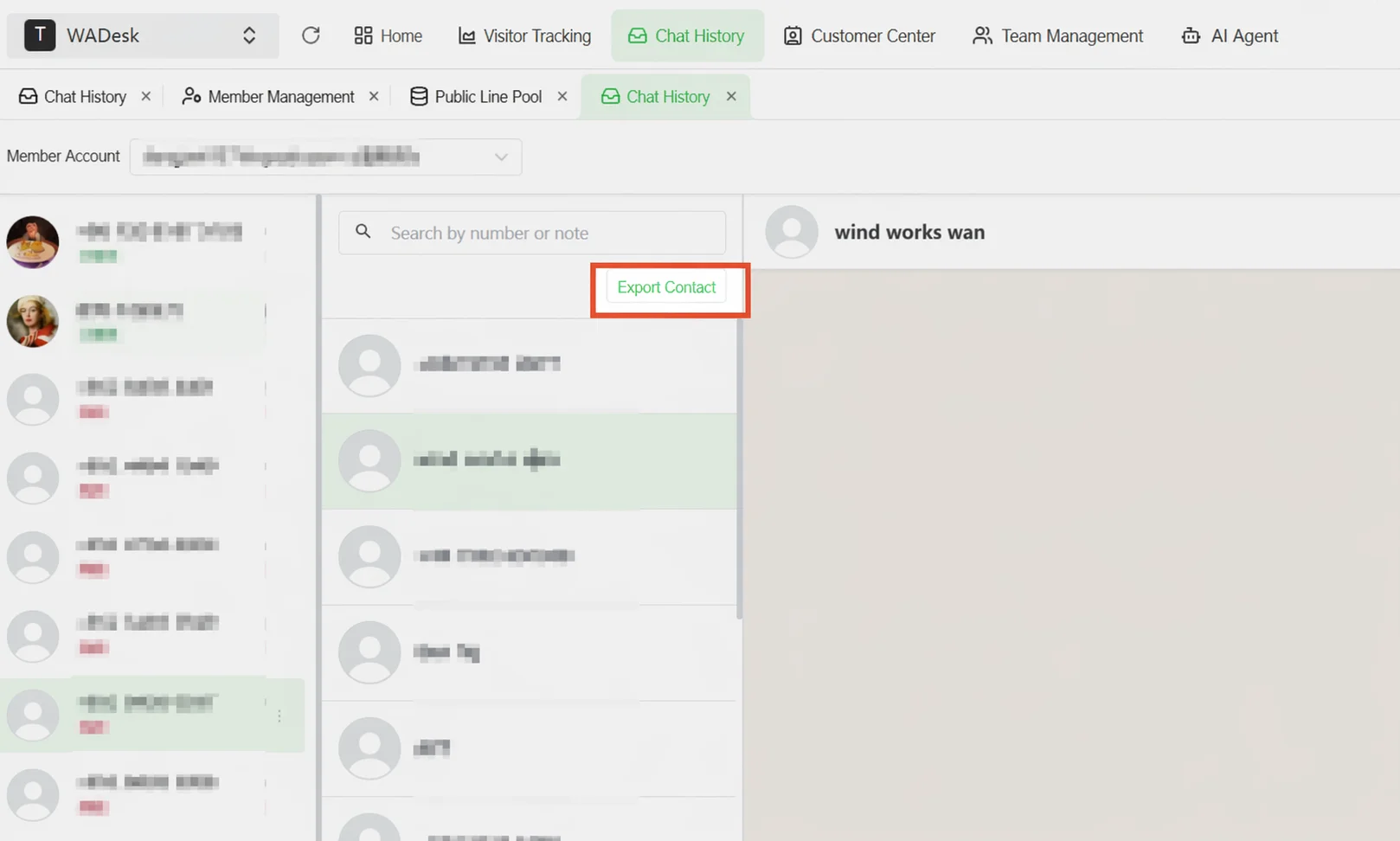 Step 2 -- Review customer communication in chat records: In Home, go to the Chat Records page, switch to the employee's account, and review their historical communication with all customers.
Step 3 -- Export the employee's contact list: On the Chat Records page, select the departing employee's WhatsApp account, then click the Export Contacts button to the right of the search box in the middle panel.
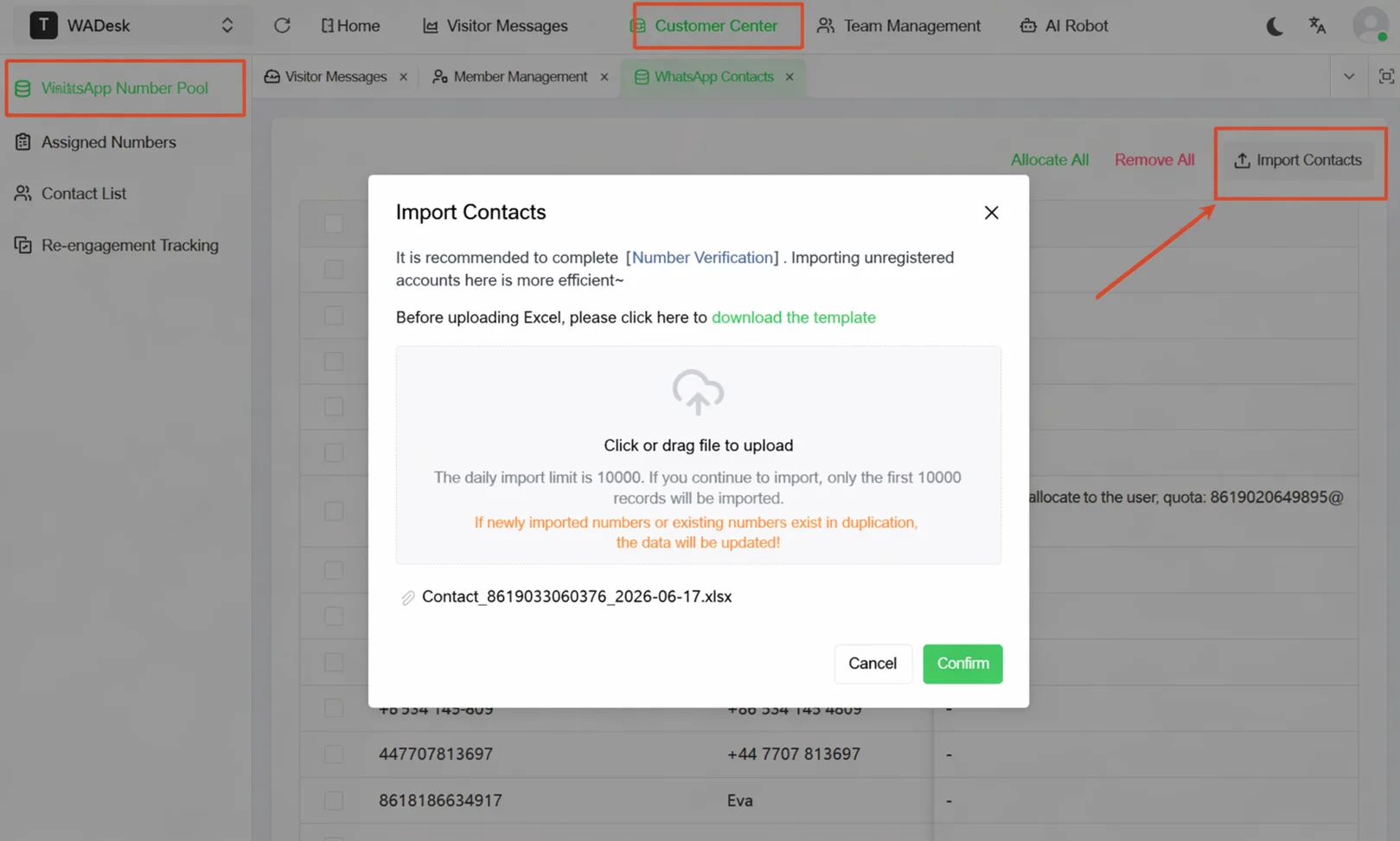
Step 4 -- Import contacts into the Public Lead Pool: In Home, navigate to Customer Center -> Public Lead Pool, click Import Leads, download the standard Excel import template, organize the exported contact data into the template, upload it, and confirm to complete the import. The single import limit is 10,000 entries. Duplicate leads are automatically overwritten and updated.
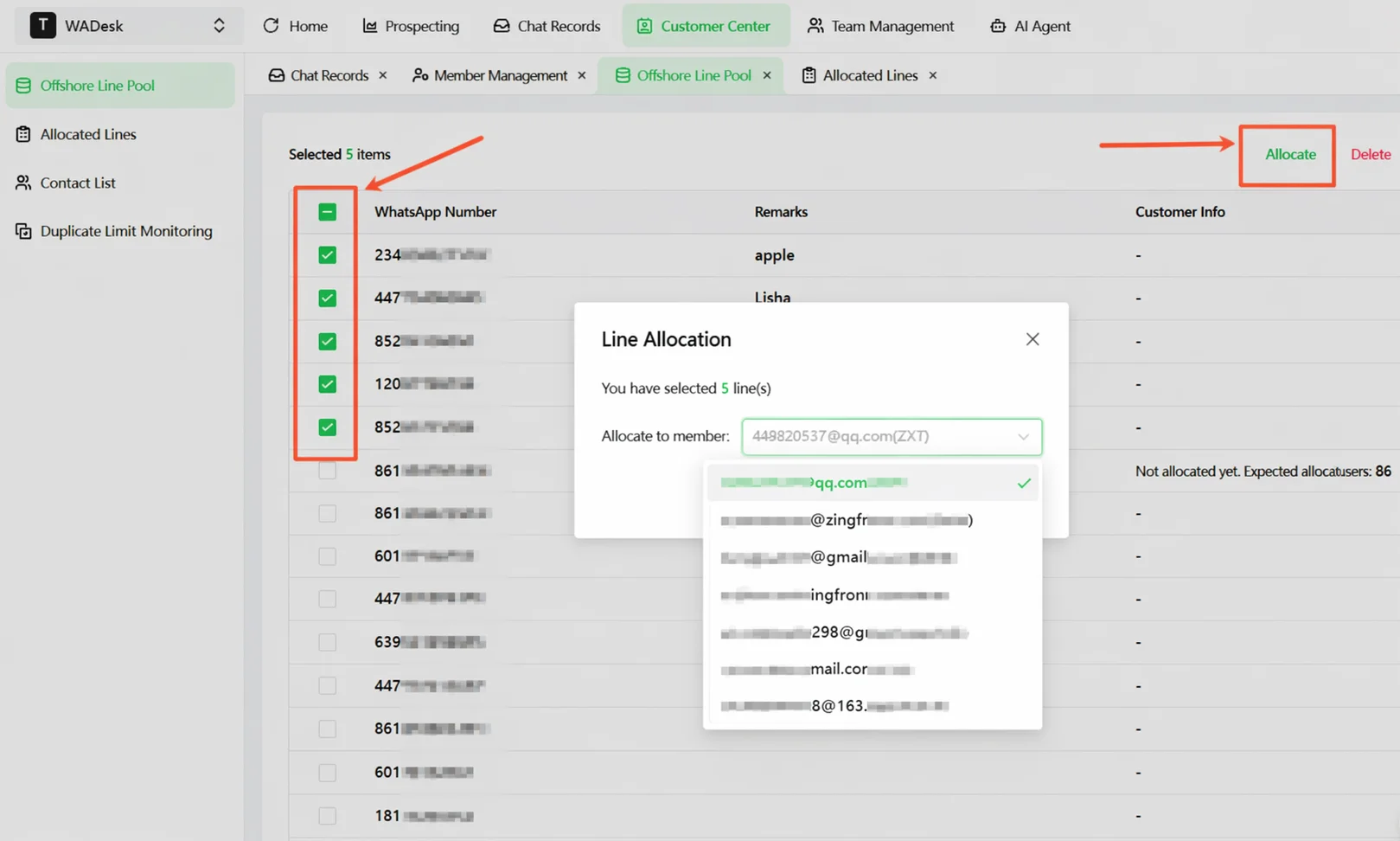
Step 5 -- Assign leads to the new sales agent: In the Public Lead Pool list, check the customers to be assigned, then click the Assign Selected or Assign All button, and choose the sales agent taking over.
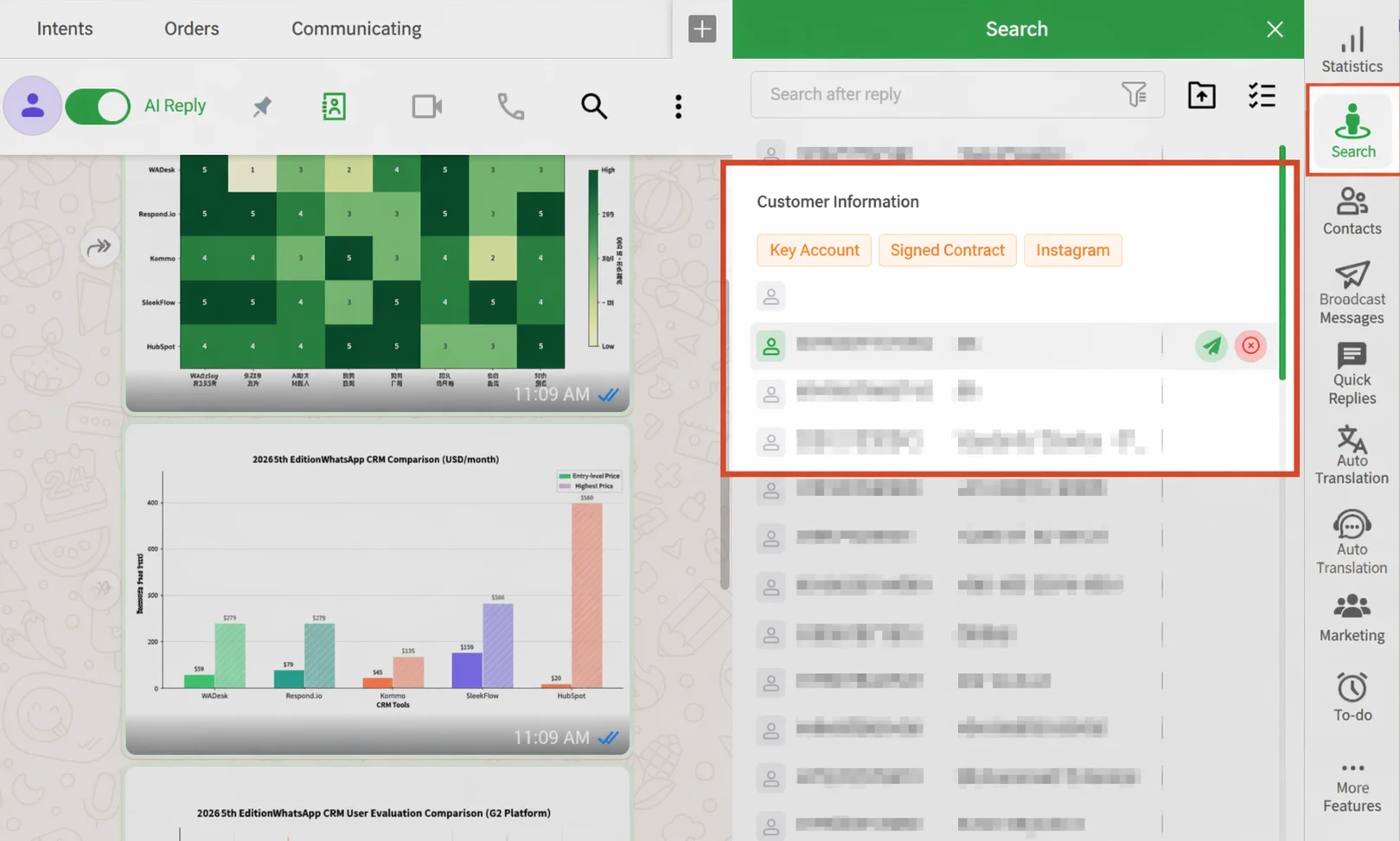
Step 6 -- Sales agent receives and follows up on leads in the Desktop Client: The new sales agent opens the WADesk Desktop Client, clicks the Leads icon in the right sidebar, and views the list of customers that have just been assigned.
Important Notes
- After disabling an account, data is retained for only 30 days. Complete the contact export and lead assignment within this period.
- If Message Sync was not enabled before the employee's departure, the cloud backup may be incomplete.
FAQ
Q: Are an employee's chat records automatically deleted after they leave? A: No. After the account is disabled, data is retained for 30 days. Admins can view and export data at any time during this period. Data is permanently deleted only after 30 days with no action taken. Q: After leads are assigned to a new sales agent, where can they see these customers? A: Open the Desktop Client, click the Leads icon in the right sidebar to view all customers assigned to them. Q: How can I confirm that an employee's chat records have been fully backed up to the cloud? A: On the Chat Records page, select the employee's account and check the Last Updated timestamp at the top of the page.