
How to Manage Contacts and Customer Profiles in WADesk CRM
Managing Contacts
Navigation Path: Desktop Client → right sidebar → Contacts
Contacts is WADesk's customer asset management hub. It centrally manages all stored customers with multi-dimensional filtering and search, full-lifecycle sales stage tracking, Customer Profile maintenance, and cross-account chat history access.
📹 Video Tutorial. Follow along with the video, or read the illustrated steps below directly.
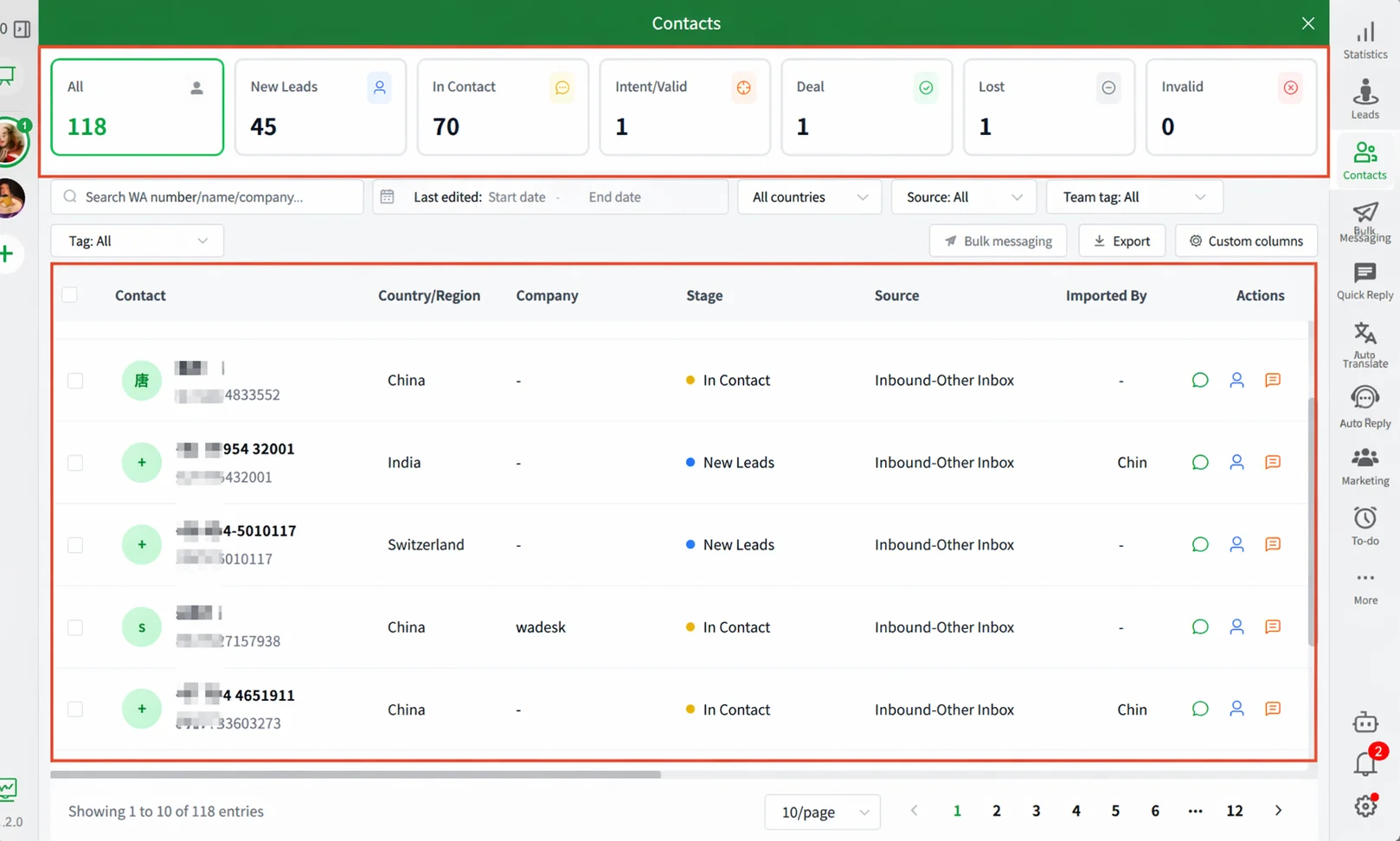
Enter the Contacts Module
The status overview bar at the top summarizes all contacts by sales stage: All, New Lead, In Communication, Interested/Valid, Closed Won, Closed Lost, Closed Invalid. Click any status card to filter the list below to contacts in that stage.
Search and Filter Contacts
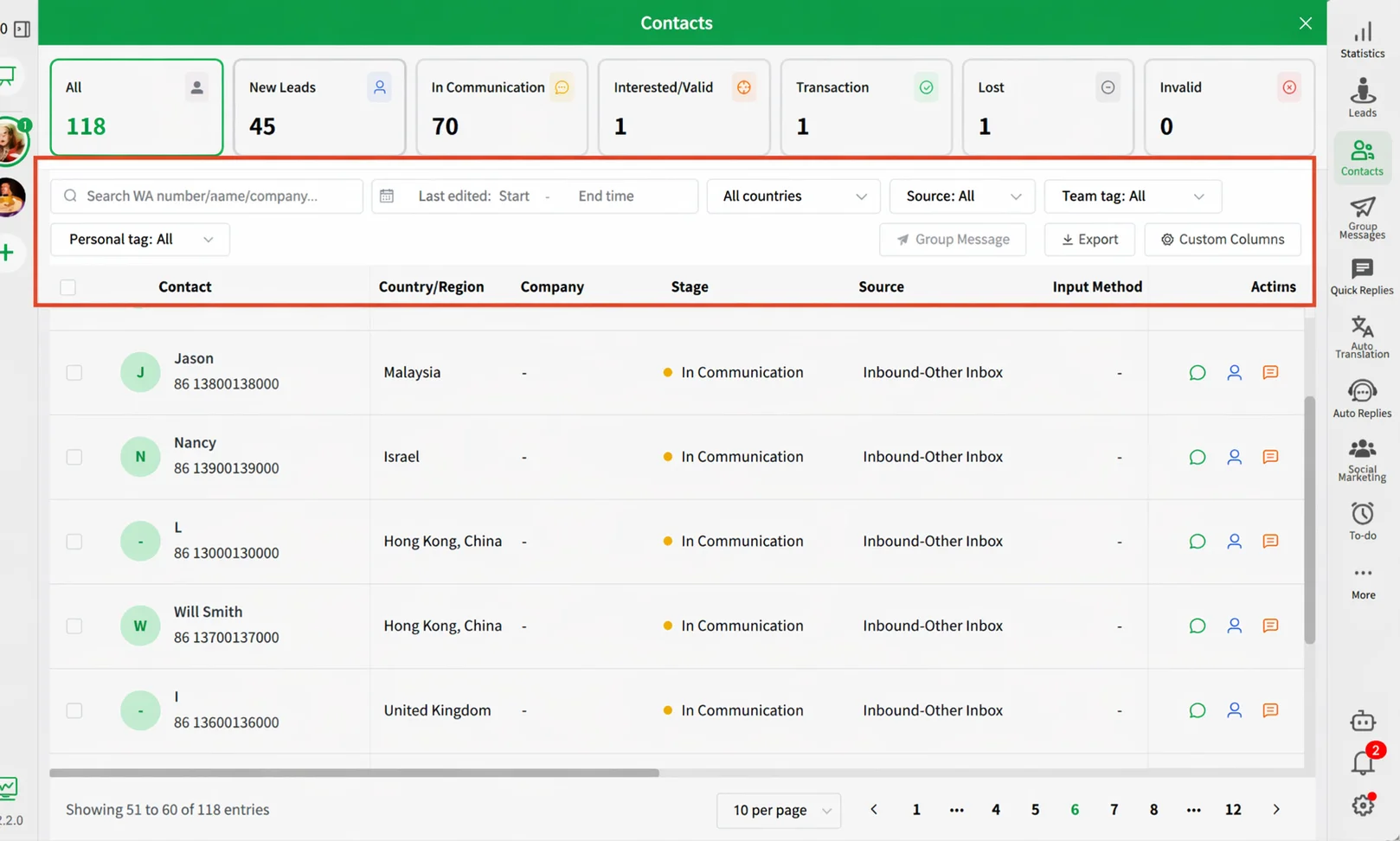
- Keyword Search: Enter a WA number, name, or company name in the search box at the top for real-time filtering.
- Multi-Dimensional Filtering: Use the filters to the right of the search box in combination: Last Edited Time, Country / Region, Source (Inbound-WALink / Outbound / Inbound-Import Assignment / Inbound-Other Receiving), Team Tag, Personal Tag.
Customize Table Columns
Click the Customize Columns button in the upper-right corner. In the pop-up panel, check or uncheck field names to show or hide columns. Drag the handle on the right to reorder columns. Available fields include: Team Tag, Personal Tag, Co-follower, First Contact Time, Last Contact Time, Last Edited Time, and more.
Take Actions on Contacts
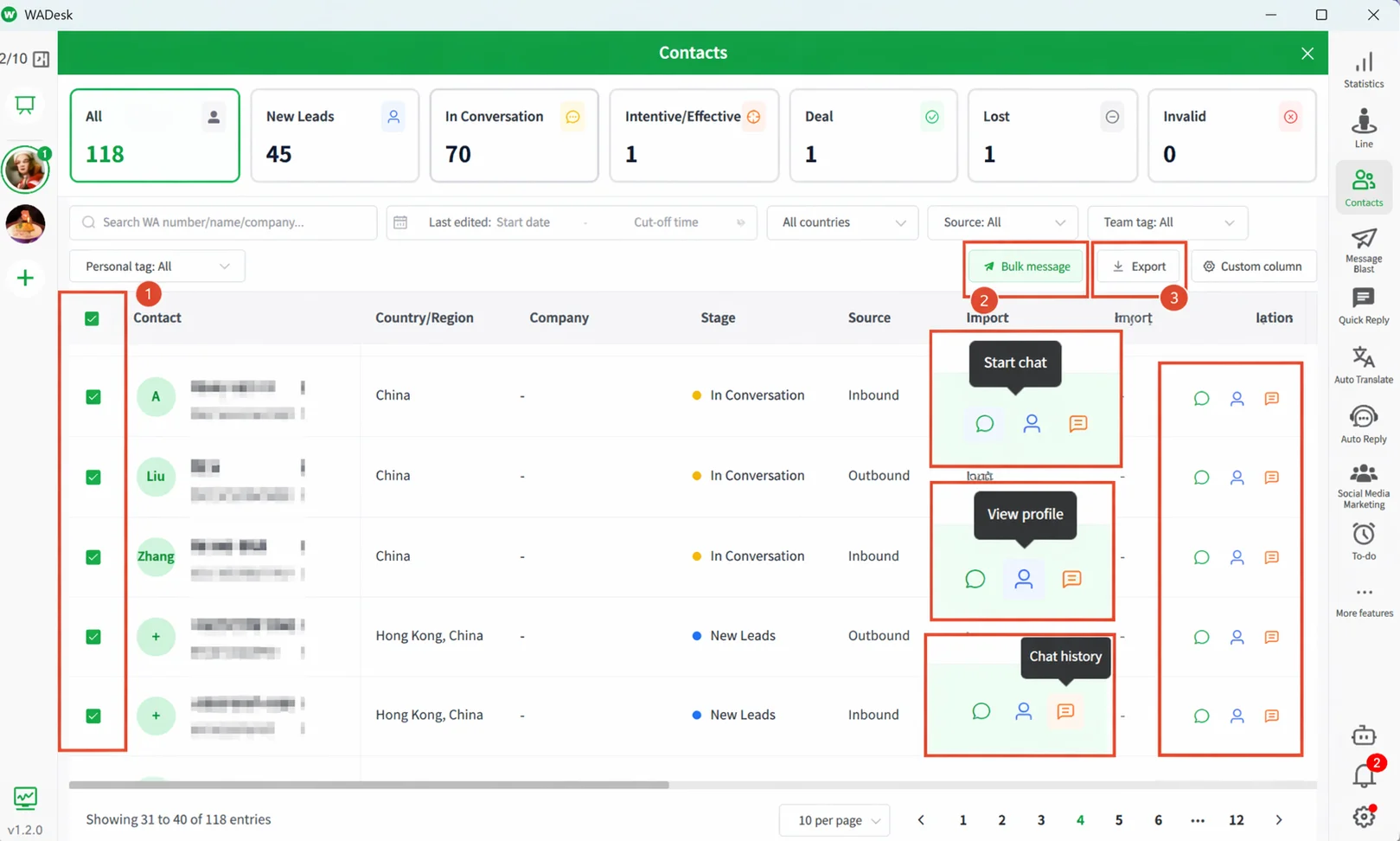
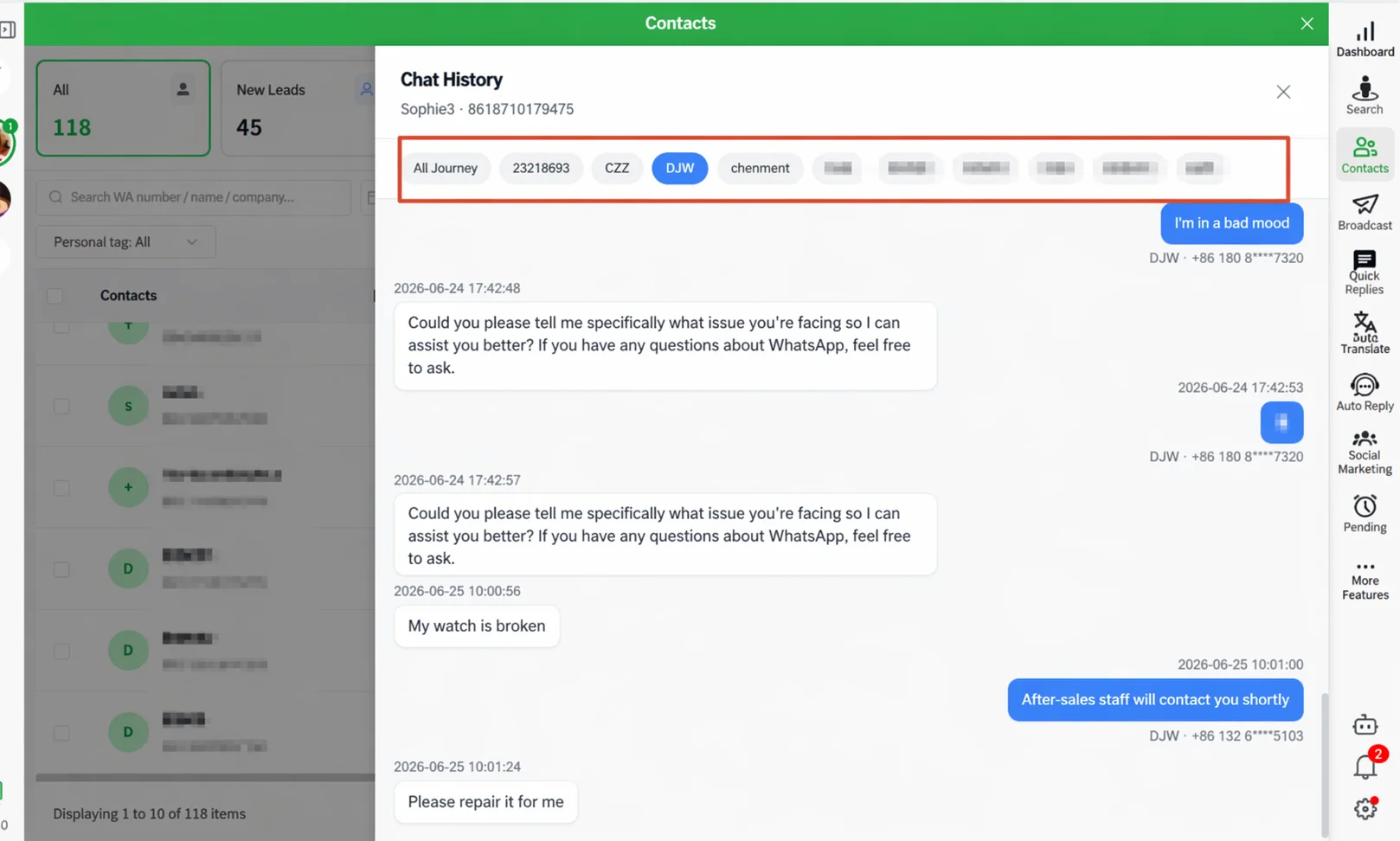
Three quick-action icons appear on the right of each row: Start Chat (bubble icon), View Profile (person icon, shows the full CRM information of the customer), and Chat History (text icon, shows historical communications between this customer and all employee accounts). Check one or more contacts and click Broadcast in the upper-right corner to launch a bulk message task for the selected contacts.
Export Contact Data
Click Export in the upper-right corner to export all contacts matching the current filter criteria as an Excel file.
Maintain Customer Profiles
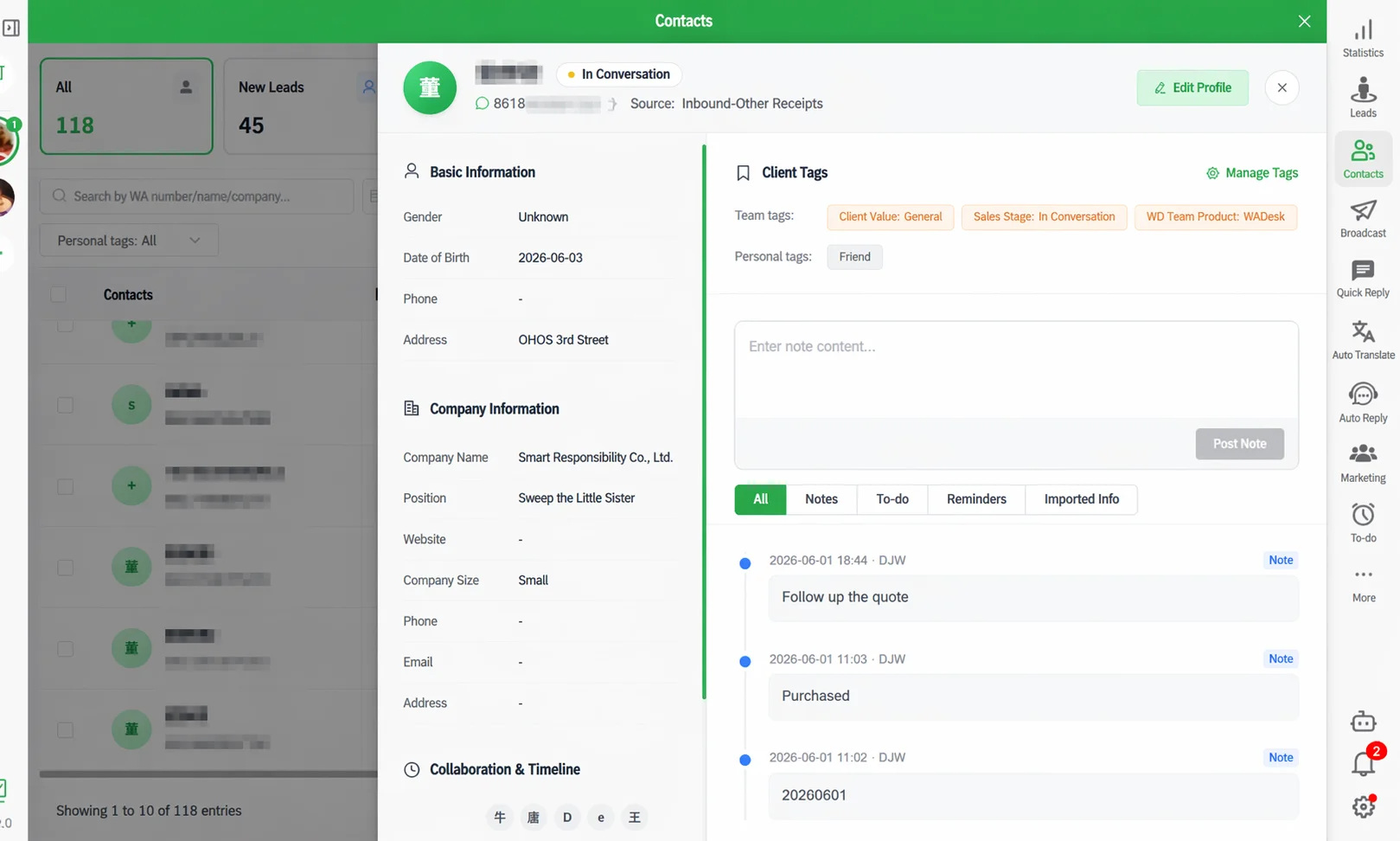
Click the View Profile icon to open the Customer Profile drawer on the right. It includes: Basic & Company Info (left side — gender, birthday, phone, address, etc.), Tags & Activity Timeline (right side — team tags and personal tags, a memo input area, and the activity timeline).
Access Cross-Account Chat History
Click the Chat History icon to open the chat history modal. The top of the modal displays tabs: All Records and each employee account that has communicated with the customer.
Important Notes
- The numbers on the status overview bar reflect contact data under the current WADesk account. Data changes when you switch accounts.
- The Customize Columns configuration only applies to the current employee account.
- The chat history modal displays archived data. Replying to messages directly from the modal is not supported.
FAQ
Q: I can't find a customer in the contact list. What should I do? A: Check whether the status bar at the top is filtered to a specific stage. Also confirm no residual filters are still applied.
Q: How do I update the "Stage" field? A: In the Customer Profile drawer, click Edit Profile, locate the Stage field, select the new sales stage, and save.
Q: What is the difference between team tags and personal tags? A: Team tags are configured by the admin and shared across all members. Personal tags are created and managed by each employee and are only visible to the creator.