
How to Mine Potential WhatsApp Customers from Google Maps with WADesk
Mining Potential Customers
Navigation Path: Desktop Client → Right Sidebar → More Tool → Lead Mining
Lead Mining automatically collects business information related to your product or service from Google Maps for a specified country/region, including phone numbers, emails, company names, industries, and addresses. It helps you quickly build a target customer list and allows you to directly initiate WhatsApp broadcasts to reach them.
📹 Video Tutorial (approx. 5 min) Follow along with the video, or read the illustrated steps below directly.
Steps
Step 1: Configure Search Criteria
At the top of the Lead Mining page, fill in three search criteria:
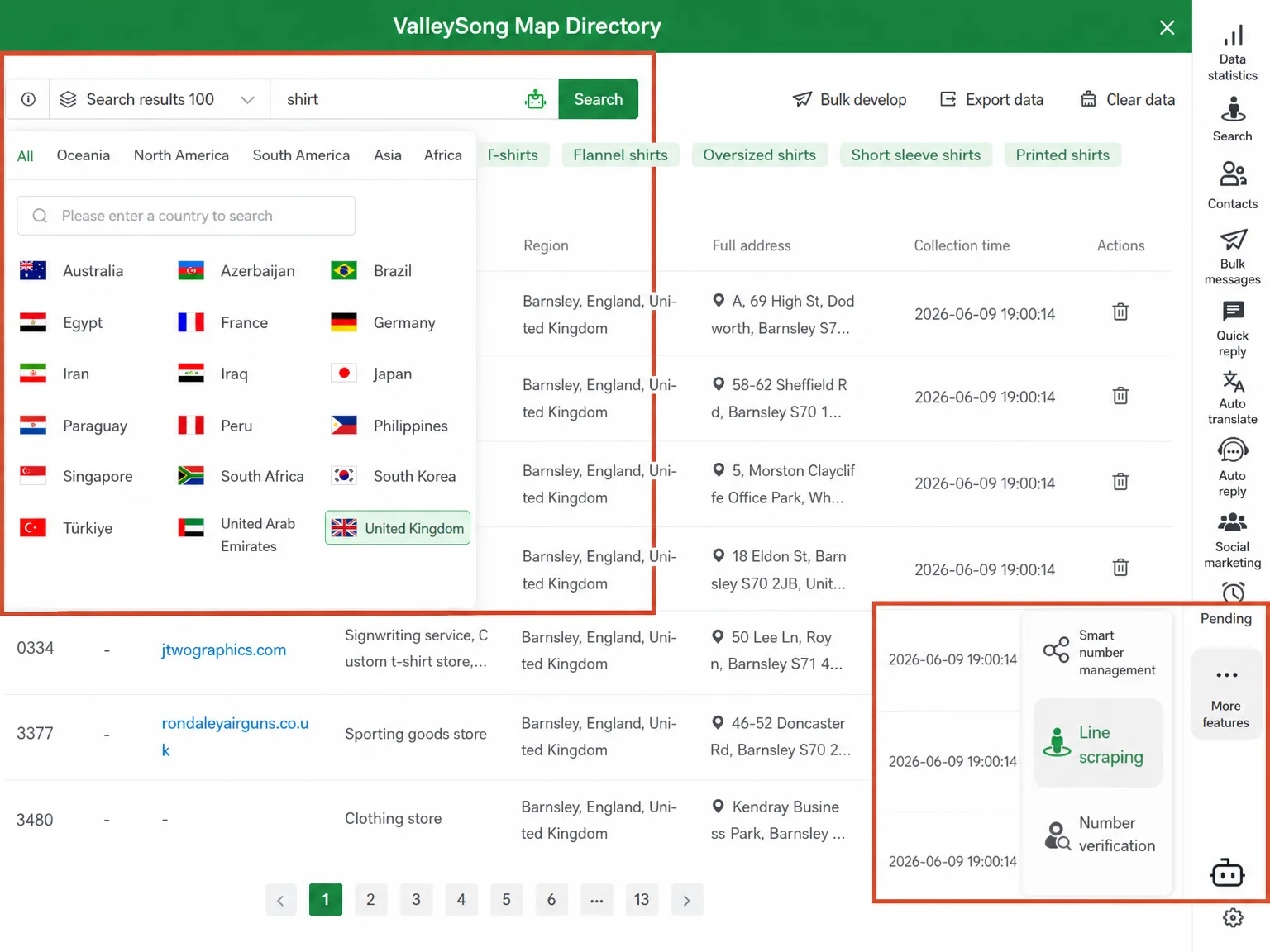
Country/Region: Click the left input box to open the country selection panel. The panel is categorized by region (Hot, Southeast Asia, Japan & Korea, Europe, etc.). Click to select directly, or type a country name for quick search. Choose the country of your target market.
Number of Results: Select how many results to collect per search. Options: 100, 200, 500, 1,000, or 2,000. Start with 100 results to test keyword effectiveness; expand the volume after confirming result quality.
Keyword: Enter English keywords for your target customers' industry, product, or service (e.g., shirt, bicycle store, furniture manufacturer). More precise keywords yield better customer matches.
Step 2: Expand Keywords with AI
If you are unsure which keywords to use, or wish to explore more niche directions, use the AI Keyword Expansion feature.
Click the robot icon to the right of the keyword input box. Based on your seed keyword, the system automatically generates a set of related long-tail keyword tags (e.g., entering shirt yields men's shirts, casual shirts, graphic shirts, oversized shirts).
Click any tag to replace the current search keyword with it, then click Search to run the collection. Test different niche keywords one by one to identify target audiences with higher conversion rates.
Step 3: Run the Search and Review Results
Click Search. The system begins collecting data from Google Maps automatically, with the status "Found N results" updating in real time at the bottom of the page. To abort during collection, click the red Stop Search button.
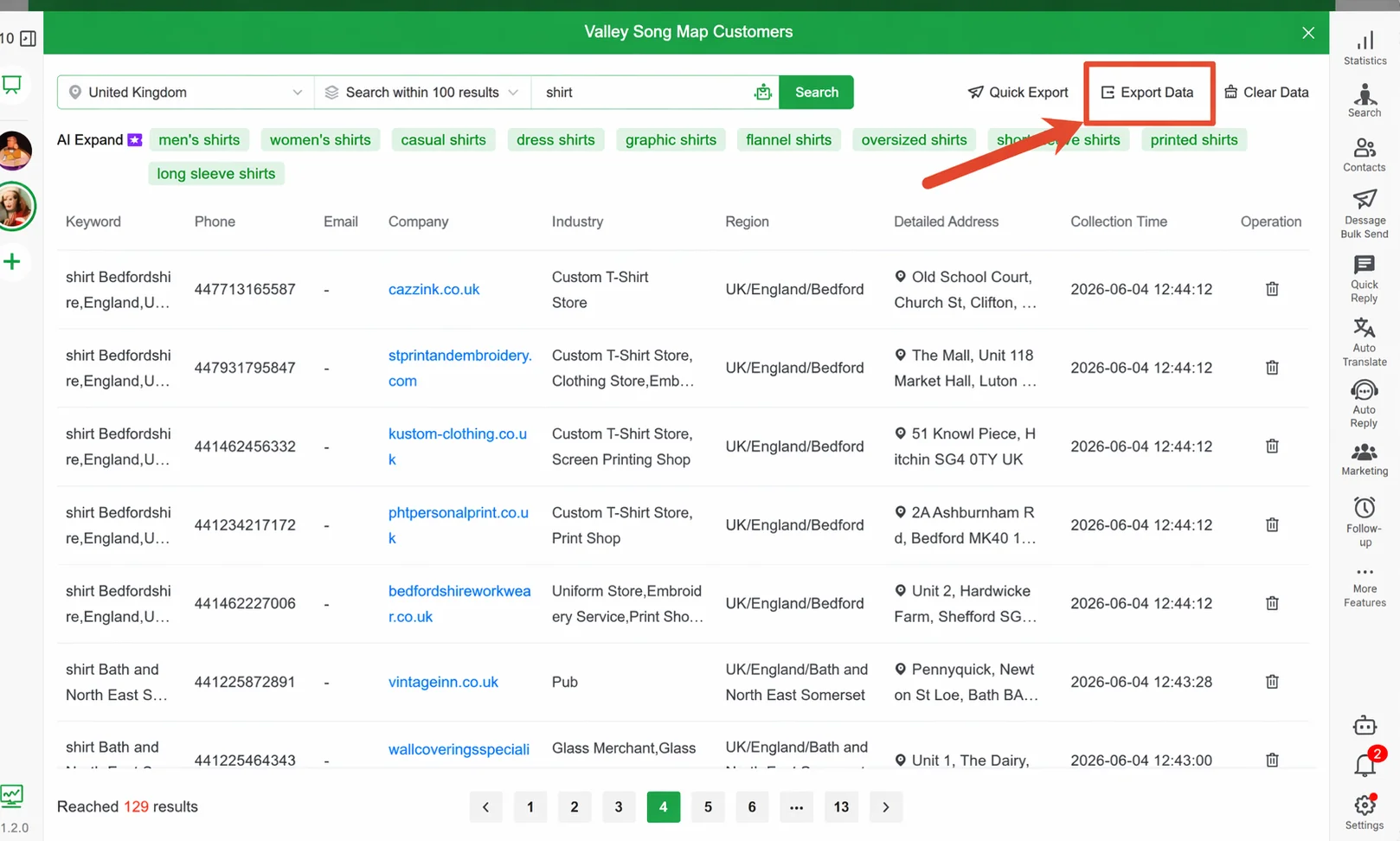
Once complete, results display in a table—one row per potential lead—with the following fields:
| Field | Description |
|---|---|
| Keyword | The search term that triggered this result |
| Phone | A WhatsApp-eligible contact number |
| An email contact for email marketing | |
| Company | Business name; click to visit the official website or Google Maps details |
| Industry | Business industry category |
| Region | City / region |
| Address | Full street address |
For clearly irrelevant results, click the trash can icon on the far right to delete that single record and keep the list clean.
Step 4: Process Collected Results
Three follow-up actions are available:
One-Click Broadcast (immediate outreach): Click One-Click Broadcast at the top. The system automatically carries all contacts with phone numbers from the current list into the broadcast task wizard, so you can launch WhatsApp outreach directly—no manual export and re-upload required.
Export Data (archiving or other uses): Click Export Data to download results as an Excel file. Use it for subsequent Number Verification, email marketing, or CRM import.
Clear Data (start a new round): Click Clear Data to remove all results from the current page and make room for the next search. Note: cleared data cannot be recovered. Confirm that you have saved needed content before clearing.
Important Notes
⚠ Collected phone numbers are not guaranteed to be valid WhatsApp accounts. Run them through the Number Verification feature before broadcasting to filter out invalid numbers, reduce send failures, and lower your account's Risk Control exposure.
⚠ Use keywords in the local language. Lead Mining relies on Google Maps data. English or local-language keywords produce broader coverage and more accurate results. Searching with Chinese keywords may yield sparse or irrelevant results.
⚠ Larger collection volumes take longer. Collecting 2,000 entries may take several minutes. Start with 100 entries to verify keyword and region match quality, then scale up as needed.
⚠ The Clear Data action is irreversible. Confirm that you have exported data or launched a broadcast before clearing; otherwise, data is permanently lost.
FAQ
Q: Collected phone numbers come in many different formats. Can I use them directly for broadcast? A: Run them through the Number Verification feature first to batch-validate and filter out numbers not registered on WhatsApp, then import valid numbers into a broadcast task. Broadcasting to an unverified list causes a high number of send failures and harms account health.
Q: What is the difference between One-Click Broadcast and exporting first? A: One-Click Broadcast skips the export step entirely—it carries valid numbers from the current list straight into the broadcast wizard, ideal for immediate outreach after collection. Export-first is suitable when you need manual review, added notes, or merging with other lists before sending.
Q: Are search results preserved? Will they still be there next time I open the app? A: Results persist within the current session and are cleared when you close the Desktop Client or click Clear Data. To retain them long-term, click Export Data and save locally before closing.
Q: Can I search multiple countries at once? A: Currently, each search supports only one country/region. To cover multiple markets, run separate searches, export each set of results, and merge the lists afterward.