
How to Use Quick Replies in WADesk for Faster WhatsApp Customer Communication
Using Quick Replies
Navigation Path (Use Scripts): Desktop Client → Right Sidebar → Quick Reply
Navigation Path (Manage Team Script Library): Home → left sidebar → Quick Reply
Quick Reply lets you send pre-configured scripts and attachments with a single click during chats, saving the time of repetitive typing. It is ideal for high-frequency scenarios such as quotation replies, product introductions, and FAQ responses.
Relationship Between Team Library and Personal Library
Quick Reply is divided into two script libraries that are independent yet related:
| Team Library | My Library | |
|---|---|---|
| Content Source | Maintained centrally by the admin in Home | Created by agents in the Desktop Client, or cloned from the Team Library |
| Visibility | Shared across all team members | Visible only to yourself |
| Edit Permissions | Only admins can create, edit, and delete | Agents can freely add, modify, and delete their own entries |
| Typical Use | Standardized product introductions, quotations, branded scripts | Personal phrasing preferences, private backup scripts |
In short: The admin builds "company-standard scripts" in Home, and all agents can use them directly in the Desktop Client. Agents can also clone frequently used team scripts to their personal library, or create their own private scripts.
Using Quick Replies in Chats
Open the Quick Reply Panel
In the Desktop Client right sidebar, click the Quick Reply icon. The panel slides out from the right. The panel offers two ways to quickly locate a script:
Filter by group: Click a group tab at the top (e.g., "Quotations", "Customer Service Scripts", "Assets"). The list auto-filters to scripts under that group. Click "All" to return to the full list; click "More / Collapse" on the right to expand or fold all group tabs.
Keyword search: Enter a script title or content keyword in the search box; the list filters matching results in real time.
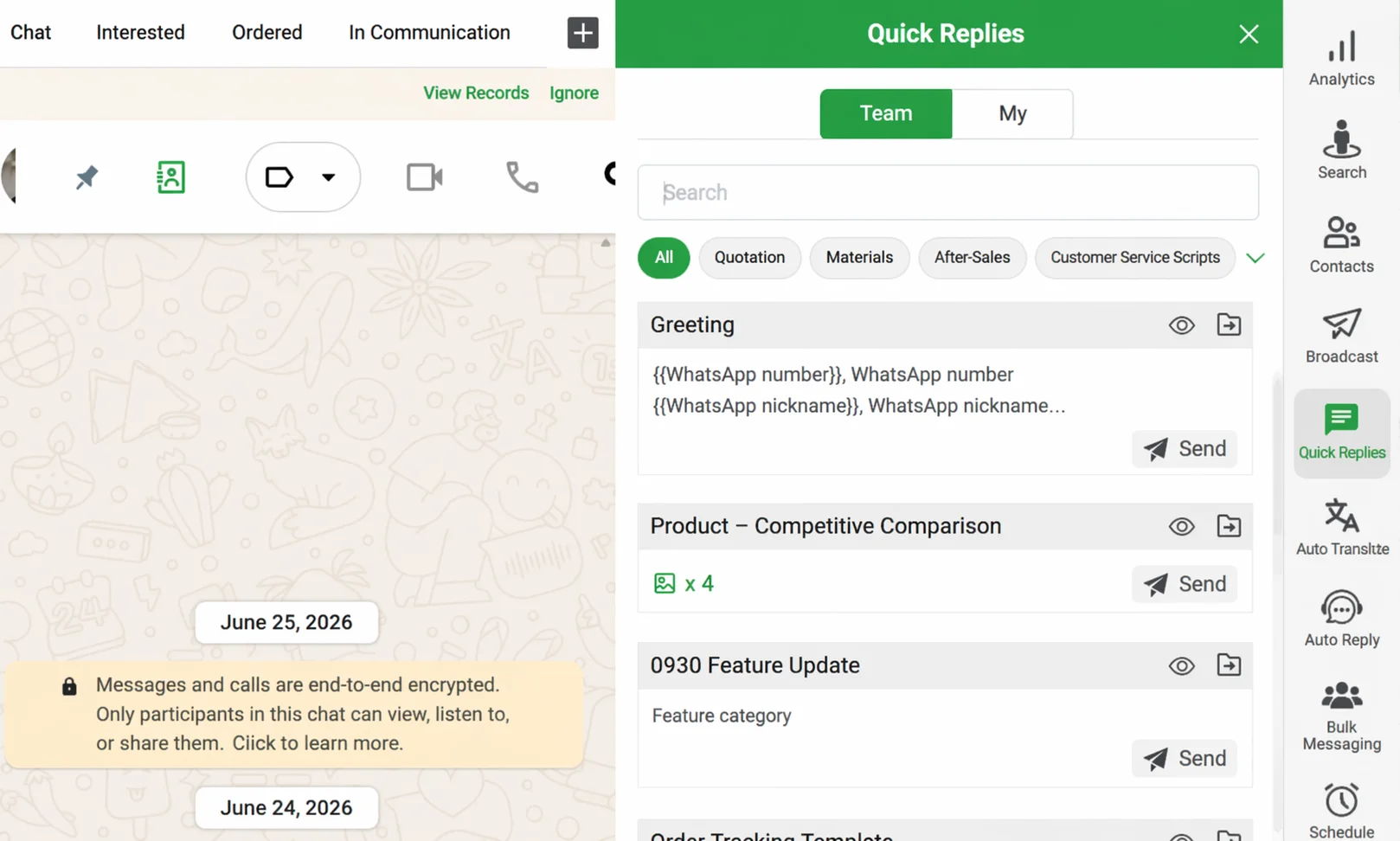
Find the target script, then click the eye icon at the top-right corner of the card to preview its full content, including text and attached images, files, and other multimedia—confirm it is correct before sending.
Send a Script
Confirm the chat window has switched to the target customer, then click the Send button at the bottom-right corner of the script card. The script content (including text and attachments) is sent immediately to the currently active WhatsApp chat conversation.
Note: Before sending, confirm the left chat window has switched to the correct customer to avoid mis-sending.
If the script contains dynamic variables (e.g., {{WhatsApp nickname}}), the system automatically replaces them with the customer's real information at send time, achieving a personalized effect.
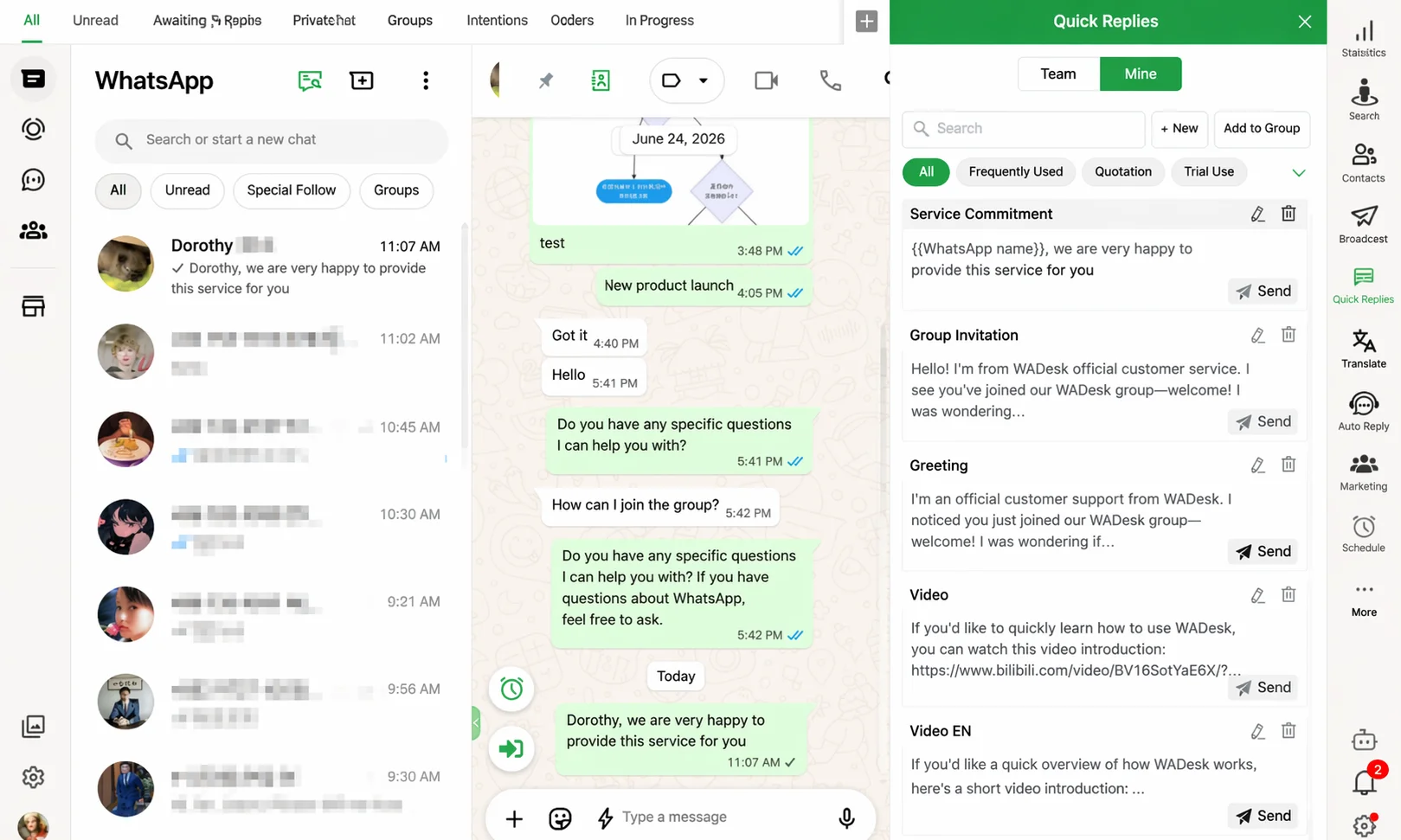
Save a Team Script to My Library
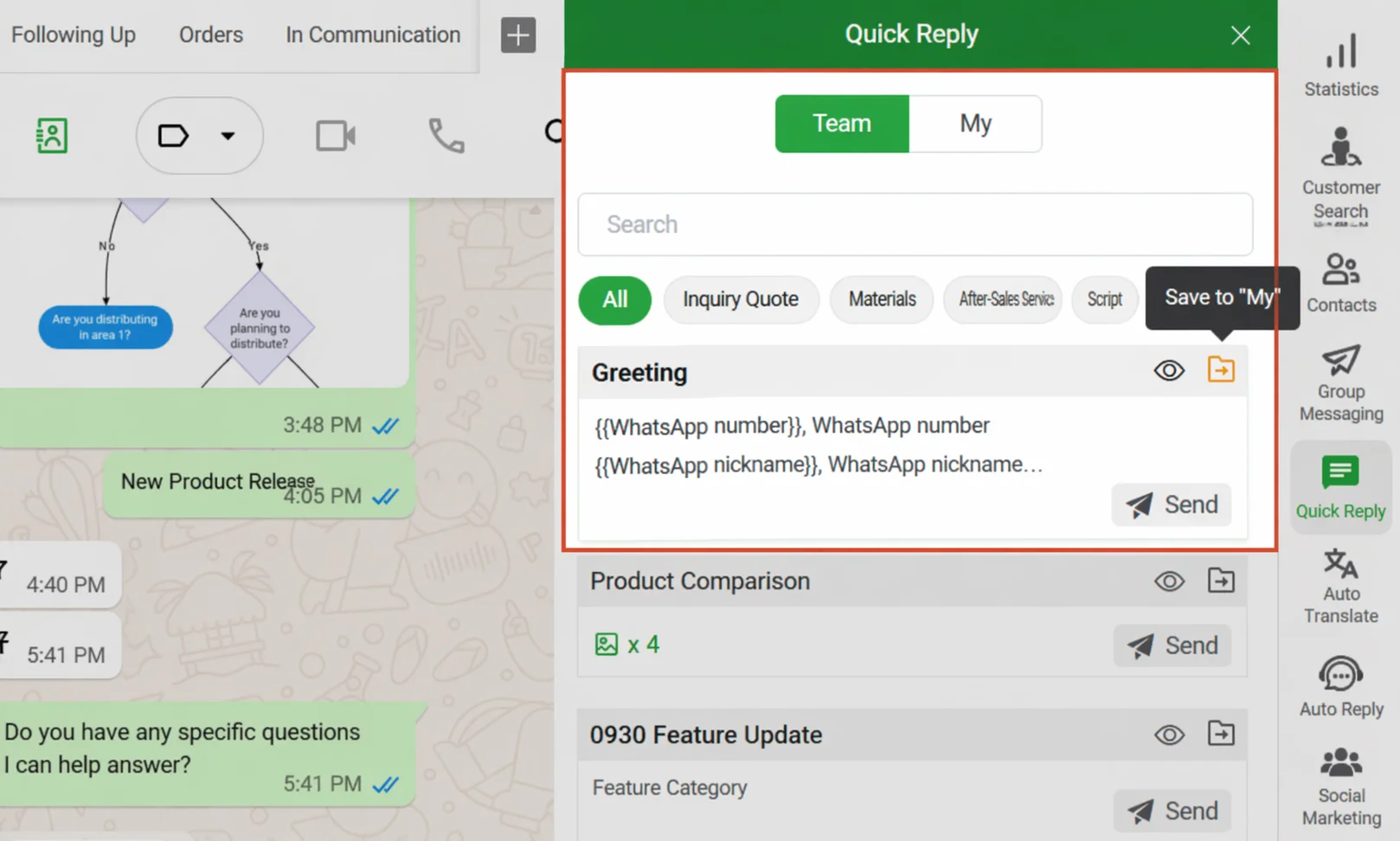
If you use a certain team script frequently, you can clone it to your personal library for quick access later, and also make private modifications in your personal library without affecting the team original.
Click the folder icon (hover tooltip "Save to My") at the top-right corner of the script card. The script is immediately copied to the My library. Switch to the My tab at the top to view it.
Manage Personal Groups
Under the My tab, click the ⚙ Add Group button to create, rename, or delete personal groups, and drag to reorder their display sequence. Groups are for personal categorization only and do not affect the Team Library's group structure.
Create a New Script in My Library
Switch to the My tab and click the + New button to the right of the search box to open the Create Message dialog.
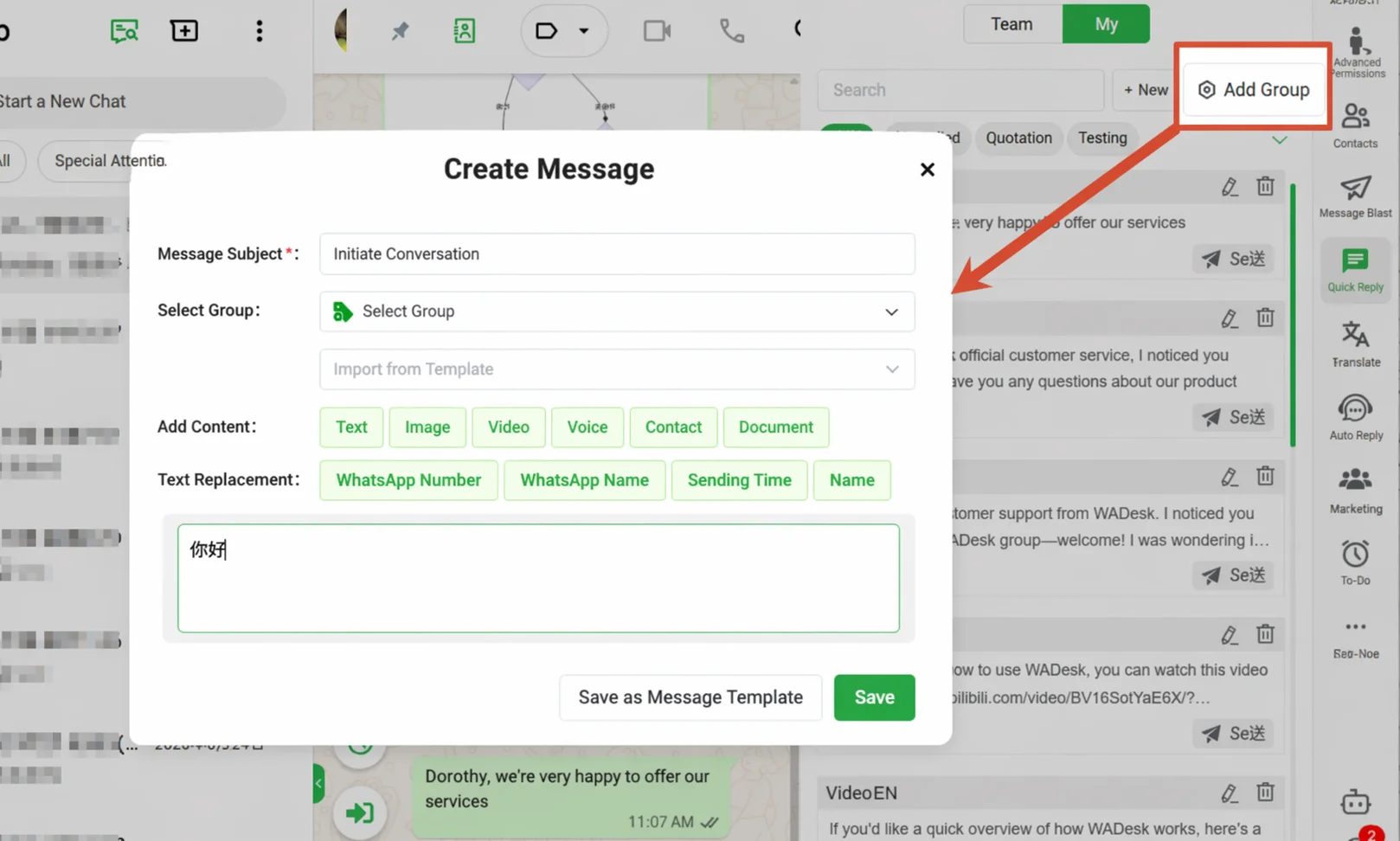
Fill in the following order in the dialog:
① Content Title (required): Give the script a recognizable name, e.g., "India Customer Quotation - Standard".
② Select Group: Choose the owning group from the dropdown for later filtering by group. If no suitable group exists, click + Add Group at the bottom of the dropdown to create one on the spot.
③ Import from Template: If preset templates exist in the system, select one here to quickly fill the content area, then modify as needed.
④ Add Content: Click the Text, Image, Video, Voice, Business Card, Document buttons to add content blocks one by one. A single script can contain both text and multiple attachments, which are sent in the order they were added.
⑤ Insert Variables (optional): Place the cursor where you want to insert in the text box, then click the variable tags in the Text Replacement area (e.g., {{WhatsApp number}}, {{WhatsApp nickname}}, {{Send time}}, {{Name}}). The system automatically replaces them with the customer's real information at send time, achieving personalized scripts.
⑥ Save: Click Save to finish creating; the script appears immediately in the My library. If you also want to save this script as a broadcast message template, click Save as Message Template.
Edit or Delete a Personal Script
In the My library, each script card provides a pencil icon (edit) and a trash icon (delete) at the top-right corner. Click the pencil icon to reopen the Create Message dialog and modify the content; click the trash icon and confirm, and the script is permanently removed from the personal library.
Team Library scripts do not provide edit or delete buttons—admins manage them in Home.
Important Notes
- Agents can only use and clone team scripts. They cannot directly modify or delete Team Library content from the Desktop Client; Team Library content is managed by admins in Home.
- Variables in scripts (e.g.,
{{WhatsApp nickname}}) are automatically replaced at send time, but if the customer has no corresponding information set (e.g., no noted name), the variable displays empty. It is recommended to provide fallback text in the script. - Scripts in My Library are visible only to yourself—they are not synced to other team members and do not appear in the Team Library.
FAQ
Q: After sending a script with images, can the customer receive them normally? A: Yes, normally. Quick Reply supports multimedia attachments including images, video, voice, and files, and sending is no different from a regular message.
Q: After "Save to My", if the admin modifies the original team script, will my copy change too? A: No. Scripts cloned to My Library are independent copies and do not affect each other with the Team Library original. After the Team Library updates, you need to re-clone the latest version or manually modify your personal copy.
Q: How many scripts can I create in My Library? A: There is no explicit upper limit, but we recommend periodically organizing and deleting unused scripts to keep the personal library tidy and improve search efficiency.
Q: How quickly can agents see new scripts the admin creates in Home? A: In real time. After the admin saves, agents just refresh the Quick Reply panel to see the latest content—no waiting required.