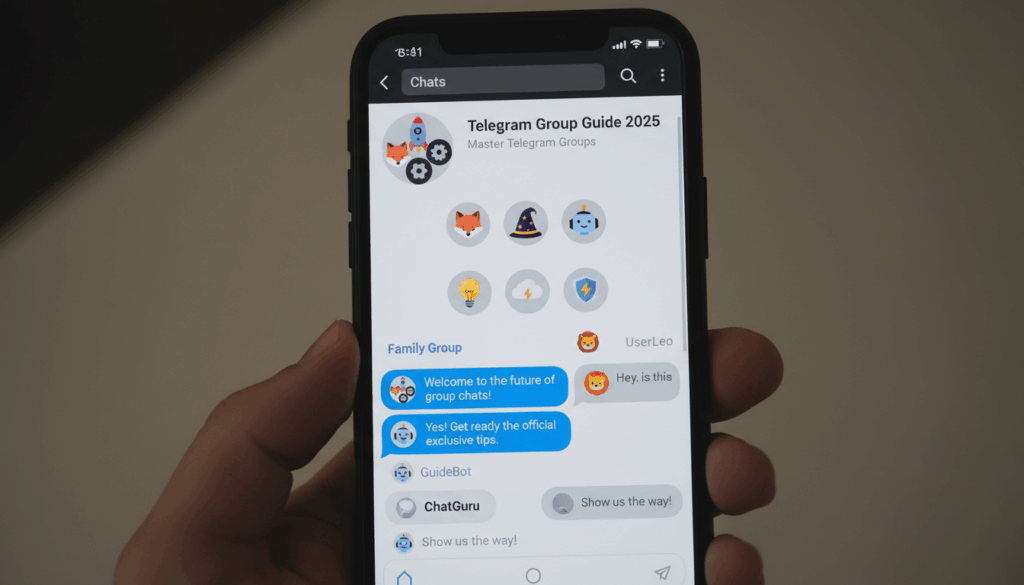
Telegram has become one of the most popular platforms for building online communities. Whether you’re joining a study group, following a crypto project, or building your own brand community, chances are you’ll end up inside a Telegram group.
This guide will walk you through everything you need to know about Telegram groups in 2025:
- What a Telegram group is and how it works
- How to join and create Telegram groups
- Essential settings and features for group admins
- Frequently asked questions about safety, privacy, and growth
If you’re managing more than one group or channel, it quickly becomes hard to keep everything organized. In that case, it’s smart to combine Telegram’s built‑in features with a dedicated management layer like Telegram Group Bot - TGDesk, which lets you build a clean entry point for all your Telegram communities in one place.
A Telegram group is a group chat where multiple people can talk, share files, and build a community in real time. Unlike one‑to‑one chats, a Telegram group lets you connect with dozens, hundreds, or even thousands of members around a specific topic or interest.
Common use cases for Telegram groups include:
- Study groups and language exchange communities
- Crypto, forex, and stock trading discussions
- Tech and programming communities
- Customer support or user communities for products and SaaS
- Local city groups and hobby clubs (photography, fitness, gaming, etc.)
If you want an always‑on community space where people can talk to each other, a Telegram group is one of the easiest ways to build it.
Telegram Group vs Telegram Channel
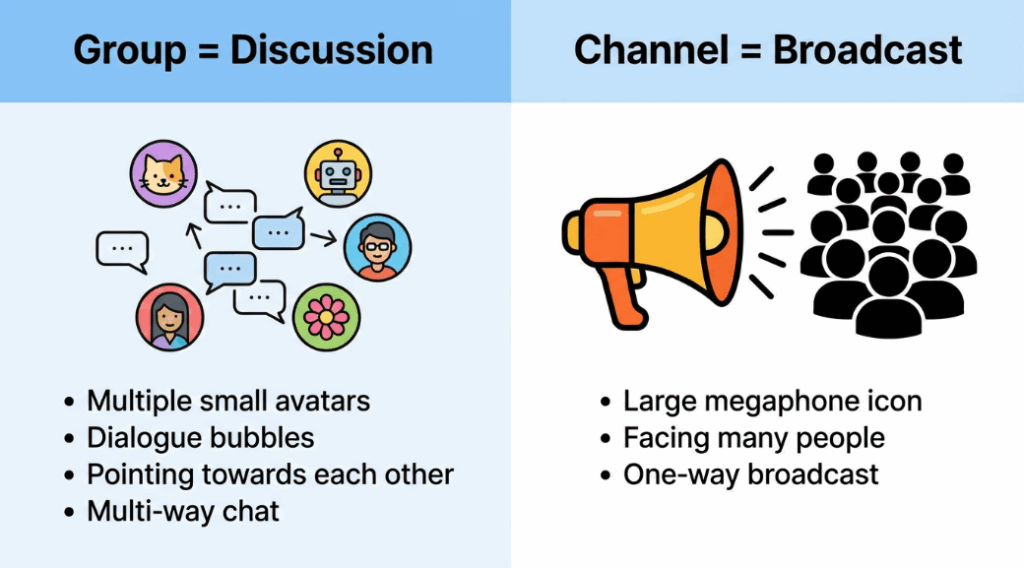
Many new users confuse Telegram groups with Telegram channels, but they serve very different purposes.
Telegram Group
- Two‑way or multi‑way communication: anyone with permission can send messages.
- Built for discussion, Q&A, and collaboration.
- Ideal for communities, study groups, support groups, and friend circles.
- According to Telegram's official FAQ, groups can support up to 200,000 members.
Telegram Channel
- Mostly one‑way broadcasting: only the owner and selected admins send messages; subscribers mainly read.
- Built for announcements and content distribution, not open chat.
- Ideal for news, media, creators, and brands.
A simple way to remember:
- If you want everyone to talk to everyone, you need a Telegram group.
- If you want to broadcast updates to many people, you need a Telegram channel.
Many creators use both: a channel for official news and a group where the audience can chat and ask questions.
Types of Telegram Groups
Telegram offers several types of groups. Understanding them helps you pick the right setup from the beginning.
Public vs Private Telegram Groups
Public Telegram Group
- Has a public username, such as t.me/yourgroupnamet.me/yourgroupname.
- Searchable inside Telegram by name or keyword.
- Anyone with the link can usually join (unless you add extra verification).
- Great for growth and for building open communities.
Private Telegram Group
- Does not appear in Telegram search.
- Only accessible via an invite link or manual invitation by admins.
- Ideal for smaller, trusted circles, paid communities, internal teams, or course cohorts.
You can choose public or private when you create the group and change it later if needed.
Small Groups vs Supergroups
Telegram groups can grow very large. As your community scales, Telegram may upgrade it to a supergroup, which unlocks more controls.
Regular Group
- Designed for small groups and casual conversations.
- Basic management options.
Supergroup
- Supports up to 200,000 members (Telegram’s current limit).
- Offers advanced admin tools (moderation, join controls, anti‑spam settings).
- Optimized for performance and message history in large communities.
Most serious communities eventually operate as supergroups, often combined with bots and management tools to automate onboarding, moderation, and analytics.
What Can You Do in a Telegram Group?
A Telegram group is more than just a basic chat. It can become a full‑featured community hub where you can:
- Chat in real time with many members
- Share photos, videos, documents, and large files (up to 2 GB per file)
- Use polls, quizzes, and reactions to increase engagement
- Pin important messages (rules, FAQs, announcements)
- Integrate bots to automate tasks, such as:
- Welcoming new members and sending onboarding messages
- Automatically detecting and blocking spam
- Collecting feedback, questions, or sign‑up information
- Use topics (threads) in big groups to keep discussions organized
For group admins and community builders, Telegram is powerful out of the box. When you add the right tools, you can treat your Telegram group like a complete community platform.
Now that you understand what a Telegram group is, the next step is learning how to join a Telegram group. There are several ways to do this: via an invite link, through Telegram’s search, or from websites and other communities. The exact method depends on whether the group is public or private.
Join via Telegram Group Link
The most common way to join a Telegram group is via a Telegram group link, also known as an invite link.
A typical Telegram group link looks like:
- https://t.me/groupname
- https://t.me/groupname (for public groups)
- https://t.me/+randomCharactershttps://t.me/+randomCharacters (for private invite links)
Steps to join a Telegram group via link:
-
Click the group link
- You might see it on a website, blog, social media profile, YouTube description, or receive it directly from a friend.
-
Open in Telegram
- On mobile, if you have Telegram installed, your device will suggest opening the link in the Telegram app.
- On desktop, the link can open in the Telegram desktop app or web version.
-
Tap or click “Join”
- You’ll see a preview of the group (name, photo, and member count).
- Tap Join to become a member and start chatting.
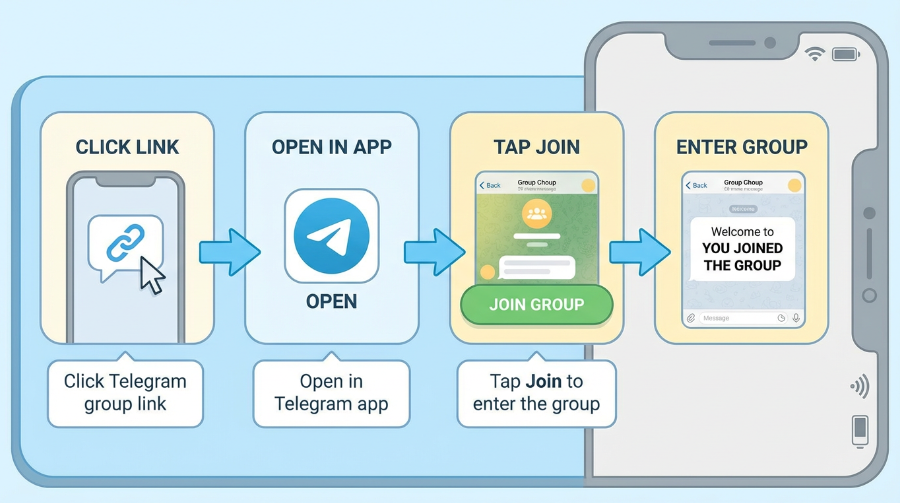
Some groups add an extra verification step with a bot (for example, asking you to click a button or answer a simple question). Just follow the instructions, and you’ll be admitted to the group once you pass the check.
Find Public Telegram Groups by Search
For public Telegram groups, you can often find them using Telegram’s built‑in search.
How to find public Telegram groups via search:
- Open the Telegram app.
- Tap the search bar at the top.
- Type keywords related to your interests, such as:
- “crypto group”, “movie chat”, “programming”, “startup”, “fitness”, etc.
- Scroll through the Global Search results.
- You’ll see users, channels, and groups. Public groups will show a group icon and a member count.
- Tap a group to see its description and pinned messages, then tap Join if it looks like a good fit.
This method works best for large and well‑known public communities. Keep in mind that many high‑quality groups are private or don’t rely on search, so what you find in search is just part of the Telegram ecosystem.
Join Telegram Groups from Websites & Communities
Many websites, creators, and projects share Telegram group links on their homepages or content:
- A blog post ends with “Join our Telegram group for more tips and discussion”
- A YouTube creator adds an official Telegram group link in the video description
- A paid course or membership program includes a private Telegram group link for students
- Social profiles on Twitter, Discord, or other platforms include Telegram group or channel entry links
When joining Telegram groups via external websites, pay attention to how clearly they describe the group:
- What is the group about?
- Which language(s) do they use?
- Are there clear rules and visible admins or moderators?
If you run multiple Telegram groups or channels yourself, you can use tools to create a more organized “hub” where users can discover all your communities in one place.
If you don’t just want to join other people’s communities and instead want to build your own, you need to know how to create a Telegram group. The good news is that creating a group itself is very easy and takes less than a minute; the real challenge is managing and growing it afterward, which is where good tools and processes help.
Below we’ll cover:
- How to create a Telegram group on mobile
- How to create a Telegram group on desktop
- How to set a group name, photo, and description
- How to choose between a public or private Telegram group
Creating a Telegram Group on Mobile (iOS/Android)
The exact interface may differ slightly between iOS and Android, but the process is almost identical.
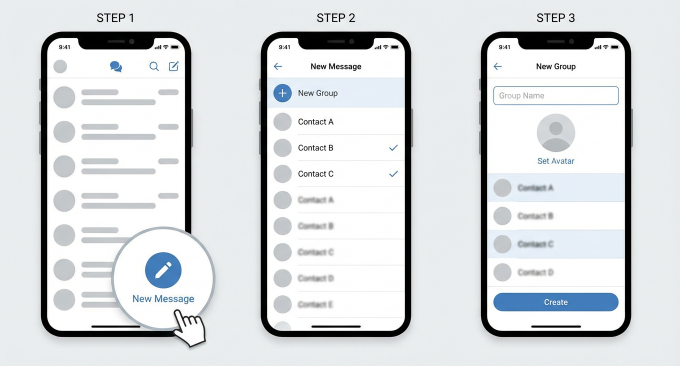
Step 1: Tap “New Group”
- Open the Telegram app.
- Tap the “New Message / pencil” icon (usually in the top‑right or bottom‑right corner).
- Select “New Group” from the menu.
Step 2: Choose initial members
- Telegram will ask you to select at least one contact from your address book.
- Pick one or two people (you can add more members later).
- Tap Next to continue.
Step 3: Set your group name and photo
- In the “Group Name” field, choose a clear, descriptive name with relevant keywords, for example:
- “Productivity Tools Telegram Group”
- “Crypto Beginner Study Group”
- Tap the camera icon to upload a group photo (logo, icon, or any relevant image).
- Tap Create when you’re done.
Step 4: Add a group description and invite more members
- After your group is created, tap the group name at the top to open “Group Info”.
- In the Description field, explain:
- What the Telegram group is about
- Who it is for
- The main rules and language(s) used
- Use the invite link or Add Members option to invite more people.
If you want to look professional and build trust from day one, it’s a good idea to mention your website or tool hub in the description, for example:
For more tools and resources, visit here to manage telegram group
Creating a Telegram Group on Desktop
Many community managers prefer managing groups on desktop because of the larger screen and faster typing. Creating a Telegram group on desktop is just as easy:
Step 1: Open Telegram Desktop or Web
- Launch the Telegram Desktop app or open Telegram Web in your browser.
- Log in to your account.
Step 2: Create a new group
- Click the “menu” (three lines) or “New” / “+” button, usually located in the top corner.
- Select “New Group” from the options.
Step 3: Add members & set the group name
- Choose at least one contact as an initial member.
- Click Next to go to the group naming screen.
- Enter your group name, upload a group photo, and click Create.
Step 4: Complete the group info
- Inside the new group, click the group name at the top to open Group Info.
- Add a concise description that explains the purpose of the group and, if relevant, include your website or tool hub link
- Generate and copy the invite link so you can share it on your website, emails, or social media.
Setting Group Name, Photo & Description
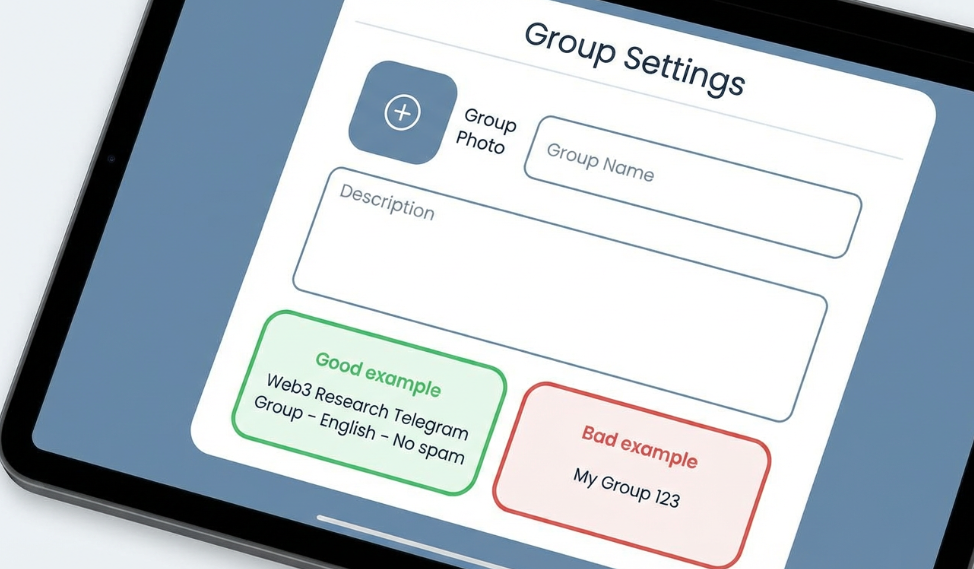
Many people rush through the setup, choose a random name, and skip the description, which makes the group look unprofessional and confuses new members. A bit of optimization here can go a long way.
1) Group Name
- Include relevant keywords that describe the topic:
- “Design Feedback Telegram Group”
- “Web3 Research Telegram Group”
- Make it clear and straightforward so people know immediately what the group is about.
- Avoid using only your brand name unless your brand is already well‑known.
2) Group Photo
- Use a clear logo or symbolic icon.
- If you run multiple groups, consider small visual variations (colors, tags) to differentiate them.
- Keep a consistent style to strengthen your brand image.
3) Group Description
Use 2–4 short sentences to explain:
- What the group is about
- Who it is for
- Basic rules (no spam, no abuse, etc.)
- Your official site or tool entry point
For example:
This is a Telegram group for discussing productivity tools and workflows.
Please be respectful and avoid spam or self‑promotion.
Public vs Private Groups: Which Should You Choose?
When creating your Telegram group, you need to choose between public and private, and that choice affects:
- Whether people can find your group via search
- How much control you have over who joins
- Your long‑term growth and management strategy
When a public Telegram group is a good fit:
- You want as many people as possible to be able to join via search or shared links.
- Your content is meant to be public: open study groups, interest‑based communities, brand user groups, etc.
- You have some moderation capacity (admins or tools) to deal with spam.
When a private Telegram group makes more sense:
- It’s a paid community, internal team, or student‑only group.
- You want strict control over who joins, using invite‑only links or manual approval.
- You care more about member quality and safety than raw member count.
In practice, many community builders use a layered structure:
- One public group as a community entry point
- Multiple private groups for different segments, tiers, or topics
With tools like Telegram Group Bot - TGDesk, you can design a clear “public entry + private layers” structure: visitors first land on a central page, then are routed into the right Telegram group or channel based on their profile, interests, or payment status.
Once your Telegram group is created, many people simply start chatting and never touch the settings again. But if you want your group to be organized, scalable, and easy to manage, you need to understand the key settings and features:
- Group permissions (who can post, add members, change info)
- Admin roles and rights
- Message history, slow mode, and anti‑spam tools
- How to use bots in Telegram groups
These settings determine whether your group behaves like a professional community or a chaotic chatroom.
Group Permissions (Who Can Post, Add Members, Pin Messages)
In your group settings, you can control in detail what members are allowed to do. Common permissions include:
- Whether they can send messages
- Whether they can send media, files, and links
- Whether they can send stickers and GIFs
- Whether they can create polls
- Whether they can add new members
- Whether they can pin messages or change group info (usually admins only)
Some practical configuration patterns:
-
Anti‑spam configuration
- Regular members can send text and emojis but are restricted from sending links or large media.
- Only admins can post messages containing links or external resources.
-
Read‑only announcement group
- Only admins are allowed to send messages.
- This is ideal for official announcements, update logs, and news.
-
New member “buffer” period
- With bots or external tools, you can restrict what new members can do for the first few minutes or hours.
- This reduces the risk of spam bots joining and instantly flooding the group.
Admin Roles and Rights
As your group grows, it becomes impossible for one person to handle everything. You need to assign admins and give them appropriate rights.
In Telegram groups, you can grant admins the ability to:
- Manage members (kick, ban, restrict, invite)
- Manage messages (delete others’ messages, pin messages)
- Manage group info (change name, photo, description)
- Manage invite links
- Manage other admins (usually reserved for the group owner)
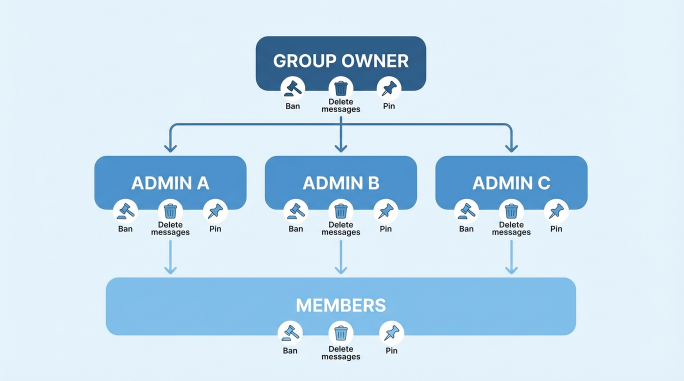
Practical tips:
- Give each admin a clear role:
- Some focus on welcoming and helping new members
- Some focus on watching for spam and abusive content
- Some cover peak hours, events, or launches
- Avoid granting every admin full power over everything, especially critical permissions such as deleting messages, kicking members, or changing the group name.
- For paid communities or official brand groups, it helps to have tools that track where members are coming from and how they behave, so admins can manage them more intelligently.
Message History, Slow Mode & Anti‑Spam Tools
Message History
Telegram lets you decide whether new members can see messages sent before they joined. This affects:
- How quickly new members can understand past discussions and context
- Whether sensitive or internal information is visible to people who join later
Typical patterns:
- Public discussion groups: allow viewing past history so newcomers can catch up easily.
- Internal project groups or sensitive discussions: consider restricting access to history for privacy reasons.
Slow Mode
Slow mode limits how often each member can send messages (e.g., one message every 10 or 30 seconds). It helps:
- Prevent a few people from dominating the conversation
- Keep discussions readable during busy events or hot topics
- Give admins more time to read and moderate
Anti‑Spam & Filtering
In large Telegram groups, spam and bot attacks are common. You can:
- Use built‑in tools to restrict, mute, or ban abusive accounts
- Deploy bots for join verification, keyword filtering, and link control
- Use external management tools to see which groups are most targeted and need stronger protection
Using Bots in Telegram Groups
Bots are one of Telegram’s most powerful features. For group owners, using bots properly can dramatically reduce manual workload and make your Telegram group feel much more automated and organized.
Common bot use cases include:
- Welcoming new members with a greeting, group rules, and FAQs
- Join verification, asking new members to click a button or pass a simple test to block spam bots
- Auto‑removing spam by detecting certain keywords, links, or patterns
- Polls and feedback collection to gather opinions in a structured way
- Analytics and stats to track activity, message volume, and growth

If you’re not a developer, you can still use many existing public bots. For advanced needs, you can develop your own bot or use third‑party platforms.
Q1: What is a Telegram group?
A Telegram group is a space where multiple users can chat, share files, and interact in real-time. It’s used for discussions, study groups, tech communities, crypto talks, and more.
Q2: What is a Telegram group link?
A Telegram group link is a URL you click to join a Telegram group. It can be a public link (e.g., https://t.me/groupname) or a private invite link (e.g., https://t.me/+randomCharacters).
Q3: What’s the difference between a Telegram group and a channel?
- Telegram Group: Multi-way chat, great for discussion, Q&A, and community building.
- Telegram Channel: One-way broadcasting, used for updates, news, and announcements.
Q4: How many people can join a Telegram group?
A Telegram supergroup can support up to 200,000 members.
Q5: Is a Telegram group safe?
Telegram groups can be safe if privacy settings are used properly, but risks like spam, scams, and phishing still exist. Be cautious of suspicious links and untrusted files.
Q6: Can people see my phone number in a Telegram group?
Your phone number visibility depends on your privacy settings. You can set it to "My Contacts" or "Nobody."
Q7: How do I join a Telegram group?
You can join a Telegram group by clicking an invite link or by searching for it within the app.
Q8: How do I create a Telegram group?
To create a Telegram group, tap the “New Group” option, select contacts, name the group, and create it.
Q9: What’s the difference between a public and private Telegram group?
- Public Group: Visible in Telegram search; anyone with the link can join.
- Private Group: Cannot be found via search; only accessible via an invite link.
Q10: How can I find the best Telegram groups?
You can find relevant groups by using the search bar in Telegram, following recommendations from trusted creators, or checking curated lists on blogs and forums.
Q11: How do I manage spam in a Telegram group?
You can manage spam using Telegram’s built-in tools to restrict, mute, or ban users, as well as add bots for automatic spam detection.
Q12: Can I make money with a Telegram group?
Yes, you can monetize a Telegram group through paid memberships, sponsored posts, or premium content.
Q13: Telegram group vs WhatsApp group: which is better?
Telegram groups support larger member limits, better file storage, and more features like bots, making them ideal for large communities. WhatsApp groups are better for smaller, personal circles.
Q14: How can I manage multiple Telegram groups and channels?
You can manage multiple groups and channels by creating a central "hub" page that lists them all, or by using external management tools like tg.wadesk.io to keep everything organized.
Telegram groups are one of the most powerful ways to build and nurture online communities in 2025. Whether you’re joining a group for learning, running your own brand community, or managing a whole network of free and paid groups, understanding how Telegram groups work will save you time and help you avoid common mistakes.
You’ve learned:
- What Telegram groups are and how they differ from channels
- How to join and create Telegram groups
- Which settings and features matter most for admins
- How to stay safe, protect your privacy, and manage spam
- Answers to the most common Telegram group questions
If you’re ready to take your Telegram setup to the next level—especially if you manage multiple groups and channels—don’t leave everything scattered across random links. Instead, design a clear, simple structure for your community and use a tool like Telegram Group Bot - TGDesk to build a central, professional entry point so users always know exactly which Telegram group they should join next.
Want to learn more about foreign trade?
WhatsApp unblocking/Unofficial/Unable to receive verification code?
What are WADesk's anti-blocking mechanisms and key features?
Scan the QR code to join the group, let's exchange ideas and make money together!