
How to Manage the Team Quick Reply Script Library in WADesk
Managing the Team Script Library
Navigation Path: Home → Team Manage → Quick Reply
The Team Script Library is centrally maintained by admins in Home. All team members can call it directly from the Desktop Client. It is suitable for storing company-standard content such as product introductions, standard quote templates, and FAQ responses, ensuring consistency and standardization of external communication.
Steps
Step 1: Enter the Quick Reply Management Page
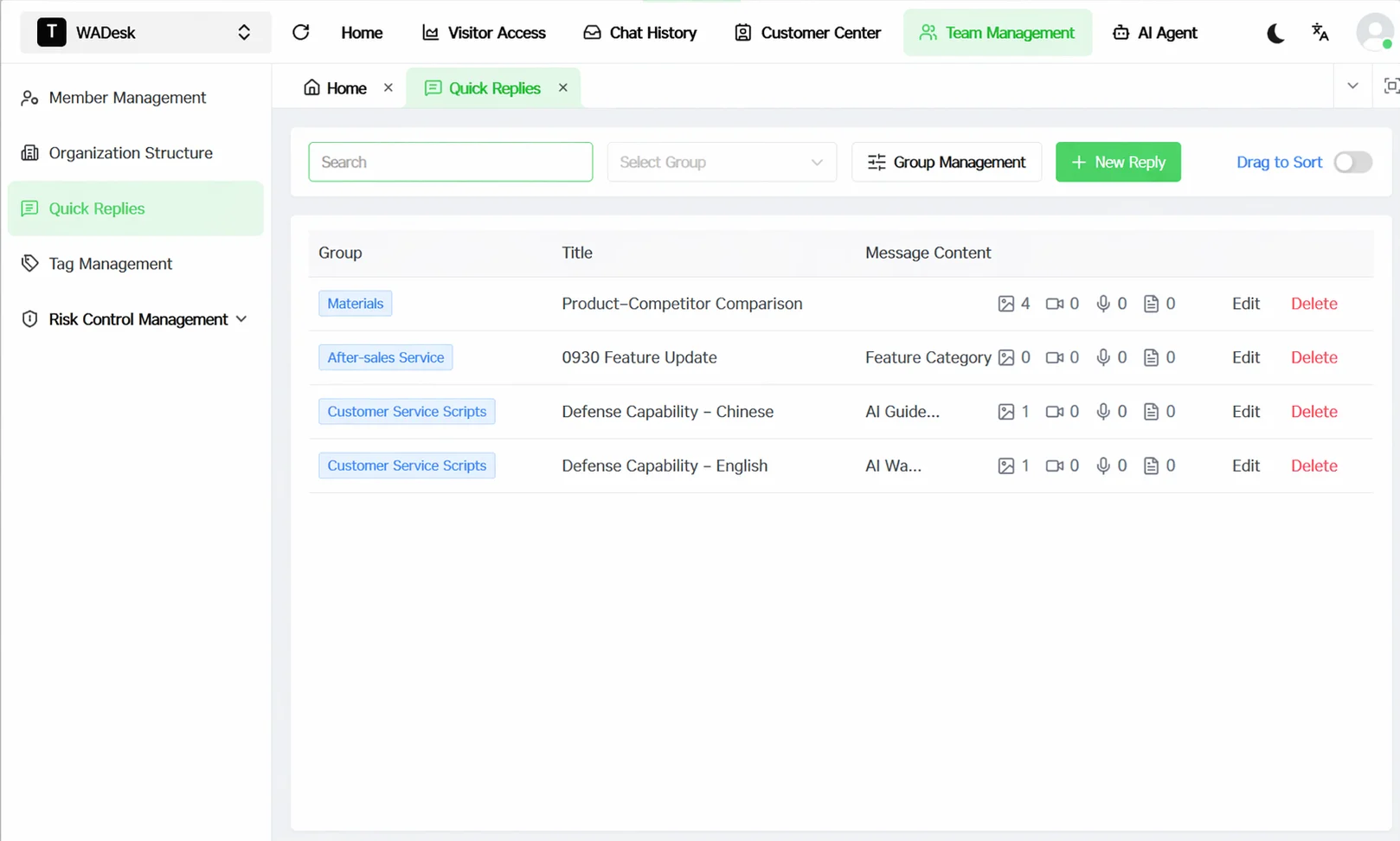
In the left sidebar of Home, click Team Manage and select Quick Reply to enter the Team Script Library management page. The page displays all script entries for the current team, with support for filtering by group and keyword search.
Step 2: Create a Script Group (Optional)
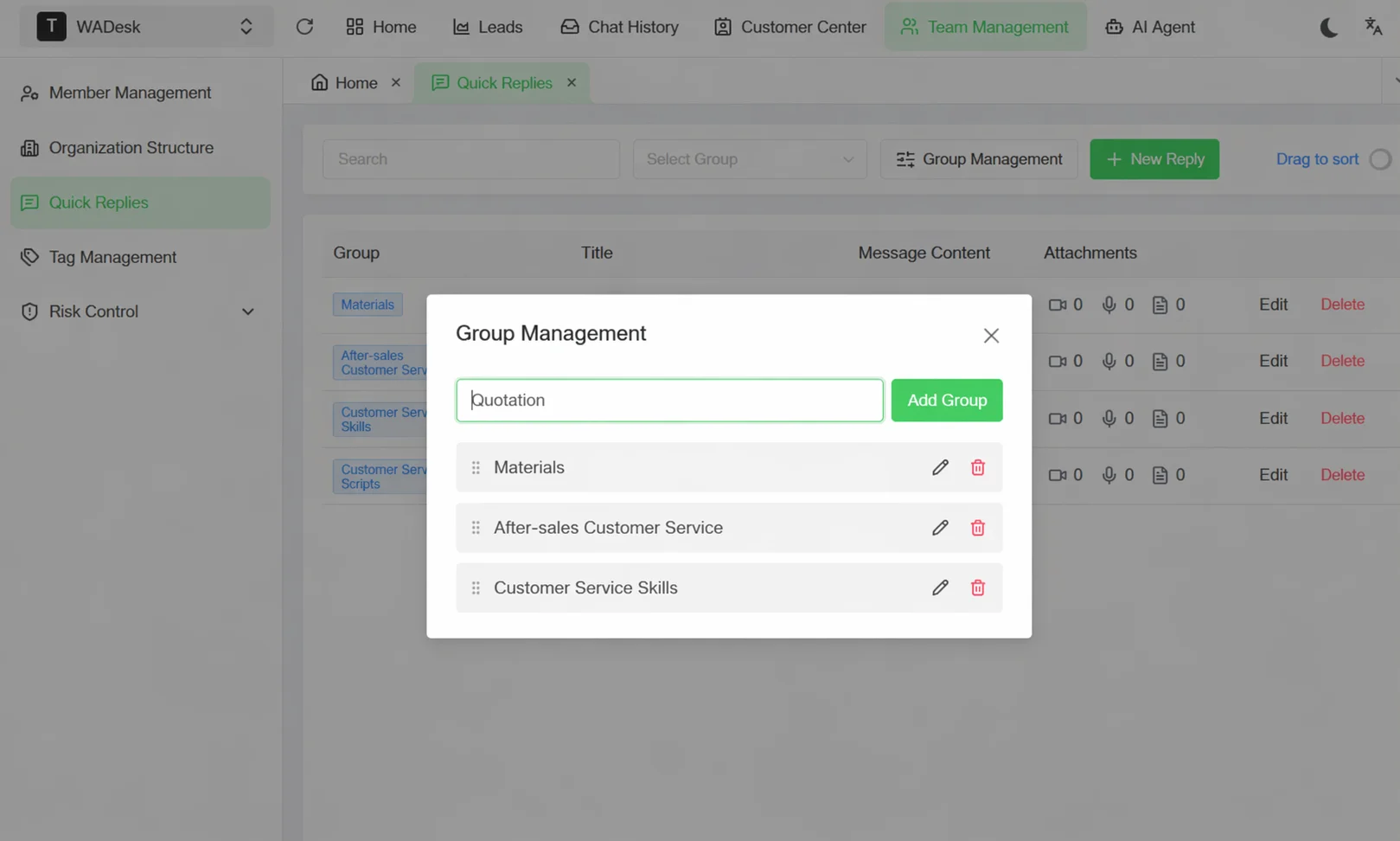
To help members quickly find the scripts they need, we recommend creating groups by business scenario first. Click the Group Management button at the top of the page to bring up the group management dialog:
- Enter a group name in the input box, such as "Product Introduction", "Quote Templates", or "FAQ".
- Click Add Group to complete creation.
- Existing groups support renaming or deletion (deleting a group does not delete the scripts under it).
Step 3: Create a New Script Entry
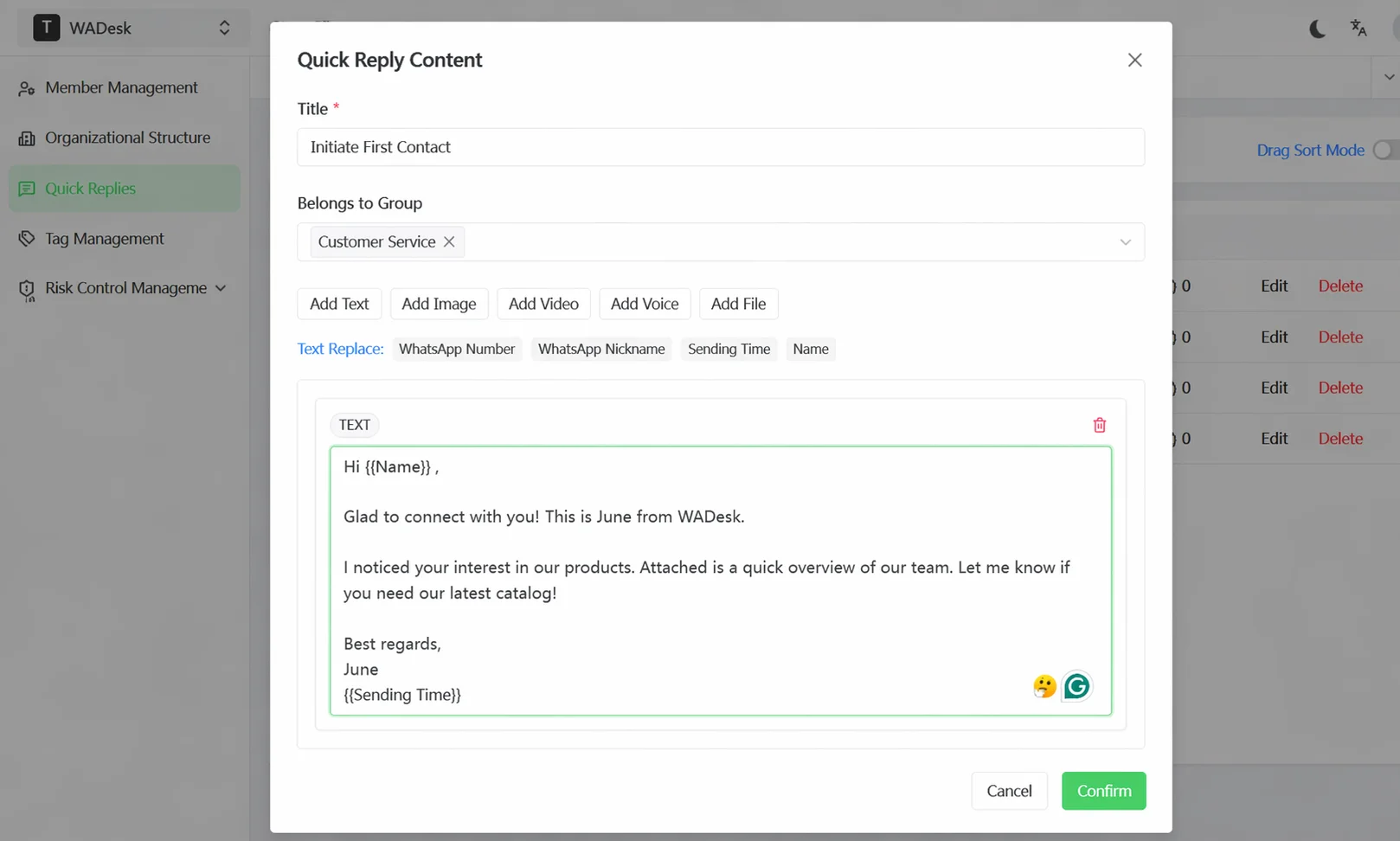
Click the + New Reply button in the upper-right corner to bring up the script editing dialog. Fill in the following:
- Title (required): A short name for the script. Members locate it quickly by title when searching in the Desktop Client. Keep it concise and clear, e.g., "Greeting - First Contact" or "Quote Template".
- Group: Select the corresponding group from the dropdown for categorized management.
- Message Content: Click Add Text to enter the script body. Supports inserting dynamic variables (e.g.,
{{Name}}auto-replaces the contact note in WADesk,{{WhatsApp nickname}}replaces the WhatsApp number nickname), giving each message a slight personalization. - Attachment (optional): Click Add Image, Add Video, Add Voice, or Add File to attach multimedia assets to the script, which are sent together when the member sends it.
After filling in, click Confirm to save.
Step 4: Manage Existing Scripts
In the script list, each script shows its group, title, message content preview, and attachment count. You can:
- Edit: Click the Edit button in the action column to modify the script content.
- Delete: Click the Delete button and confirm to remove the script (deletion is unrecoverable, please proceed with caution).
- Reorder: Turn on the Drag-to-Sort Mode switch at the top of the page, then drag to adjust the display order of scripts in the list. Scripts higher up are easier for members to find in the Desktop Client.
Important Notes
⚠ The Team Script Library is centrally maintained by admins. Members can only use it, not modify it. Members can Save to My a team script to clone a copy to their personal script library and edit it themselves, without affecting the team library's original content.
⚠ Script content supports dynamic variables (such as {{nickname}}), but if {{WhatsApp nickname}} and {{Name}} variables are not set or have no note, the variable will display empty. We recommend preparing fallback text in the script.
⚠ Attachment sizes (images, videos, files) are subject to WhatsApp's own sending limits. We recommend confirming file format and size meet requirements in advance.
⚠ Deleting a script is unrecoverable. If you only need to stop using it temporarily, you can move it to the end of the list by modifying its group or reordering, rather than deleting it directly.
FAQ
Q: What is the difference between the Team Script Library and the "My" script library? Who can edit which? A: The core difference lies in ownership and edit permissions. The Team Script Library is a company-level shared resource, centrally maintained by admins in Home—all members can only use it, not modify it, ensuring script consistency. The "My" script library is each salesperson's private space; only they can create, edit, and delete, suitable for storing personal-style scripts or customized content for specific customers. In the Desktop Client, the two libraries are switched with one click via the tabs at the top.
Q: Can members save a team script to their own library? A: Yes. In the Desktop Client's script library, hover over a team script card and click the Save to My icon. The system clones the script entry in full to the personal script library; the original content in the team library is completely unaffected, and other members can still use it normally.
Q: How do I help members quickly find a specific script in the Desktop Client? A: Two methods: First, plan groups thoughtfully and put scripts of similar scenarios into the same group, so members can filter by group in the Desktop Client; second, include keywords in the script title, so members can enter keywords in the client search box to filter in real time and quickly locate the target script.
Q: What dynamic variables does the script support? A: Currently supported variables: {{nickname}} (WhatsApp nickname), {{name}} (contact name), and {{send_time}} (current send time). In the script editing dialog, click the corresponding variable tag below the text area to insert it.