
How to Use Real-Time Translation in WADesk for Multilingual WhatsApp Communication
Real-time Translation
Navigation Path: Desktop Client → Right Sidebar → Auto Translation
Auto Translation automatically translates incoming messages from foreign-language customers into your language for display, and translates your typed content into the customer's language before sending—no need to switch to any external translation tool. The translation panel has two functional views:
- Message Translation Settings: Configure the auto-translation behavior for messages sent and received in the chat window
- Text Aggregation Translation: Manually enter long text, translate, and send with one click—ideal for replying with complex content
📹 Video Tutorial. Follow along with the video, or read the illustrated steps below directly.
Message Translation Settings
Open the Auto Translation Panel
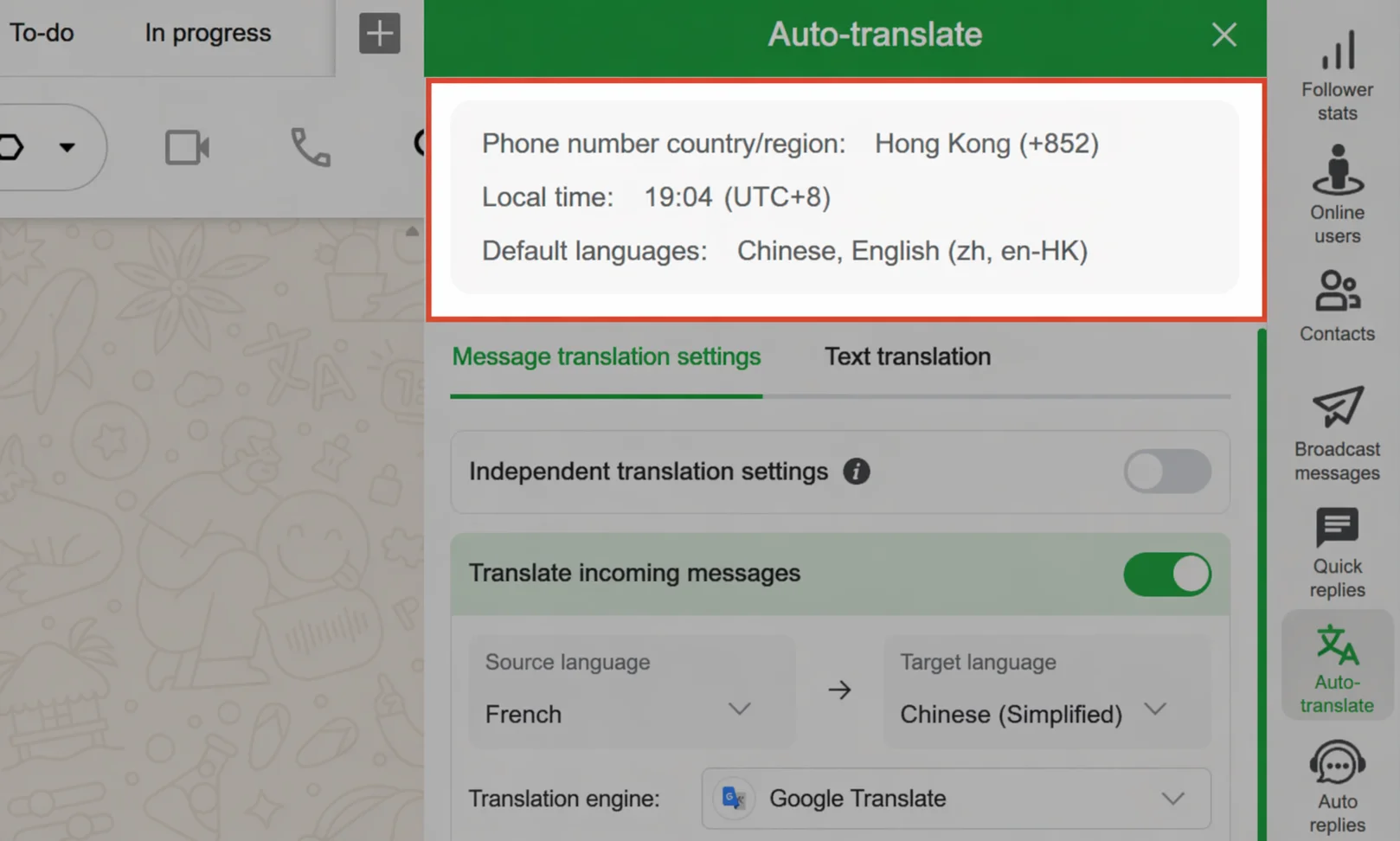
In the right sidebar, click the Auto Translation icon. The panel slides out from the right. The top of the panel automatically identifies the current chat contact's number registration country, local time, and commonly used language, helping you quickly decide which language to translate into.
Enable Incoming Message Translation
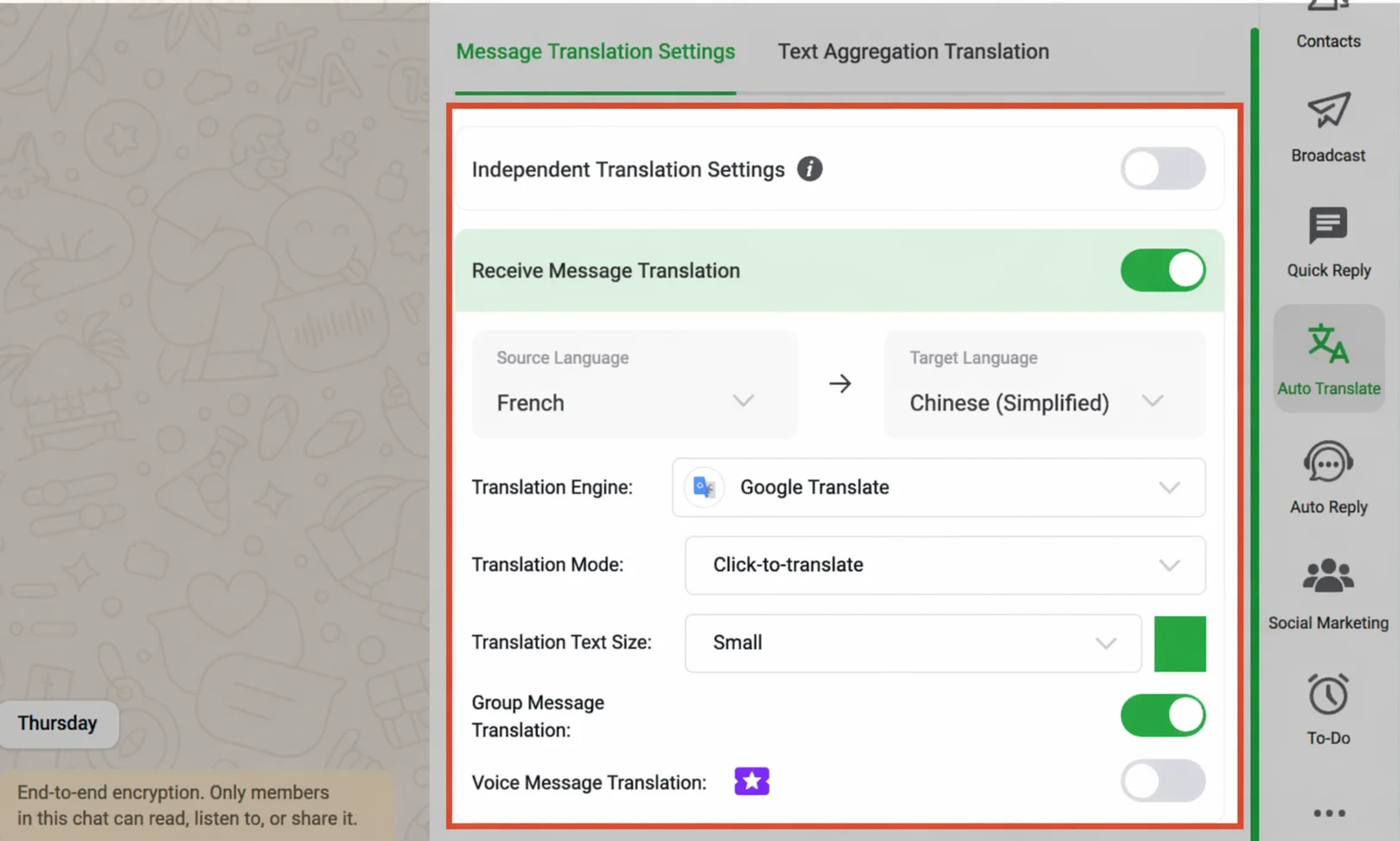
Toggle on the switch next to Receive Message Translation. Incoming messages from the other party will automatically display the translation below the chat bubble.
After enabling, configure the following options as needed:
Source Language → Target Language: Select the language of the other party's messages (source) and the language you want them translated into (target). If you are unsure which language the other party uses, set the source to "Auto Detect" and the system will identify it automatically.
Translation Engine: For daily communication, Google Translate is sufficient; when higher accuracy on professional terms is needed, switch to the AI Engine.
Translation Mode: Select "Auto Real-time Translation" to display the translation immediately when a message arrives; select "Click to Translate" to require manually clicking the translate button below the chat bubble—suitable for scenarios where not every message needs translation.
Translation Text Style: Adjust the font size and color of the translation so it can be distinguished from the original text in the chat bubble.
Group Message Translation / Voice Message Translation: Enable the corresponding switches separately if you need to translate group chat messages or voice-to-text. Note that voice message translation is a credit-based paid feature—each call consumes credits.
Enable Outgoing Message Translation
Toggle on the switch next to Send Message Translation. The content you type in the input box is first translated into the target language, then sent to the other party.
After enabling, a hint appears at the bottom of the message input box (e.g., Message translated into English and sent), reminding you of the current target language to avoid sending mistakes.
Source Language → Target Language: Usually set the source language to your input language (e.g., Chinese) and the target language to the customer's language (e.g., English).
Auto-detect Sending Language: When enabled, the system automatically detects the language you type—no manual switching needed. Suitable for serving multiple customers in different languages at the same time.
Block Sending in Chinese: When enabled, if you forget to turn on translation and type Chinese directly, the system blocks the send and prompts you, preventing Chinese original text from being mistakenly sent to foreign customers.
Set Independent Translation for a Single Chat
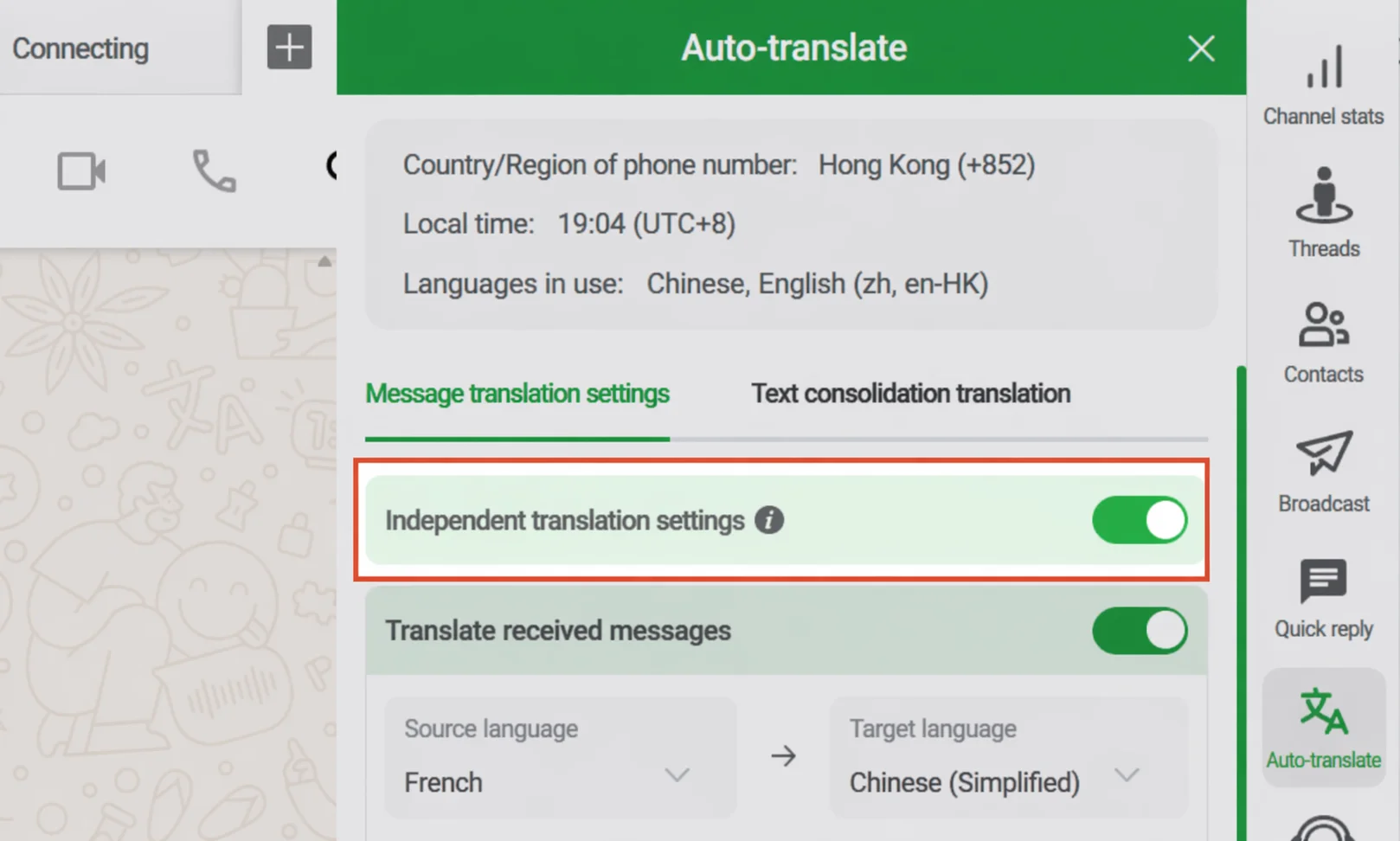
By default, translation settings apply globally to all chat conversations. If you need a different translation language for a specific customer, toggle on the Independent Translation Settings switch.
After enabling, the current conversation's translation configuration is saved independently and is unaffected when you switch to another conversation; other conversations are also not changed by it.
💡 After Independent Translation Settings is enabled, the translation engine setting in Send Message Translation no longer takes effect—the independent configuration takes precedence.
Step 5: Configure Keyboard Shortcuts (Optional)
Navigation Path: Message Translation Settings → bottom Shortcut Settings
After configuring shortcuts, you can control translation and sending behavior directly from the keyboard in the chat input box, without clicking buttons each time.
Click the green Shortcut Settings text link, and in the dialog set shortcuts for the following three actions:
| Action | Description | Suggested Default |
|---|---|---|
| Translate and auto-send the translation | One-click translate and send after typing | Enter |
| Send original without translation | Skip translation, send what you typed | Ctrl+T |
| Translate only, do not send; press Enter to send | Preview the translation first, confirm, then send | Alt+T |
How to set: Click the corresponding input box, then press the key combination you want on the keyboard—the system captures it automatically. To clear a shortcut, place the cursor in that input box and press Backspace.
Text Aggregation Translation
Navigation Path: Auto Translation panel → top Text Aggregation Translation tab
Text Aggregation Translation is an independent manual translation workspace, ideal for translating longer content (e.g., product descriptions, quotation text) before sending to the customer.
Click the top Text Aggregation Translation tab to switch to this view:
- Select the source and target languages at the top
- Paste or type the content to be translated in the left text box
- Click the Translate → button; the translation result and the engine used appear on the right
- After confirming the translation is correct, click the Send icon in the bottom-right corner—the translation is sent directly to the currently active chat window. You can also click the Copy icon to copy the translation to the clipboard; to modify it, click the Edit icon to polish the translation before sending.
Important Notes
⚠ After Send Message Translation is enabled, a hint appears at the bottom of the input box (e.g., Message translated into English and sent). Always confirm the target language is correct before each send to avoid sending in the wrong language.
⚠ After Independent Translation Settings is enabled, it applies only to this chat conversation. After switching to another conversation, you need to re-decide whether independent configuration is needed—it will not sync automatically.
⚠ Switching translation engines affects translation quality and speed. The AI Engine (GPT series) delivers higher quality but responds slightly slower and consumes credits; Google / Tencent / Microsoft translation are faster and consume no credits, suitable for high-frequency daily use.
FAQ
Q: I enabled Receive Message Translation, but no translation appears below the chat bubble. Why? A: Check two things: (1) whether the Translation Mode is set to "Click to Translate"—in this mode you must manually click the translate button next to the bubble to display it; (2) whether the source language matches the language the other party actually uses. If unsure, change it to "Auto Detect".
Q: I typed Chinese and pressed Enter, but the message was sent directly without translation. What happened? A: The Send Message Translation shortcut determines the send behavior. If the "Translate and auto-send" shortcut is set to Enter, pressing Enter triggers translation and send; if the shortcut is misconfigured or unset, the original may be sent directly. We recommend checking the configuration in Shortcut Settings and enabling Block Sending in Chinese as a safeguard.
Q: What is the difference between Independent Translation Settings and global translation settings, and when should I use independent settings? A: Global settings apply to all conversations; independent settings affect only the current chat window. When you serve multiple customers in different languages at the same time, you can configure a target language for each conversation individually without affecting other conversations' translation settings.
Q: In Text Aggregation Translation, where does the message go after I click "Send"? A: It is sent to the conversation window currently active (i.e., the last one you clicked open) in the chat area. Before sending, confirm that the highlighted customer in the left chat list is the one you intend to message, to avoid sending to the wrong person.
Q: The translation is inaccurate. Can I modify it before sending? A: Yes. In the Text Aggregation Translation view, after the translation is generated, click the Edit icon in the bottom-right corner to manually polish it; after editing, click Send. The bubble translation in the Message Translation Settings view is currently for reading only—if you need to modify before sending, we recommend using Text Aggregation Translation.