
How to View and Analyze WhatsApp Split Link Performance Data in WADesk
Viewing Split Link Data
Navigation Path: Home → Inbound Lead Generation → Customer Service Split → Locate the target link → Click ··· on the far right → Statistics
What Can You See Here?
Each split link has an independent statistics panel that records all visitor data that came in through this link. You can use it to see:
- How many people this link brought in total
- How many actually initiated a conversation
- Which sales rep each visitor was assigned to
- Which country/region each visitor came from, what device they used, and which channel they entered through
Statistics Panel Overview
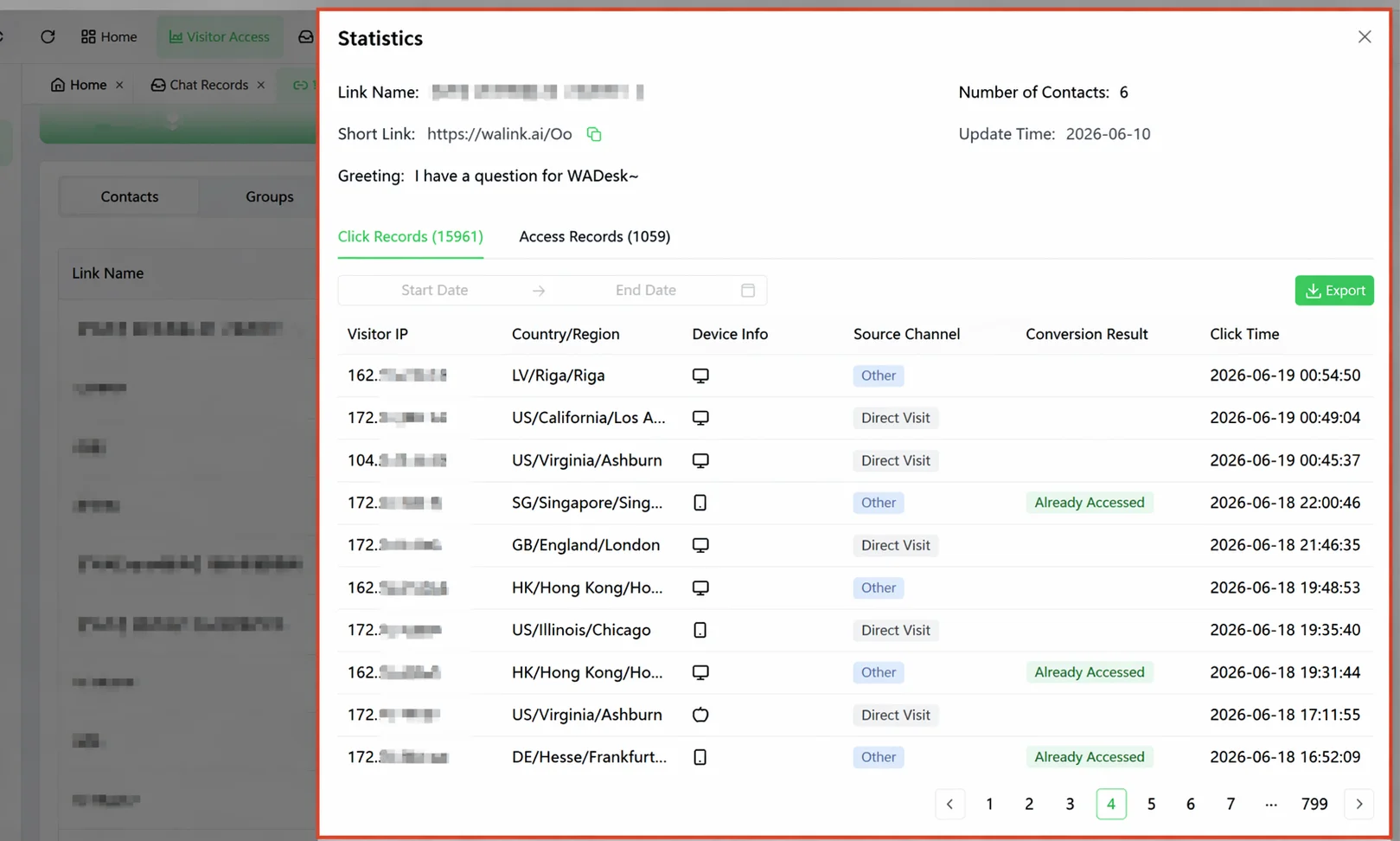
After opening the statistics panel, the top shows the link's basic information: link name, short link address, greeting message, number of currently bound contacts, and the last data update time.
Two Core Metrics: Clicks vs. Chats
The two most important tabs in the panel represent data at different levels:
| Click Records | Chat Records | |
|---|---|---|
| Counts | Everyone who clicked the link | People who clicked and actually sent a message on WhatsApp |
| Includes | Those who clicked but did not send a message | Only those who actually initiated a conversation |
| Purpose | Measures the link's reach and impressions | Measures the actual leads generated by the link |
The difference between these two numbers is traffic drop-off. For example, if clicked 15,893 times but only 1,059 people initiated a conversation, it means most people clicked in and left without sending a message. If this gap is large, consider optimizing the greeting message to make it more attractive and guide customers to speak first.
Chat Records: What Can You See Per Record?
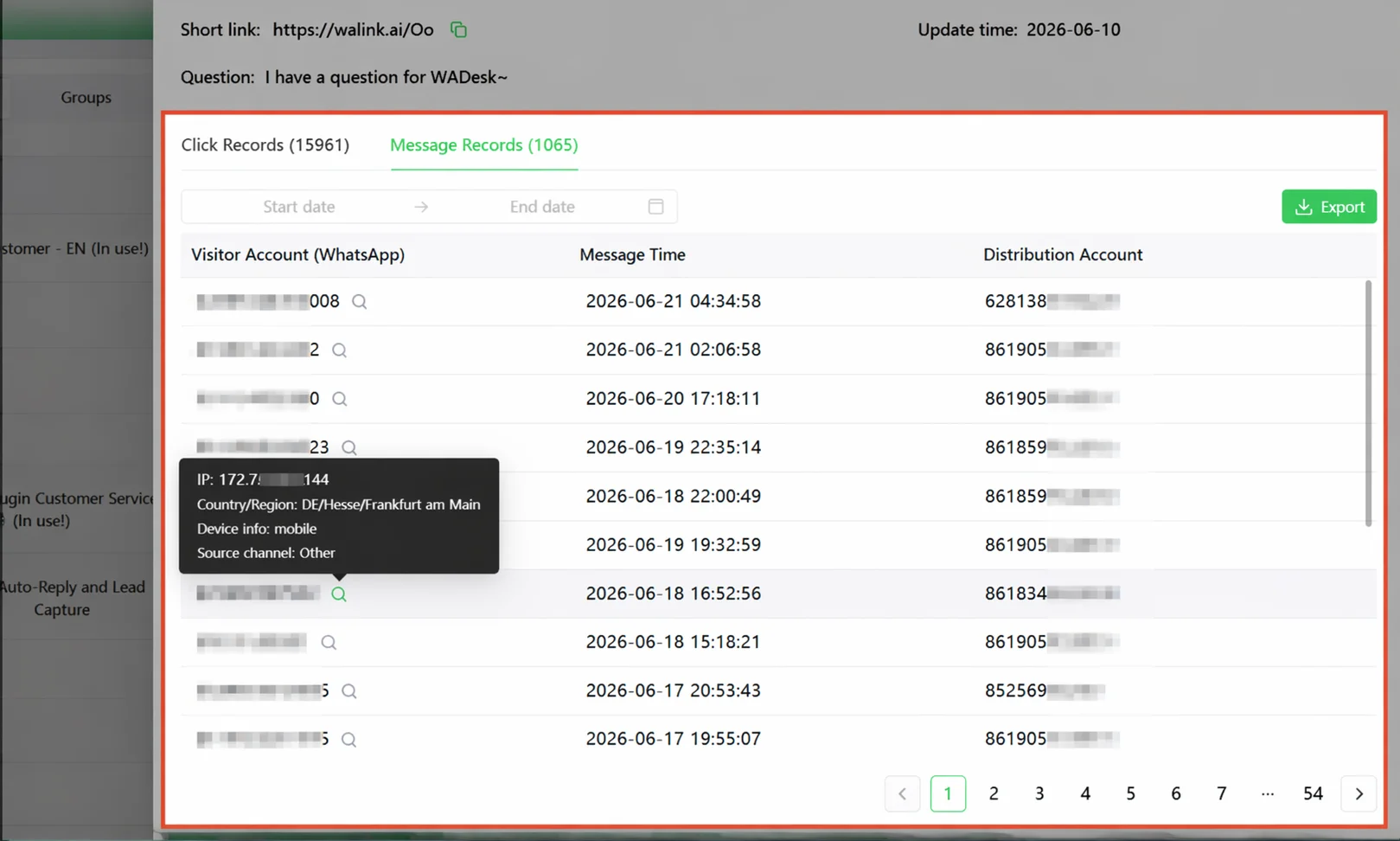
Switch to the Chat Records list. Each row represents one visitor who initiated a real conversation, containing three columns of information:
Visitor Account (WhatsApp) is the visitor's phone number. Click the magnifying glass icon to the right of the number to view this visitor's detailed information, including:
- IP Address
- Country/Region
- Device Type
- Source Channel
Message Time is the time the visitor first sent a message.
Assigned Account is the sales WA account the system assigned this visitor to. If you notice a certain sales account is receiving noticeably more or fewer visitors, you can go back to the link configuration and adjust the weight.
Filter by Time Range
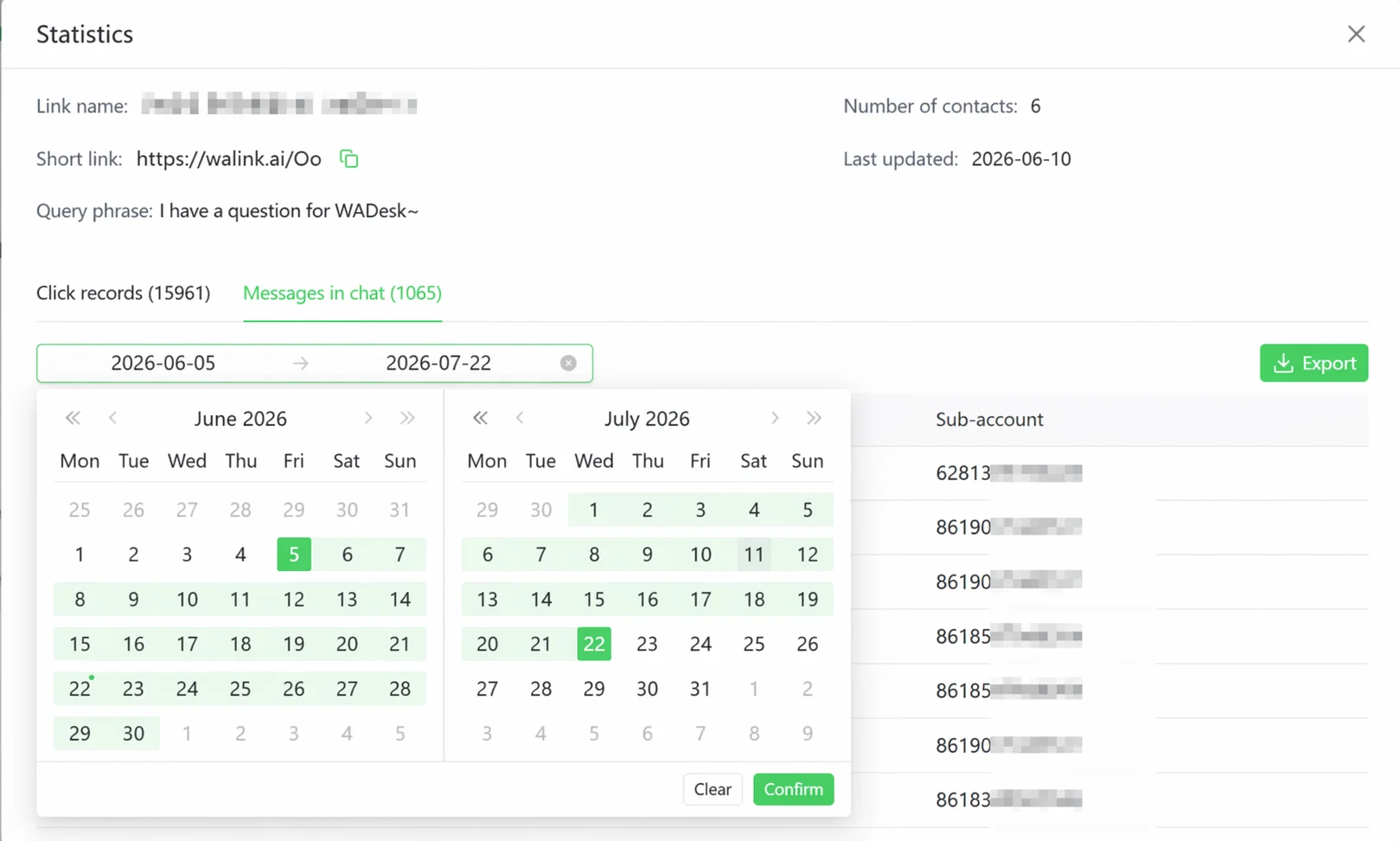
There is a date filter above the list where you can specify a start date and end date to view only records within a certain time period. Suitable for reviewing the lead generation effect of a specific period.
Export Data
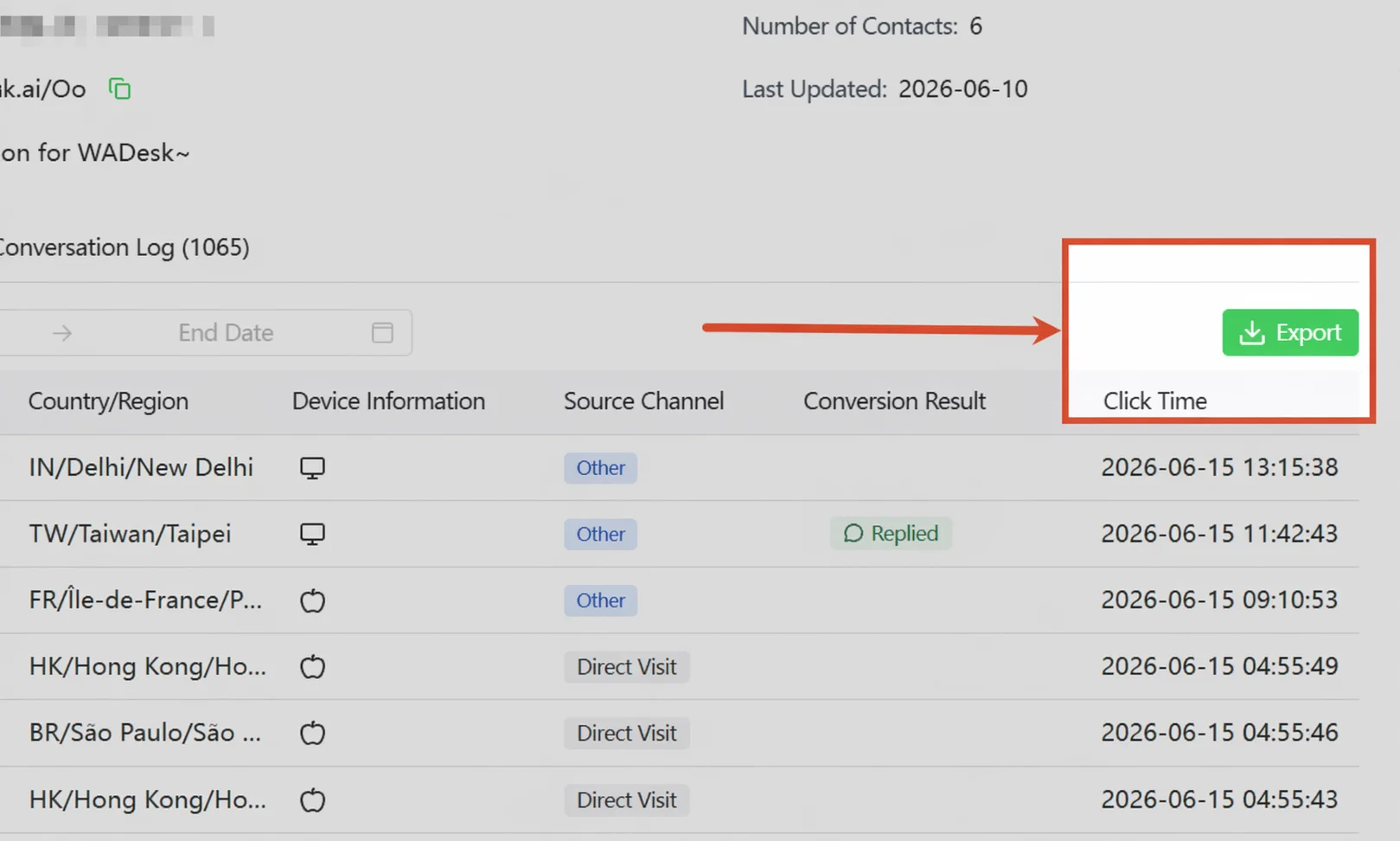
Click the green Export button in the top right to export the records within the current filter range as a spreadsheet file, convenient for further analysis in Excel or reporting to management.
FAQ
Q: There's a large gap between Click Records and Chat Records. Is that normal? A: Normal. Click Records includes everyone who opened the link, but many may close it without sending a message. Chat Records counts only those who actually sent a message. The larger the gap, the lower the click-to-chat conversion rate—you can try optimizing the greeting message or the landing page's guidance copy.
Q: What does "Other" mean for the source channel? A: It means the system cannot identify the visitor's source. Two common reasons: (1) the link did not carry a channel identifier; (2) the visitor used a privacy browser or ad-blocking tool that blocked the source information.
Q: Why do some visitors' regions appear inaccurate? A: Regions are inferred from the visitor's IP address. If the visitor used a proxy, the displayed region may not match their actual location.