
How to Invite Team Members and Allocate Resources in WADesk
Inviting Members
Navigation Path: Home → Team Manage → Team Members
The Invite Member feature is used to add new colleagues to your WADesk team and assign them role permissions and resource quotas. It is suitable for team expansion, new-employee onboarding, and similar scenarios.
📹 Video Tutorial (approx. 5 min) Follow along with the video, or read the illustrated steps below directly.
Steps
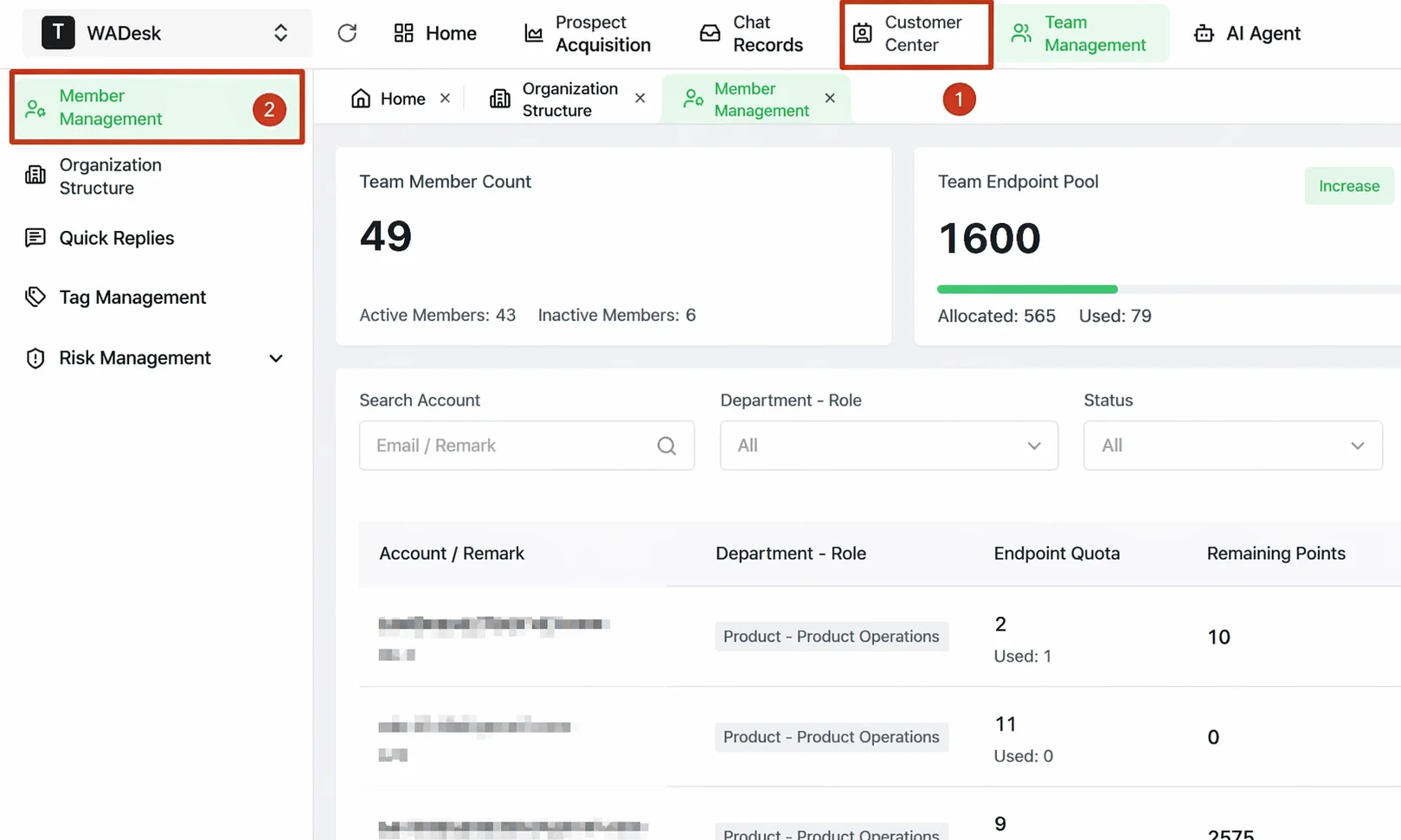
Step 1: Enter the Team Members Page
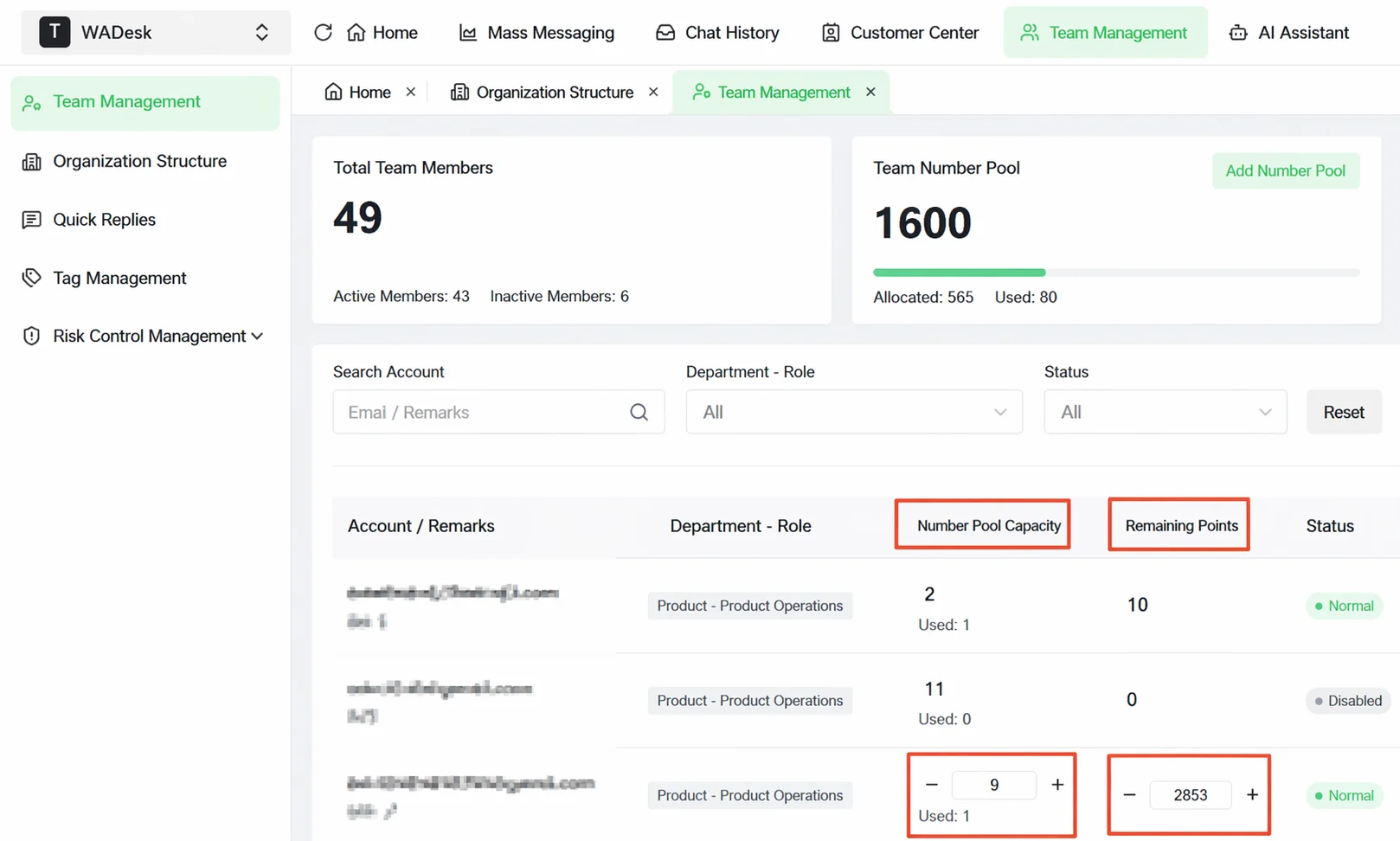
In the left sidebar of Home, click Team Manage and go to Team Members. The top of the page displays the team's asset overview, including total member count, and the usage of the port pool and credits pool.
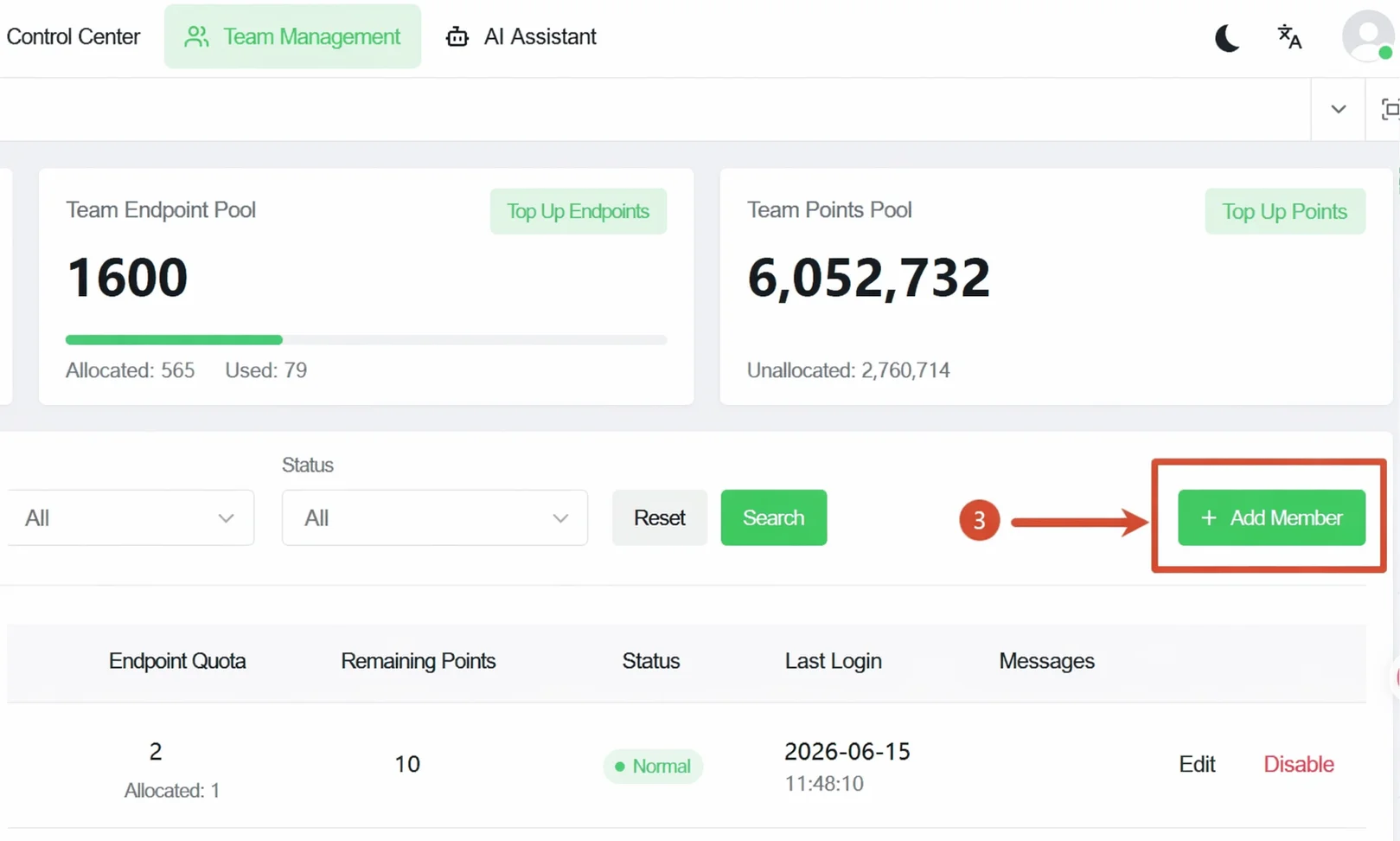
Step 2: Open the Invitation Dialog
Click the + Add Member button in the upper-right corner of the page to bring up the Invite Member dialog.
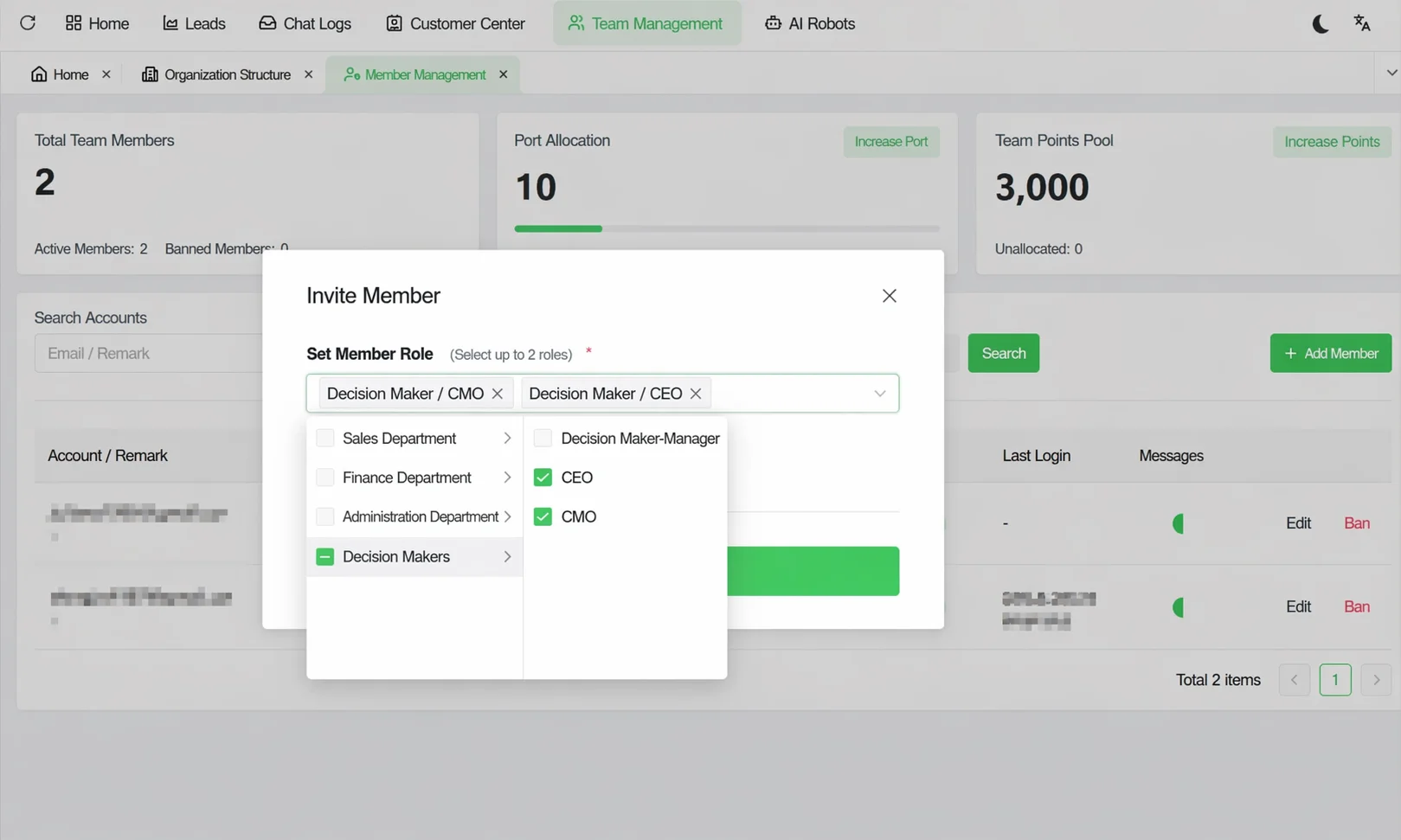
Step 3: Select a Role → Generate the Invitation Link
In the dialog, click the Set Member Role dropdown to choose a suitable role for the invitee (up to 2 roles simultaneously).
After selecting the role, click Generate Invitation Link (Valid for 3 Days). The system generates an invitation link with a unique Token and displays the specific expiration time at the bottom.
Note: After the invitee joins the team, they will automatically receive the function permissions corresponding to the selected role. If you have not yet configured roles, you can first see "Set Up Organization Structure" to create roles before inviting members.
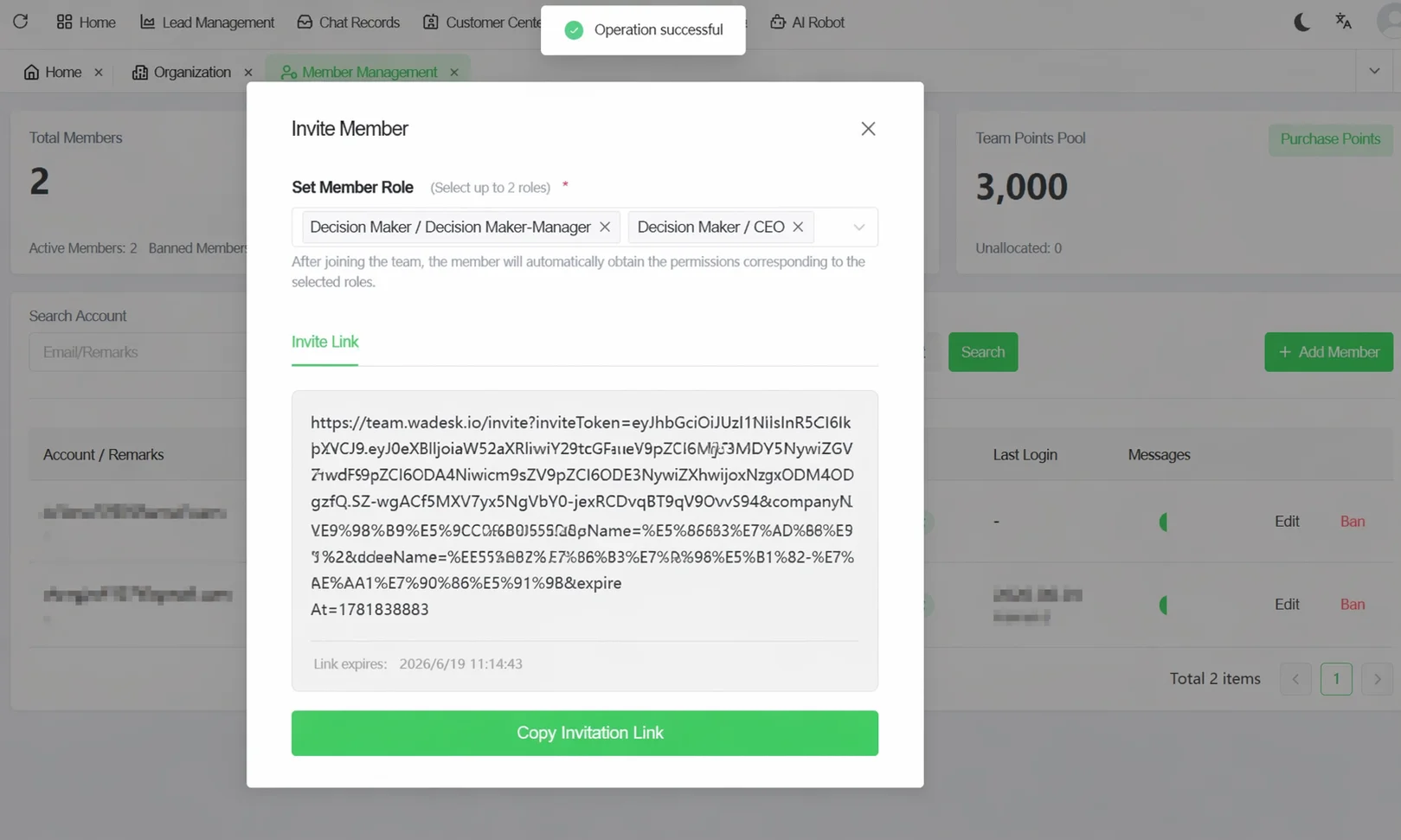
Step 4: Copy and Send the Invitation Link
After the link is generated, the button changes to Copy Invitation Link. Click it to copy the link to the clipboard. Send the link to the invitee via WeChat, email, or another method. After clicking the link, the invitee completes registration following the prompts to join the team.
Step 5: Allocate Port Slots and Credits to the Member
After the invitee joins, they will appear in the member list. Find the member and allocate ports and credits in the Port Quota and Remaining Credits fields:
- Port Quantity: Determines how many WhatsApp accounts the member can run simultaneously. Adjust with the + / - buttons.
- Remaining Credits: Determines the AI feature quota available to the member. Adjust with the + / - buttons.
Important Notes
⚠ The invitation link is valid for 3 days. After expiration, the invitee will see a "link expired" message when clicking it, and you need to regenerate it.
⚠ The total ports allocated to members must not exceed the team's purchased total port pool. If ports are insufficient, you need to purchase more ports before allocating.
⚠ A role's function permissions are constrained by the department permission ceiling—if a department has not enabled a certain function, you cannot assign that function to a member of that department.
⚠ Each member can be assigned up to 2 roles simultaneously. Role changes take effect in real time.
FAQ
Q: What if the invitation link expires? A: Re-enter the Invite Member dialog, reselect the role, and click Generate Invitation Link. The system will generate a new valid link—send it to the invitee.
Q: Can a member's role be modified after they join? A: Yes, at any time. Find the member in the member list, click Edit, reselect the role in the Department Role dropdown in the dialog, and confirm to save—changes take effect immediately. Note that role permissions are constrained by the department permission ceiling. To grant a member higher permissions, you may need to adjust their department's permission configuration first.
Q: What is "port quota" and how is it related to the number of WhatsApp accounts? A: In WADesk, a "port" is equivalent to a runtime slot for one WhatsApp account—each open WhatsApp account window consumes one port quota. For example, if a sales rep's port quota is 5 and 3 are used, it means they are currently running 3 WhatsApp accounts and can add 2 more.
Q: How do I disable a member account? Does the data remain after disabling? A: Find the member in the member list, click Disable. After confirmation, the member will no longer be able to log in to Home or the Desktop Client. The data is retained for 30 days after disabling, during which the account can be reactivated at any time; if no action is taken within 30 days, the data will be permanently deleted.