
How to Set Task Reminders for WhatsApp Customer Follow-Ups in WADesk
Setting Task Reminders
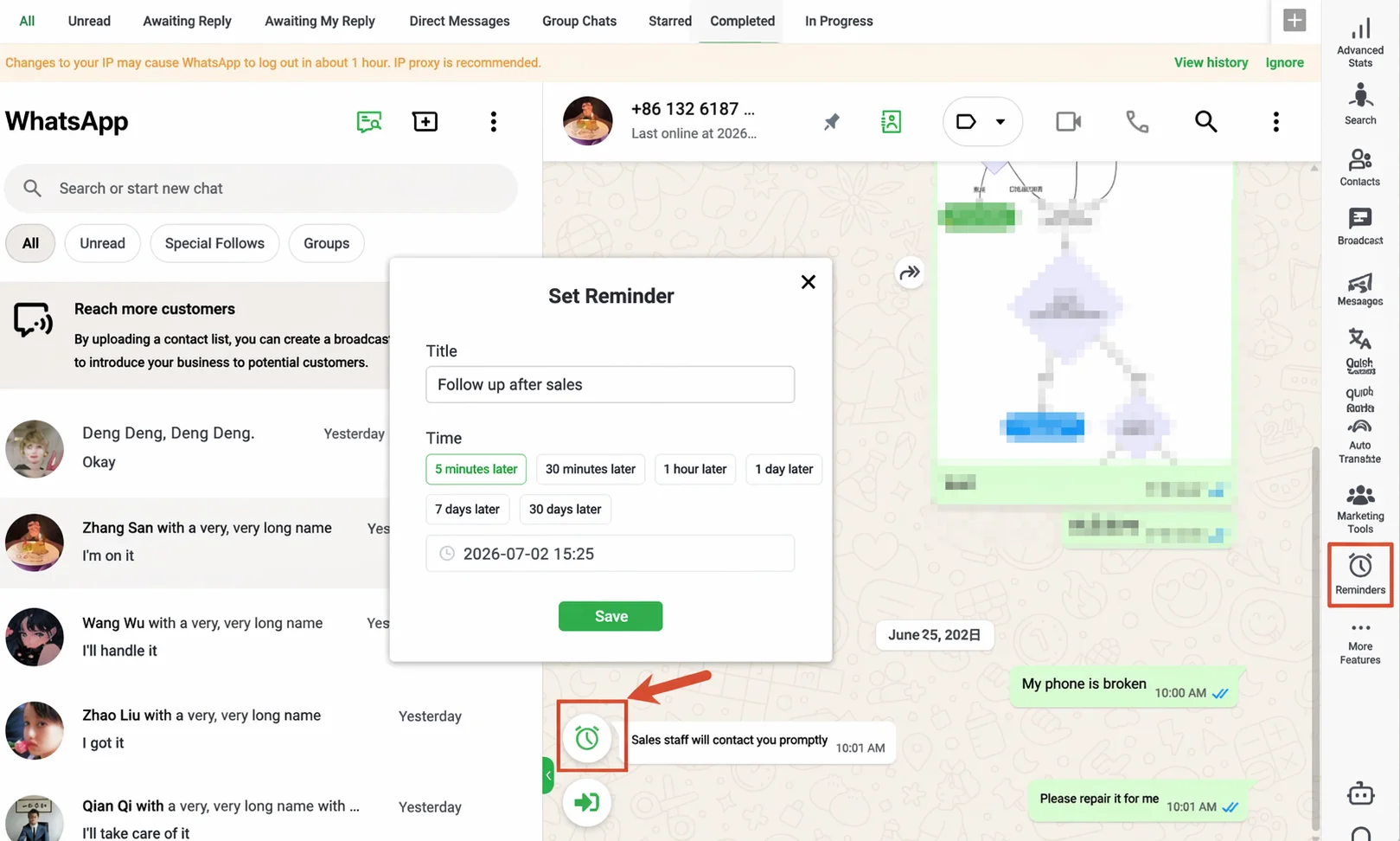
Navigation Path: Desktop Client → Chat Window → Alarm Clock Icon (left of the input box)
Task Reminders let you set follow-up checkpoints for specific customers during chat. The system automatically notifies you when reminders are due, preventing customers from slipping through the cracks.
Create a Task Reminder in a Chat Window
Open any customer's chat window. Click the alarm clock icon on the left side of the input box. A New Task Reminder form appears. Fill in the title (auto-filled with the current customer's name by default) and the reminder time. Click a quick option: 1 Hour Later / 1 Day Later / 7 Days Later / 30 Days Later for fast setup, or manually specify a date and time.
View and Manage Tasks in the Task Panel
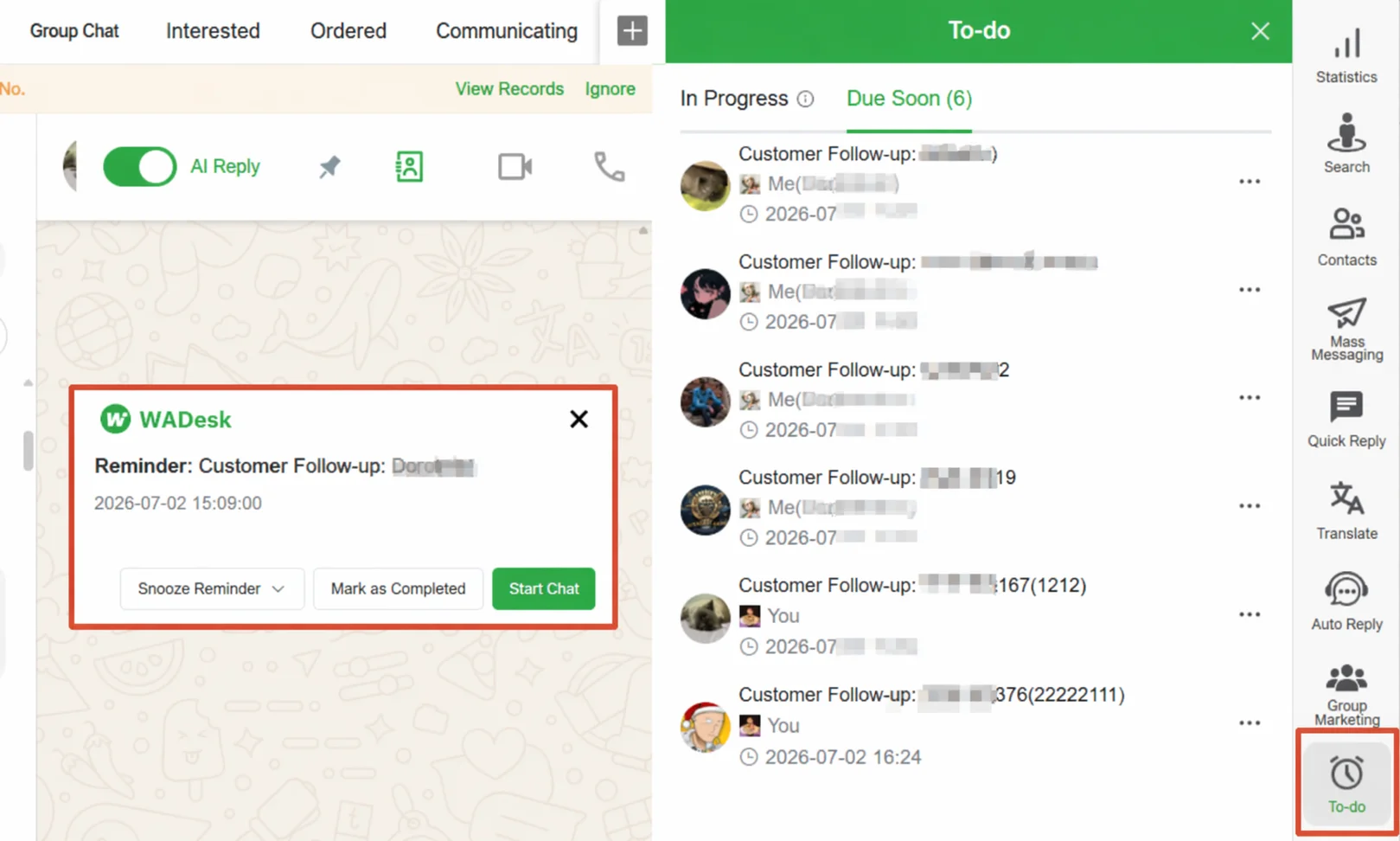
Click the Tasks icon in the right sidebar to open the task management panel. The panel has two tabs: In Progress (all created, uncompleted tasks) and Upcoming (tasks nearing their due date, with a count badge on the tab). Each task card shows the title, associated customer, and reminder time. Click the card body to jump to that customer's conversation in the left chat window.
View Historical Task Records in Customer Details
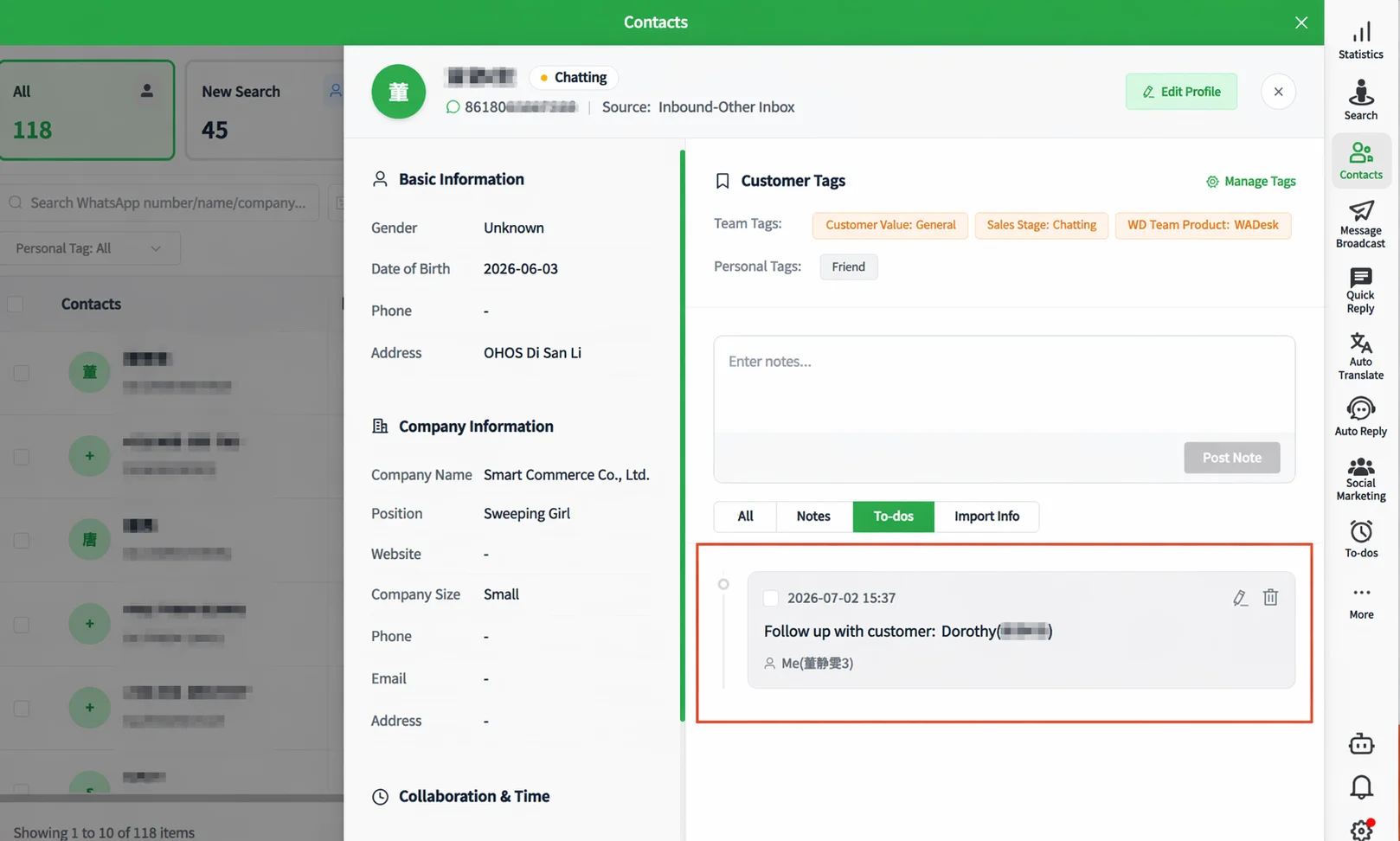
Completed tasks are automatically archived to the corresponding customer's detail page, forming a complete follow-up trail. In the contact list, click the View Profile icon next to a customer. In the right-side Activity Timeline, switch to the Task Reminder tab.
Important Notes
- Task reminders are linked to the customer. Deleting a contact also removes the associated task records.
- Complete and Delete produce different results: Complete archives the record to the customer detail page; Delete discards it permanently with no record kept.
FAQ
Q: How does the system notify me when a task is due? A: Once a task is due, it appears in the Upcoming tab of the task panel. The numeric badge on the tab alerts you to unprocessed tasks.
Q: Can one customer have multiple task reminders? A: Yes. A single customer can have multiple task reminders, each managed independently.
Q: Can task reminders only be created from the chat window? A: Currently, the entry point for creating task reminders is next to the input box in the chat window. Open the customer's chat session first to create one.