
How to Verify WhatsApp Numbers in Bulk Before Broadcasting with WADesk
Verifying WhatsApp Numbers
Navigation Path: Desktop Client → Right Sidebar → More Tool → Number Verification
Number Verification batch-checks whether a set of phone numbers is registered on WhatsApp. Use it to clean your contact list before broadcasting—removing invalid numbers to improve delivery rates and reduce the risk of account suspension.
Steps
Step 1: Enter the Number Verification Module
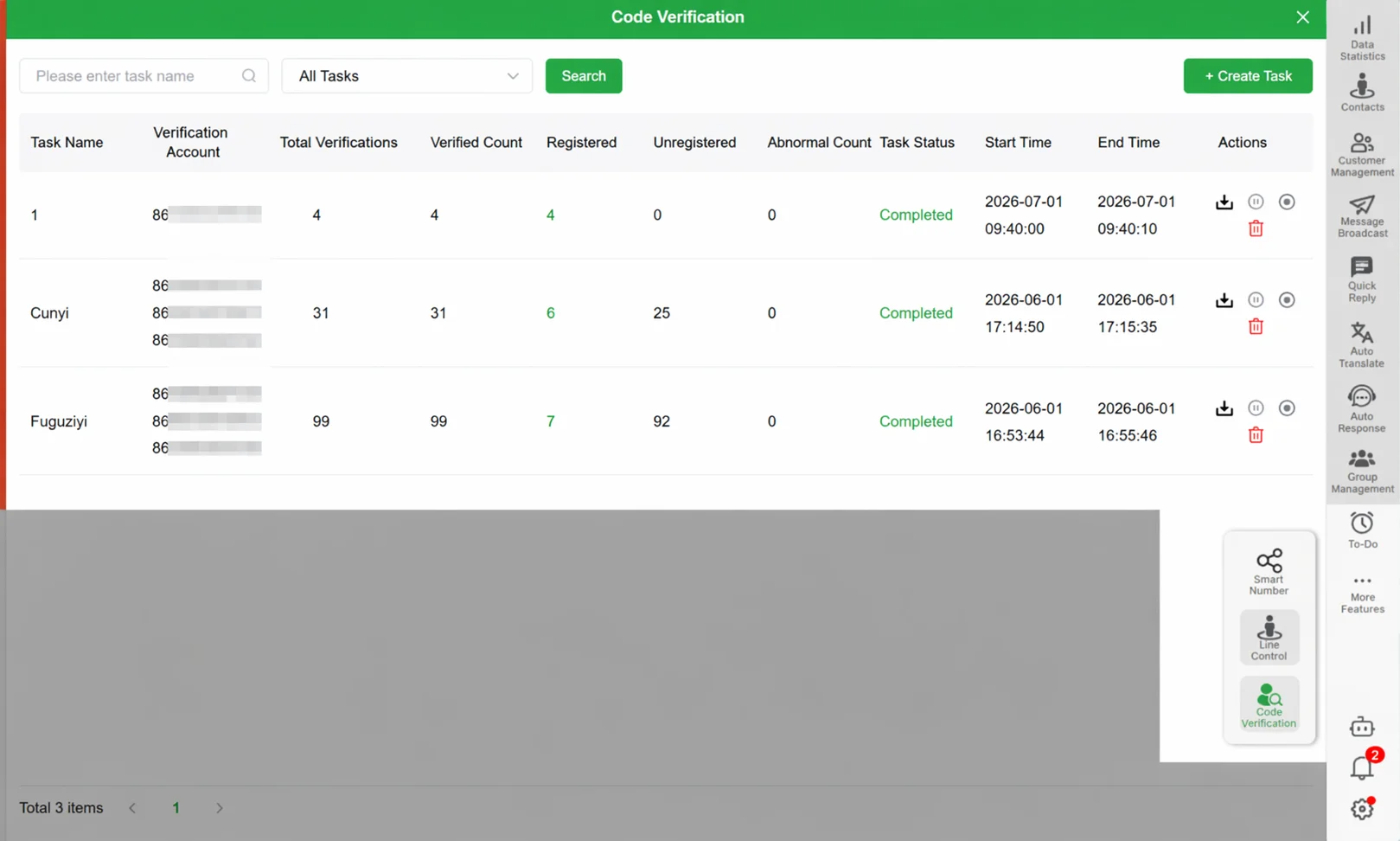
At the bottom of the right sidebar in the Desktop Client, click More Tool, then select Number Verification from the pop-up menu to enter the verification task list page.
Step 2: Create a Verification Task
Click the + Create Task button in the top-right corner of the task list to open the Number Verification configuration dialog.
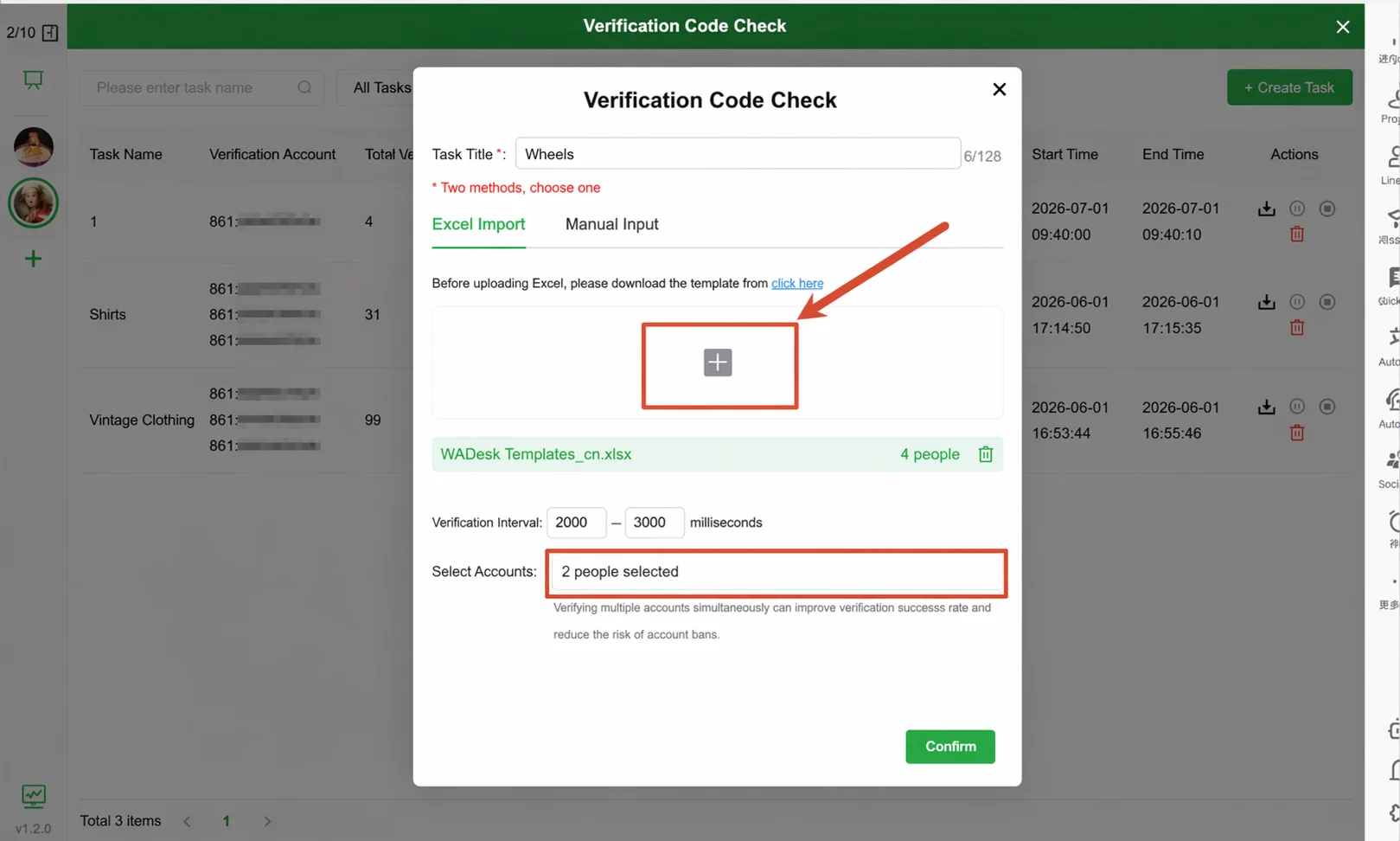
Step 3: Enter a Task Title → Import Numbers
Complete the following two basic configurations in the dialog:
① Enter a task title: Give the verification task a recognizable name, e.g., "Indonesia Customer List-0601".
② Import the numbers to verify, supporting two methods—choose one:
- Excel Import (recommended): Click Click Here to Download Template to get the official format, fill in the numbers, then upload. After a successful upload, the dialog shows the file name and the number of parsed numbers.
- Manual Entry: Switch to the Manual Entry tab and paste numbers line by line in the text box. Each line's first column must be the full WhatsApp number (including country code).
Step 4: Configure the Verification Interval → Select Execution Accounts
① Set the verification interval: In the Verification Interval input box, set a random interval range (default 2000–3000 ms). Slightly lengthening the interval reduces the risk of the account being flagged as a bot by WhatsApp.
② Select execution accounts: Click Select Account and check one or more WhatsApp accounts in the list. Selecting multiple accounts enables parallel verification, significantly improving speed while also spreading the operation frequency of a single account and reducing suspension risk.
System tip: Use multi-account parallel verification to increase total verification volume and speed while reducing suspension risk.
Step 5: Confirm and Submit, Wait for Verification to Complete
After confirming the number count, interval settings, and execution accounts are correct, click Confirm to submit the task. The task runs automatically in the background; you can monitor progress in real time from the task list.
The task list shows the following key data:
| Field | Description |
|---|---|
| Total Verified | Total number of numbers imported in this task |
| Registered | Number of valid numbers confirmed registered on WhatsApp (shown in green) |
| Not Registered | Number of numbers not registered on WhatsApp |
| Abnormal | Number of numbers that encountered an exception during verification (e.g., network timeout) |
| Task Status | In Progress / Completed / Paused |
Step 6: View Details → Export Valid Numbers
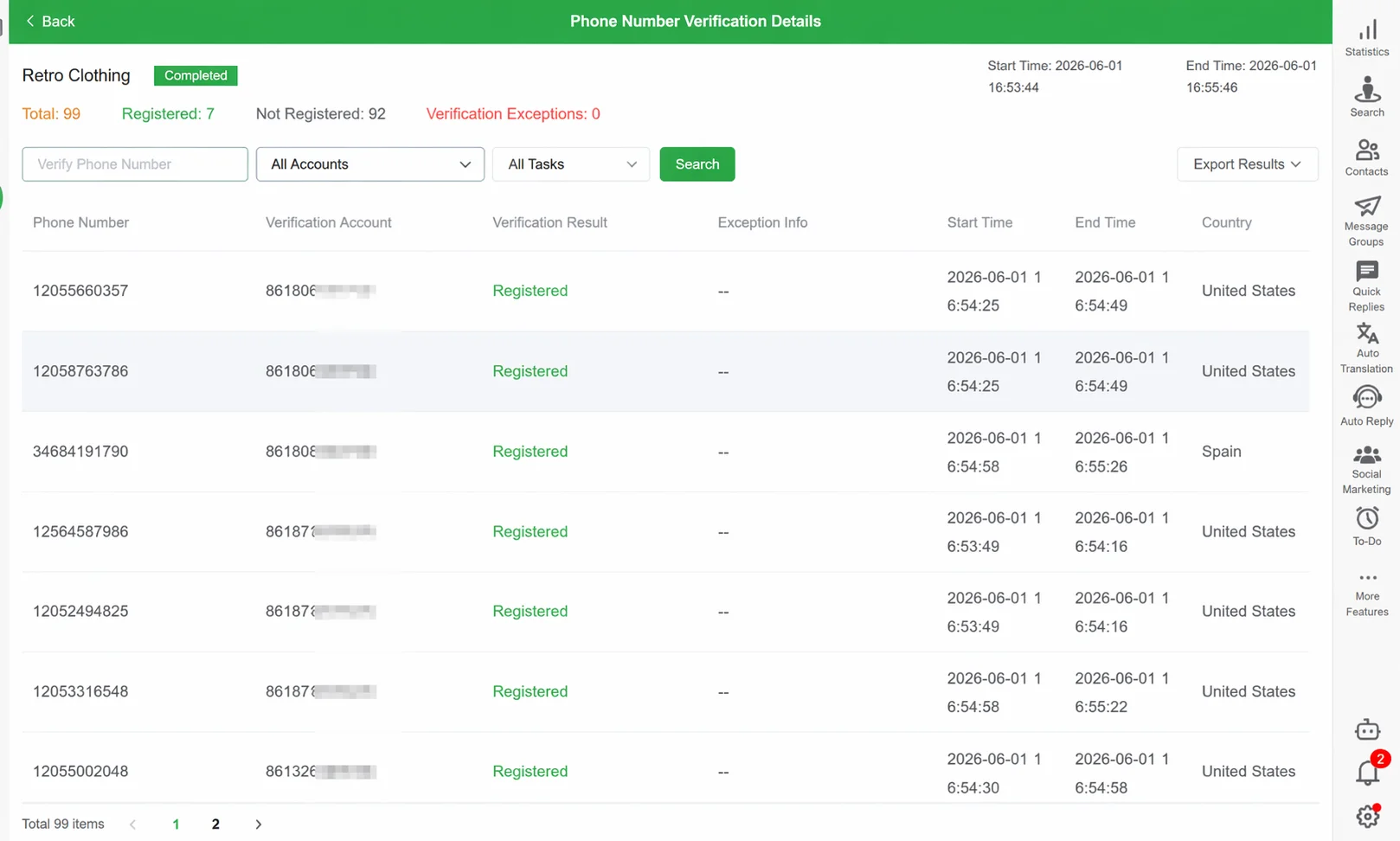
After the task completes, click the task row to open the Number Verification Details page, where you can view each number's verification result (Registered / Not Registered / Verification Abnormal) and its country.
If you want to use the valid numbers for subsequent broadcasting, click the Export Results button in the top right and select the export scope:
- All Results: Export all numbers and their verification status.
- By Filter Criteria: First select Registered in the filter area, then click Export to export only the valid number list, which can be used directly for message broadcasting.
Important Notes
- Number format must include the full country code (e.g., India numbers should be
918xxxxxxxxx); missing the code causes verification exceptions. - Daily verification volume for a single account should not be too large—for new accounts, no more than 100 per day is recommended. For large-volume verification, be sure to enable multi-account parallel mode.
- During a running task, you can click the Pause icon at any time to abort, and click Resume again to continue from where it stopped.
FAQ
Q: A large number of "verification abnormal" entries appear in the results. What's the cause? A: Verification exceptions are usually caused by unstable network or temporary account restrictions. Check your current network connection and confirm the execution account is in a normal online state. If the abnormal count exceeds 20% of the total, try pausing the task, switching accounts, then resuming.
Q: After verification completes, how do I quickly use the "Registered" numbers for broadcasting? A: On the verification details page, set the filter to Registered, click Export Results → By Filter Criteria, download the valid numbers as an Excel file, then upload that file directly when creating a task in the Message Broadcast module.
Q: Can the same batch of numbers be re-verified? A: Yes. Simply create a new task and upload the same number file. Note that users may deregister or newly register on WhatsApp at any time.