
How to Configure Risk Control Rules in WADesk for WhatsApp Team Monitoring
Configuring Risk Control Rules
Navigation Path: Home → Team Manage → Risk Manage
The Risk Control feature sets Sensitive Keyword or AI Monitoring rules to scan employee chat messages in real time. Once a rule is triggered, it immediately notifies the manager, helping standardize sales scripts and prevent business risks.
Steps
Step 1: Enter the Risk Control Page
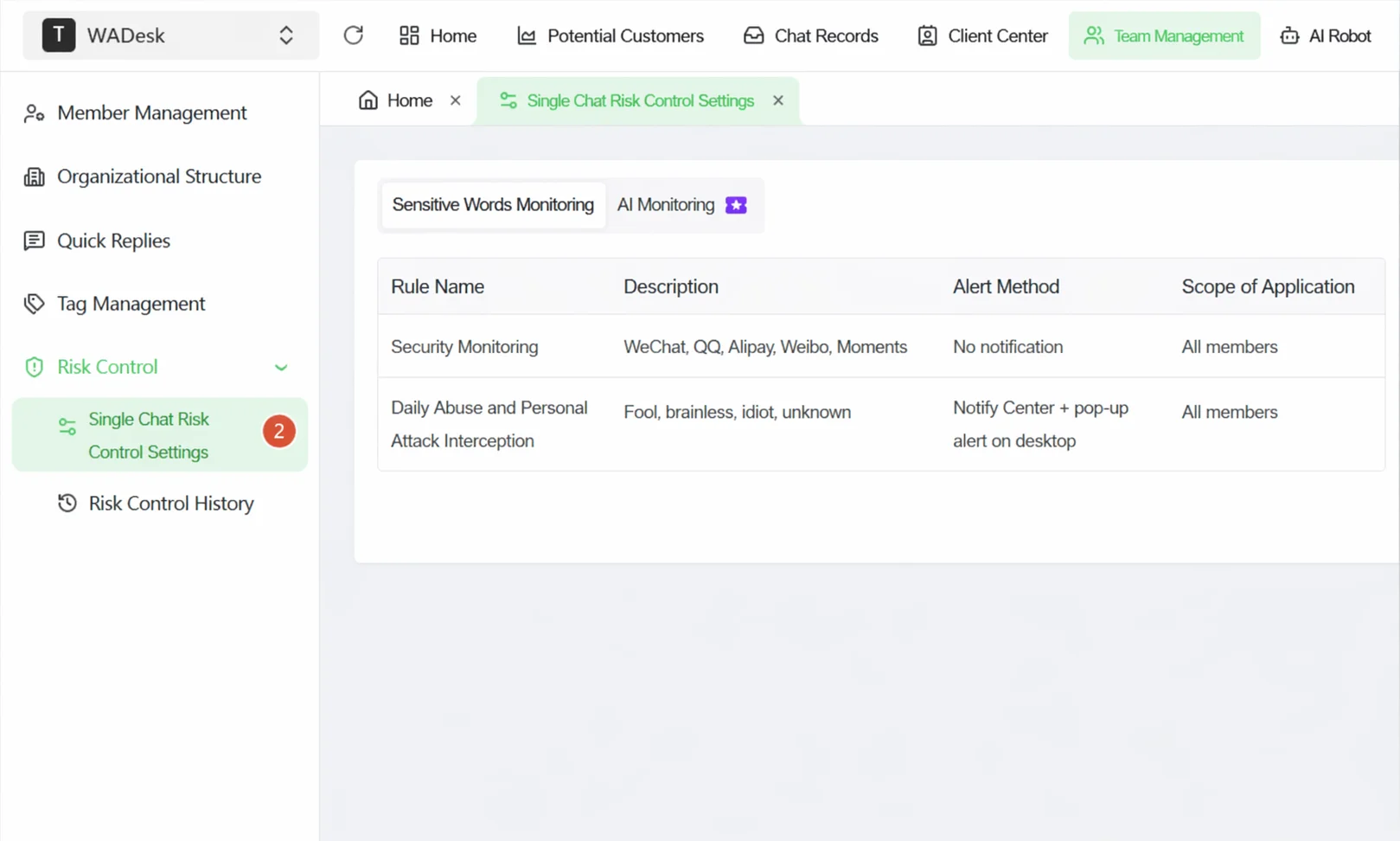
In the left sidebar of Home, click Team Manage, expand it, and select Risk Manage → 1-on-1 Chat Risk Control Settings. The top of the page has two tabs: Sensitive Keyword Monitoring and AI Monitoring, where you can configure the two types of rules separately.
Step 2: Create a Sensitive Keyword Detection Rule
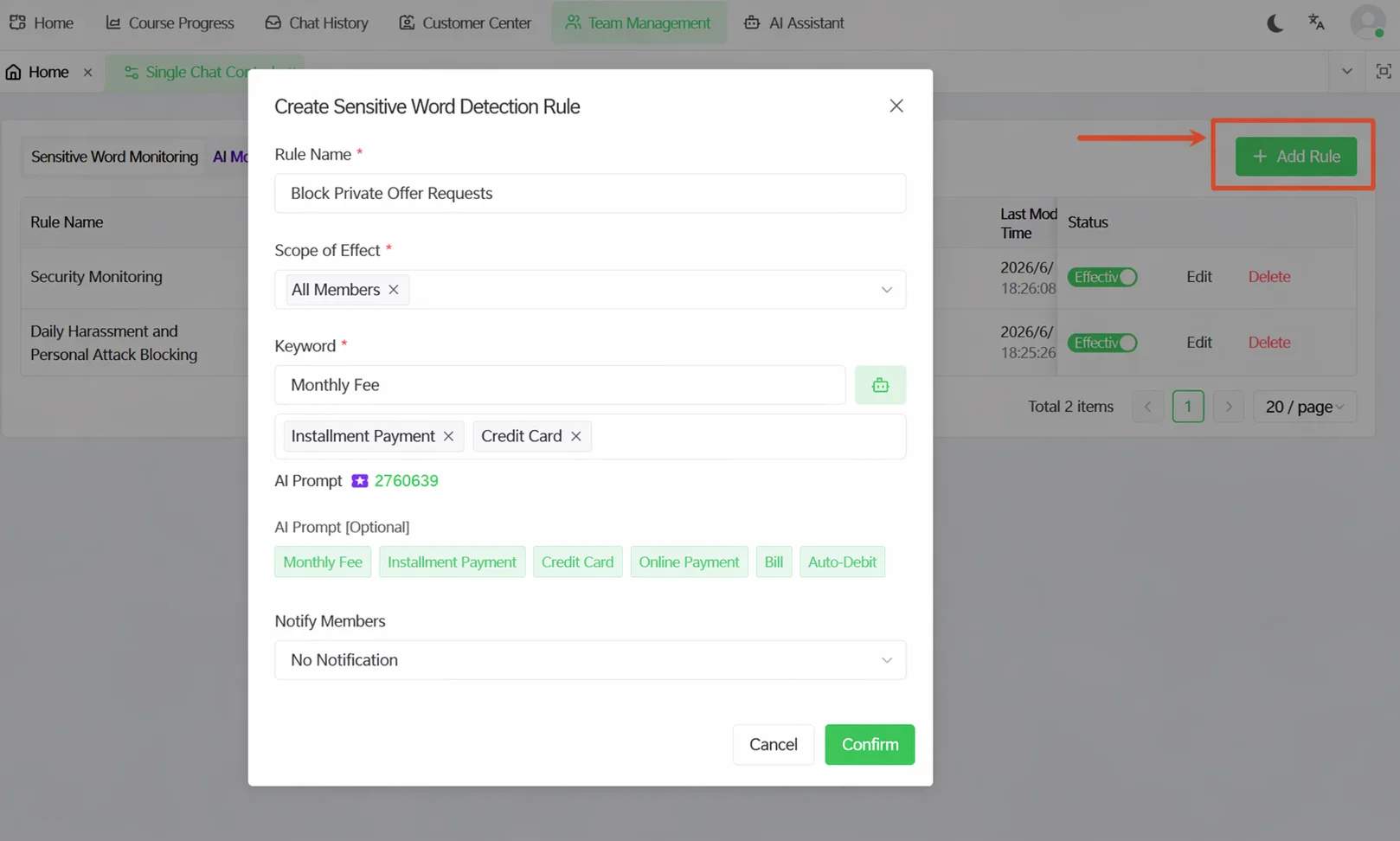
Click the + New Rule button and fill in the following in the dialog:
- Rule Name (required): Give the rule a recognizable name, such as "Competitor Mention Monitoring" or "Private Quote Interception".
- Effective Scope (required): Select which members this rule applies to. Defaults to "All Members", or you can specify particular members or departments.
- Keywords (required): Enter the sensitive words to monitor in the input box, press Enter to add a keyword tag, and you can add multiple. For example: "private transfer", "personal WeChat", "off-platform".
- AI Word Expansion (optional): After entering a base word, click AI Word Expansion; the system recommends related synonyms and associated words. Click to add them to the monitoring list to broaden coverage (consumes credits).
- Member Notification: Select the notification method after a rule is triggered—"No Notification", "Notification Center Only", or "Notification Center + Desktop Popup". We recommend "Notification Center + Desktop Popup" to ensure you are informed in time.
After filling in, click Confirm to save. The rule takes effect immediately by default.
Step 3: Manage Existing Rules
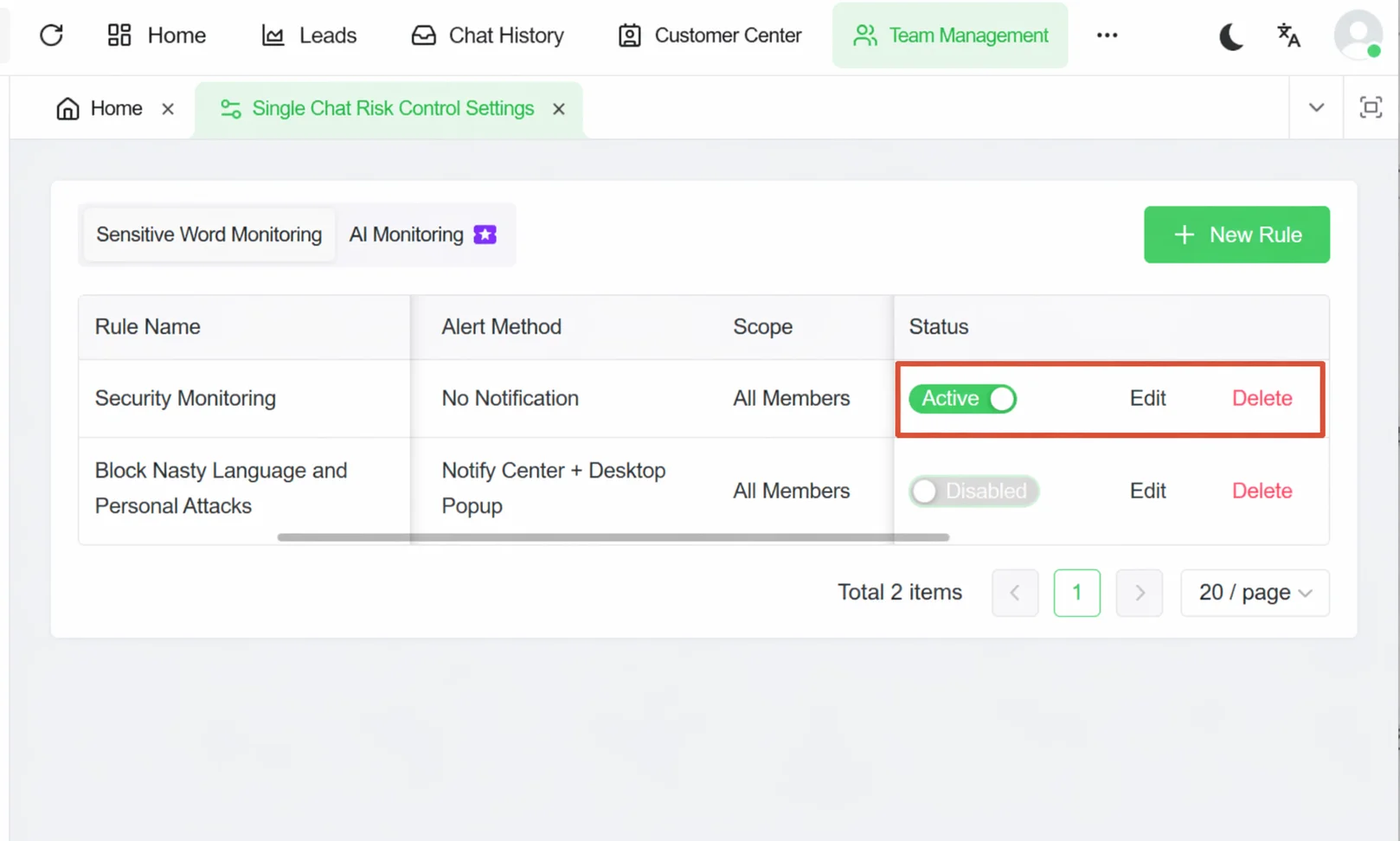
In the rule list, each rule shows its name, content description, notification method, application scope, and status. You can:
- Enable/Disable: Click the status switch at the end of the rule row to turn a rule on or off at any time, without deleting it.
- Edit: Click the Edit button to modify the rule content.
- Delete: Click the Delete button and confirm to remove the rule.
Step 4: Review Risk Control History
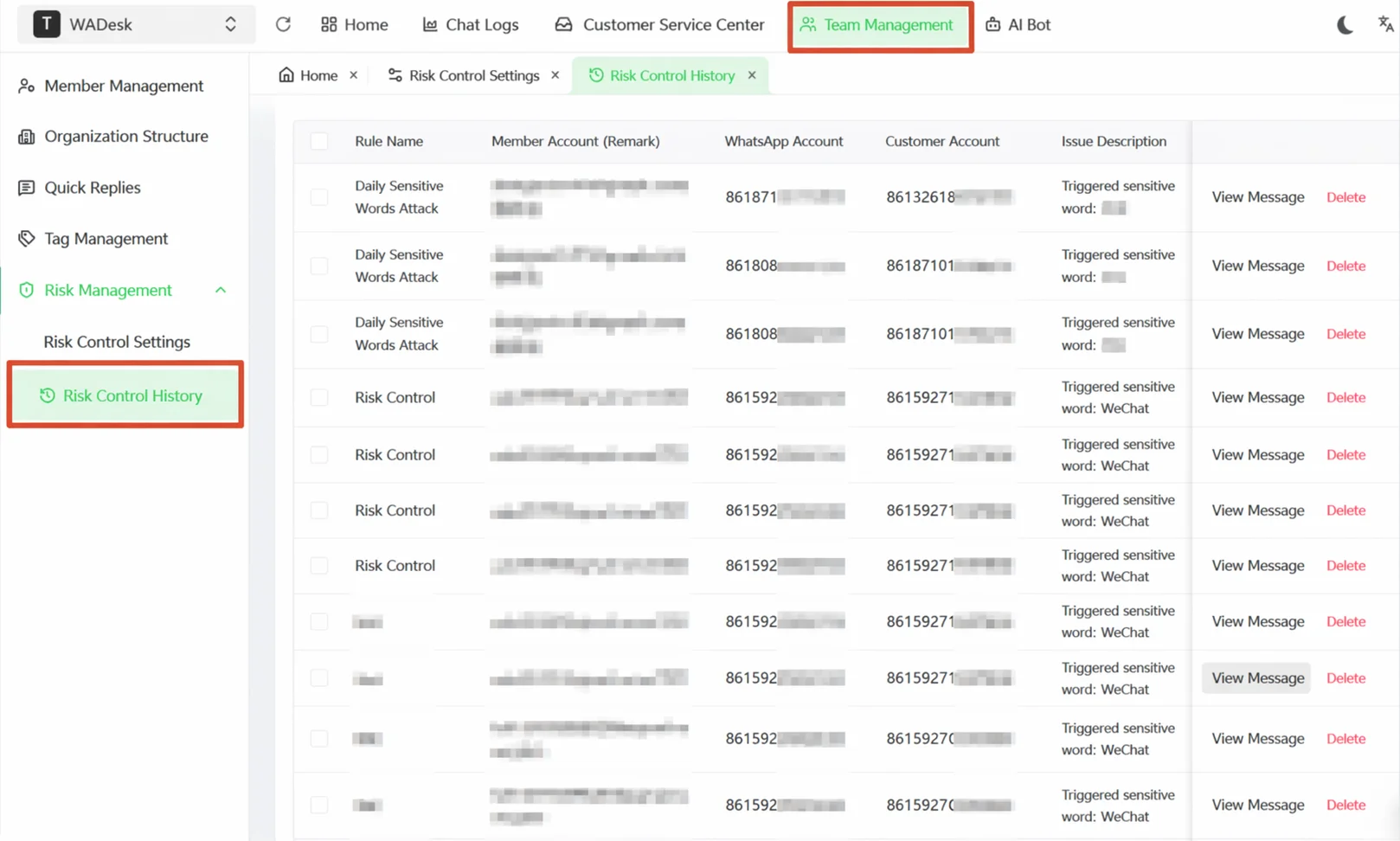
When an employee triggers a risk control rule, the trigger record is automatically saved to Risk Control History. In the left navigation, select Risk Manage → Risk Control History to enter the history list.
You can filter records by:
- Entering a rule name or sensitive keyword to search
- Selecting a specific member
- Setting a detection time range
After finding the target record, click View Message in the action column to drill down directly into the chat context that triggered the risk control, understand the conversation before and after, and decide whether intervention is needed.
Important Notes
⚠ AI Word Expansion consumes credits. Before use, confirm the team has sufficient credit balance (the page header shows the currently available credits).
⚠ Risk control rules monitor only messages sent by employees, not messages received from customers.
⚠ After a rule is triggered, the system records it to Risk Control History, but does not automatically block or recall the message—the message is still delivered to the customer. Risk control's role is after-the-fact notification and traceability, not pre-sending prevention.
FAQ
Q: After a sensitive keyword is triggered, what is the full process? A: Four steps after triggering: Step 1, the system scans and detects the sensitive keyword in real time and immediately triggers risk control; Step 2, according to the configured notification method, it notifies the manager via the Notification Center or desktop popup; Step 3, the trigger event is recorded to the Risk Control History list, including rule name, triggering member, customer account, and the specific triggering word; Step 4, the manager clicks View Message in Risk Control History to drill down into the chat context that triggered the risk control, and decides whether intervention is needed (such as contacting the sales rep, taking over the chat, etc.).
Q: What is the difference between Sensitive Keyword Monitoring and AI Monitoring? A: Sensitive Keyword Monitoring uses exact matching—only when an employee's sent message contains your preset keyword does it trigger the rule. The rule is explicit and predictable, suitable for monitoring specific violation words. AI Monitoring uses semantic understanding—even if the employee does not use a preset word, but the message content semantically matches the risk behavior described by the rule, it will be identified and triggered. It covers a broader range but may produce false positives, suitable as a supplement to keyword monitoring.
Q: Can Risk Control History be exported? A: Yes. On the Risk Control History page, click the Export button to the right of the filter area to export the current filtered results as a file for archiving or further analysis.
Q: What if I don't want to delete a rule but temporarily don't need it active? A: Directly click the status switch at the end of the rule's row in the rule list to switch it to the Disabled state. The rule content is fully preserved and can be re-enabled at any time—no need to delete and recreate.