
How to Add and Manage Multiple WhatsApp Accounts in WADesk
Adding & Managing Accounts
Navigation Path: Desktop Client -> left account panel -> circular + button
WADesk supports logging into multiple WhatsApp accounts simultaneously within the same Desktop Client. This article covers how to add accounts and manage account information in bulk.
Steps
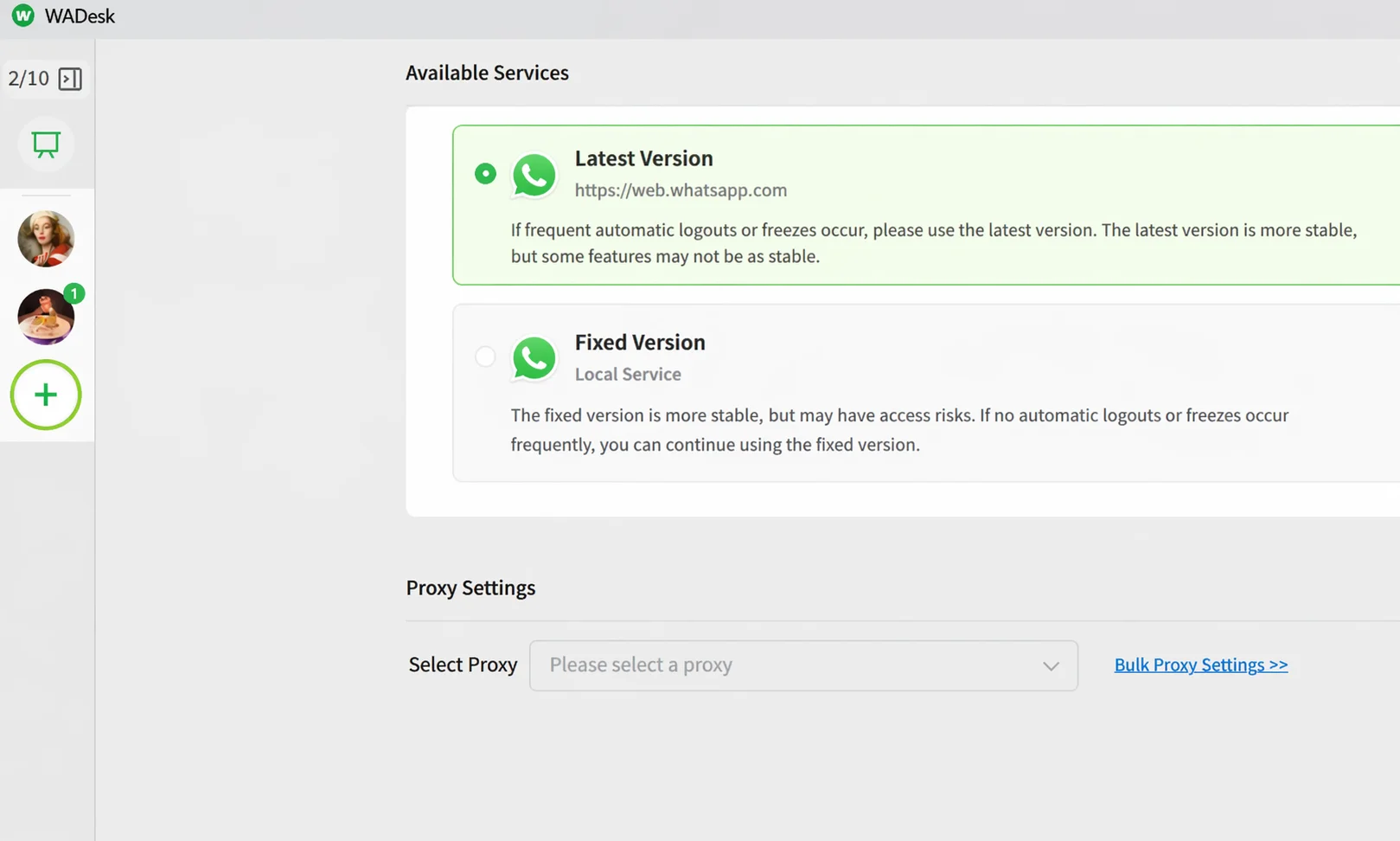
Step 1: Click + to open the Add Account dialog
In the left account panel of the Desktop Client, click the circular + button to open the Add Account dialog. The top of the account panel shows current port slot usage (e.g. 3/10), indicating 3 used out of 10 total slots.
The Available Services section offers two versions — choose one based on your situation:
| Version | Best for |
|---|---|
| Latest Version | Frequent disconnections or account bans — prioritize this option for more stable Risk Control |
| Fixed Version | No disconnection or ban history, and high stability requirements — choose this option |
Step 2: Scan with your phone to log in
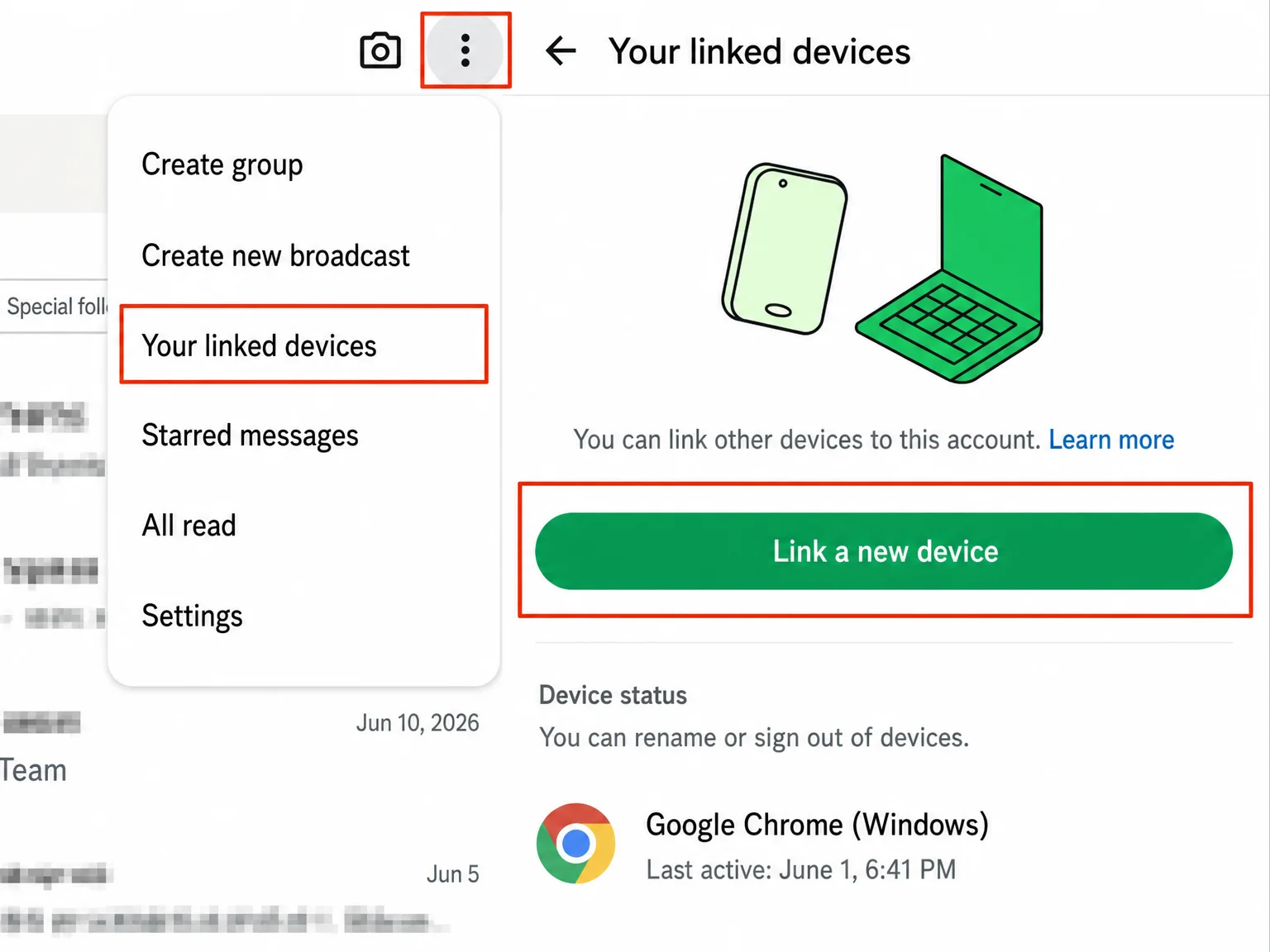
After clicking confirm, a QR code appears in the dialog. Take out the corresponding phone, open the WhatsApp app, tap three dots top right -> Linked Devices -> Link a Device, and scan the QR code on your computer screen.
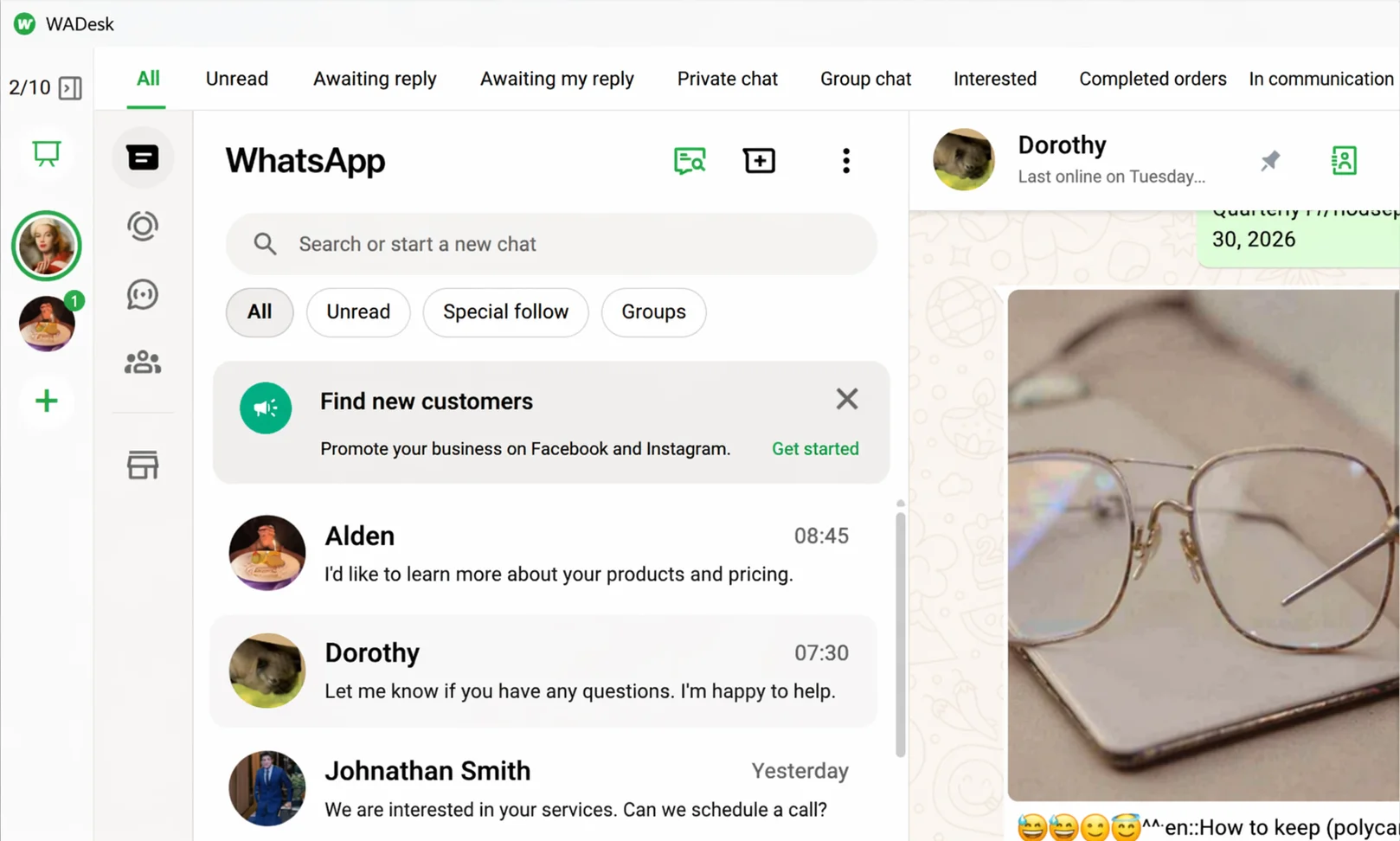
After a successful scan, the account avatar appears in the left account panel.
Step 3: Manage accounts — Edit notes and create groups
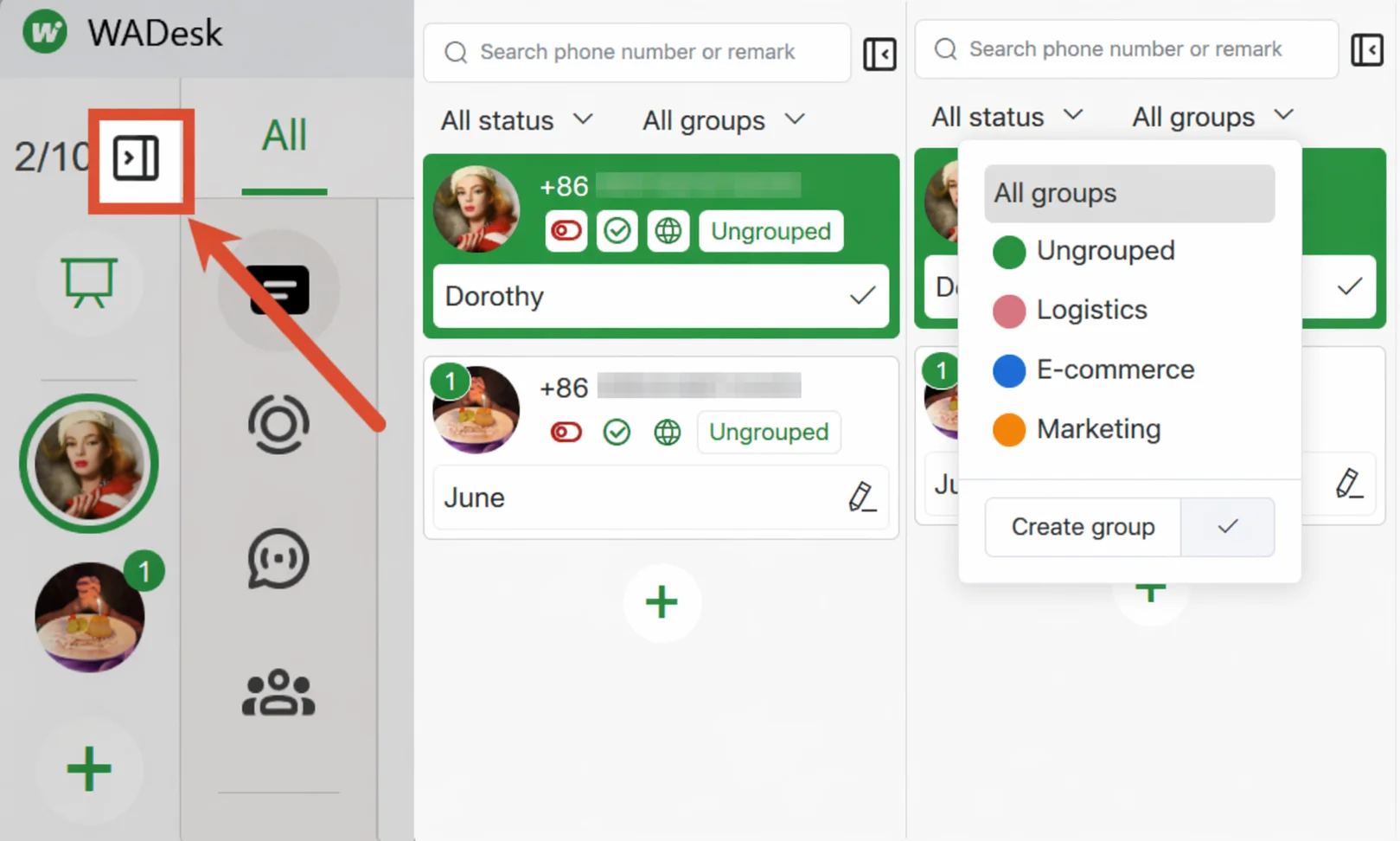
When you have many accounts, organize them with notes and groups for quick navigation.
Edit a note: Click the expand icon at the top of the left account panel to open the account detail panel, edit the note below the avatar, and click the checkmark to confirm.
Create a group: Click the All Groups filter at the top of the account list, enter a group name at the bottom of the expanded dropdown panel, and click the checkmark to create the group. After creating it, click "Ungrouped" on an account card to assign it to a group.
Step 4: Take an account offline
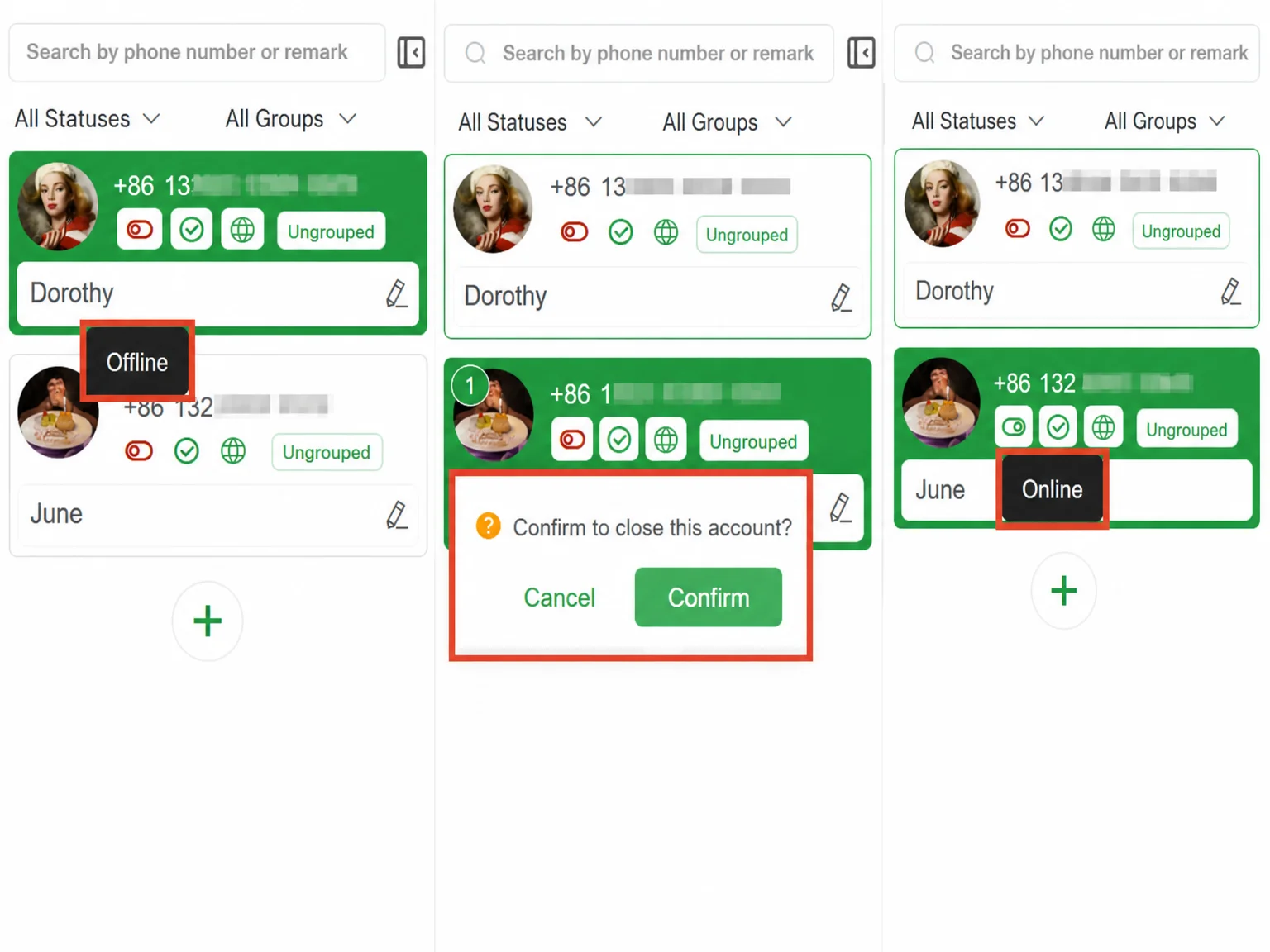
Hover over the status icon on an account card. When the Go Offline tooltip appears, click it. An inline confirmation "Are you sure you want to close this account?" appears — click Confirm to close it. The account will temporarily go offline. Click the same switch again to bring it back online; no re-scan is required.
Step 5: More account actions — right-click menu
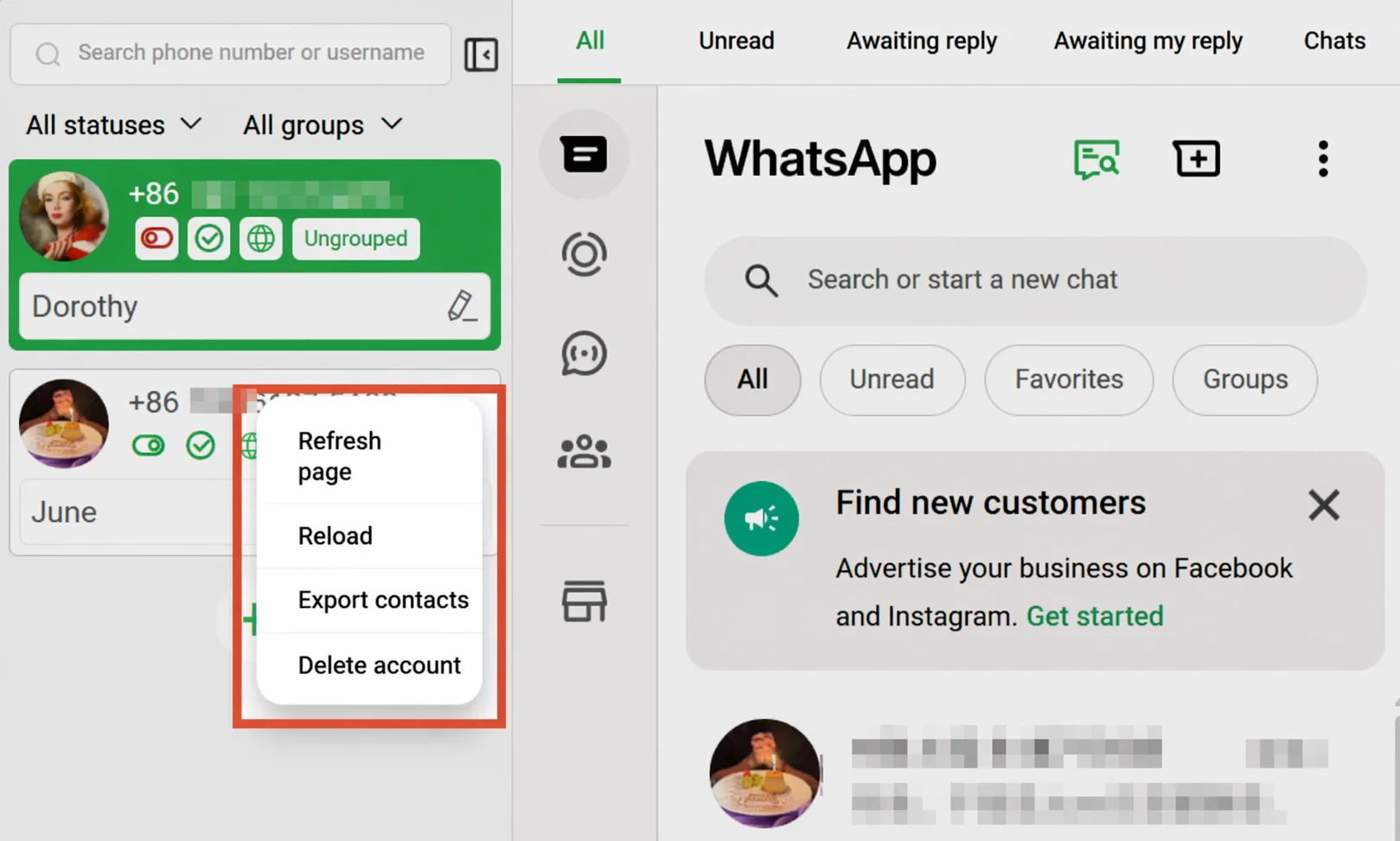
Right-click on an account card to bring up a quick action menu with the following four options:
| Action | Description |
|---|---|
| Refresh Page | Refreshes the current account's WhatsApp page. Use when the page is frozen or messages are not loading. |
| Reload | Reloads the account window. More thorough than refresh; can resolve certain connection issues. |
| Export Contacts | Exports all contacts under this WhatsApp account to a file for data backup or migration. |
| Remove Account | Permanently removes the account from WADesk and frees up the port slot. If you need to use it again after removal, you must re-add and scan the QR code to log in. |
Important Notes
⚠ The number of accounts is limited by your port slot quota. The current usage is displayed in the top left of the dialog. An admin must allocate port slots to members in Member Management in the Team Admin Console.
⚠ Going offline does not delete data. Chat history and contact data remain fully intact after an account goes offline or is closed. Data is available again after re-logging in.
⚠ Keep the Desktop Client running for accounts to stay online and receive messages. All accounts will show as offline when the Desktop Client is closed.
FAQ
Q: The system says I cannot add more accounts. What should I do? A: Your current port slot quota is fully used. Ask your admin to increase your port count in Member Management in the Team Admin Console, or reduce the number of currently logged-in accounts.
Q: I don't have an available proxy — how do I add one? A: In the Add Account dialog, click the Batch Proxy Settings >> link to jump to the Proxy configuration page. On the Proxy Settings tab, click Add Proxy, fill in the proxy details, and save. See the "Proxy Configuration" tutorial for details.
Q: My account went offline — is my data still there? A: Yes. Going offline does not affect existing data. After re-scanning the QR code to log in, the account goes back online and message syncing resumes normally.
Q: What's the difference between Latest Version and Fixed Version? Which should I choose? A: Latest Version connects to the latest WhatsApp Web version with lower Risk Control risk — suitable for most users. Fixed Version uses a local service with more stable functionality but slightly higher Risk Control risk. If you have no history of frequent disconnections or bans, either works. If you have had bans before, prioritize Latest Version.
Q: What's the difference between going offline and removing an account? A: Going offline makes the account temporarily disconnected while the port slot remains occupied — you can bring it online again at any time. Removing an account deletes it from the running list and frees up the port slot. Reusing it afterward requires re-adding and scanning the QR code to log in.