


Picture this — You say to your computer: "Send a new product promotion in Spanish to all my Latin American customers tagged 'high-intent'." Seconds later, it's done. This isn't science fiction. It's what happens every day after you connect WorkBuddy to WADesk through the MCP protocol.
1. What is MCP, and Why Connect to WADesk?
MCP (Model Context Protocol) is an open protocol launched by Anthropic that allows AI to securely and standardly connect to external tools and data sources. Think of it as a "USB-C port" for AI — plug in any device, and the AI can control it.
WorkBuddy is Tencent's full-scenario AI workspace, natively supporting MCP. It can connect to any third-party application that implements an MCP Server.
WADesk is the #1 WhatsApp CRM platform globally, featuring a complete built-in MCP Server that exposes 7 tools, 3 data resources, and 2 prompt templates — covering the entire WhatsApp customer operations workflow.
Connecting them is like giving your AI assistant hands to operate WhatsApp.
In a nutshell: WorkBuddy does the "thinking," WADesk does the "executing." MCP is the neural link between them.
2. Before You Start
Make sure you have the following ready:
| Item | Description |
|---|---|
| WADesk Client | Installed and logged into at least one WhatsApp account. Download WADesk |
| WorkBuddy | Tencent WorkBuddy AI workspace installed |
| Network | Both running on the same machine, communicating via local 127.0.0.1 |
3. 9-Step Connection Tutorial
Step 1: Start the MCP Server in WADesk
Open the WADesk client, go to Settings, find the MCP Service toggle, and switch it on.
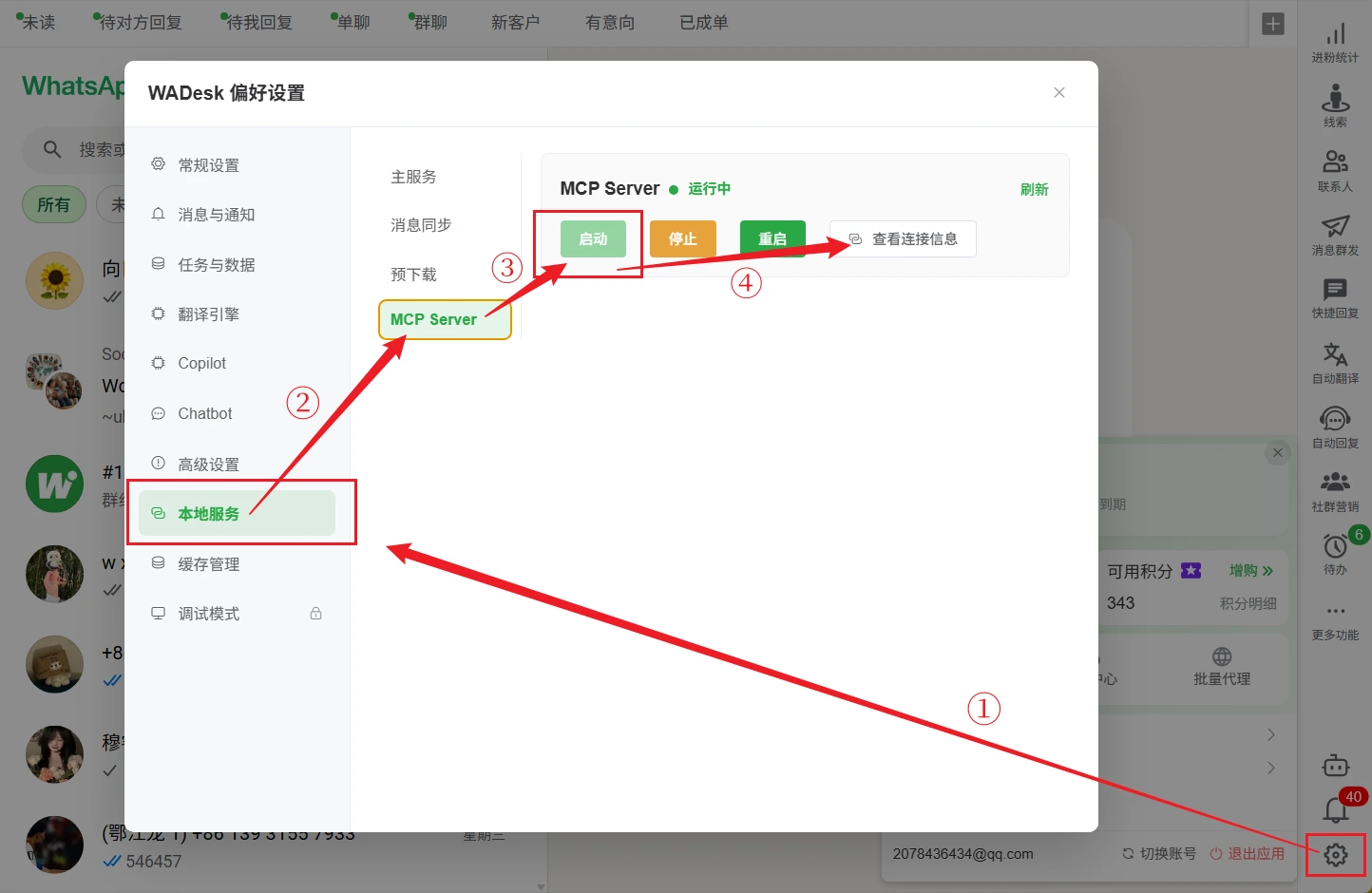
WADesk will automatically launch an MCP Server process in the background, running on a local port (default 8080). The service uses Bearer Token authentication — only clients with the correct token can make calls.
Step 2: Copy the MCP Connection Info
Once the MCP Server starts successfully, WADesk generates a connection configuration. Click the Copy button to save it to your clipboard.
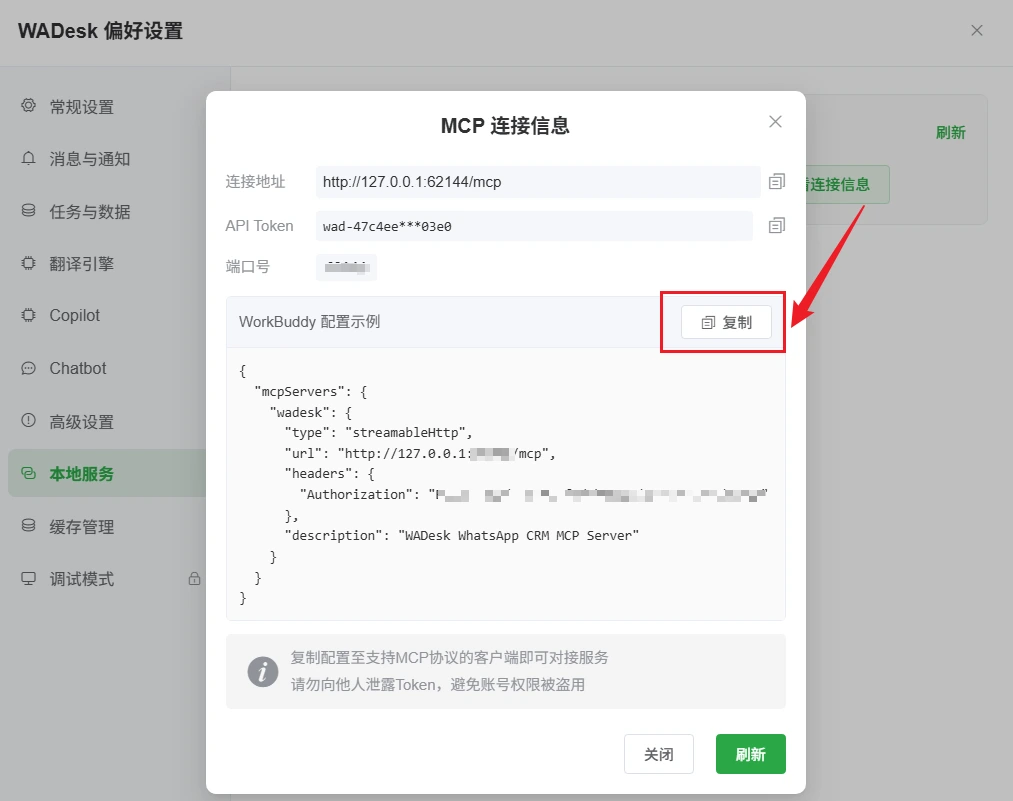
The configuration is a JSON object in this format:
{
  "mcpServers": {
    "wadesk": {
      "url": "http://127.0.0.1:8080/mcp",
      "headers": {
        "Authorization": "Bearer wad-xxxxxxxxxxxxxxxxxxxxxxxxxxxxxxxx"
      }
    }
  }
}
- url: Local access address of the MCP Server
- Authorization: Bearer Token, formatted as
wad-+ 32 random hex characters
⚠️ Security note: The token grants full access to your WADesk operations. Never share it.
Step 3: Open WorkBuddy and Navigate to Connectors
Open WorkBuddy and click the Connectors icon in the left sidebar (or go through Settings).
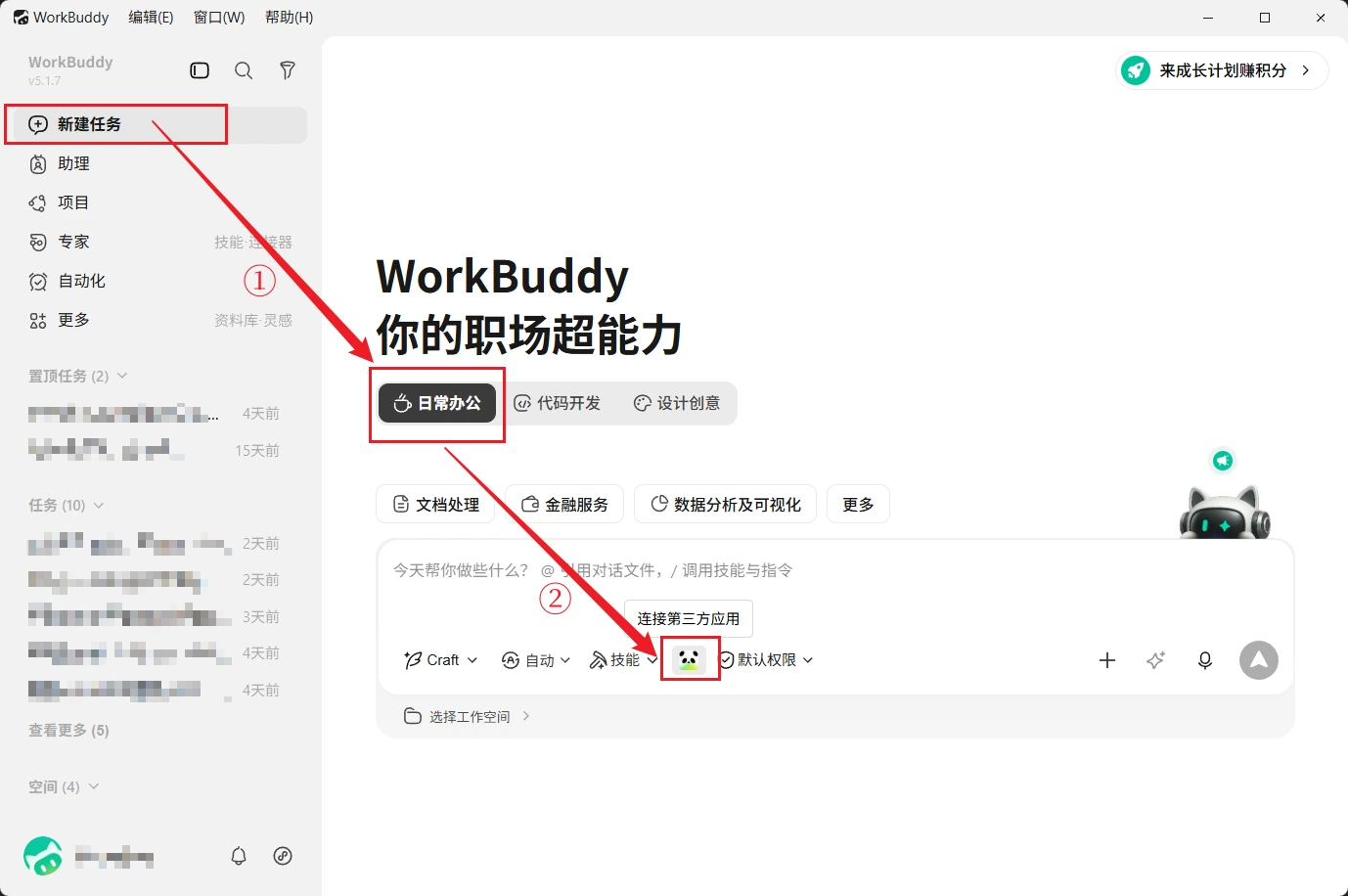
WorkBuddy's connector system supports a wide range of third-party integrations — from Tencent Docs and WeCom to custom MCP Servers, all managed from one place.
Step 4: Click "More Connectors"
On the connector management page, find and click the "More Connectors" button.
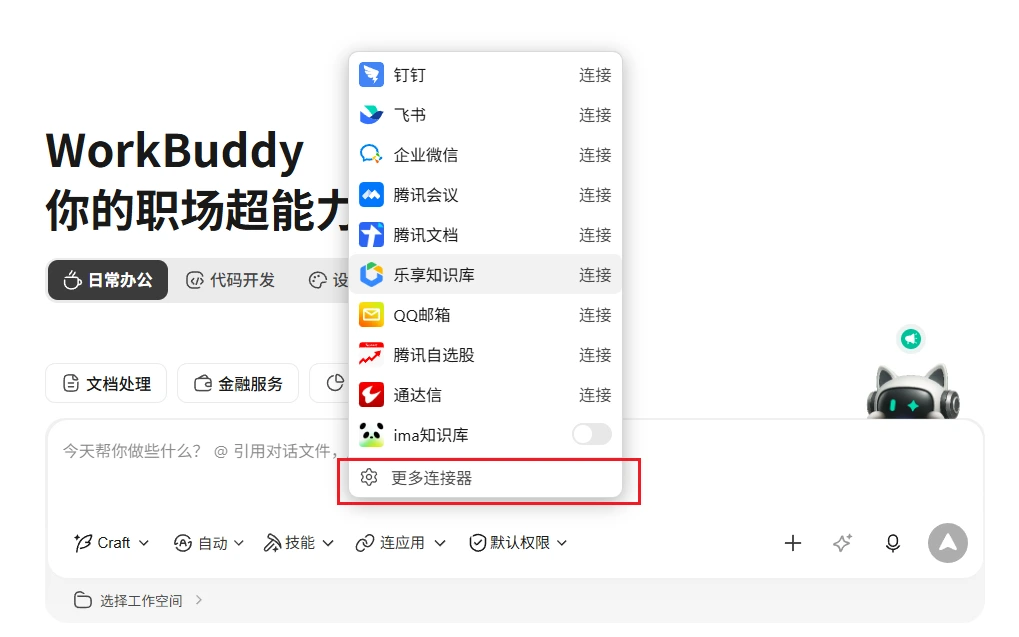
This shows all official and community-provided connectors. But we're adding a custom WADesk MCP Server, so we'll take the custom route.
Step 5: Select "Custom Connector"
In the connector list, find and click "Custom Connector".
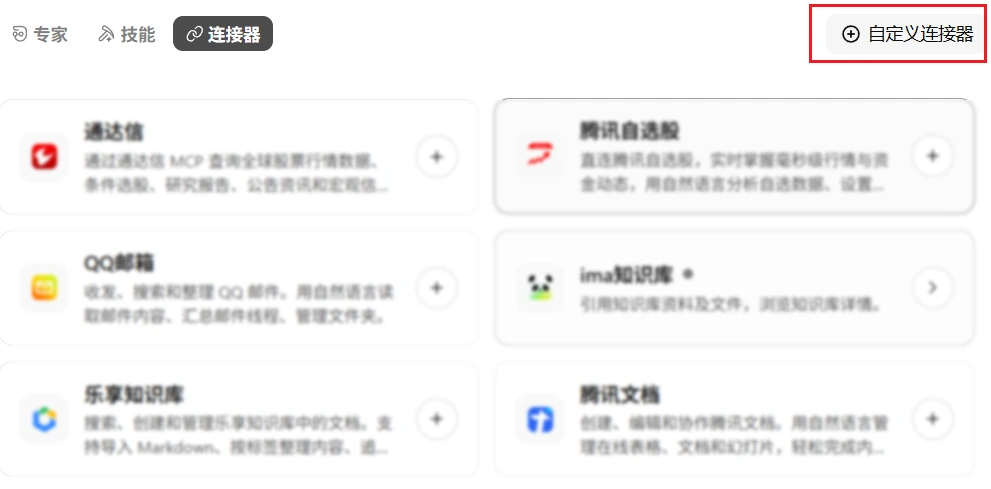
Custom connectors let you integrate any third-party service that complies with the MCP specification — exactly what we need.
Step 6: Click "Configure MCP"
Once in the custom connector page, click the "Configure MCP" button.
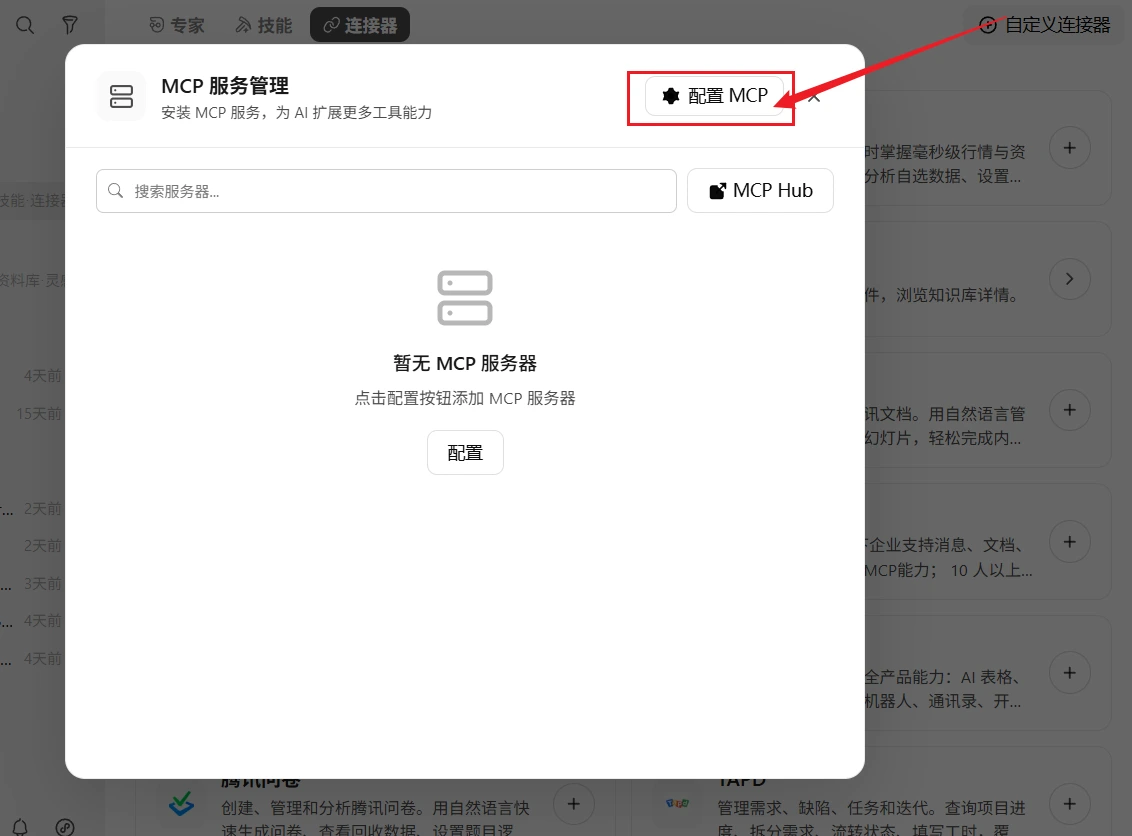
WorkBuddy supports two MCP transport modes:
- Stdio Mode: Launch a local process via command line
- HTTP Mode: Connect to a remote or local HTTP/SSE endpoint
WADesk uses HTTP Mode (Streamable HTTP), so we'll use the HTTP configuration path.
Step 7: Paste the WADesk MCP Config and Save
Directly paste the JSON configuration from Step 2 into the config input box, then click Save.
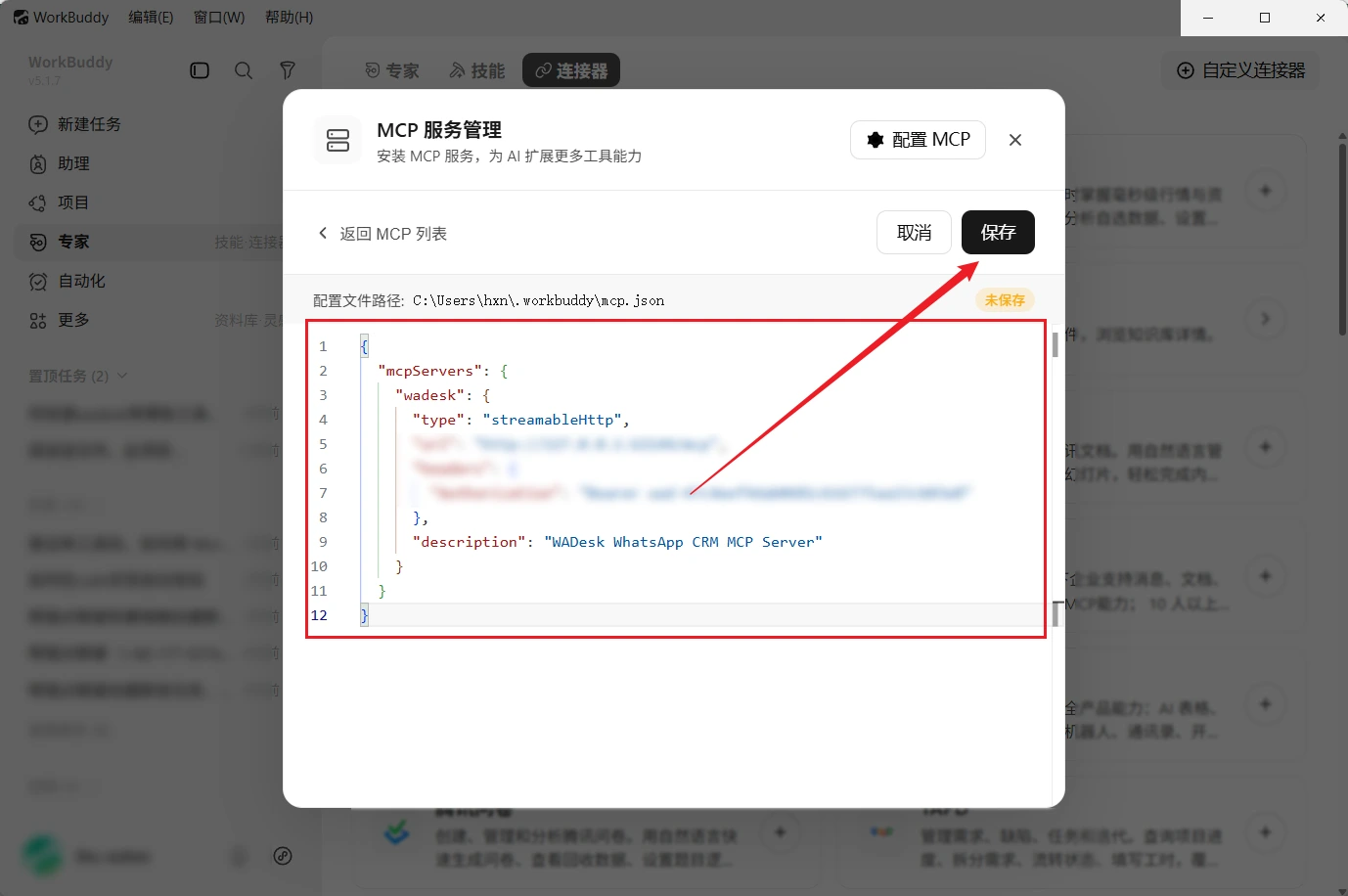
WorkBuddy automatically parses the JSON and identifies:
- Connector name:
wadesk - Connection URL:
http://127.0.0.1:8080/mcp - Auth method: Bearer Token
Once saved, the configuration is written to ~/.workbuddy/mcp.json and auto-loaded on the next startup.
Step 8: Start the Connection and Verify
Go back to the connector list, find the newly added WADesk Customer Operations Assistant, and toggle it on.
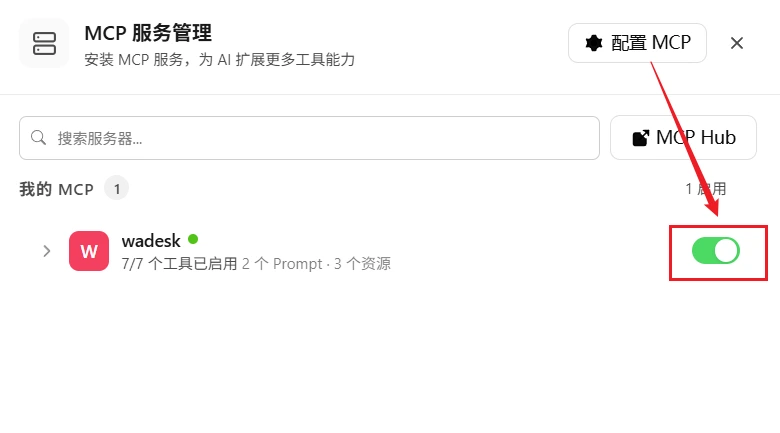
WorkBuddy will initiate a handshake with the WADesk MCP Server. If everything checks out, the status turns green (Connected) and the available tools are displayed.
Quick verification:
- Type "Show me which WhatsApp accounts are online in WADesk" in WorkBuddy
- The AI automatically calls the
get_account_statustool and returns account connection status and stats
Step 9: Start Creating Tasks in the Input Box
Once connected, you can issue commands in WorkBuddy's chat input as naturally as talking to a colleague.
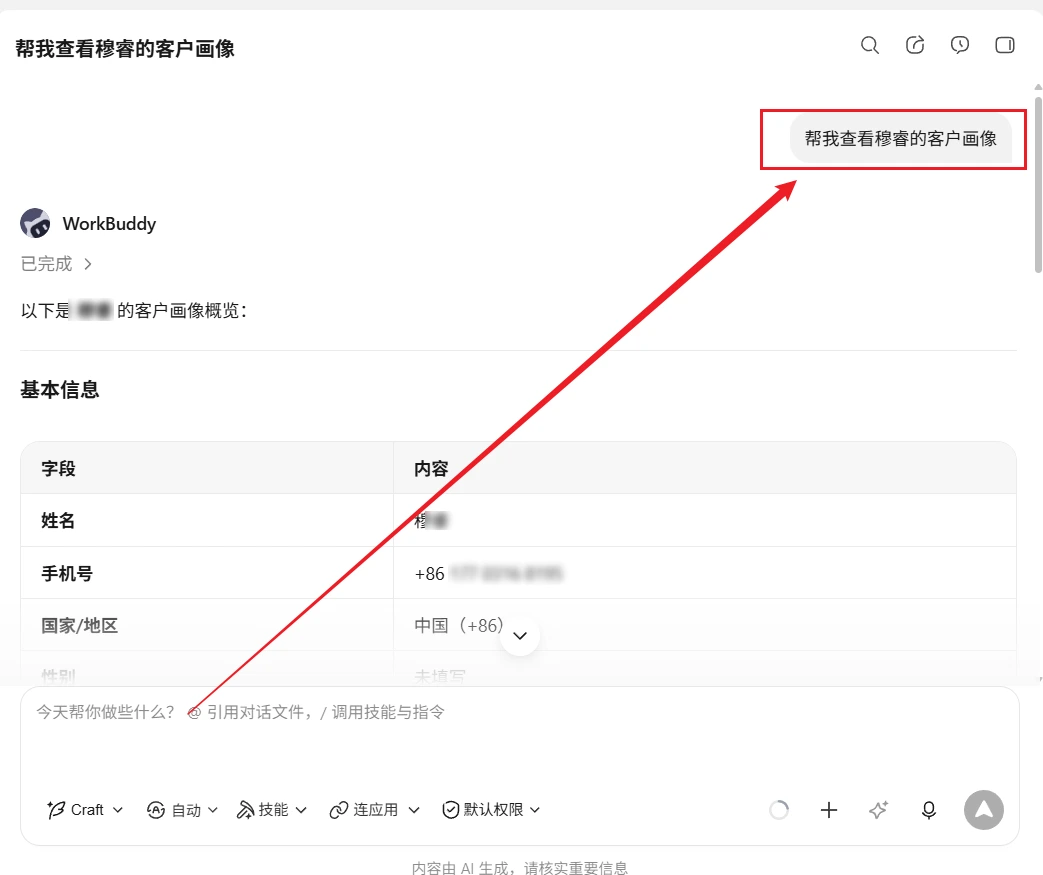
WorkBuddy understands your intent, breaks down the task, and calls the appropriate WADesk MCP tools to execute.
4. What Can You Do After Connecting? The 7 Tools
WADesk MCP Server exposes 7 core tools covering the full WhatsApp customer operations workflow:
| Tool Name | Function | What It Does | Example Prompt |
|---|---|---|---|
send_message | Send Message | Send text/images/video/docs to a single contact or group | "Send 'Quote updated, please check' to Mike" |
query_customers | Customer Operations | Search customers, view profiles, update info, manage tags | "Show all customers tagged VIP" |
discover_leads | Lead Discovery | Google Maps search, group member extraction, number validation | "Find electronics companies in San Francisco" |
manage_broadcast | Broadcast Campaigns | Create/execute/pause/cancel bulk broadcast tasks | "Send a Valentine's Day promo to all LATAM customers" |
get_conversation | Conversation Search | Retrieve chat history by contact or keyword | "Show me the last 20 messages with Mr. Wang" |
get_account_status | Account Status | View WhatsApp online status and message stats | "How many messages did my WhatsApp send today?" |
execute_system_action | System Actions | Data export, template management, account switching | "Export last month's customer communication data" |
Beyond tools, WADesk also provides 3 data resources (customer list, conversation history, daily analytics) and 2 prompt templates (marketing bulk message, customer follow-up) for smarter AI-driven operations.
5. Real-World Demos
Scenario 1: Smart Customer Follow-Up
You say to WorkBuddy: "Check Manager Li's recent chat history, see where we left off, and draft a follow-up message."
WorkBuddy's execution flow:
- Calls
query_customers(action: search) to find "Manager Li" - Calls
get_conversationto fetch the last 20 messages - Calls the
customer-followupPrompt to generate a follow-up draft - Presents the draft for your approval, then calls
send_messageto send
Scenario 2: Bulk Marketing Outreach
You say to WorkBuddy: "Create a broadcast campaign: send a thank-you message to all customers tagged 'NA-closed', scheduled for 9 AM tomorrow."
WorkBuddy's execution flow:
- Calls
manage_broadcast(action: filter_contacts) to filter target customers - Calls the
marketing-bulk-messagePrompt to generate a thank-you message - Calls
manage_broadcast(action: create) to schedule the broadcast - Returns the task confirmation — it auto-executes at 9 AM tomorrow
6. FAQ
Q1: Does the MCP connection require internet?
No external internet needed. The WADesk MCP Server runs on the 127.0.0.1 local loopback address. WorkBuddy communicates with it via local HTTP. The entire process never touches the public internet — your data stays safe.
Q2: Does the connection drop when I close WADesk?
Yes. The MCP Server is embedded in the WADesk client — it starts with WADesk and stops with WADesk. Next time you open WADesk, just toggle the connection back on in WorkBuddy.
Q3: Can I connect from a different machine?
Currently, only local connections (127.0.0.1) are supported. If WorkBuddy and WADesk are on the same machine, you're good to go. Remote connection support is on the roadmap.
Q4: Where can I view and manage my Token?
The Token is displayed on the WADesk MCP Service settings page. You can regenerate the Token at any time — the old one expires immediately. This is especially useful when an employee leaves or permissions change.
Q5: Are there rate limits?
Yes. WADesk enforces three-tier rate limiting by operation type:
- Read operations (querying customers, conversations): 60/min
- Write operations (sending messages, creating broadcasts): 20/min
- System operations (exports, config changes): 30/min
More than sufficient for normal use. If you hit the limit, it auto-resets after 1 minute.
Q6: How does this compare to WADesk's built-in Copilot?
| Dimension | MCP + WorkBuddy | WADesk Built-in Copilot |
|---|---|---|
| Role | Full-scenario AI workspace driving WADesk | AI assistance within WADesk |
| Scope | WhatsApp control + docs/reports/data analysis + cross-app workflows | WhatsApp control |
| Access Point | WorkBuddy chat interface | WADesk sidebar |
| Best For | Managers needing AI-driven global collaboration | Frontline sales/support operators |
| Task Automation | ✅ Scheduled/recurring tasks | Manual trigger only |
They're complementary, not competitive. Use Copilot for quick daily actions, use MCP + WorkBuddy for complex multi-step workflows.
7. Get Started — 5 Minutes Is All It Takes
You've seen it now — connecting WorkBuddy and WADesk requires zero lines of code, zero server setup, and just 5 minutes.
Once connected, your WhatsApp customer operations gain an AI brain.
Don't have WADesk yet? Download now and experience AI-powered customer operations with WorkBuddy + WADesk.
Download WADesk Free → Book a Demo →WADesk Free supports 2 WhatsApp ports, with full MCP access on all plans.