

If you want AI to answer WhatsApp customer questions before handing complex conversations to your team, you can create a custom chatbot in WABot AI and connect it to WADesk through its OpenAI-compatible API.
This guide covers the full workflow: create an agent, add a knowledge base, generate an API key, add the custom provider in WADesk, and use it in an automatic reply bot.
Visit the WABot website to learn more, then open the WABot management console to sign in and create your agent.
Before you start: Prepare a WABot AI account and a WADesk account. The complete API key is shown only once after creation, so copy it immediately and store it securely.
1. Sign in to WABot AI
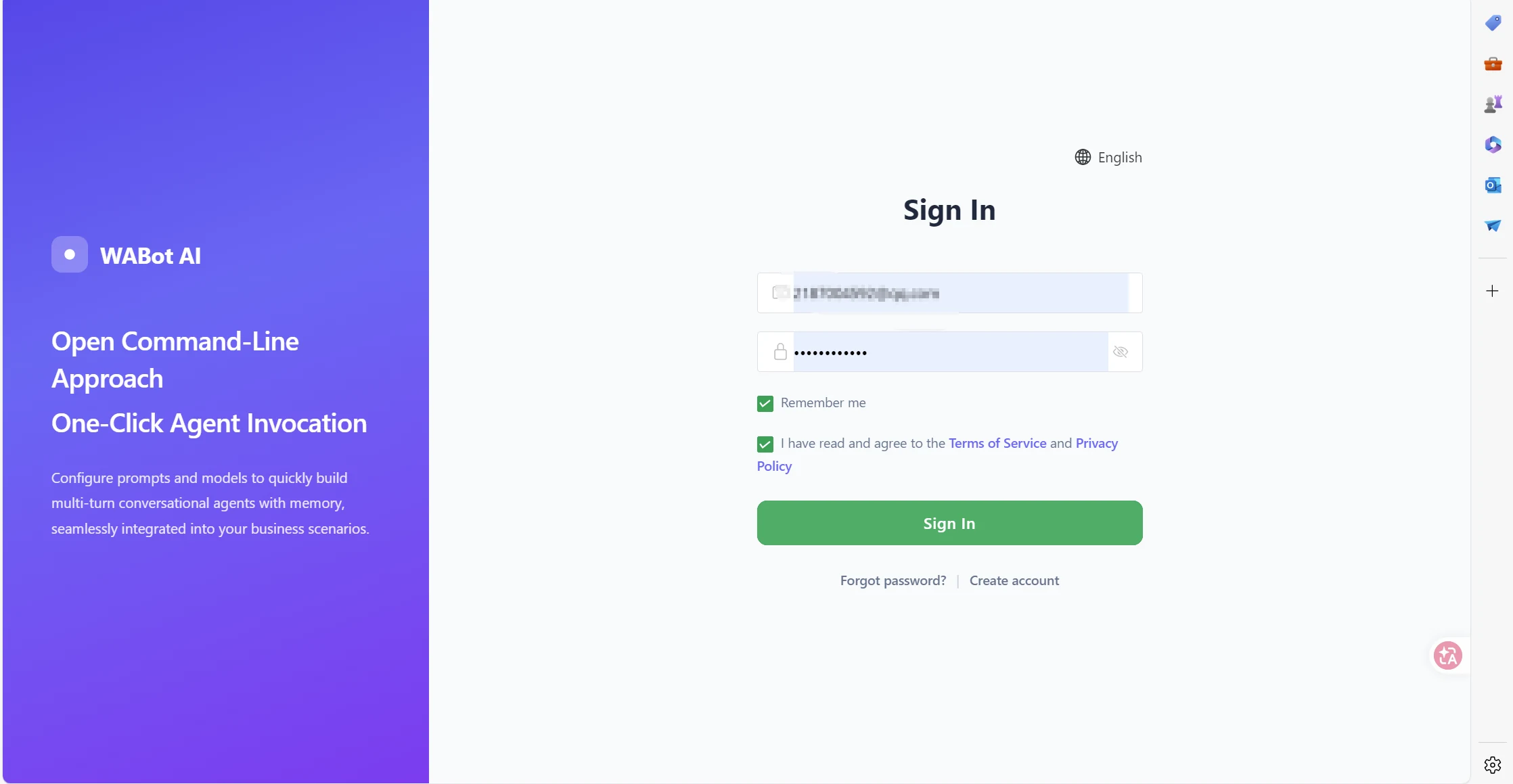
Open the WABot AI sign-in page. Use your existing WADesk credentials, or select Create account to register a new account.
2. Create a chat agent
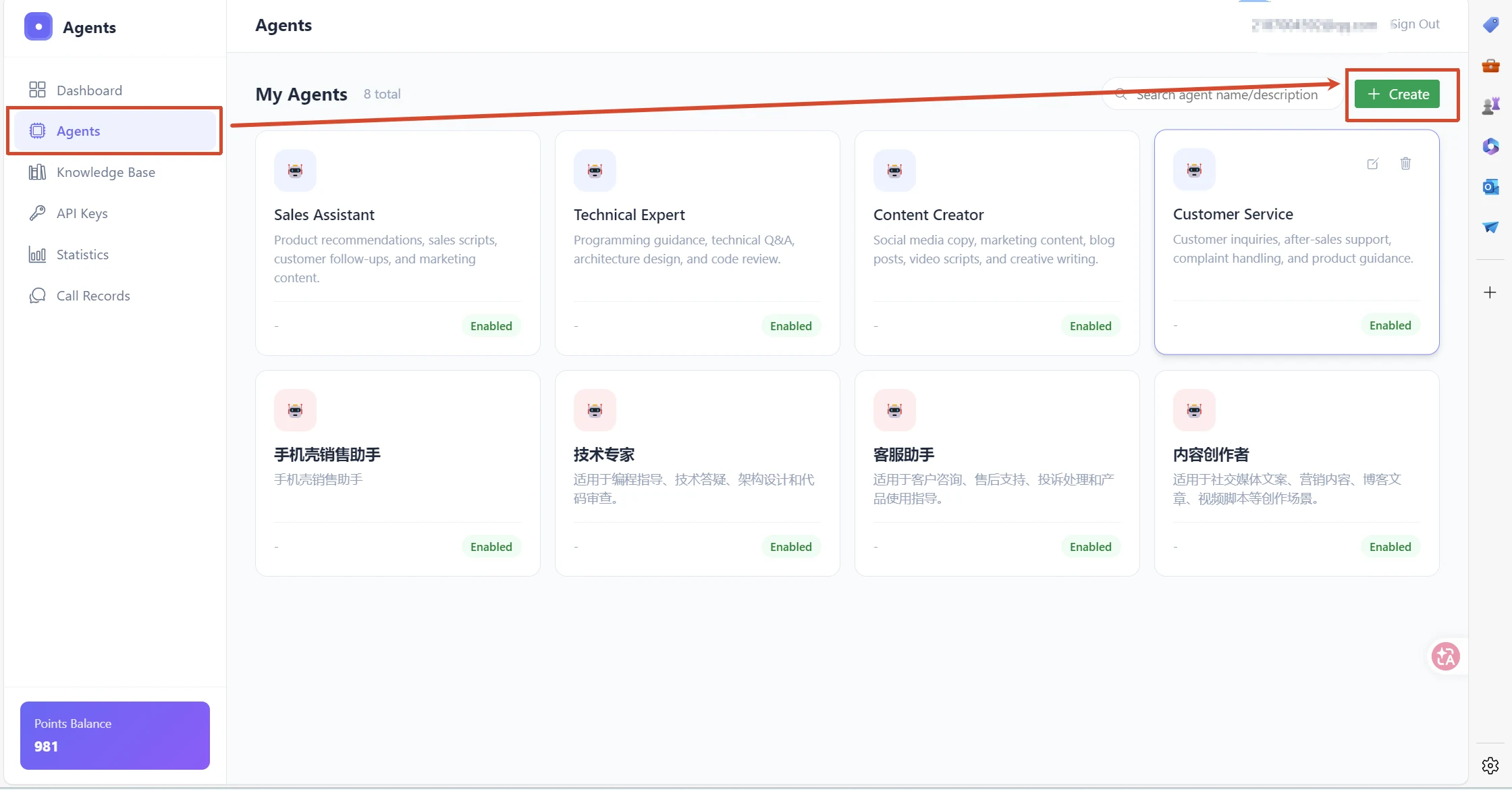
Open Agents and start a new agent
After signing in, select Agents in the left navigation and click Create in the upper-right corner.
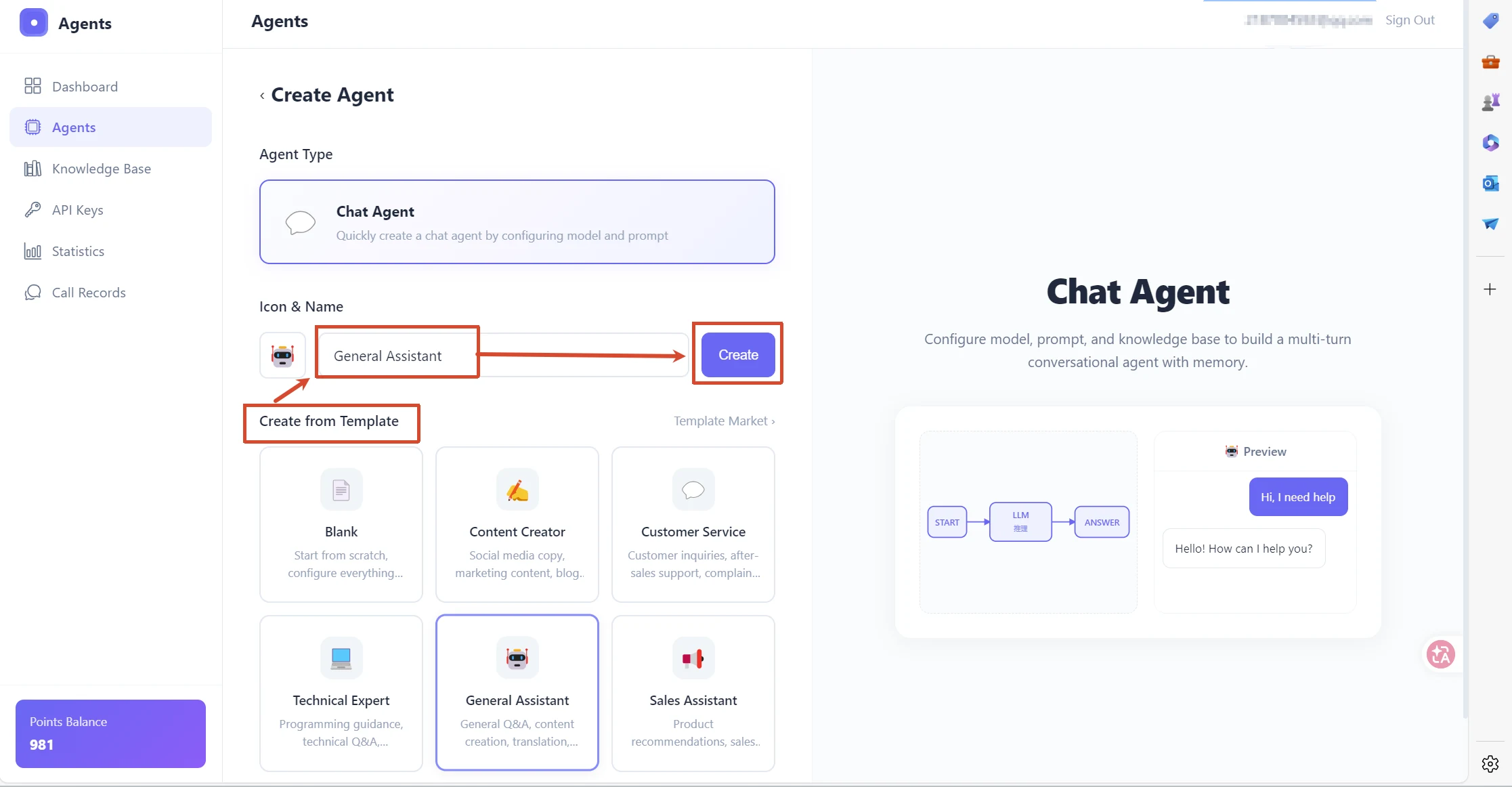
Select Chat Agent, enter a name such as “Sales Assistant,” and choose Blank or an appropriate template. Click Create to continue.
Configure the agent
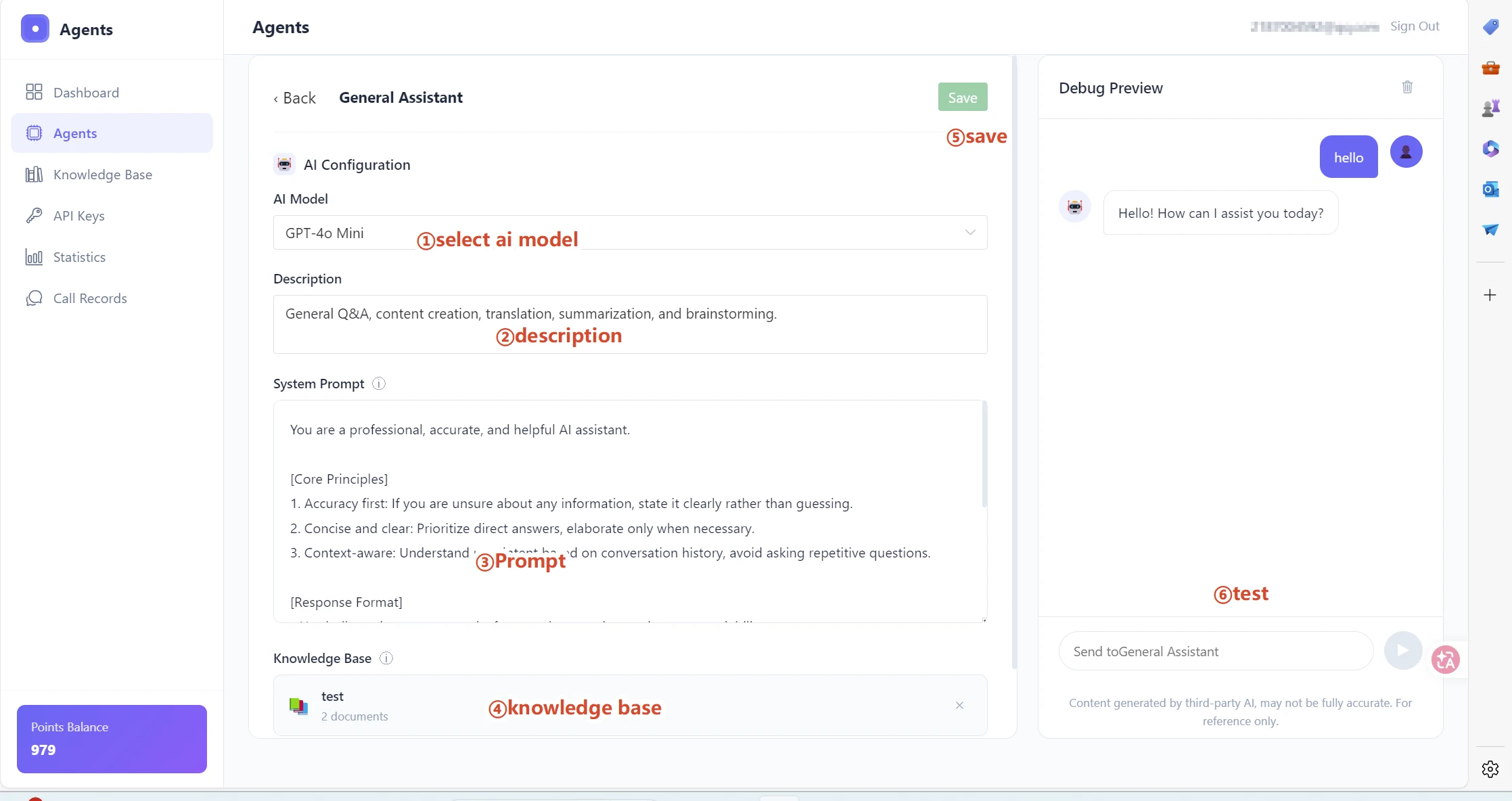
Configure the following fields according to your use case:
- AI Model: Select an available model.
- Description: Explain what the agent is responsible for, such as product recommendations or customer support.
- System Prompt: Define the agent’s role, response boundaries, tone, and fallback behavior.
- Knowledge Base: Link product documentation, policies, FAQs, or other business information.
Use the preview panel to test the agent, then click Save.
3. Create and add a knowledge base
Create a knowledge base
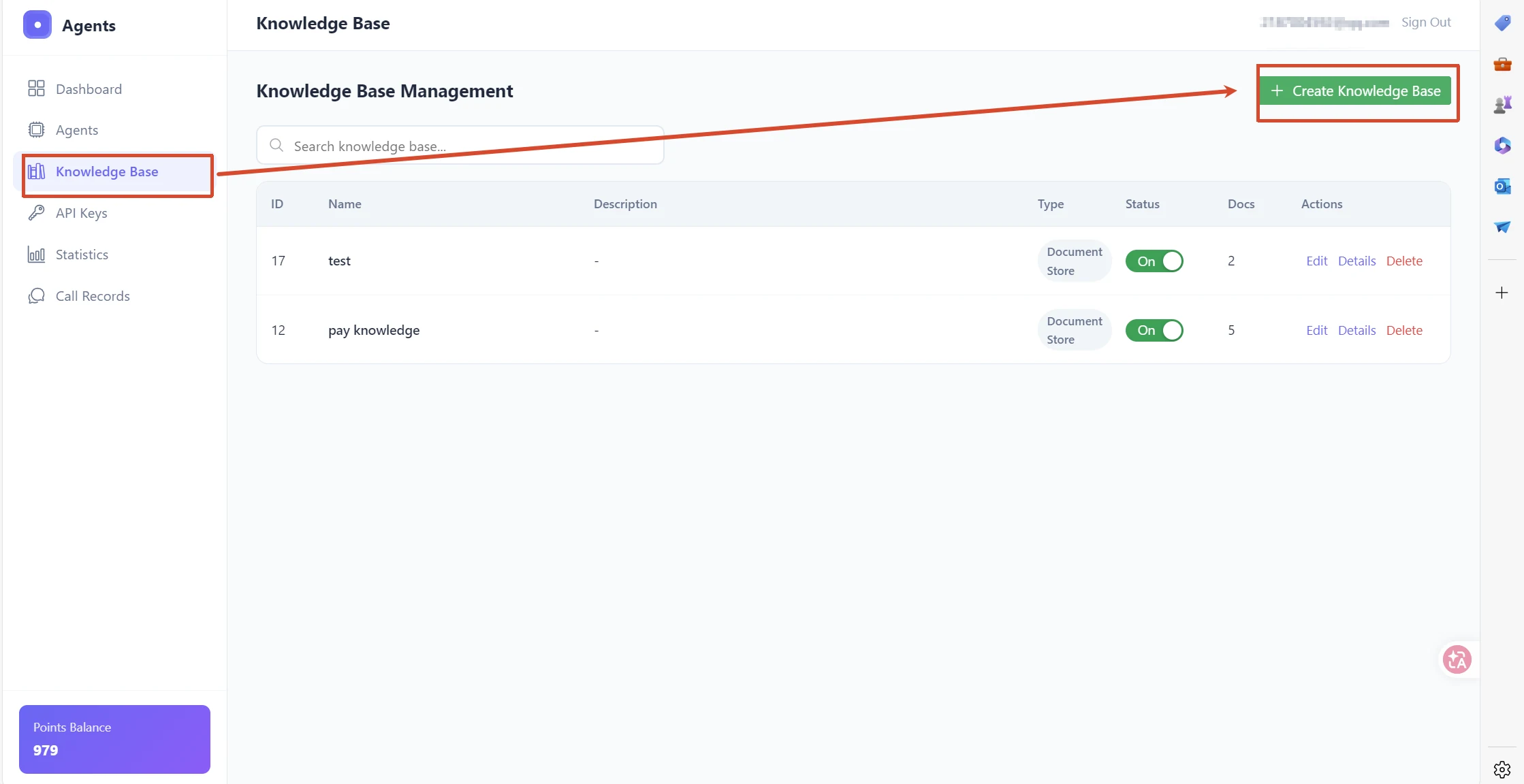
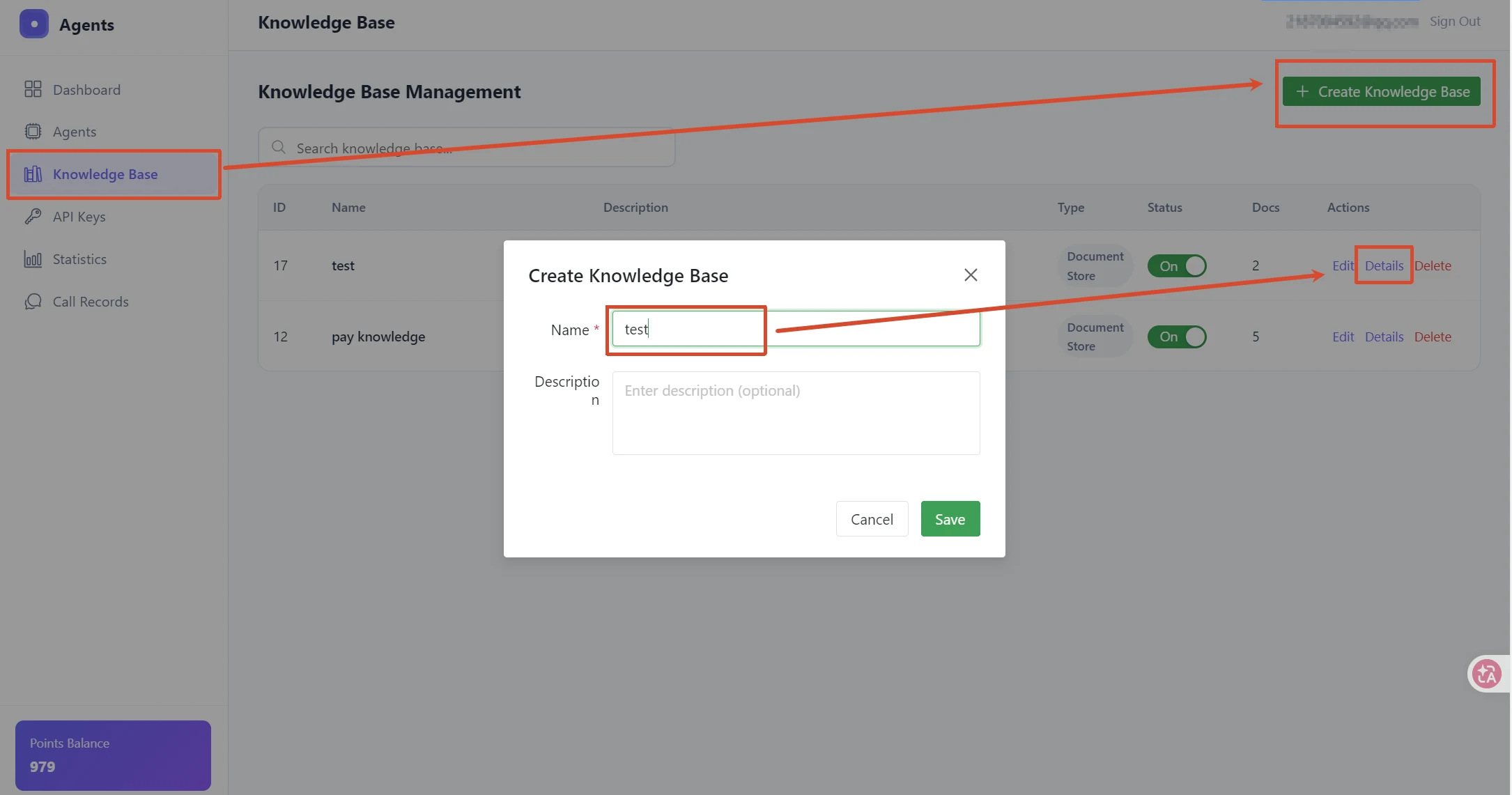
Select Knowledge Base in the left navigation and click Create Knowledge Base. Enter a name and an optional description, then save it.
Add knowledge
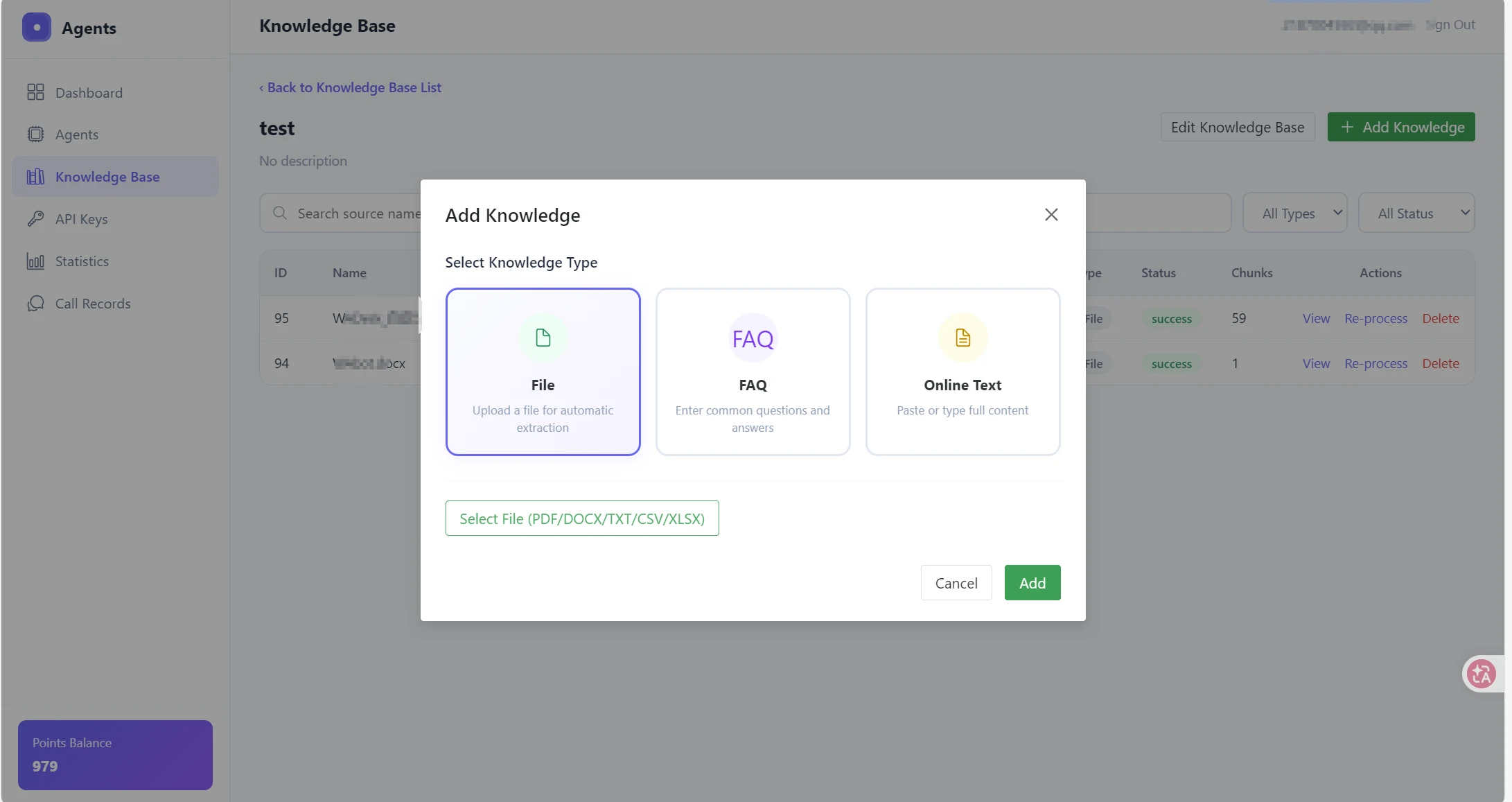
Open the new knowledge base and click Add Knowledge. You can add information as:
- File: Upload PDF, DOCX, TXT, CSV, or XLSX files;
- FAQ: Add common questions and standard answers;
- Online Text: Paste or type complete product or service information.
Return to the agent configuration page and link this knowledge base to the agent.
4. Create an API key
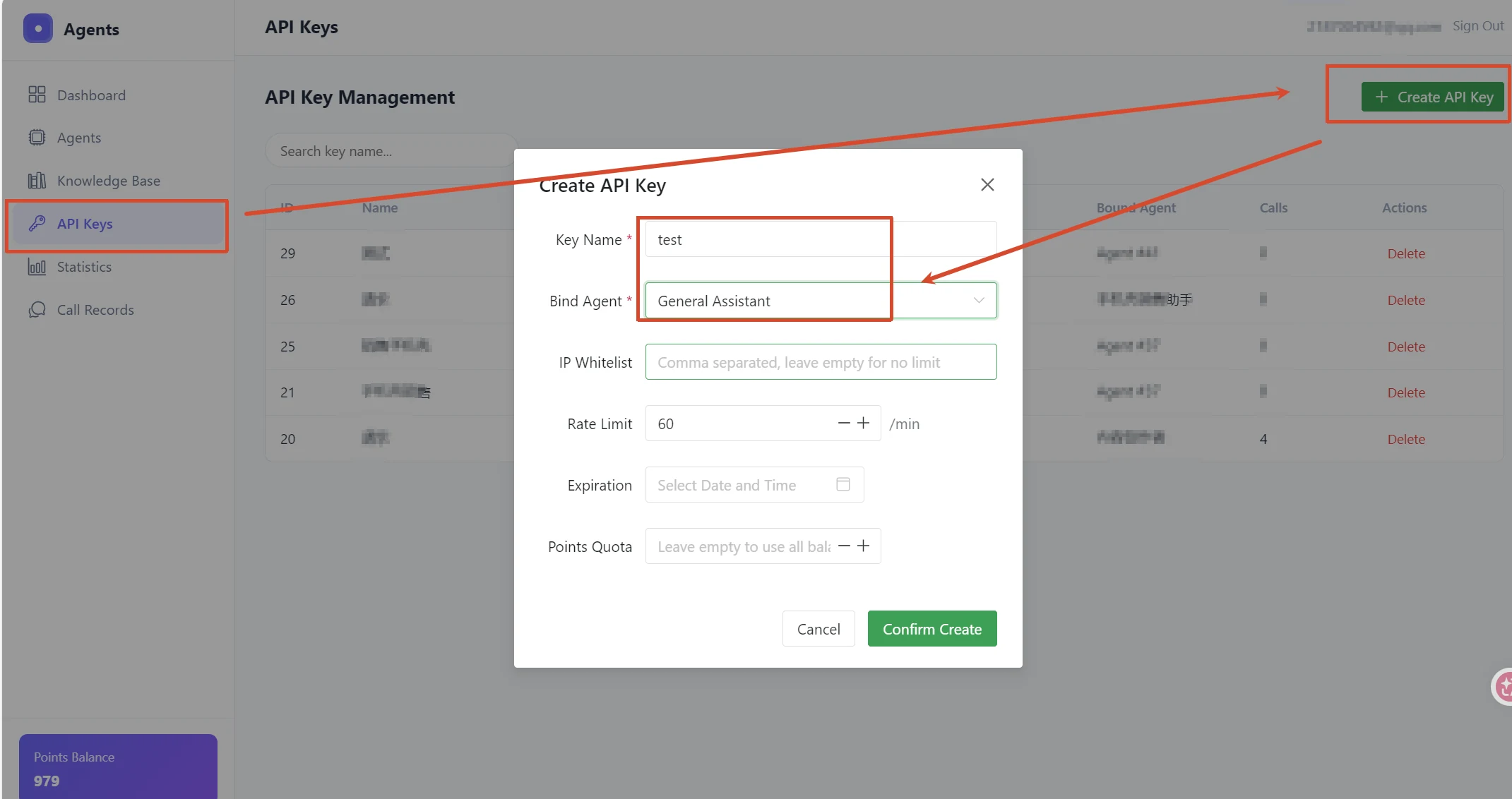
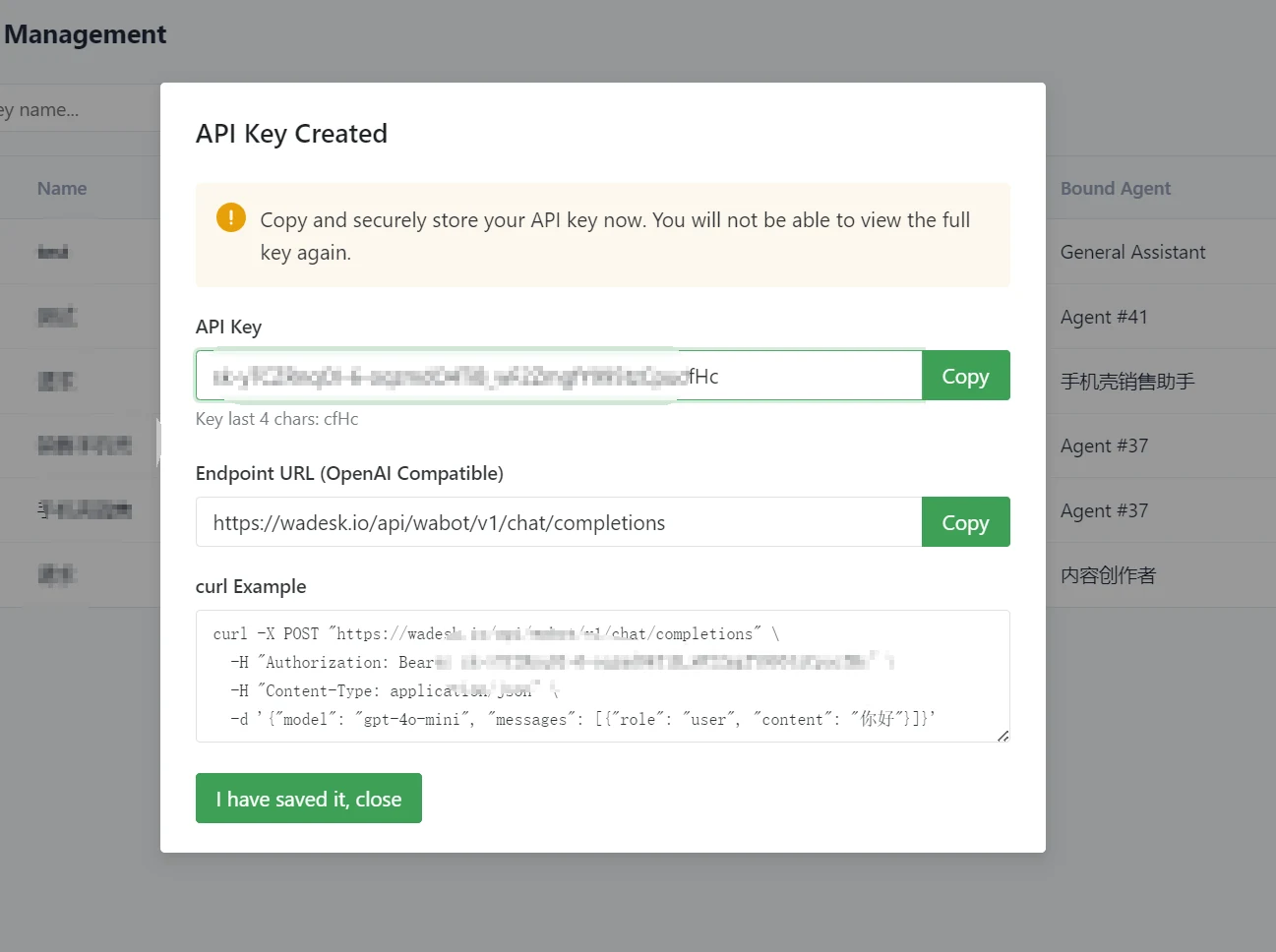
Go to API Keys and click Create API Key. Enter a key name and select the agent under Bind Agent. You can also configure an IP whitelist, rate limit, expiration time, and points quota according to your security requirements. Click Confirm Create.
After creation, copy both the API key and the endpoint URL. The endpoint is:
https://wadesk.io/api/wabot/v1/chat/completions
The complete API key cannot be viewed again after the dialog is closed. Do not publish it in a repository, frontend code, screenshots, or public chat.
5. Add the custom provider in WADesk
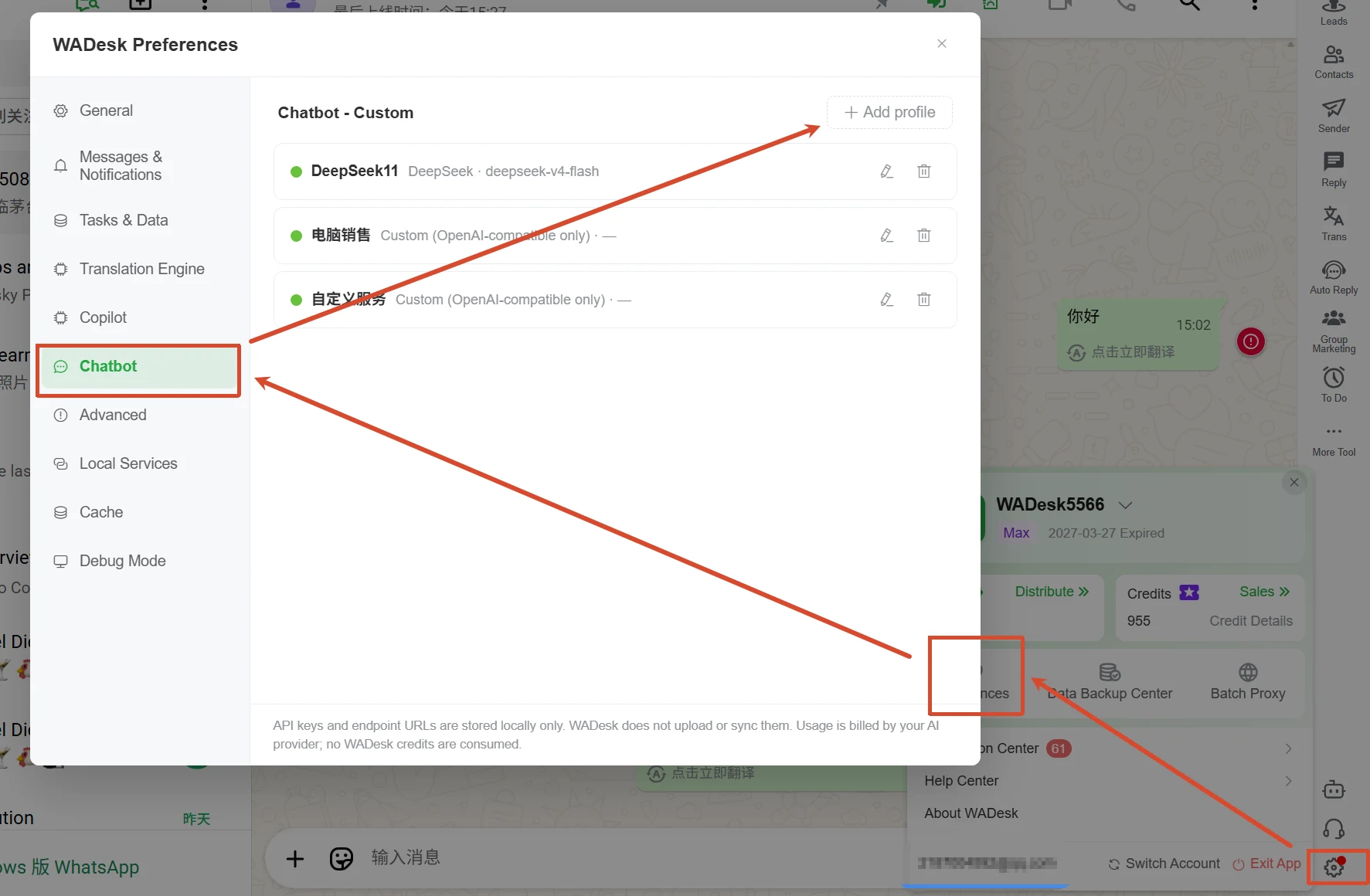
In WADesk, open Settings in the lower-right corner and select Preferences. Choose Chatbot in the left navigation, then click Add configuration.
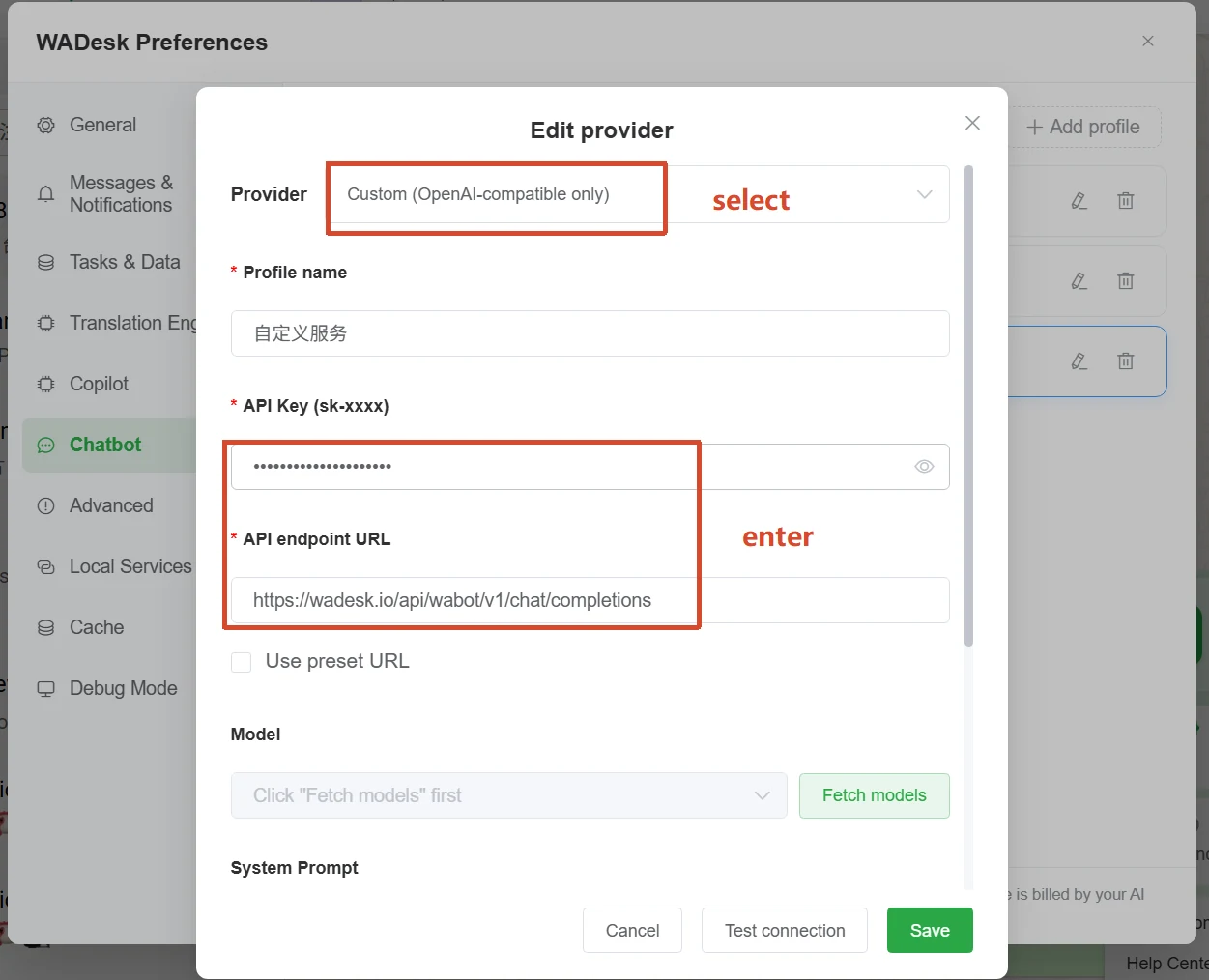
Select Custom (OpenAI-compatible only) and enter:
- Server name: A name such as “WABot Sales Assistant”;
- API Key: Paste the key created above;
- API endpoint: Paste
https://wadesk.io/api/wabot/v1/chat/completions.
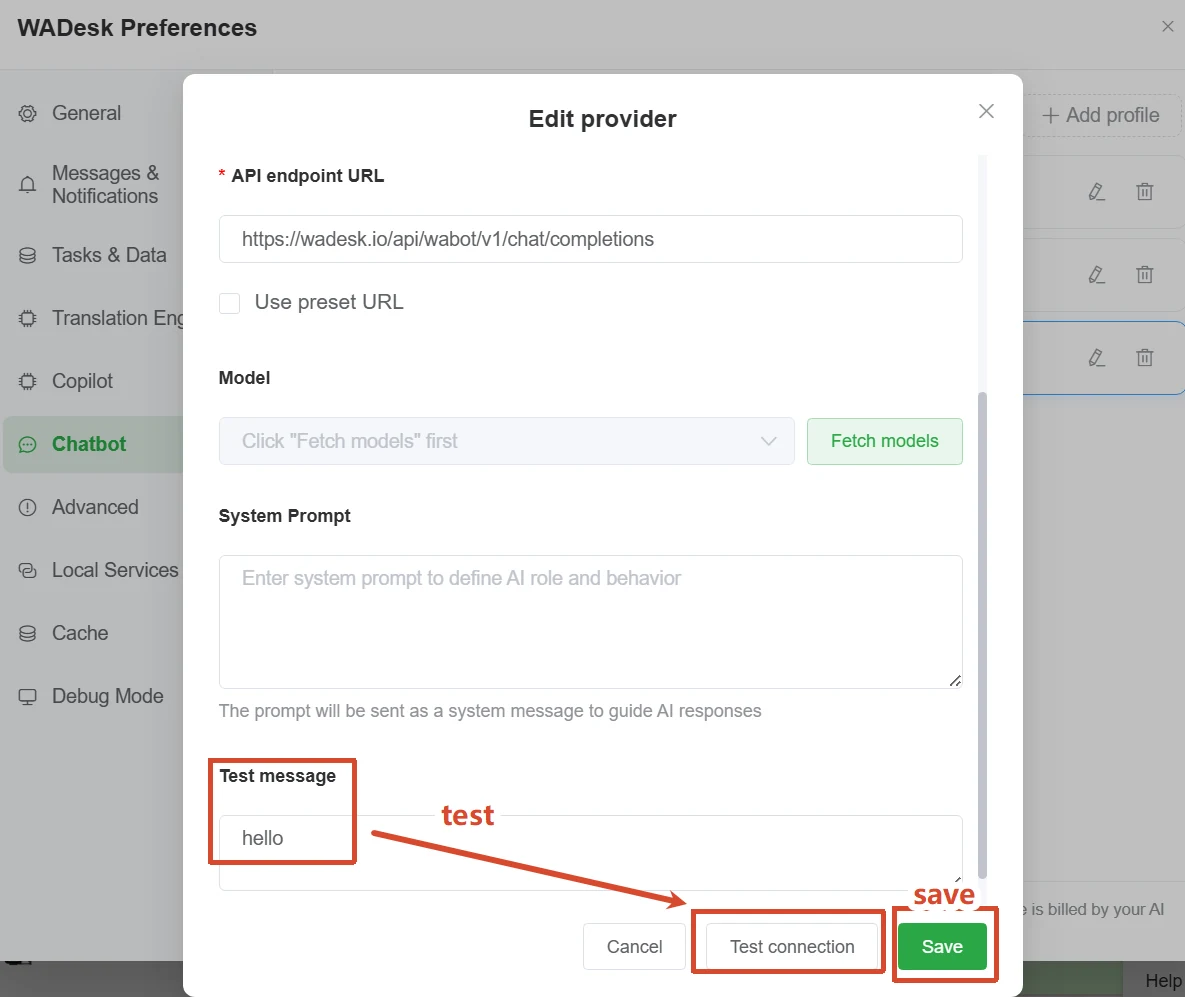
No need to click Get Available Models. The model configured when creating the agent in WAbot will be used. You may add additional system prompts, then run a test. Click Test Connection. If the response is successful, click Add.
6. Create an automatic reply bot
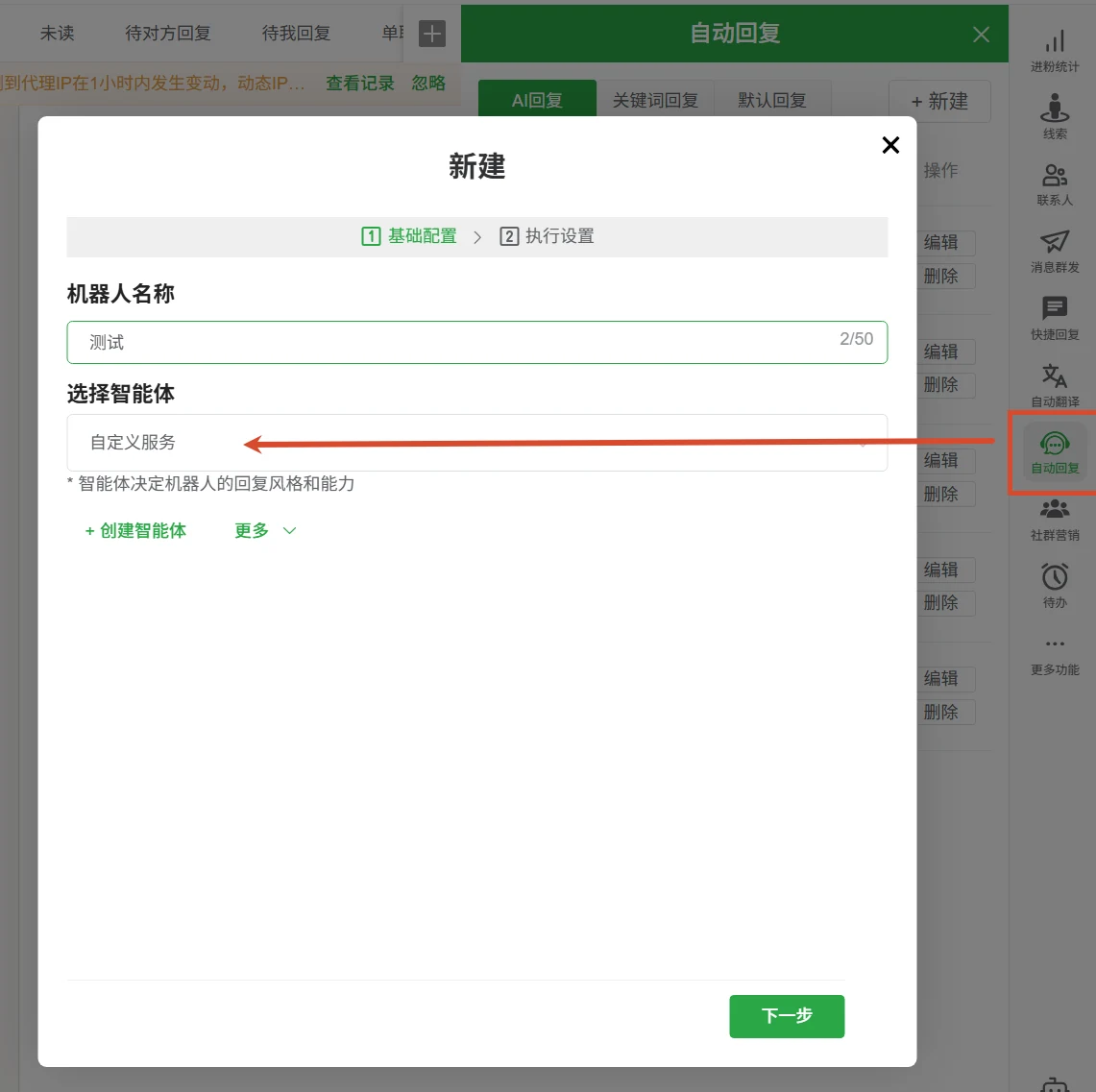
Open WADesk’s Automatic Reply feature and click Create. Enter a bot name, then select the custom provider under Select Agent. Click Next.
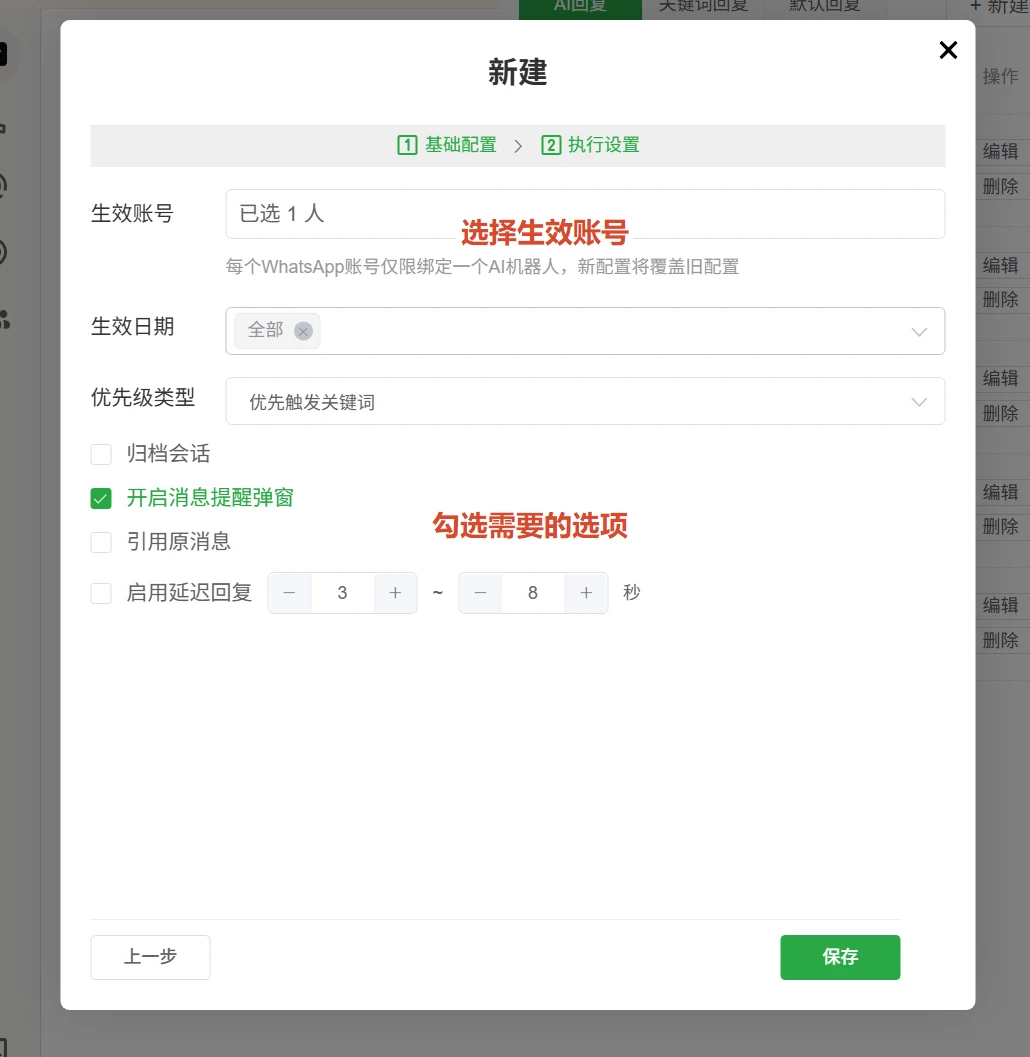
On the execution settings page, select the WhatsApp account where the bot should work. Configure the active dates, priority, notifications, quoted messages, and delayed replies as needed, then click Save.
After saving, matching WhatsApp conversations will be handled by your custom chatbot. Test with an internal account first to verify the knowledge-base answers, tone, and handoff process before enabling it for customers.
Frequently asked questions
Can I view the API key again?
The full key is shown only immediately after creation. If it is lost, delete the old key and create a new one.
Why can’t WADesk retrieve the available models?
Check that the API key is complete, the endpoint is the OpenAI-compatible Chat Completions endpoint, and the bound agent is enabled. You can also test the agent in WABot AI before testing the connection in WADesk.
Can I use a knowledge base without a system prompt?
Yes, but a clear system prompt is recommended. Define the chatbot’s role, supported topics, language, tone, and what it should do when it does not know the answer.
How should I protect the API key?
Keep it out of public repositories, frontend code, screenshots, and group chats. Use IP allowlists, rate limits, and expiration dates where appropriate, and delete unused keys regularly.