

WADesk is built around WhatsApp customer operations, but every team has different AI requirements. Some teams need a dedicated translation provider, some prefer their own Copilot model, and others want a Chatbot that follows their own sales rules.
WADesk lets you configure these three custom AI modules separately:
- Translation Engine for multilingual WhatsApp conversations
- Copilot for customer analysis and AI-assisted work
- Chatbot for automated customer replies
This tutorial follows the complete setup flow from the WADesk interface. The screenshots use the Chinese interface; the menu positions are the same when WADesk is displayed in another language.
Before You Start
Prepare the credentials required by your provider:
- API Key, or Access Key ID and Secret Key
- API endpoint, if the provider does not use a preset address
- Model ID for Copilot or Chatbot
- A system prompt and test message for Chatbot
Use a test account first. Never publish a real API key in screenshots or examples.
Step 1: Open Preferences and Find the Three Modules
Click the Settings icon in WADesk and open WADesk Preferences. The left sidebar contains the three custom AI modules:
- Translation Engine
- Copilot
- Chatbot
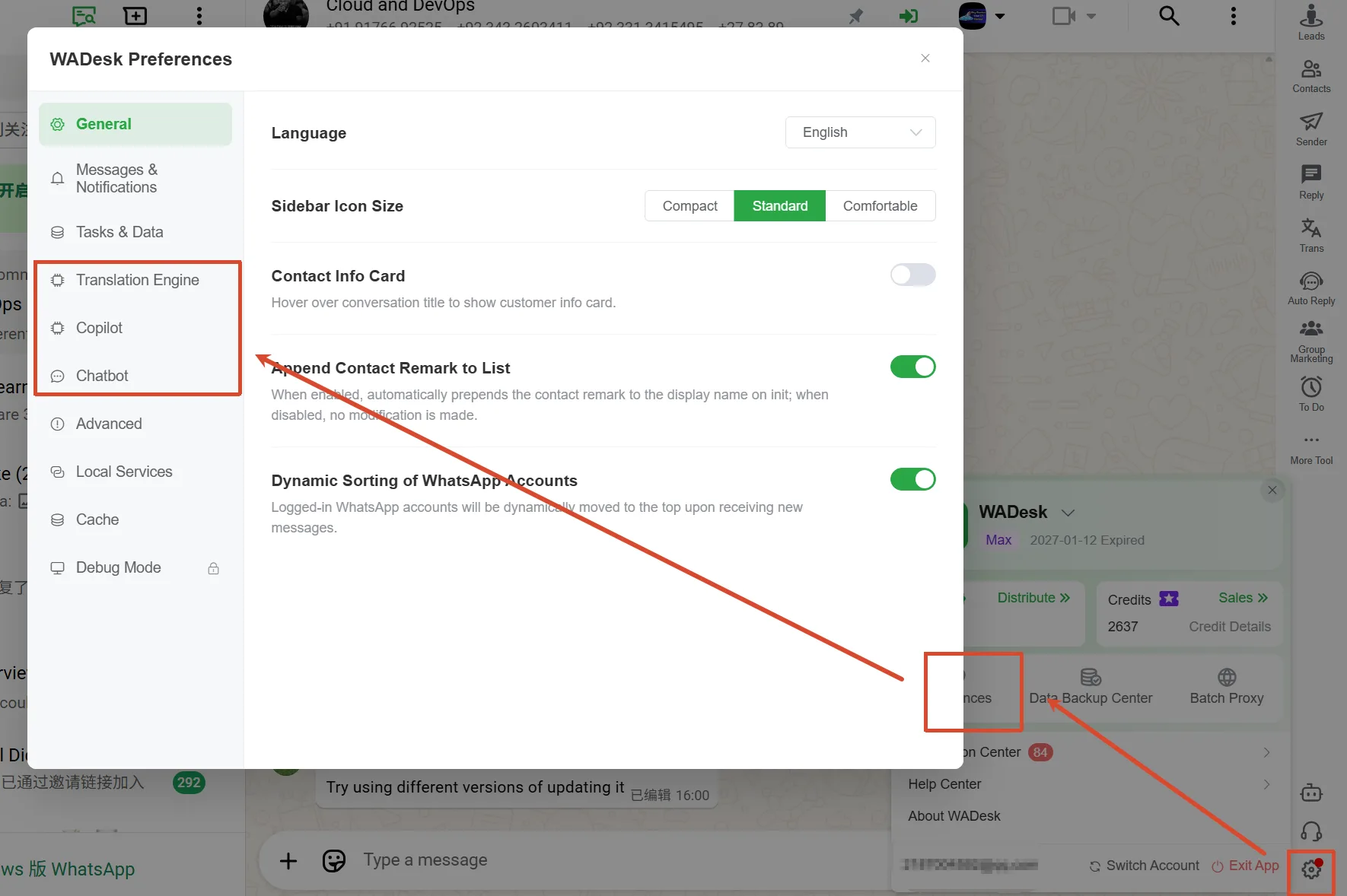
The three modules are configured independently. You can use different providers for translation, Copilot, and Chatbot.
Step 2: Configure the Custom Translation Engine
2.1 Open Translation Engine
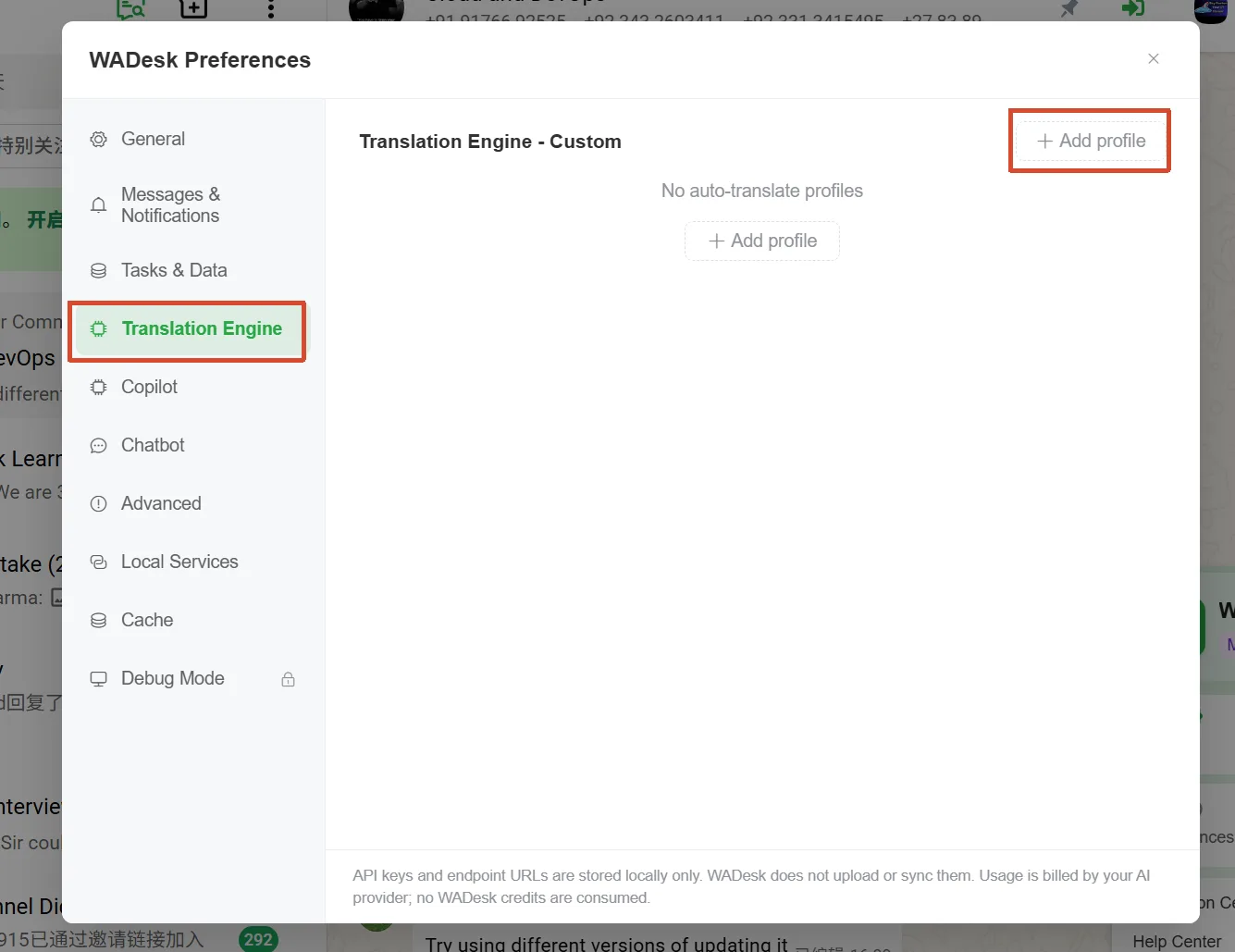
Click Translation Engine in the Preferences sidebar. Existing custom providers appear in the list. Click Add Configuration to create a new one.
2.2 Enter the provider credentials
Choose a provider from Provider Type. Depending on the provider, WADesk may ask for an API Key, an Application ID, a Secret Key, or a combination of these fields.
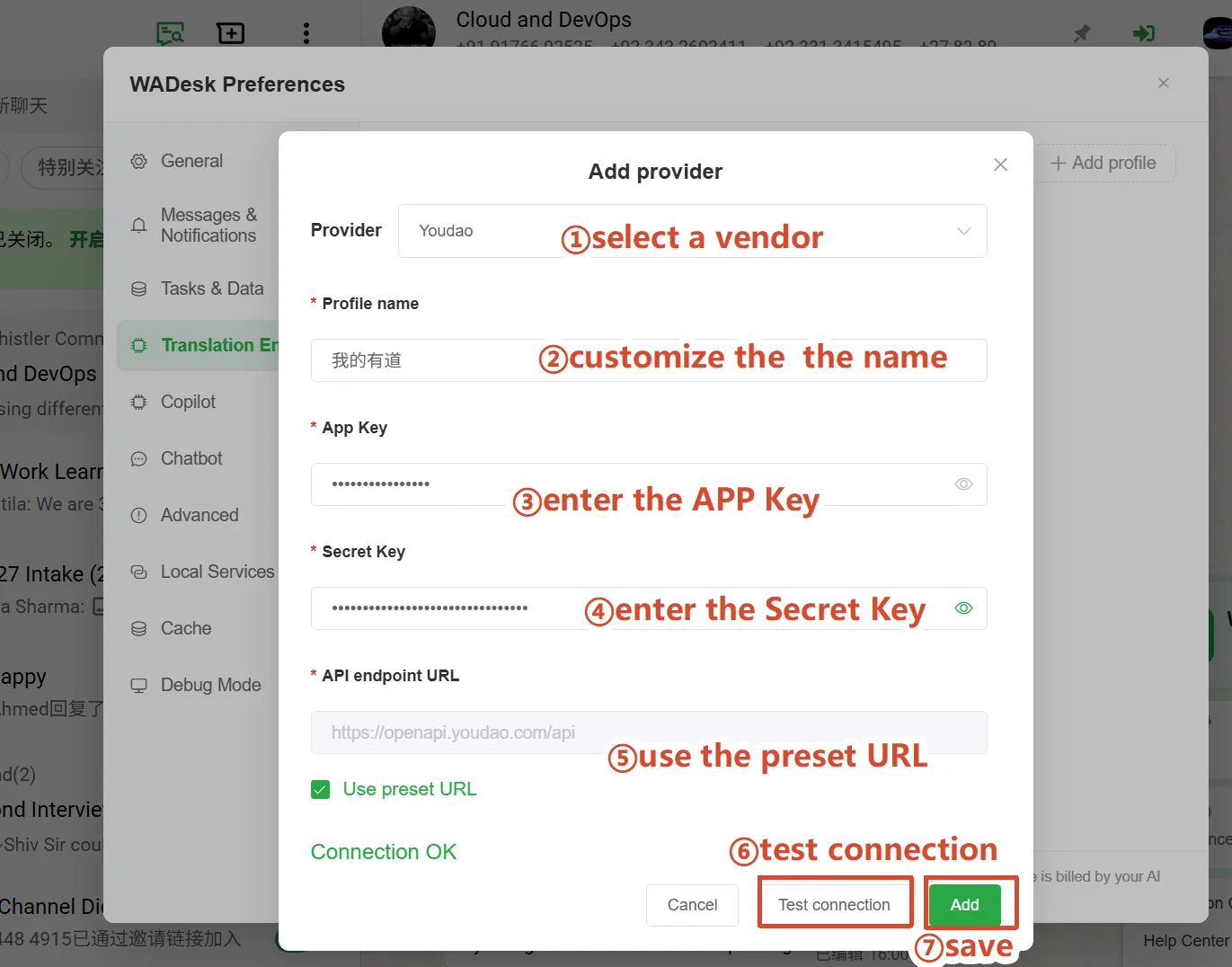
Complete the form:
- Select the provider.
- Enter a name for the configuration.
- Enter the required API Key, Application ID, or Access Key ID.
- Enter the Secret Key when required.
- Keep Use Preset URL enabled if the preset endpoint is correct.
- Disable it and enter a custom API URL when you use an internal gateway or proxy.
- Click Test Connection, then click Save after the test succeeds.
The required fields are different for DeepL, Youdao, Huoshan, Baidu, and other translation providers. Follow the credential format supplied by the provider.
2.3 Use the custom translation engine
Open a WhatsApp conversation and start the translation feature. In the Translation Engine selector, open the custom section and choose the provider you just saved.
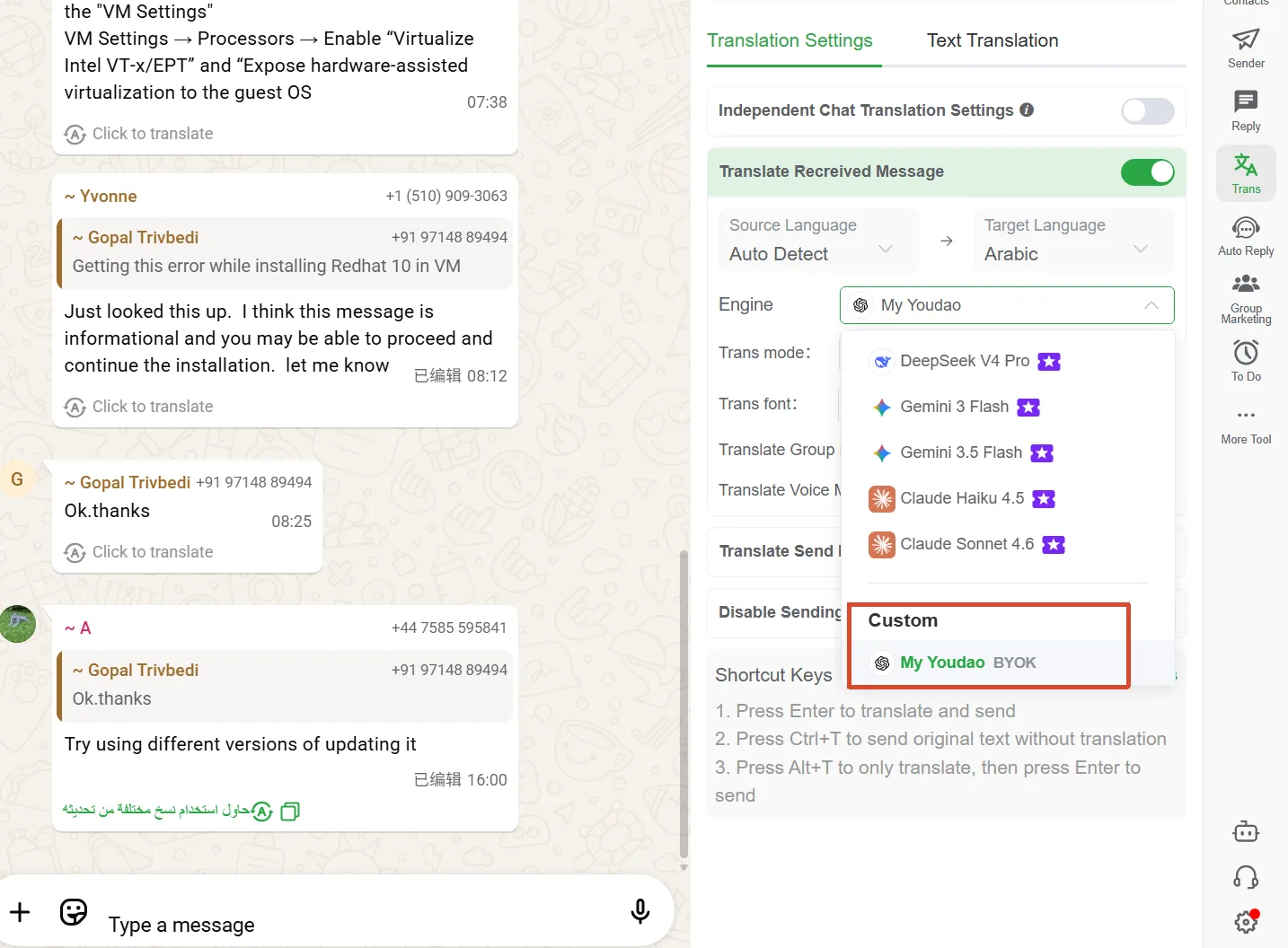
Choose the source and target languages, then translate a short message first. Check the result before using the provider for larger translation tasks.
Step 3: Configure Copilot
3.1 Add a Copilot provider
Return to WADesk Preferences and click Copilot. Click Add Configuration.
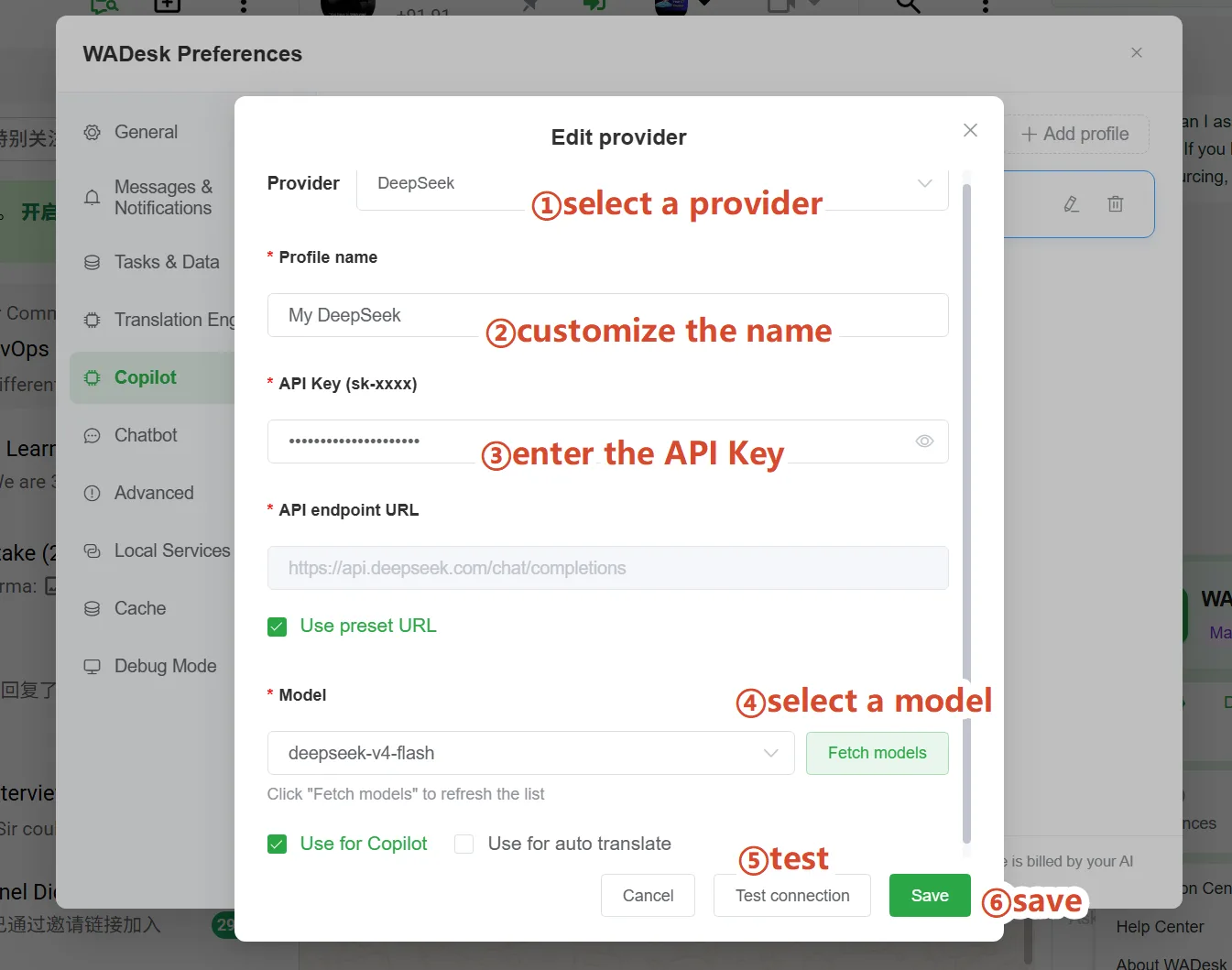
Complete the form:
- Select a provider, such as DeepSeek, Claude, OpenAI, or a custom OpenAI-compatible provider.
- Enter a name, such as
My DeepSeek. - Enter the API Key.
- Keep Use Preset URL enabled for the provider's official endpoint, or enter your own compatible endpoint.
- Click Fetch Available Models.
- Select the model that your account can use.
- Choose whether the profile is used for Copilot or automatic translation.
- Click Test Connection, then click Add.
If no model is returned, check the API key permission and provider endpoint. If the form supports manual entry, enter the model ID from the provider documentation.
3.2 Use the custom Copilot model
Open the WADesk Copilot panel and open the model selector. Under Custom, select your saved Copilot model.
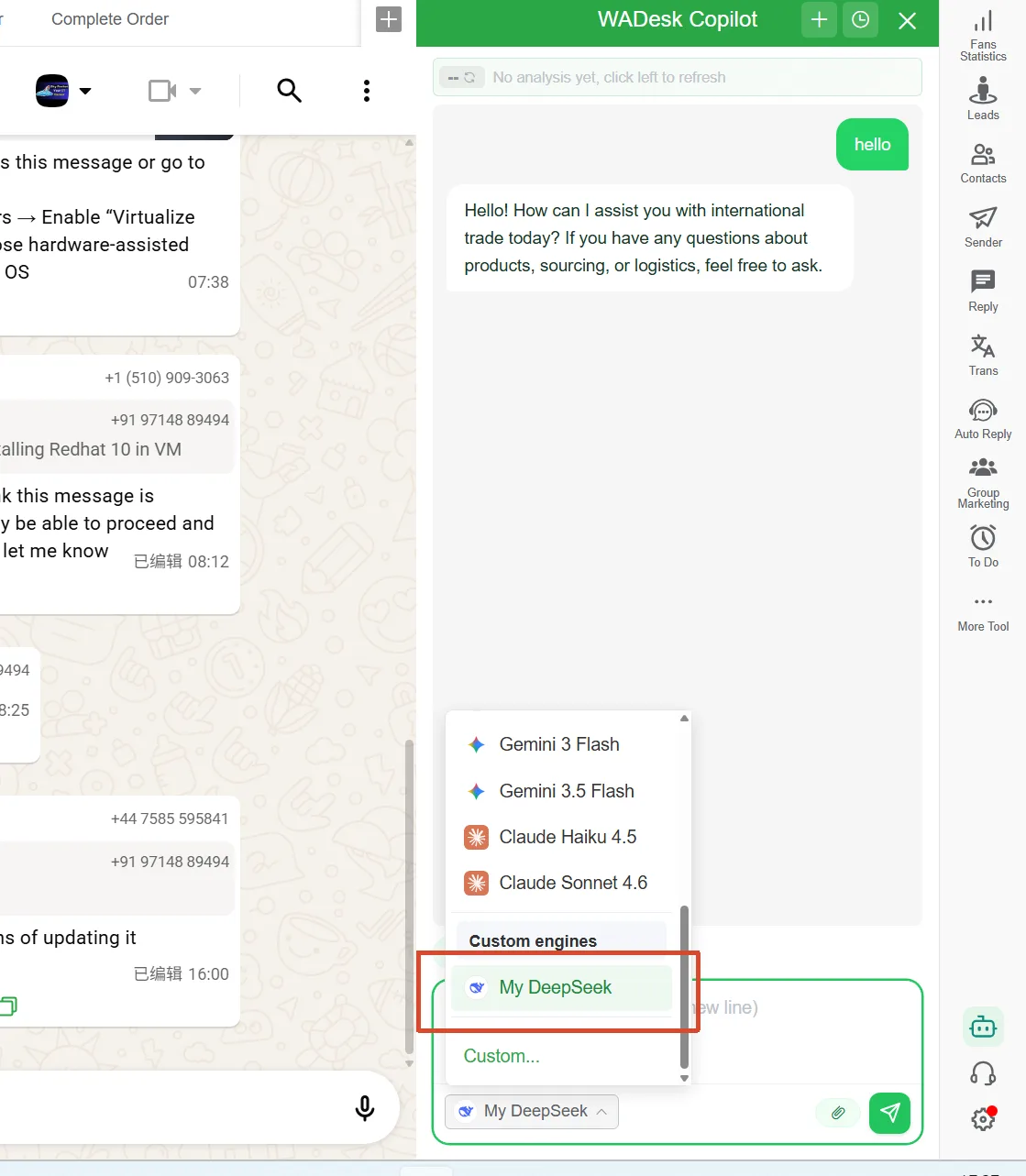
Start with a simple request, such as:
Summarize this customer's latest message and draft a polite follow-up in English.
Use a short test conversation first. Once the response quality and language are correct, use the model in your regular customer workflow.
Step 4: Configure Chatbot
4.1 Select the Chatbot provider type
Return to WADesk Preferences and click Chatbot. Click Add Configuration.
Chatbot supports common providers and a custom option for OpenAI-compatible APIs.
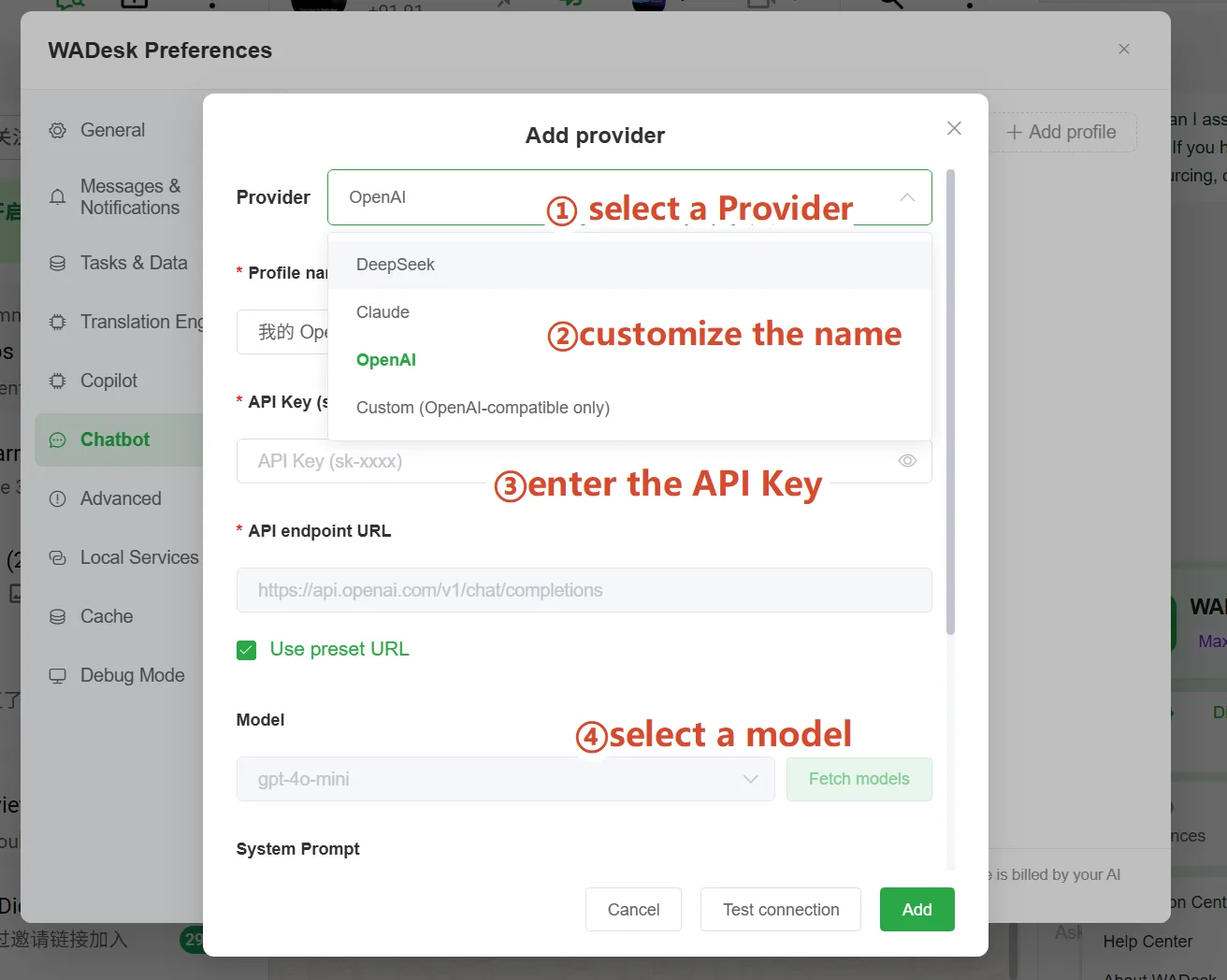
Choose the provider, enter the server name and API Key, confirm the API URL, and select or enter the model.
4.2 Add the system prompt and test content
Scroll down in the Chatbot form and complete the two fields that control the test:
- System Prompt: defines the Chatbot's role, tone, language, and business rules.
- Test Content: the message that WADesk sends during the connection test.
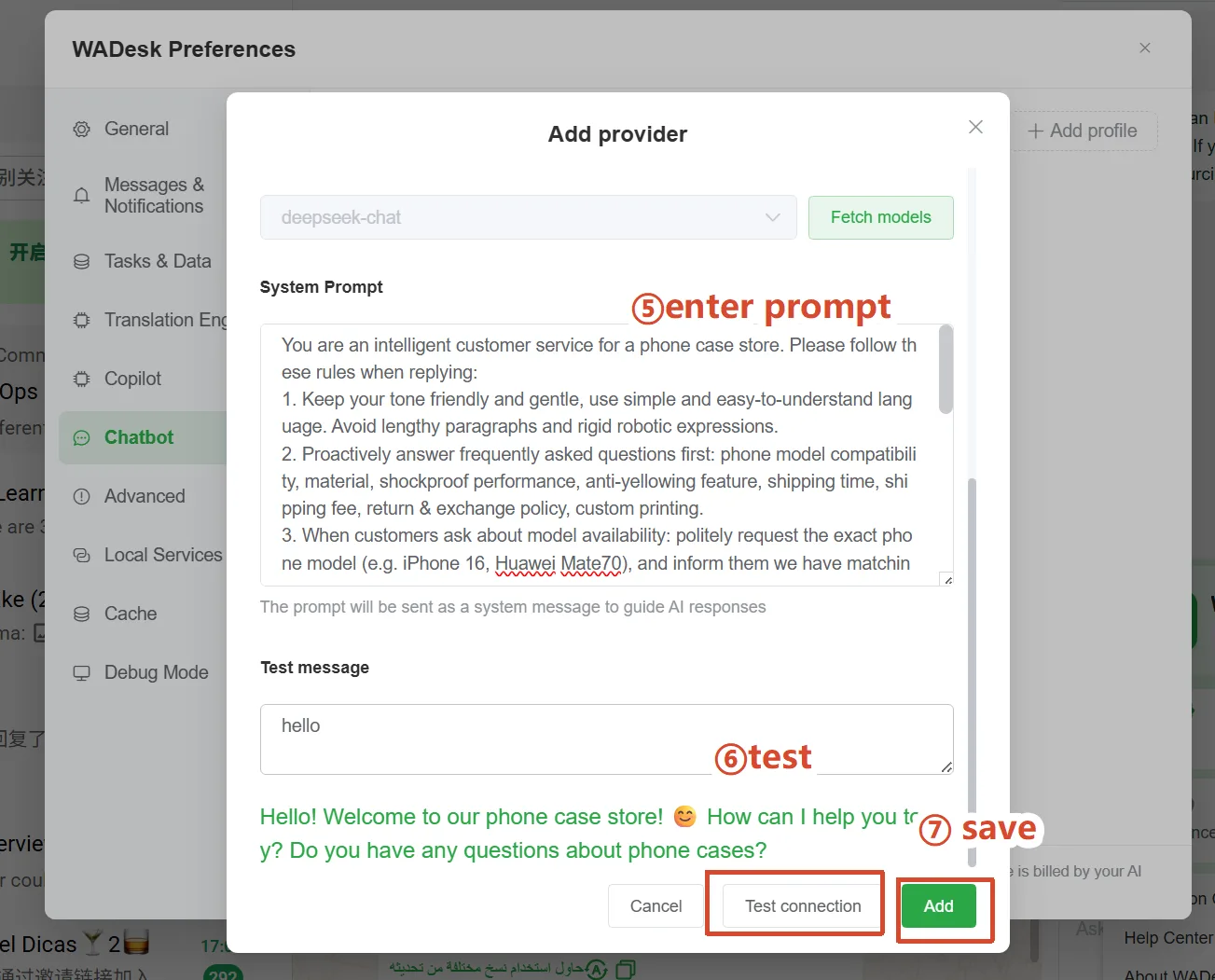
Example system prompt:
You are a professional WhatsApp sales assistant.
Reply in the same language as the customer.
Be concise and friendly.
Do not promise discounts or delivery dates that are not provided.
If you are unsure, ask a human agent to take over.
Example test content:
Hello, I would like to know more about your product.
Click Test Connection. If the reply follows your prompt, click Add to save the Chatbot configuration.
Step 5: Verify the Three Modules
Use this checklist after saving:
| Module | Verification |
|---|---|
| Translation Engine | Translate one incoming or outgoing message |
| Copilot | Select the custom model and send one analysis request |
| Chatbot | Send a test WhatsApp message and check the automatic reply |
If a module fails while the others work, test its provider separately. Each module has its own endpoint, model scope, and permissions.
Common Problems
The model list is empty
The provider may not support model listing, or the API key may not have permission to list models. Check the endpoint and enter the model ID manually if supported.
Test Connection fails
Check the API key, Access Key ID, Secret Key, preset URL, custom URL, model ID, account quota, and network access.
Translation works but Copilot or Chatbot does not
Some providers offer translation-only APIs. Copilot and Chatbot require a chat-capable model and a compatible chat-completions endpoint.
Chatbot replies do not follow the business rules
Rewrite the system prompt as short, explicit rules. Define the language, tone, prohibited promises, product information, and when to transfer the conversation to a human agent.
Start with One Workflow
You do not need to configure everything at once. Start with one translation provider, one Copilot model, or one Chatbot test. After the connection succeeds, add the other modules according to your team's WhatsApp customer workflow.